Recommended resources
The freely available resources this lesson will direct you to.
Hello! Welcome back to our course on advanced Claude Code.
In our last lesson, we accomplished a major step by architecting and building a secure, production-grade MCP server for PostgreSQL. You created a FastAPI application that uses asyncpg for high-performance database access, manages connections with a pool, and exposes a secure, parameterized query tool defined with Pydantic models.
Today, we'll switch our focus from the server to the client. The learning outcome for this lesson is to use the custom PostgreSQL MCP server to perform natural language queries from within Claude Code. We will connect the server you just built to your Claude Code environment and, most importantly, learn how to prompt Claude to translate your plain-English questions into the structured API calls our tool expects.
The Full Picture: Connecting Claude to Your Database
Let's start by visualizing the complete architecture we're working with. The MCP server you built acts as the crucial bridge between the Claude Code client and your database.
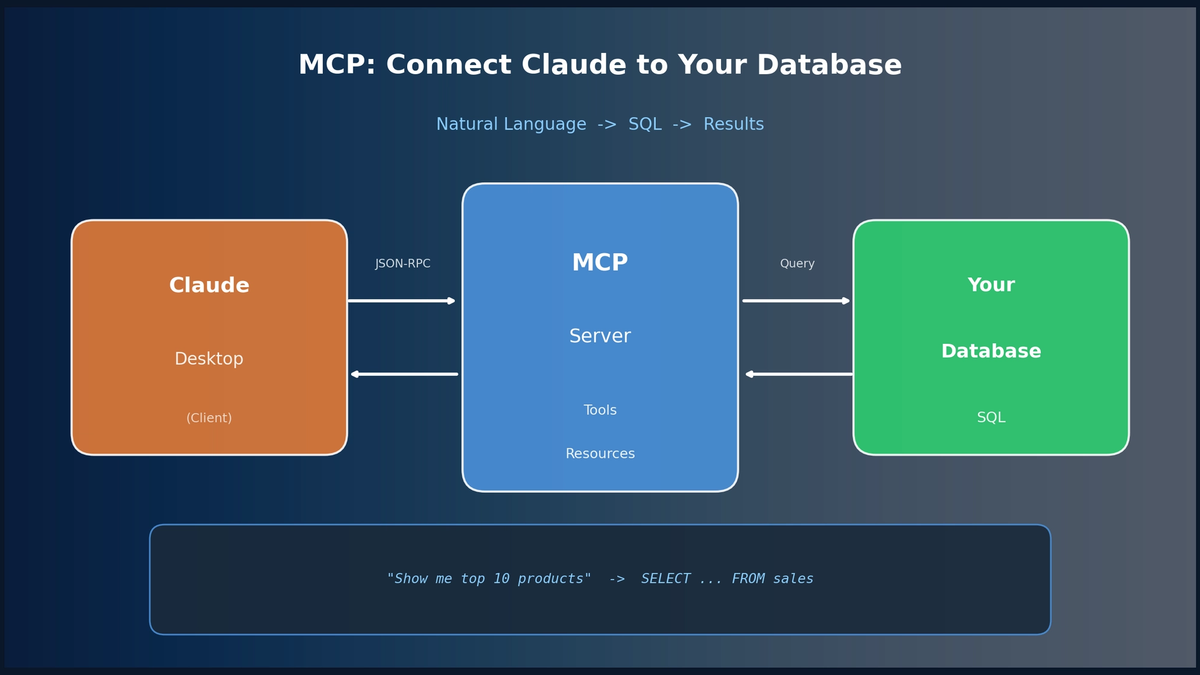
Our main tasks today are to establish the connection between the Claude Desktop Client and the MCP Server, and then to master the art of asking questions.
Step 1: Connecting Your Local MCP Server
Before you can talk to your server, Claude Code needs to know it exists. Since our server is a local process (the FastAPI app you built), we'll register it as a local stdio server. This tells Claude Code to start your server process and communicate with it over standard input/output.
The recommended way to do this is with the claude mcp add command.
Connect Claude Code to tools via MCP
The official documentation, 'Connect Claude Code to tools via MCP', explains how to register different types of servers. We'll focus on the command for adding a local stdio server.
Please review the documentation, focusing on two parts: Option 3: Add a local stdio server: Understand the basic syntax claude mcp add <name> -- <command> [args...]. This is the command we will use. Example: Query your PostgreSQL database: Notice how they use npx to run a pre-packaged server. In our case, our <command> will be the uvicorn command to run the server you built in the previous lesson.
Assuming your FastAPI server file from the last lesson is named server.py and is located in your project's root directory, you can add it to Claude Code with the following command. Run this in your terminal from your project directory:
claude mcp add --scope local pg_server -- uvicorn server:app --host 127.0.0.1 --port 8000
Let's break this down:
claude mcp add: The command to add a new server.--scope local: Makes this server available only to you within this specific project.pg_server: The name we're giving our server. We'll use this to refer to it.--: A separator. Everything after this is the command to start the server.uvicorn server:app ...: The familiar command to run your FastAPI application.
Important: For this to work, the environment variables for your database connection (DB_USER, DB_PASSWORD, etc.) must be available in the shell where Claude Code runs. Ensure your .env file from the last lesson is present in the project directory.
What If It Doesn't Work?
Configuration issues are common. If Claude Code shows an error after you add the server, the log files are your best friend. This video provides a great walkthrough of the debugging process.
Set Up PostgreSQL MCP Server with Claude Desktop
The video 'Set Up PostgreSQL MCP Server with Claude Desktop' demonstrates how to connect a server and, more importantly, how to troubleshoot a faulty connection by inspecting the log files.
Watch the section from 13:52 to 15:58. The presenter intentionally makes an error in the server configuration and then uses the 'Open log folder' option in Claude Code to diagnose and fix the 'Failed to spawn' error. This is a critical skill for managing custom MCP servers.
Step 2: The Core Mechanism — How Claude Understands Your Request
Now for the most interesting part. When you ask Claude, "How many users do I have?", how does it know to use your pg_server and construct a call to the execute_parameterized_sql tool?
The answer is that Claude reasons about your request using the information it has about the available tools. It does not simply pass your question as a string to the tool.
This next video segment explains this translation process perfectly.
Set Up PostgreSQL MCP Server with Claude Desktop
This video clip explains the crucial distinction between the user's natural language query and the structured input the AI tool actually receives.
Watch from 10:53 to 13:15. The key insight here is that the AI agent acts as a translator. It takes your natural language question, interprets your intent, and then constructs a valid SQL query (in our case, a SQLQueryRequest object) to pass to the tool function. The JSON result from the tool is then processed by the AI and presented back to you in natural language.
To be specific, Claude relies on three pieces of information you provided when you registered the tool in the previous lesson:
- Tool Name:
execute_parameterized_sql - Tool Description (Docstring): "Executes a parameterized SQL SELECT query against the PostgreSQL database. Only for read-only (SELECT) operations."
- Input Schema (
SQLQueryRequestPydantic model):query: A string for the SQL with placeholders ($1,$2, etc.).params: A list of values to safely substitute into the placeholders.
When you ask a question related to your database, Claude's reasoning process is:
- "The user is asking a database-related question."
- "The
execute_parameterized_sqltool seems appropriate based on its description." - "To use this tool, I must generate a JSON object with
queryandparamskeys." - "Based on the user's question, the correct SQL query is
SELECT COUNT(*) FROM users;." - "This query has no parameters, so
paramswill be an empty list." - "Therefore, I will call the tool with
{'query': 'SELECT COUNT(*) FROM users;', 'params': []}."
Step 3: Putting It Into Practice
Let's guide Claude to perform this translation. For the first time, it's helpful to provide Claude with explicit context about your tool and database schema.
First, ensure your MCP server is running (you should see it in the Claude Code tool panel). Then, start a new chat and use the following prompt.
Initial Context-Setting Prompt
I have a local MCP server running called 'pg_server' that exposes a tool named 'execute_parameterized_sql'.
Tool Schema:
- Description:
Executes a parameterized SQL SELECT query.- Input Model (
SQLQueryRequest):
query(string): The SQL query with placeholders like$1.params(list): A list of values for the placeholders.Database Schema:
My database contains auserstable with the following columns:id(integer),username(varchar),created_at(timestamp).Now, please act as an expert SQL writer. When I ask a question, your job is to translate it into the correct tool call for
execute_parameterized_sql. Do not execute it immediately. First, show me theToolUseblock you would generate for my question.My first question is: "How many users are there?"
Claude should respond by showing you its reasoning and the ToolUse block, which will contain the JSON payload, without executing it. It should look something like this:
{
  "tool": "pg_server:execute_parameterized_sql",
  "input": {
    "query": "SELECT COUNT(*) FROM users;",
    "params": []
  }
}
Once you see this and confirm it's correct, you can simply reply:
Go ahead.
Claude will then execute the tool call, receive the SQLQueryResult from your server, and present the answer in a human-readable format, like "Your users table has 217,605 rows."
Exercise: A Query with Parameters
Now, try a more complex query. Ask a new question in the same chat:
Find the user with the email 'some.user@example.com'.
Claude should again show you its plan. This time, notice how it uses a parameterized query to prevent SQL injection:
{
  "tool": "pg_server:execute_parameterized_sql",
  "input": {
    "query": "SELECT * FROM users WHERE email = $1;",
    "params": [
      "some.user@example.com"
    ]
  }
}
This demonstrates the power and security of the server you built. You are interacting with your database using natural language, while the MCP server ensures the interactions are safe and structured.
Conclusion
In this lesson, you successfully bridged the gap between your custom MCP server and the Claude Code client. You've moved from theory to practice, turning your database into a resource you can converse with.
Key Takeaways:
- You can connect local servers to Claude Code using the
claude mcp add --transport stdiocommand. - Troubleshooting MCP connections is best done by examining the log files provided by Claude Code.
- Claude translates natural language into structured tool calls by using the tool's name, description, and input schema as a guide.
- Providing explicit context about your tools and database schema in your initial prompts leads to more reliable and accurate results.
Next Up:
You have now built and used a custom, stateful MCP server from scratch. This is a powerful capability for your own projects. In the next lesson, we will broaden our scope and learn how to integrate a third-party MCP server (e.g., from GitHub or Sentry) into your Claude Code workflow. This will allow you to connect Claude to popular external services without having to build the server yourself.