Recommended resources
The freely available resources this lesson will direct you to.
Welcome back! In our last session, we focused on skimming technical articles to quickly grasp the big picture—the author's main argument and overall solution. This is an essential skill for staying current. Today, we shift from the wide-angle lens to the microscope. We will master the complementary skill of scanning.
Your goal for this lesson is to learn how to efficiently scan dense release notes to pinpoint the exact information you need: specific bug fixes, critical breaking changes, and new features that are relevant to your projects. As a full-stack engineer responsible for application maintenance, this isn't just an academic exercise. Quickly identifying a breaking change in a dependency's new version can be the difference between a smooth update and a weekend spent debugging.
Skimming vs. Scanning: A Developer's Analogy
In the last lesson, we established that skimming is like getting a high-level architectural diagram of a document. Scanning, by contrast, is more like using a targeted search command. You aren't trying to understand the whole file; you're looking for a specific function, variable, or line of code.
Let's formalize this distinction.
Skimming and Scanning | University of Tennessee at ...
This document from the University of Tennessee at Chattanooga provides clear, concise definitions for both skimming and scanning.
Read the section titled What Is Scanning?. Notice the key phrase: "you look only for a specific fact or piece of information without reading everything." This is the core principle we'll build on.
In essence, when scanning, you have a query in your mind—"Is the XYZ bug fixed?" or "Are there any API deprecations?"—and your only goal is to find the answer.
The Anatomy of Effective Release Notes
To scan a document effectively, you must first understand its structure. Fortunately, the software development community has established conventions for how to write good release notes, or "changelogs." These conventions are designed specifically to make the documents easy for humans to parse.
First, let's clarify the difference between a raw commit log and a curated changelog, and how that relates to the more polished release notes you might see.
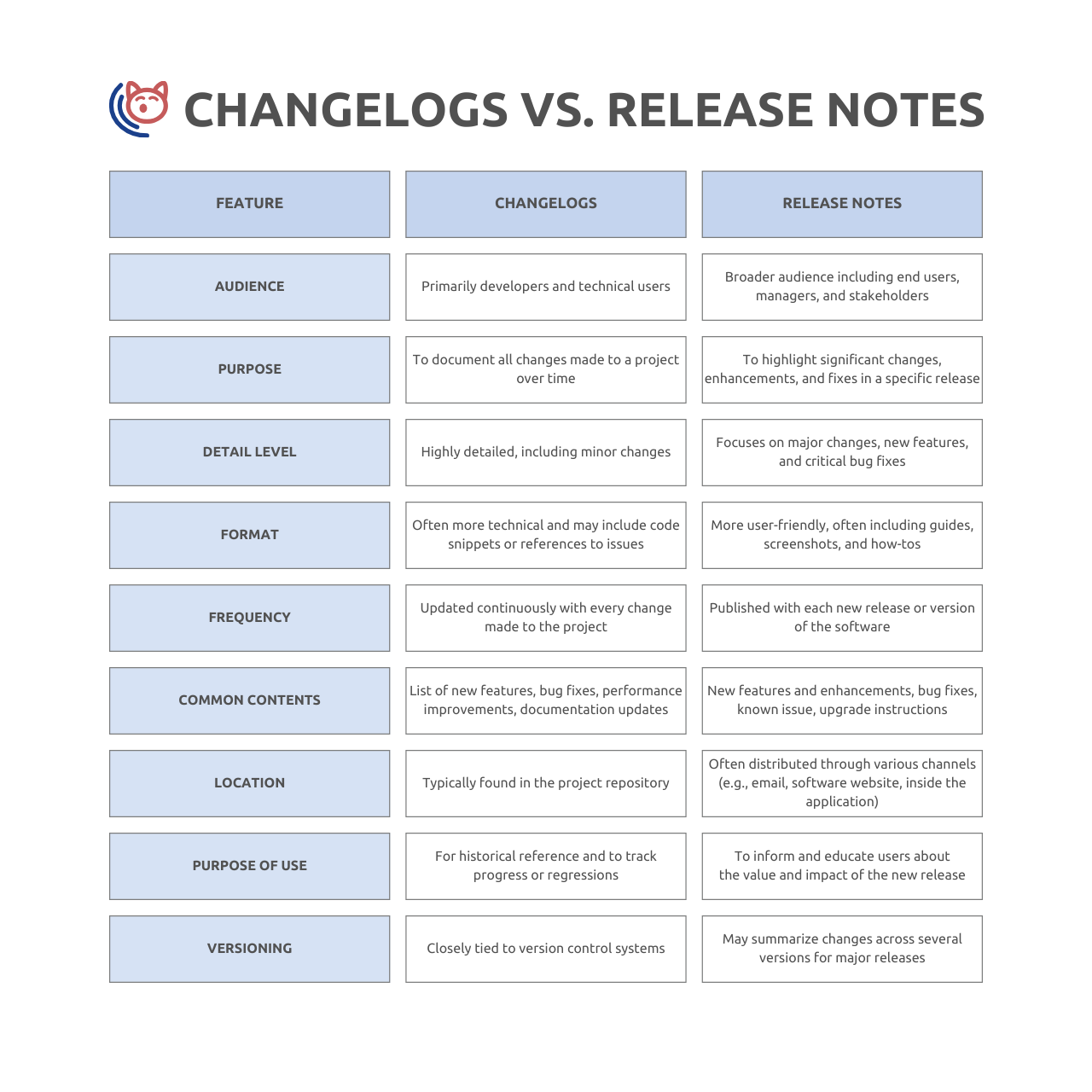
For our purposes as developers, we are often dealing with the format known as a changelog. A well-structured changelog is not simply a list of Git commits. It's a curated summary of what matters. The image below shows how structured "Conventional Commits" in a Git repository can be automatically transformed into a clean, readable changelog. This is the kind of structure you should hope to find.

The most popular standard for this format is "Keep a Changelog." Understanding its principles is like having a map before you enter the territory.
The "Keep a Changelog" website is the definitive guide to writing human-readable changelogs. By understanding how they should be written, you'll know exactly what to look for when reading them.
Read the introduction to understand the purpose of a changelog. Then, pay close attention to two sections: Guiding Principles: Focus on the ideas that changelogs are for humans and that changes should be grouped. Types of changes: This is the most important part for scanning. Memorize these keywords: Added, Changed, Deprecated, Removed, Fixed, Security. These are your primary scan targets. Ignoring Deprecations: Read this short section. It emphasizes why listing breaking changes is the most critical part of a changelog.
A Systematic Strategy for Scanning Release Notes
Armed with this knowledge, you can now approach any set of release notes with a clear, systematic strategy.
Step 1: State Your Purpose and Identify Keywords
Before you start, define what you're looking for. This will determine your keywords.
- Looking for a bug fix? Your keywords are
Fixed,Bug Fixes,Patches, and the specific issue number or a term describing the bug (e.g., "memory leak," "null pointer"). - Concerned about breaking changes? This is often the top priority. Your keywords are
Breaking Changes,Removed,Deprecated. The wordDeprecatedis a crucial signal that your code will need to change in the future, whileRemovedmeans it will break now. - Exploring new functionality? Your keywords are
Added,New Features,Enhancements.
Step 2: Locate the Relevant Version
Release notes are chronological. Scan for the version number you are updating to. Use your browser's find function (Ctrl+F or Cmd+F) for the version number (e.g., v4.5.1) to jump directly to the right section.
Step 3: Scan for Your Keywords within That Version
Once you're in the correct version block, scan for the keyword headings (### Fixed, ### Added, etc.). Your eyes should ignore everything else and jump directly to these signposts. Read the bullet points under the relevant heading.
Let's watch a developer walk through a real changelog that uses this format.
Making a Human Friendly Changelog by Following Keep a Changelog's Tips
In this video, developer Nick Janetakis explains and demonstrates the "Keep a Changelog" format. He shows how the structure makes it easy for other developers to understand what's changed.
Watch these key moments: The introduction where he explains why a raw Git log is useless and how categorizing changes into Added, Changed, Fixed, etc., provides immediate value. The live example where he shows a changelog with linked versions and clear Added and Fixed sections. Notice how easy it is to spot the different types of changes. The comparison where he shows his older, less-structured changelog. See how a "wall of text" makes it nearly impossible to quickly scan for specific information compared to the categorized format.
Analyzing Real-World Release Notes (The Good, The Bad, and The Dense)
Of course, not all companies follow these best practices. Let's analyze a few real-world examples to see what makes release notes easy or difficult to scan.
Release Notes: Best Practices and Real-life Examples
This video from K15t, a software company, critiques the release notes of several major products. It's a masterclass in what to look for from a user's perspective.
As you watch, focus on the "scan-ability" of each example. How quickly could you find a specific bug fix or breaking change? The Problem: First, watch the segment on poorly written release notes. They are described as "too technical," "not formatted well," and "hard to skim through." This is the "dense" text we're learning to conquer. Unreal Engine (Good Example): Now skip to the Unreal Engine analysis. The presenter notes that it's "very easy to scan because they're using headings and great structure." This is a model of scan-friendly design. You can easily find the section relevant to your work (e.g., Audio, Rendering) and check for changes. OBS Studio (Challenging Example): Finally, watch the review of OBS Studio's release notes. The presenter points out "there is no headings or grouping" and it's just a "really, really big bulleted list." This is a classic example of a dense document where our scanning strategy becomes vital. In this scenario, you would have to rely heavily on your browser's find function with keywords like "fix," "add," "remove," and terms related to the specific feature you're interested in.
Conclusion
Today, we've transformed reading release notes from a passive activity into a targeted, surgical search. By understanding the underlying structure of a good changelog and focusing on specific keywords, you can cut through the noise and find the critical information you need in seconds.
Here are your key takeaways:
- Scanning is a targeted search: Unlike skimming for gist, scanning is about finding a specific piece of information.
- Know the keywords: The "Keep a Changelog" standard gives us a shared vocabulary.
Added,Changed,Deprecated,Removed,Fixed, andSecurityare your primary signposts. - Prioritize breaking changes: Always scan for
Breaking Changes,Deprecated, andRemovedfirst to assess the immediate impact on your project. - Structure is everything: Well-structured notes with clear headings are easy to scan. For dense, unstructured notes, rely on your browser's find command and a list of prepared keywords.
In our next lesson, we will complete this module by tackling our most complex reading task yet: synthesizing information from multiple technical sources. You'll learn how to take a problem, scan official docs, a GitHub issue thread, and a Stack Overflow post, and then pull together the scattered pieces of information to form a complete solution.