Recommended resources
The freely available resources this lesson will direct you to.
Welcome back! In our last lesson, you created your first local website and saw the magic of the edit-save-refresh loop using VS Code and Live Server. You learned what it means to run code on localhost and now have a fundamental workflow for turning code into a working preview on your machine.
As we concluded, you'll often see AI assistants like Claude prompt you to open a black window and type in cryptic commands. This lesson will demystify that window—the terminal—and explain precisely why it's not a scary tool for hackers, but rather your new best friend in the "vibe coding" process.
By the end of this 60-minute lesson, you'll understand what the terminal is, why your AI assistant constantly asks you to use it, and you'll feel comfortable opening it and running your very first command.
What is the Terminal? A Direct Conversation with Your Computer
At its heart, the terminal (also known as the command line) is simply another way to operate your computer. You're already an expert at using a Graphical User Interface (GUI)—clicking on folders, dragging files, and opening applications with your mouse. The terminal is a Command-Line Interface (CLI), where you do the same things by typing text commands.
Think of it like this:
- GUI: Ordering from a restaurant menu by pointing at pictures. It's visual and intuitive.
- CLI: Ordering by telling the chef exactly what you want, including custom ingredients. It's faster, more precise, and allows for complex requests you can't make from the picture menu.
For a great introduction to the terminal from a designer's perspective, I recommend this short video.
How to use the Command Line | Terminal Basics for Beginners
This video from designer/developer Jesse Showalter directly addresses the initial fear of the terminal and clarifies the basic terminology.
Watch the first two minutes, from the beginning to the explanation, to get comfortable with the concepts of the terminal, the command line, and the prompt.
As the video explains, the terminal is the program itself, and the command line is where you type your instructions. It's a powerful and direct way to give your computer orders.
Why Does Claude Keep Asking You to Use It?
This is the most important question. If you can use a GUI for everything else, why is the terminal essential for building modern apps?
The answer is that all the powerful tools, frameworks, and libraries that enable modern app development are designed to be managed with text commands. Simple HTML pages can be handled with a tool like Live Server, but the moment you want to build something more complex—an interactive site with animations, user logins, or AI features—you need to use tools that are controlled via the terminal.
The commands your AI assistant gives you are essentially "spells" to activate these powerful systems. The terminal is the place where you cast them.
Terminal Basics for Non-Developers: A Beginner's Guide to Vibe Coding (2026)
This article is written specifically for people "vibe coding" and gets straight to the point.
Read the first section, What Is a Terminal and Why Vibe Coders Need It. It perfectly summarizes why the commands an AI gives you, like npm run dev or git commit, must be entered into a terminal.
When Claude asks you to do something in the terminal, it's usually one of a few key actions:
- Setting up a project: A command like
npx create-next-appautomatically builds the entire folder structure and configuration for a new web application. Doing this by hand would be incredibly tedious. - Installing new tools: A command like
npm install framer-motiondownloads and installs a library for animations, making it available for you to use in your code. - Running your project: A command like
npm run devstarts a more advanced version of the "Live Server" we used before, capable of handling complex code. - Saving and sharing your work: Commands like
git commitandgit pushare used to track your code changes and share them on platforms like GitHub.
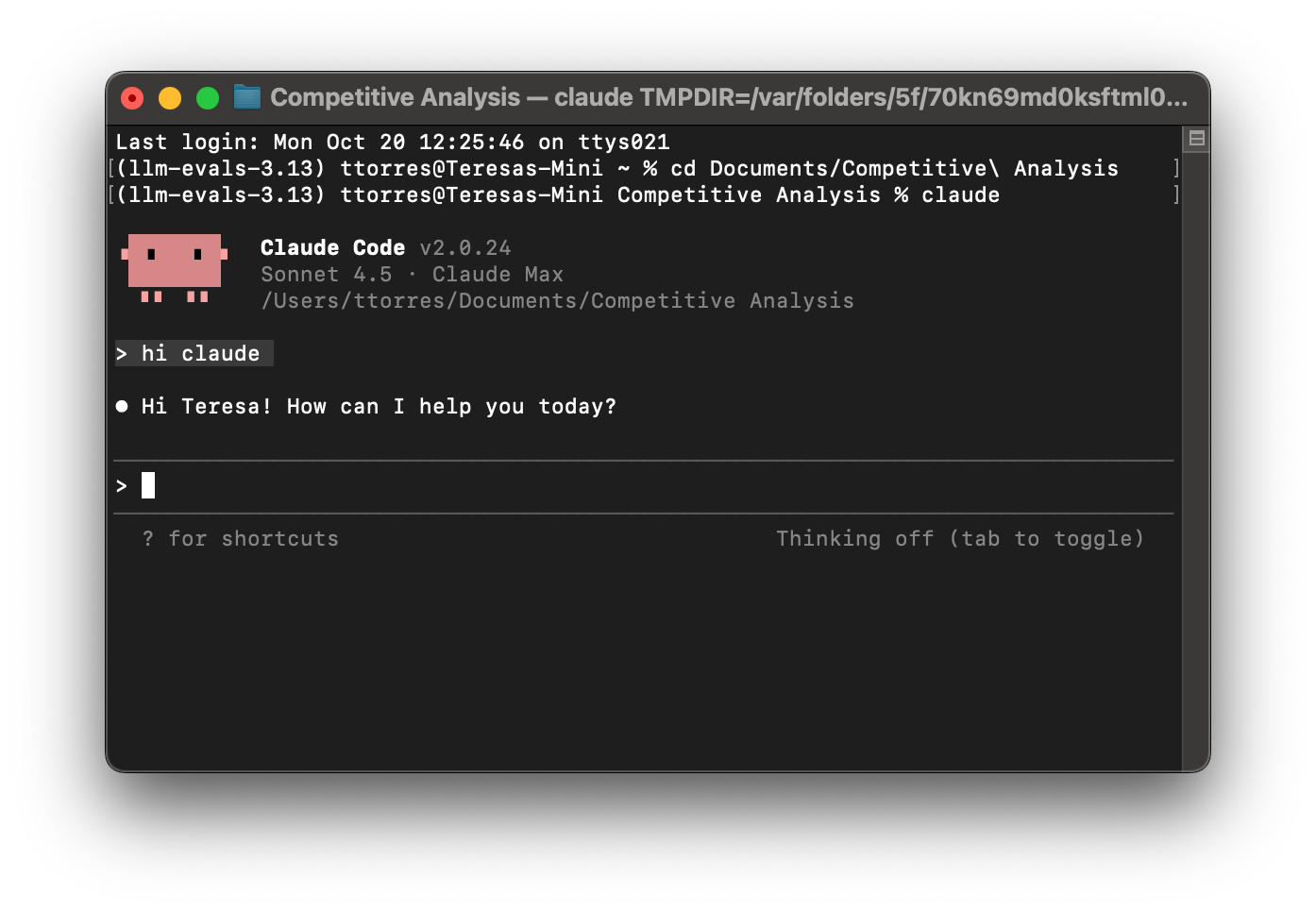
The terminal is the central hub for all these activities. Far from being a hurdle, it's what enables AI to help you in such a powerful way. An AI in a browser can give you code, but an AI that can issue terminal commands can build and manage an entire project for you.
This video dramatically illustrates why interacting with AI in the terminal is a "superpower" compared to just using a browser.
You've Been Using AI the Hard Way (Use This Instead)
This clip from NetworkChuck's channel highlights how terminal-based AI is a game-changer for any project.
Watch these three short segments to understand the benefits: First, watch the introduction from the beginning to hear the core argument for why the terminal is a more powerful way to work with AI. Next, see the "superpower" in action at this clip, where the AI directly creates files on the computer—something a browser chat can't do. Finally, understand the benefit of ownership from this segment, which explains how working in the terminal keeps all your project files and context on your own machine.
Your Workspace: The VS Code Integrated Terminal
You don't need to hunt for a separate terminal application. The best place to use the terminal is right inside VS Code. This keeps your code and your commands in one place, creating a seamless workflow.
To open it, use the keyboard shortcut: Ctrl + (the backtick key, usually located below the Esc key).
A panel will appear at the bottom of your VS Code window. This is your integrated terminal.
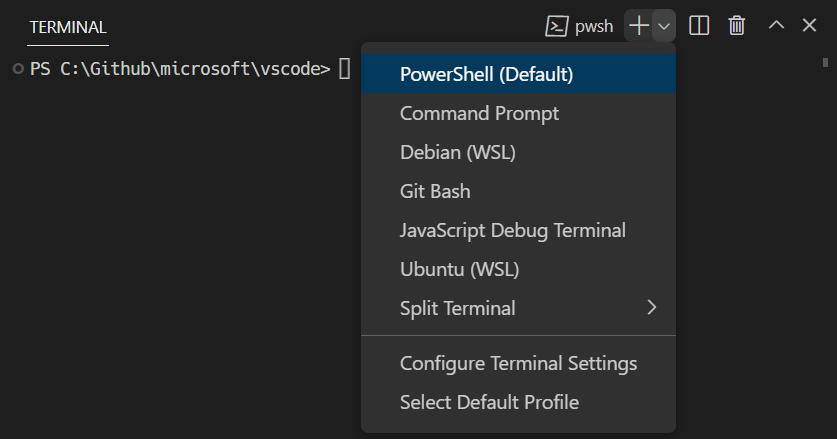
When you open the integrated terminal within a project folder, it automatically starts in that exact location. This is incredibly helpful because it means any commands you run (like installing a library) will apply to the project you're currently working on.
Let's try it.
- Make sure you have your
my-first-websiteproject open in VS Code from our last lesson. - Open the integrated terminal with `Ctrl + ``.
- You'll see a line of text followed by a blinking cursor. This is the prompt. It's waiting for your command.
- Type your very first command:
pwd - Press
Enter.
The command pwd stands for "Print Working Directory." It does nothing but report the full path to the folder you are currently "in." You should see the path to your my-first-website folder printed on the screen. This is a safe and useful command to confirm your location before you run other commands.
Conclusion
You've now taken a huge step in demystifying the development process. The terminal is not a barrier; it's an accelerator. It's the control panel that lets you (and your AI assistant) wield the powerful tools needed to build real applications.
Key Takeaways:
- The terminal is a text-based interface (CLI) for controlling your computer, as opposed to the graphical interface (GUI) you use with a mouse.
- It is essential for modern development because powerful tools for project setup, package installation (
npm), and version control (git) are operated through command-line commands. - Your AI assistant asks you to use the terminal so it can help you execute these powerful actions, like installing libraries or starting a development server.
- The VS Code Integrated Terminal (`Ctrl + ``) is the most convenient way to work, as it keeps your code and commands in a single window.
- The
pwdcommand is a safe way to check your current directory at any time.
You now understand what the terminal is and why it's so important. But to use it effectively, you need to know how to move around. In our next lesson, we will cover the three most fundamental navigation commands—cd, ls, and pwd—so you can confidently navigate your computer's file system without ever touching your mouse.