Recommended resources
The freely available resources this lesson will direct you to.
- Node.js Quick Start Tutorial for Beginners: Part 10 | Ignore node modules with gitwww.youtube.com
- Git Crash Course #9 - .gitignore Filewww.youtube.com
- Gitignore Explained: What is Gitignore and How to Add it to Your Repowww.freecodecamp.org
- How to Ignore 'node_modules' Folder in Git?www.geeksforgeeks.org
Hello! In the last few lessons, we've built a solid workflow for managing your code. You've learned to track changes locally with Git, create branches for new features, and use GitHub pull requests to collaborate and merge your work. This covers the entire lifecycle of your source code—the files you write and edit directly.
But what about all the other files in your project folder? When you run npm install, a massive node_modules folder appears. Your code editor might create a .vscode folder. Your operating system might litter the directory with hidden files like .DS_Store. If you push all of this to GitHub, your repository will become bloated and messy.
This lesson addresses the final, crucial piece of managing a clean project: intentionally ignoring files. We will explore what the .gitignore file is, why it's essential for every project, and specifically why files like node_modules and secret API keys should never be tracked in version control.
The "Do Not Disturb" Sign for Your Project
When you use Git, its default behavior is to watch every single file and folder in your project directory. However, not all files are created equal. Some are temporary, some are huge and can be recreated automatically, and some contain private information. We need a way to tell Git, "Please ignore these specific files."
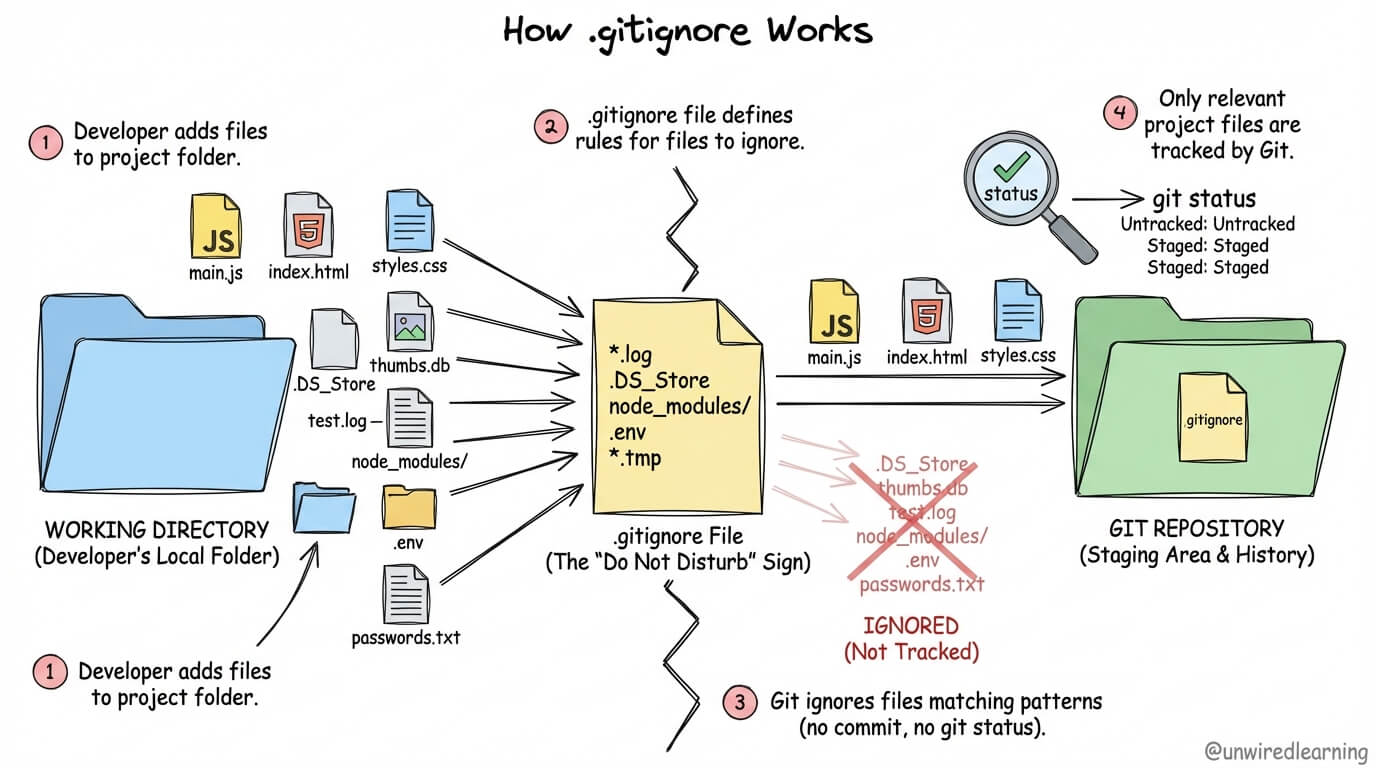
This is the job of a special file named .gitignore. Think of it as a "do not track" list that you place in the root of your project. Any file or folder name you add to this list will be ignored by Git. It won't show up in git status, it won't be added with git add, and it will never be committed to your project's history.
The diagram below illustrates this concept perfectly. Your working directory might be full of all sorts of files, but the .gitignore file acts as a filter, ensuring only the relevant project files are tracked and stored in your Git repository.
Why We Ignore Files: The Case of node_modules
The most common folder you'll ignore is node_modules. You've already seen this folder appear after running npm install. It contains all the actual code for the packages your project depends on. Here’s why we explicitly tell Git to ignore it.
Git Crash Course #9 - .gitignore File
The Net Ninja channel has an excellent "Git Crash Course" series. This video opens by explaining the core reasons for ignoring files in a project.
Watch the introduction from the beginning to understand the problem. The presenter clearly explains why tracking things like editor settings (.vscode), large dependency folders (node_modules), or sensitive information (.env files) is a bad idea.
As the video explains, there are three main reasons to ignore the node_modules folder:
- Size: The
node_modulesfolder can contain thousands of files and be hundreds of megabytes in size. Committing this to your repository makes it slow to clone and work with. - Redundancy: The
package.jsonfile already lists all your project's dependencies. It acts as a recipe or a bill of materials. Anyone (including you on a different computer) can perfectly regenerate the entirenode_modulesfolder by simply runningnpm install. There's no need to store the ingredients when you already have the recipe. - Noise: Committing
node_moduleswould flood your project history with thousands of files that you didn't write, making it difficult to see your own changes.
Other common files to ignore include:
- Environment files (
.env): These files store secret API keys, database passwords, and other sensitive credentials. You never want to commit these to a public repository. This is like leaving your house keys and alarm codes taped to your front door. - System files: Operating systems like macOS and Windows create hidden files for their own purposes (e.g.,
.DS_Store,Thumbs.db). These are irrelevant to your project. - Build output: When you "build" a project for deployment, a tool might generate an optimized version of your code in a
distorbuildfolder. This generated code shouldn't be tracked, just likenode_modules.
How to Use .gitignore
Using .gitignore is straightforward. You create a file named .gitignore in the root of your project directory and list the files and folders you want to ignore, one per line.
The following article from GeeksforGeeks provides a concise, step-by-step guide.
How to Ignore 'node_modules' Folder in Git?
This article explains the why and how of ignoring node_modules and provides a clear example.
Read the section "Why Ignore node_modules?" for a summary of the reasons we've discussed. Then, read through the example walkthrough. Notice how git status changes before and after the .gitignore file is created. This demonstrates the immediate effect of ignoring files.
Let's see this in action with a video demonstration that focuses specifically on node_modules.
Node.js Quick Start Tutorial for Beginners: Part 10 | Ignore node modules with git
This short tutorial by Reece Kenney gets straight to the point of ignoring the node_modules folder in a Git project.
Watch the entire video. It's very short and practical. The presenter demonstrates: Why you can't just delete node_modules every time (the problem). Creating the .gitignore file (the setup). Adding the node_modules/ entry and explaining what it does (the solution).
In your code editor, a typical .gitignore file for a modern web project might look like this. You can see the entry for node_modules right at the top.

Patterns and Templates
You don't have to remember every single file to ignore for every project type. .gitignore supports simple patterns, and there are templates available for almost any kind of project you can imagine.
Gitignore Explained: What is Gitignore and How to Add it to Your Repo
This freeCodeCamp article provides a quick overview of .gitignore and its syntax.
Read the entire first section. Pay attention to the syntax examples. You can see how: # is used to add comments for clarity. * is a wildcard (e.g., *.log ignores all files ending in .log). .env is listed to keep secrets safe.
The good news is that you rarely have to create these files from scratch. When you use a command-line tool or an LLM to generate a new project (e.g., with Next.js or React), it almost always includes a pre-configured .gitignore file for you. This is another one of those "magic" steps that now makes sense—the tool is setting up your project with best practices from the start.
Conclusion
You have now mastered the last core concept of managing your project's version control. The .gitignore file is a simple but essential tool that keeps your repository clean, efficient, and secure by telling Git what not to track. This completes our journey through the fundamental Git and GitHub workflow.
Key Takeaways:
- The
.gitignorefile is a list of files and folders that Git should ignore. - It's used to exclude large, redundant, or sensitive files from your project's history.
- The
node_modulesfolder is the most common and important directory to ignore, as it can be regenerated frompackage.json. .envfiles, containing API keys and secrets, must always be ignored to prevent security leaks.- Most project starters and frameworks will automatically create a
.gitignorefile for you.
With this lesson, you've wrapped up the entire local-to-cloud workflow: initializing a project, branching for new features, committing changes, pushing to GitHub, collaborating via pull requests, and now, keeping your repository tidy with .gitignore.
In our next module, we'll take the final leap. Now that your code is perfectly organized on GitHub, how do you get it from there onto the live internet for the world to see? We will begin by exploring what it means to "deploy" your application and introduce you to Vercel, a platform that makes this process incredibly simple.