Recommended resources
The freely available resources this lesson will direct you to.
Welcome to the fifth module of our course! In the previous module, we demystified the package.json file, learning how modern software projects are assembled from various packages and how their versions are managed. You now understand how to handle other people's code. This lesson shifts our focus to managing your own creative work.
When your AI coding assistant helps you build an app, it will almost certainly tell you to create a "Git repository" and "push it to GitHub." These instructions are fundamental, but often left unexplained. This lesson will clarify exactly what these tools are and why they're so essential. We will explore the concept of version control and untangle the difference between Git, the local tool on your computer, and GitHub, the cloud service where you share your code.
Saving Your Progress: The Power of Version Control
As a designer, you're likely familiar with the version history feature in tools like Figma. It's a lifesaver, allowing you to rewind to an earlier state if a new design direction doesn't work out or if you need to recover a deleted element.

Version control is the same concept, but for code and other project files. It's a system that records changes to a file or set of files over time so that you can recall specific versions later. Instead of saving multiple files like MyProject_v1.js, MyProject_v2.js, and MyProject_final_final.js, a version control system stores a "snapshot" of your project at a specific moment. Each snapshot, called a commit, is a checkpoint you can return to.
Think of it like save points in a video game. If you make a mistake or venture down a path that leads to a dead end, you can simply reload a previous save point and try again, without losing your earlier progress. For anyone creating things—whether it's a drone design, a UI, or an app—this ability to experiment fearlessly and recover from errors is incredibly powerful.
Git vs. GitHub: The Tool and the Hub
One of the most common points of confusion for beginners is the relationship between Git and GitHub. Many people use the terms interchangeably, but they are two distinct things that work together.
The best way to understand this is with an analogy from the design world.
- Git is like Figma or Photoshop. It's the application that runs locally on your computer. You use it to do the actual work—creating, editing, and tracking the history of your files.
- GitHub is like Google Drive or Dropbox. It's a cloud-based service where you store your projects. It allows you to back up your local work and, crucially, share it with collaborators.
This article, written specifically for designers, explains this distinction beautifully.
Git for Designers: The Only Guide You'll Ever Need (Beginner ...
This article from DEV Community does an excellent job of explaining Git and GitHub using analogies that will resonate with your design background, focusing on the concepts rather than intimidating commands.
Start at the beginning and read up to the section "Why Designers Should Care About Git". Pay close attention to the two key sections: What Git Actually Is, which compares commits to save points in a video game. Git vs GitHub, which introduces the Photoshop vs. Google Drive analogy.
As the article highlights, Git is the underlying technology for version control, while GitHub is a web platform that hosts Git repositories. There are other platforms like GitLab and Bitbucket, but GitHub is by far the most popular.
This short video from IBM Technology provides another clear, concise explanation of the difference.
Git vs. GitHub: What's the difference?
This video crisply summarizes the core roles of Git as the local system and GitHub as the hosted service, reinforcing the concepts with simple visuals.
Watch the following segments: The initial explanation of what Git and GitHub are. The discussion of benefits, especially team-based development. The final distinction between command-line interaction for Git and web interaction for GitHub.
How They Work Together
The following image provides a great visual summary of both the differences between Git and GitHub and how they interact in a typical workflow.
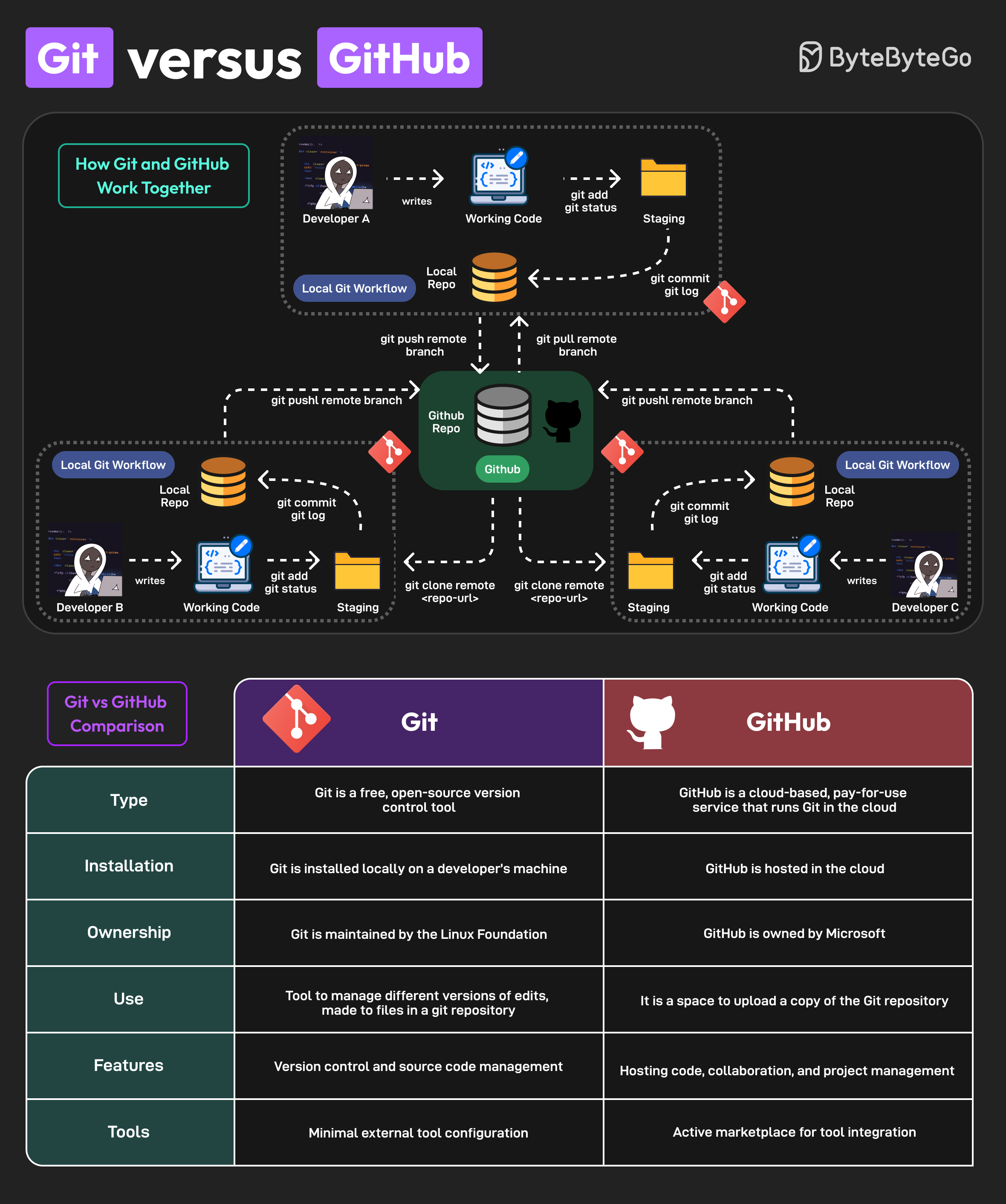
Let's break down the two parts of the diagram:
-
The Comparison Table (Bottom): This table clearly lays out the differences we've discussed.
- Git: A free, open-source tool installed on your machine. Its purpose is version control and source code management.
- GitHub: A cloud-based service. Its purpose is to host your Git repositories, enabling collaboration and project management.
-
The Workflow Diagram (Top): This diagram shows the relationship in action.
- Each developer (A, B, C) has a "Local Git Workflow" on their own computer. They write code, and use Git to track their changes locally.
- When they are ready to share their work or back it up, they "push" their changes from their local machine to the central GitHub repository (the database icon in the middle).
- To get the latest updates from others, they "pull" changes from GitHub down to their local machine.
This flow is why your AI assistant tells you to use both. You build and experiment with your app on your local machine using a code editor like VS Code. You use Git to save snapshots (commits) of your progress. Then, you "push" those commits to GitHub to have a secure cloud backup and a central point for collaboration—even if that "collaboration" is just between you and your AI assistant.
Conclusion
You've now learned the fundamental concepts behind two of the most important tools in software development. You understand the "what" and "why" behind your LLM's instructions to use Git and GitHub.
Key Takeaways:
- Version Control is a system that tracks the history of your project, creating "save points" (commits) that you can return to at any time.
- Git is the free software tool that runs on your computer to perform this version tracking. It's the engine of version control.
- GitHub is a commercial, web-based service that hosts your Git projects in the cloud. It's the hub for backup, sharing, and collaboration.
- The standard workflow is to work locally, use Git to save your changes, and then push those changes to GitHub.
In the next lesson, we will move from theory to practice. Now that you know what Git is, you'll learn how to start using it by initializing your very first repository for a project.