Recommended resources
The freely available resources this lesson will direct you to.
- How To Write Bash Scripts In Linux - Complete Guide (Part 5 - If Statements)www.youtube.com
- How To Write Bash Scripts In Linux - Complete Guide (Part 7 - While Loops)www.youtube.com
- Writing shell scripts - Lesson 8: Flow Control - Part 1linuxcommand.org
- Writing shell scripts - Lesson 11: Flow Control - Part 2linuxcommand.org
Hello! In the previous lesson, you gave a log-report script arguments and used quotes to keep filenames intact. Its two if blocks stopped the script when an argument was missing or a file did not exist. This lesson makes those decisions deliberate: you’ll use exit statuses to choose what runs, conditionals to handle different outcomes, and loops to process more than one input. The examples run locally in Ubuntu and should take about 40 minutes.
A command’s status is a signal
A command produces an exit status when it finishes. Status 0 means success; a nonzero status means something else happened. The meaning of a particular nonzero value depends on the command. Bash makes the most recent status available as $?.
true
printf 'Status: %s\n' "$?"

false
printf 'Status: %s\n' "$?"
These print 0 and 1, respectively. Check $? immediately: the following printf has its own exit status and replaces the value you wanted to inspect.
Read the “Exit Status” and “exit” sections of Flow Control - Part 1 on LinuxCommand.org. The first explains the signal a command sends; the second shows how a script can choose its own final status.
Writing shell scripts - Lesson 8: Flow Control - Part 1
Read the “Exit Status” and “exit” sections to connect a command’s result with the status your own script returns.
In “Exit Status,” start where the author says commands issue a value when they terminate. Read the explanation and example, ending after the discussion of different nonzero codes. Then, in “exit,” read the exit examples. Focus on the distinction between observing a command’s status and setting the script’s status.
This matters in infrastructure scripting because another command may invoke your script and decide what to do based on its status. Printing “something went wrong” is useful to a person, but a meaningful exit status gives the caller a result it can act on.
if runs commands; it does not read English “true” or “false”
Bash’s if runs a command and takes the then branch if that command returns 0. Often the command is [ ... ], a form of the test command:
if [ -f "$log_path" ]; then
    printf 'Regular file found\n'
else
    printf 'Not a regular file\n'
fi
Here, [ -f "$log_path" ] tests whether the path identifies a regular file. The spaces immediately inside [ and ] are required. Keep the quoted filename habit from last lesson. Other useful tests include -d for a directory and -r for a readable file. For integer comparisons, -eq means equal, -ne not equal, and -lt less than.
Watch the selected portions of Learn Linux TV’s How To Write Bash Scripts In Linux - Complete Guide (Part 5 - If Statements). Its numerical example establishes the syntax; the later portion adds an else branch.
How To Write Bash Scripts In Linux - Complete Guide (Part 5 - If Statements)
Learn Linux TV demonstrates how an if block selects commands, then changes the example to choose between two branches.
Watch the first conditional for if, then, and fi. Skip ahead to the else branch and focus on why only one branch runs. You do not need to copy the presenter’s script; the log-file checks here will use the same structure.
For more than two possibilities, elif tests another condition if the earlier one was false. For instance, a script could distinguish a regular file from a directory and then handle anything else in else. The first successful branch wins; Bash does not keep testing later branches.
Crucially, brackets are not required after if. You can test the result of a useful command directly:
if grep -F -- ' ERROR ' "$log_path"; then
    printf 'At least one error entry was found\n'
fi
grep prints matching lines and returns 0 when it finds a match. With no match it returns 1; an error such as a problem reading the file normally returns 2. Those last two cases should not automatically receive the same message. We’ll account for them in the complete script.
Loops repeat work without losing argument boundaries
A for loop is a natural fit when you already have a list of filenames. Last lesson, "$@" preserved each positional argument separately. It does the same here:
for log_path in "$@"; do
    printf 'Checking: %s\n' "$log_path"
done
If one argument is api events.log, the loop runs once for that filename, not once for each word. do and done enclose the repeated commands.
A while loop has a different job: it repeats while its condition returns 0. Watch Learn Linux TV’s How To Write Bash Scripts In Linux - Complete Guide (Part 7 - While Loops) for a bounded counting example.
How To Write Bash Scripts In Linux - Complete Guide (Part 7 - While Loops)
Learn Linux TV contrasts a one-time decision with repeated testing, then traces a counter through a while loop.
Watch the distinction between if and while, then the counter. Notice that changing the counter inside the loop eventually makes its condition false.
Here is a short version you can run in your terminal:
attempt=1
while [ "$attempt" -le 3 ]; do
    printf 'Check %s\n' "$attempt"
    attempt=$((attempt + 1))
done
It prints checks 1 through 3. The test is evaluated before each iteration; when attempt becomes 4, the loop ends. If nothing in a while loop can make its condition false, it may run indefinitely. until reverses the test: it repeats while its condition is nonzero and stops once the condition succeeds. You can express many bounded loops either way; choose the version whose stopping rule reads most clearly.
A loop can also end early with break. In the image below, the script prints the current number before checking whether to break. That is why 3 appears in the output, but 2 does not. The image uses [[ ... ]], Bash’s conditional-test syntax; our examples use [ ... ] so the role of the test command stays visible.
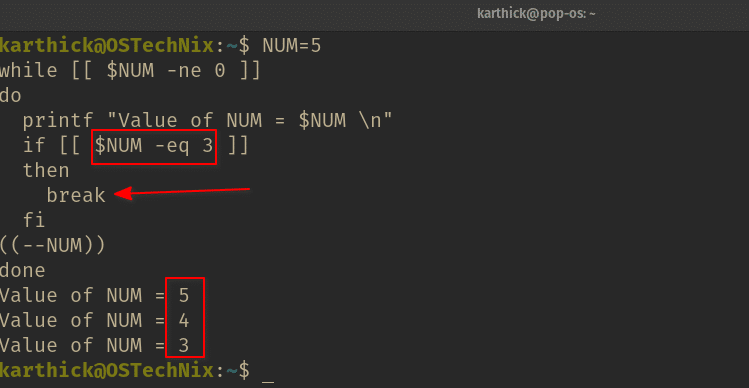
continue has a narrower effect: it skips the rest of the current iteration and begins the next one. Use either control command carefully. For example, putting continue before the only counter update in a while loop could prevent that loop from ever finishing.
Build a log scanner with a clear outcome
You can now extend last lesson’s single-file report idea into a script that accepts one or more log files. It will use for to inspect every supplied path, if to handle each check, and its final status to distinguish three outcomes:
| Status | Meaning in this script |
|---|---|
0 |
All supplied files were checked; no ERROR entry was found. |
1 |
All supplied files were checked; at least one ERROR entry was found. |
2 |
The inputs were invalid, or a file could not be checked. |
These are this script’s chosen meanings. In particular, status 1 indicates a finding, not necessarily that the script itself malfunctioned.
Create a fresh practice directory. If bash-flow-practice already exists, choose another directory name rather than overwriting earlier work.
mkdir -p ~/cloud-labs &&
cd ~/cloud-labs &&
mkdir bash-flow-practice &&
cd bash-flow-practice &&
pwd
Confirm pwd shows the directory you intended, then create two fictional logs:
printf '%s\n' \
  '2026-03-01 INFO api ready' \
  '2026-03-01 ERROR api timeout' > 'api events.log'

printf '%s\n' \
  '2026-03-01 INFO worker ready' > 'worker events.log'
Open nano scan-logs.sh and enter:
#!/usr/bin/env bash

if [ "$#" -eq 0 ]; then
    printf 'Usage: %s LOG_FILE [LOG_FILE ...]\n' "$0" >&2
    exit 2
fi

found_errors=0

for log_path in "$@"; do
    if [ ! -f "$log_path" ] || [ ! -r "$log_path" ]; then
        printf 'Not a readable regular file: %s\n' "$log_path" >&2
        exit 2
    fi

    printf 'Checking: %s\n' "$log_path"

    if grep -F -- ' ERROR ' "$log_path"; then
        found_errors=1
    else
        grep_status=$?
        if [ "$grep_status" -eq 1 ]; then
            printf 'No ERROR entries found\n'
        else
            printf 'Could not search: %s\n' "$log_path" >&2
            exit 2
        fi
    fi
done

if [ "$found_errors" -eq 1 ]; then
    printf 'Scan complete: ERROR entries found\n'
    exit 1
fi

printf 'Scan complete: no ERROR entries found\n'
exit 0
The first if rejects an empty argument list. Inside the loop, the file test rejects paths that are not readable regular files. The ! negates an individual test; || makes the condition succeed if either test indicates an unsuitable input.
Next, grep both prints matching entries and supplies the condition for if. If it does not succeed, grep_status=$? saves its status before another command replaces it. Status 1 means no match, so the scan continues normally. A different nonzero status means the search failed, so the script reports a problem rather than claiming the log contains no errors. found_errors remembers a finding across loop iterations; after every file has been checked, the script chooses its final status.
Run these invocations one at a time. The printf immediately after each run displays the script’s status.
bash scan-logs.sh 'worker events.log'
printf 'Status: %s\n' "$?"

bash scan-logs.sh 'api events.log' 'worker events.log'
printf 'Status: %s\n' "$?"

bash scan-logs.sh 'missing events.log'
printf 'Status: %s\n' "$?"

bash scan-logs.sh
printf 'Status: %s\n' "$?"
Expect statuses 0, 1, 2, and 2. The two-file run should print the API error entry yet still check the worker log: finding an error is not a reason to skip the remaining inputs. Notice that a missing file is handled differently: exit 2 stops the script immediately because it cannot honestly claim to have checked every requested file.
What to carry forward
Bash control flow rests on command statuses. if selects a branch from a command’s result; for repeats work over a list such as "$@"; while repeats while a condition succeeds. exit lets your script report a deliberate result to whoever invoked it. The most important diagnostic habit is to distinguish an expected nonzero result—such as grep finding no match—from an actual failure.
Next, you’ll make scripts easier to maintain with reusable functions and learn to diagnose mistakes using tracing and ShellCheck.