Recommended resources
The freely available resources this lesson will direct you to.
Hello! Last lesson, you combined commands to turn a log into a report. A script lets you reuse that work without editing commands each time the input changes. In this lesson, you’ll write a Bash script that accepts a filename and a report label, then use quotes so spaces and wildcard characters do not change what those inputs mean. Allow about 40 minutes. Everything runs locally in Ubuntu; no AWS account is needed.
Arguments make a script reusable
When you run a script, words after its name become positional arguments. Inside the script, $1 is the first argument, $2 is the second, and $0 identifies how the script was invoked. The order is part of the script’s interface: a script expecting a filename first will not interpret a report label in that position correctly.
Watch the argument demonstration in Shawn Powers’s Using BASH Variables and Arguments. Focus on how changing the words at invocation changes the values available inside the script.
Using BASH Variables and Arguments
Shawn Powers’s Using BASH Variables and Arguments shows positional arguments being passed to a script and read in a different order.
Watch the argument demo, from the move away from an exported variable through the demonstration that rearranges three supplied words. Track which command-line word becomes the first, second, and third argument.
The diagram below shows the shape of a command line: a command name followed by two arguments. For your scripts, $0 refers to the script as invoked; $1 and $2 refer to its first two arguments. Running cp does not set those parameters in your current shell—the diagram illustrates what a running command receives.
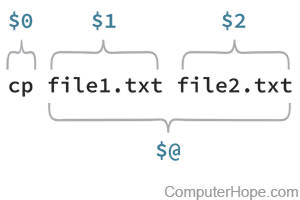
Let’s make those positions visible. In Ubuntu, create a fresh practice directory. If the proposed directory already exists, choose another name; stop if pwd does not show the directory you intended.
cd ~/cloud-labs
mkdir script-arguments-practice && cd script-arguments-practice
pwd
umask 077
Open nano inspect-args.sh and enter:
#!/usr/bin/env bash
printf 'Invoked as: <%s>\n' "$0"
printf 'Argument count: <%s>\n' "$#"
printf 'Argument: <%s>\n' "$@"
Save the file, then run it with Bash:
bash inspect-args.sh "service events.log" "Daily errors"
You should see a count of 2 and one Argument: line for each supplied value. The quotes around "service events.log" when invoking the script keep those two words together as one argument. Inside the script, $# is the number of arguments, while "$@" supplies every argument separately to printf. Notice that the script prints the values but does not require those files to exist.
Try the invocation again with '*.log' as an argument. The single quotes pass the characters *.log literally; without them, the calling shell may replace the pattern with matching filenames before the script starts. Your script cannot recover the original pattern after that expansion has happened.
Assign readable names—and preserve their values
$1 and $2 are convenient at the start of a script. After a few lines, names such as log_path and report_label make their roles clearer. Read the “Naming positional parameters” subsection of Introduction to Positional Parameters and Variables, paying particular attention to assignment syntax. Its illustrative output commands leave some variable expansions unquoted; use the quoted forms taught here when you write your own script.
Introduction to Positional Parameters and Variables
Read the “Naming positional parameters” subsection of Introduction to Positional Parameters and Variables to see why a script assigns argument values to descriptive variable names.
Find the subsection headed “Naming positional parameters,” immediately after the example where extra words change which argument the script receives. Read the naming explanation, ending at the warning about spaces in assignments. Focus on the distinction between assigning a value and using it later; treat the subsection’s unquoted output examples as illustrations, not as a safe quoting template.
An assignment has no spaces around =. You write log_path=$1, not log_path = $1. There is no $ before the name being assigned; the $ appears when you retrieve a value. For clarity, log_path="$1" is also valid and commonly used.
The important distinction is between storing a value and passing that value to a command. Suppose an argument contains service events.log. In log_path=$1, Bash stores the entire argument as the value. But when a command uses an unquoted $log_path, Bash can split the resulting text into separate words. It can also expand wildcard characters such as * into filenames. Quoting the expansion—"$log_path"—passes its value as one argument, unchanged by those two operations.
Watch the opening of anthonywritescode’s bash quoting is really not that difficult! for the difference between single and double quotes.
bash quoting is really not that difficult! (beginner - intermediate) anthony explains #426
In bash quoting is really not that difficult!, anthonywritescode distinguishes literal single-quoted text from double-quoted text that still permits variable expansion.
Watch the introduction, then single quotes and double quotes. Focus on which form you need when a filename comes from a variable rather than being written literally.
You can see the difference directly:
log_path='service events.log'
printf 'Literal: %s\n' '$log_path'
printf 'Expanded: %s\n' "$log_path"
The first printf prints the characters $log_path; single quotes prevent expansion. The second prints service events.log; double quotes allow expansion while preserving the value as one argument. In a script, the working rule is: quote variable expansions used as command arguments, including "$1", "$log_path", and "$@".
Build a small log-report script
Create a fictional log in your practice directory:
printf '%s\n' \
  '2026-03-01 INFO api ready' \
  '2026-03-01 ERROR api timeout' \
  '2026-03-02 INFO worker ready' > 'service events.log'
Now open nano report-errors.sh and enter the complete script below. It accepts exactly two arguments: a log filename and a label for the report.
#!/usr/bin/env bash

if [ "$#" -ne 2 ]; then
    printf 'Usage: %s LOG_FILE REPORT_LABEL\n' "$0" >&2
    exit 2
fi

log_path=$1
report_label=$2

if [ ! -f "$log_path" ]; then
    printf 'Not a regular file: %s\n' "$log_path" >&2
    exit 1
fi

line_count=$(wc -l < "$log_path")
printf 'Report: %s\n' "$report_label"
printf 'Source: %s\n' "$log_path"
printf 'Lines: %s\n' "$line_count"
printf 'Error entries:\n'
grep -F -- ' ERROR ' "$log_path"
Save it and run:
bash report-errors.sh "service events.log" "Daily errors"
The report should show the label Daily errors, a line count of 3, and the one error entry. You have reused two tools from the previous lesson: < "$log_path" supplies the named file as input to wc, and grep -F selects literal ERROR matches. The $(...) syntax captures wc’s output in line_count; "$line_count" then passes that result safely to printf.
The two if blocks are small safeguards, not the main subject today. The first checks $# so a missing or extra argument does not silently produce a misleading report. The second checks that the supplied path names a regular file before reading it. Both send their messages to standard error with >&2. You’ll examine conditionals and exit statuses in detail next lesson.
Run the script a few more ways:
bash report-errors.sh "service events.log"
bash report-errors.sh "missing events.log" "Daily errors"
bash report-errors.sh "service events.log" "Morning review"
The first invocation should show usage because its label is missing; the second should identify the nonexistent file; the third should produce the same log results with a different label. None requires editing the script.
There is one additional boundary worth noticing: grep -F -- ' ERROR ' "$log_path" uses both quoting and --. Quotes prevent a filename with spaces from splitting into arguments. The -- tells grep that any following value is a filename, even if that filename begins with -. Quoting alone does not tell a command to stop interpreting options.
Avoid using real credentials as practice arguments. Quoting protects argument boundaries; it does not hide command-line values from shell history or from every system inspection tool.
The quoting habit to carry forward
There are two places to protect a multiword value. When calling the script, quote it so Bash passes one argument:
bash report-errors.sh "service events.log" "Daily errors"
Inside the script, quote its expansions so commands receive those values as intended:
log_path=$1
printf 'Source: %s\n' "$log_path"
grep -F -- ' ERROR ' "$log_path"
For a script that forwards an arbitrary list of supplied filenames, "$@" is the corresponding safe form: it keeps each original argument separate, including an argument that contains spaces. By contrast, "$*" joins the supplied arguments into one string; it is not a substitute when a command needs the original argument list.
You can now give a Bash script a reusable interface with positional arguments, assign those inputs descriptive variable names, and quote expansions so filenames and labels retain their intended boundaries. The key distinction is that quotes at invocation control what the script receives, while quotes inside the script control what its commands receive.
Next, you’ll develop the brief safeguards used here into fuller conditionals, loops, and deliberate exit-status handling.