Recommended resources
The freely available resources this lesson will direct you to.
Hello! Your directory page now has an application-wide Material UI theme. The next step is to give that page a consistent place to live: a header, navigation, and a main content region that work on both narrow and wide screens.
In about 40 minutes, you’ll build that shell in the app layer, place the existing directory inside it, and check both its responsive behavior and its accessibility. You won’t need to change the directory’s search or selection logic.
A layout with meaning
A back-office shell does two jobs. Visually, it keeps navigation available without crowding the work area. Structurally, it identifies which parts of the page are the header, navigation, and main content. Those structural distinctions let assistive-technology users move between page regions rather than traversing every control in order.
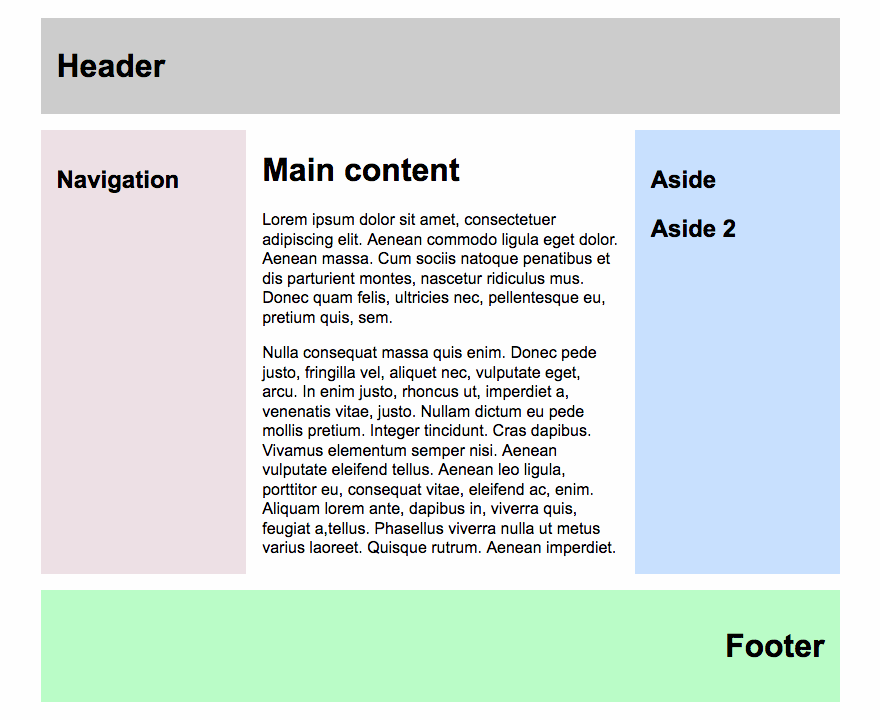
For this application, the header will span the top. On wide screens, navigation will remain beside the page; on narrow screens, a Menu button will open it temporarily. The directory will occupy the main region at either width.
Watch the short opening of Codevolution’s React Material UI Tutorial - 21 - Navbar to see how AppBar and Toolbar establish the header. The video uses a different application; focus on the components and their layout roles, not its branding.
React Material UI Tutorial - 21 - Navbar
Codevolution's React Material UI Tutorial - 21 - Navbar demonstrates the basic App Bar structure used below.
Watch AppBar and Toolbar. Notice the choice of position="static": the header remains in normal document flow, leaving the content below it rather than covering it.
Material UI’s Drawer documentation supplies the complementary responsive pattern.
React Drawer component - Material UI
Read Material UI's Drawer guide to understand why the same navigation should behave differently at mobile and desktop widths.
In “Temporary drawer,” read temporary behavior, from the opening explanation through dismissal by overlay or Escape. In “Responsive drawer,” find the sentence beginning “You can use the temporary variant” and read the width strategy. Finally, in “Permanent drawer,” read desktop behavior in the opening paragraph. Focus on the difference between navigation that overlays content and navigation that occupies its own space.
AppBar and Drawer provide appearance and behavior; they do not relieve us of choosing meaningful HTML. Below, the App Bar renders as a header, each navigation list sits inside a nav, and the page sits inside a main. Keep the directory’s existing page title as its h1: the application name in the header is a label, not a second page heading.
Build the shell in app
Create src/app/AppShell.tsx. It accepts page content as children, so it owns the shared frame without importing directory-specific state or controls.
import { useEffect, useState, type ReactNode } from 'react'
import AppBar from '@mui/material/AppBar'
import Box from '@mui/material/Box'
import Button from '@mui/material/Button'
import Drawer from '@mui/material/Drawer'
import List from '@mui/material/List'
import ListItem from '@mui/material/ListItem'
import ListItemButton from '@mui/material/ListItemButton'
import ListItemText from '@mui/material/ListItemText'
import Toolbar from '@mui/material/Toolbar'
import Typography from '@mui/material/Typography'
import useMediaQuery from '@mui/material/useMediaQuery'
import { useTheme } from '@mui/material/styles'

const drawerWidth = 240

type AppShellProps = {
  children: ReactNode
}

function ShellNavigation({ onSelect }: { onSelect?: () => void }) {
  return (
    <Box component="nav" aria-label="Primary navigation">
      <List>
        <ListItem disablePadding>
          <ListItemButton
            component="a"
            href="/"
            selected
            aria-current="page"
            onClick={onSelect}
          >
            <ListItemText primary="User directory" />
          </ListItemButton>
        </ListItem>
      </List>
    </Box>
  )
}

export function AppShell({ children }: AppShellProps) {
  const [mobileOpen, setMobileOpen] = useState(false)
  const theme = useTheme()
  const desktop = useMediaQuery(theme.breakpoints.up('md'))

  // Dismiss an open mobile overlay when the viewport becomes desktop-sized.
  useEffect(() => {
    if (desktop) setMobileOpen(false)
  }, [desktop])

  return (
    <Box
      sx={{
        minHeight: '100vh',
        display: 'flex',
        flexDirection: 'column',
      }}
    >
      <Box
        component="a"
        href="#main-content"
        sx={{
          position: 'absolute',
          top: -48,
          left: 8,
          zIndex: 2000,
          p: 1,
          bgcolor: 'background.paper',
          color: 'text.primary',
          '&:focus': { top: 8 },
        }}
      >
        Skip to main content
      </Box>

      <AppBar position="static" component="header">
        <Toolbar>
          <Button
            variant="text"
            color="inherit"
            aria-expanded={mobileOpen && !desktop}
            onClick={() => setMobileOpen(true)}
            sx={{
              display: { xs: 'inline-flex', md: 'none' },
              mr: 2,
            }}
          >
            Menu
          </Button>
          <Typography variant="h6" component="span">
            Administration
          </Typography>
        </Toolbar>
      </AppBar>

      <Box sx={{ display: 'flex', flexGrow: 1, minHeight: 0 }}>
        <Drawer
          variant="permanent"
          sx={{
            display: { xs: 'none', md: 'block' },
            width: drawerWidth,
            flexShrink: 0,
            '& .MuiDrawer-paper': {
              width: drawerWidth,
              boxSizing: 'border-box',
            },
          }}
        >
          <ShellNavigation />
        </Drawer>

        <Drawer
          variant="temporary"
          open={mobileOpen && !desktop}
          onClose={() => setMobileOpen(false)}
          sx={{
            display: { xs: 'block', md: 'none' },
            '& .MuiDrawer-paper': {
              width: drawerWidth,
              boxSizing: 'border-box',
            },
          }}
        >
          <ShellNavigation onSelect={() => setMobileOpen(false)} />
        </Drawer>

        <Box
          component="main"
          id="main-content"
          tabIndex={-1}
          sx={{
            flexGrow: 1,
            minWidth: 0,
            p: { xs: 2, md: 3 },
          }}
        >
          {children}
        </Box>
      </Box>
    </Box>
  )
}
The two drawers share one navigation component, but have different jobs. The permanent drawer reserves width alongside main; the temporary drawer overlays the page and closes through its onClose handler when the backdrop or Escape is used. Its link also closes it when selected. Material UI’s md breakpoint determines which version appears. useMediaQuery lets the shell dismiss an open mobile overlay if the viewport changes to desktop size, rather than leaving that overlay’s state active.
For now, there is only one destination, so User directory links to the application root and is marked as the current page. It is a real link, though it may reload the page until routing is introduced later. Don’t add links to pages that do not exist. When the route tree arrives, navigation destinations and the current-page indication can reflect the active route.
The skip link is normally out of view but appears when reached by keyboard. Its target is the main region; tabIndex={-1} allows that region to receive focus without adding it to ordinary Tab navigation. Meanwhile, minWidth: 0 lets the main flex item shrink beside the drawer instead of forcing the whole shell wider than the viewport.
Put the directory inside it
In src/app/App.tsx, keep the existing directory-page import and any props it needs. Wrap its current page element with the shell:
import { AppShell } from './AppShell'
// Keep your existing UserDirectoryPage import.

export default function App() {
  return (
    <AppShell>
      <UserDirectoryPage />
    </AppShell>
  )
}
Adapt the page component name or props to your project; do not create a second copy of the directory. Keep the ThemeProvider and CssBaseline where they were in main.tsx. The resulting ownership is deliberate: app provides the theme and shared frame, while the page supplies the content within main.
You also do not need to move the directory’s heading into the App Bar. Its existing Typography element with component="h1" remains the heading for the page; “Administration” identifies the application in the header.
Check the behavior, not just the screenshot
Run the existing project checks and open the development server:
npm run typecheck
npm run build
npm run dev
At a wide viewport, confirm that the header stays above the directory, navigation occupies its own column, and the directory remains readable. Narrow the viewport: the permanent navigation should disappear, the Menu button should appear, and opening it should place navigation over—not squeeze—the directory. Check that Escape and a click on the backdrop close the temporary drawer.
Then use the keyboard from the top of the page. The first Tab should reveal Skip to main content; activating it should move you to the directory region. Check that the directory still has one clear h1, and that its search, selection, and Escape shortcut still behave as before. If the temporary drawer is open, Escape will dismiss that overlay; test the directory’s shortcut again after closing it.
If the layout remains constrained or centered, revisit any Vite starter CSS on body or #root. As in the previous lesson, those global rules can conflict with a full-width shell even when the Material UI components are configured correctly.
What to carry forward
You now have a shell with a semantic header, labeled navigation, and main region. Its navigation occupies space on desktop and becomes a dismissible overlay on smaller screens; the directory remains responsible for its own content and behavior.
The next lesson will build on this boundary by using component composition for reusable layout and feedback pieces, without turning every variation into another configuration prop on the shell.