Recommended resources
The freely available resources this lesson will direct you to.
Welcome back! In the last lesson, we built the "hands" for our reusable project template by creating a suite of custom slash commands. These commands allow us to scaffold new features like FastAPI endpoints and React components with a single instruction, all while respecting the architectural rules defined in our CLAUDE.md files.
Today, we're going to build the "reflexes" for our template. This lesson is about implementing core hooks to automate tasks like code formatting, linting, and pre-commit checks. By the end, your project will have an automated quality assurance system that runs in the background, keeping your codebase clean and consistent without any manual effort.
1. What Are Hooks? The Automated Reflex System
While slash commands are explicit instructions you give to Claude, hooks are automated scripts that trigger in response to specific events in Claude's workflow. Think of them as event listeners for your development process.
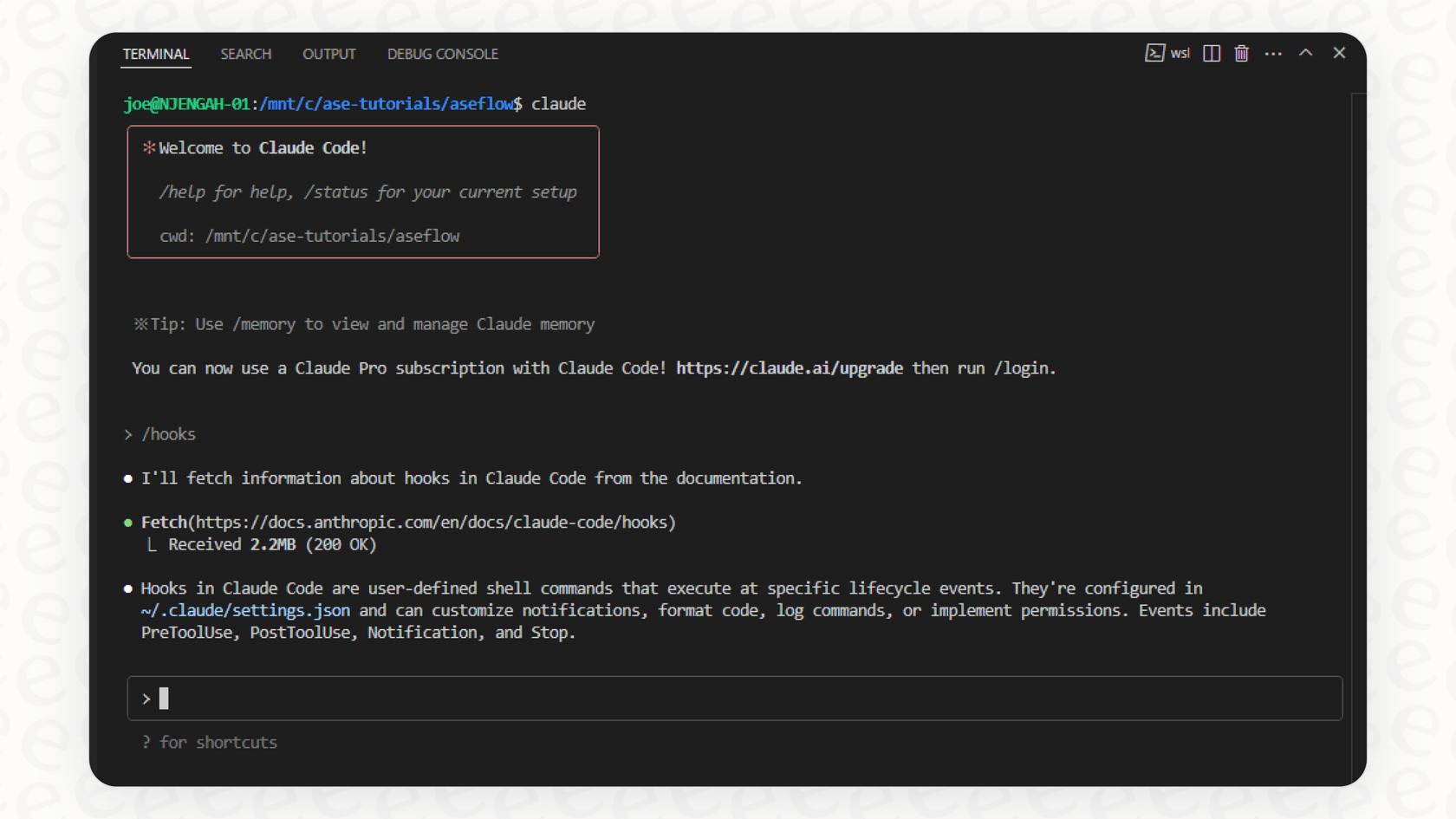
Hooks are the key to enforcing project standards deterministically. Instead of just telling Claude to use a certain code style in CLAUDE.md, you can create a hook that automatically applies that style after every file edit.
To get a quick and dynamic overview of what hooks can do, let's start with a short video.
How Claude Code Hooks Save Me HOURS Daily
The video 'How Claude Code Hooks Save Me HOURS Daily' from Better Stack provides an excellent, fast-paced introduction to the power and flexibility of hooks.
Watch the first 41 seconds (00:00 - 00:41) for an overview of hook types. Then, watch the section from 01:04 to 01:50, which introduces the crucial concepts of hook inputs (JSON) and using exit codes to influence Claude's behavior.
2. The Hook Lifecycle and Configuration
As you saw, hooks are powerful because they can intercept Claude's actions. The two most important events for our purposes are:
PostToolUse: Fires after a tool (like writing a file) has completed. This is perfect for reactive tasks like formatting code, running tests after a change, or logging an action.PreToolUse: Fires before a tool executes. This is ideal for preventative tasks like validation, security checks, or blocking disallowed actions.
To understand these concepts in more detail, let's turn to a clear, well-structured guide.
Claude Code Hooks: A Practical Guide to Workflow Automation
The DataCamp tutorial 'Claude Code Hooks: A Practical Guide to Workflow Automation' is a fantastic resource that breaks down how hooks work. We'll use it as our foundational text for this section.
Please read the following three sections: 'Getting Started With Claude Code Hooks' (focus on the event table and matchers). 'Working With Hook Inputs' (understand the JSON structure and how your scripts receive data). 'Working With Hook Outputs' (this is crucial; focus on the meaning of exit codes 0 and 2).\nThis will take about 15 minutes and will give you all the necessary theory to build our hooks.
To summarize the key takeaways from the reading:
- Hooks are defined in
.claude/settings.json. - They trigger on an event (e.g.,
PostToolUse) and are filtered by a matcher (e.g.,Write|Edit). - Your hook script receives context as a JSON object via
stdin. - Your script communicates back via
stdout(for logs),stderr(for errors), and exit codes (to control the workflow). An exit code of2is particularly important as it blocks the action and sends thestderrmessage to Claude for correction.
3. Implementation 1: The Auto-Formatter (PostToolUse)
Let's start with a classic use case: automatically formatting code. Our goal is to create a PostToolUse hook that runs black on Python files and prettier on frontend files immediately after Claude creates or edits them.
Step 1: Create the Hook Script
First, let's create a directory to hold our hook scripts: mkdir -p .claude/hooks.
Now, create a new file named .claude/hooks/auto-format.sh. This script will be the "brain" of our hook.
#!/bin/bash


# Read the JSON input from stdin
input_json=$(cat)


# Use jq to extract the file_path
# It checks tool_input.file_path (for Write) and tool_input.path (for Edit)
file_path=$(echo "$input_json" | jq -r '.tool_input.file_path // .tool_input.path // empty')


# If no file_path, exit silently
if [ -z "$file_path" ]; then
    exit 0
fi


# Determine which formatter to run based on file extension
if [[ "$file_path" == *.py ]]; then
    echo "Running black on $file_path"


    # Assuming black is installed in your project's environment
    black "$file_path"
    echo "Formatting complete."
elif [[ "$file_path" == *.ts || "$file_path" == *.tsx || "$file_path" == *.js || "$file_path" == *.css ]]; then
    echo "Running prettier on $file_path"


    # Assuming prettier is a dev dependency in your frontend/package.json
    # We run it from the root, so specify the path to prettier config
    npx prettier --write "$file_path" --config ./frontend/.prettierrc
    echo "Formatting complete."
fi


# Exit with success
exit 0
Make the script executable by running chmod +x .claude/hooks/auto-format.sh.
Step 2: Configure settings.json
Now, open or create .claude/settings.json and add the hook configuration.
{
  "hooks": {
    "PostToolUse": [
      {
        "matcher": "Write|Edit|MultiEdit",
        "hooks": [
          {
            "type": "command",
            "command": ".claude/hooks/auto-format.sh"
          }
        ]
      }
    ]
  }
}
That's it! After restarting Claude Code, every time it writes or edits a file, this hook will fire, check the file extension, and apply the correct formatter.
4. Implementation 2: The Pre-Commit Quality Gate (PreToolUse)
Now for a more advanced hook. We'll create a PreToolUse hook that simulates a git pre-commit check. Before Claude is allowed to execute a git commit command, this hook will run linters (ruff for Python, eslint for the frontend). If linting fails, the hook will block the commit and feed the errors back to Claude.
This is an incredibly powerful pattern for enforcing quality.
Step 1: Create the Hook Script
Create a new file named .claude/hooks/pre-commit-check.sh.
#!/bin/bash


# Read the JSON input from stdin
input_json=$(cat)


# Extract the bash command being run
command=$(echo "$input_json" | jq -r '.tool_input.command // empty')


# Check if the command is 'git commit'
if [[ "$command" == git\ commit* ]]; then
    echo "Pre-commit check triggered for: $command"


    # --- Run Backend Linter (Ruff) ---
    echo "Running Ruff linter on backend..."


    # Assuming ruff is installed in your project's environment
    ruff_output=$(ruff check backend/app)
    ruff_exit_code=$?


    # --- Run Frontend Linter (ESLint) ---
    echo "Running ESLint on frontend..."


    # Assuming eslint is in frontend dev dependencies
    eslint_output=$(npx eslint 'frontend/src/**/*.{ts,tsx}')
    eslint_exit_code=$?

    if [ $ruff_exit_code -ne 0 ] || [ $eslint_exit_code -ne 0 ]; then
        echo "Commit blocked. Linting failed." >&2

        if [ $ruff_exit_code -ne 0 ]; then
            echo -e "\n--- Backend Issues (Ruff) ---\n$ruff_output" >&2
        fi

        if [ $eslint_exit_code -ne 0 ]; then
            echo -e "\n--- Frontend Issues (ESLint) ---\n$eslint_output" >&2
        fi

        echo -e "\nPlease fix the linting issues before committing." >&2


        # Exit with code 2 to block the command and send stderr to Claude
        exit 2
    else
        echo "All checks passed. Proceeding with commit."
        exit 0
    fi
fi


# If not a git commit command, exit with success and do nothing
exit 0
Again, make it executable: chmod +x .claude/hooks/pre-commit-check.sh.
Step 2: Update settings.json
Add the new PreToolUse hook to your settings.json. The file should now look like this:
{
  "hooks": {
    "PostToolUse": [
      {
        "matcher": "Write|Edit|MultiEdit",
        "hooks": [
          {
            "type": "command",
            "command": ".claude/hooks/auto-format.sh"
          }
        ]
      }
    ],
    "PreToolUse": [
      {
        "matcher": "Bash",
        "hooks": [
          {
            "type": "command",
            "command": ".claude/hooks/pre-commit-check.sh"
          }
        ]
      }
    ]
  }
}
5. Your Turn: Test Your Automated Guardian
Now it's time to see your automated reflexes in action.
- Restart Claude Code to load the new hook configurations.
- Test the Auto-Formatter (
PostToolUse):- Ask Claude:
/edit backend/app/main.py - In the prompt, tell it to add a new line but intentionally mess up the formatting (e.g., use weird indentation).
- When Claude applies the edit, open the file (
/open backend/app/main.py) and verify thatblackhas automatically fixed the formatting.
- Ask Claude:
- Test the Quality Gate (
PreToolUse):- First, intentionally introduce a linting error. For example, ask Claude to edit a Python file and add an unused import (
import os). - Next, ask Claude:
Run a git commit with the message "add test feature" - Observe the result. The
PreToolUsehook should fire. You will see a "Bash hook error" message. The commit will be blocked, and the error output fromruffwill be displayed in the transcript and fed to Claude. - Now, you can simply tell Claude: "Okay, fix that linting error and try the commit again."
- First, intentionally introduce a linting error. For example, ask Claude to edit a Python file and add an unused import (
This workflow, where deterministic hooks catch errors and Claude intelligently fixes them, is a cornerstone of advanced AI-assisted development.
Conclusion
In this lesson, you've added a powerful automation layer to your project template. You've gone beyond merely instructing Claude and have started building a self-correcting system that enforces quality standards automatically.
Key Takeaways:
- Hooks provide automated "reflexes": They trigger scripts based on Claude's actions, enabling deterministic control over your workflow.
PostToolUsefor Reaction: Ideal for tasks like code formatting that should happen after an action is complete.PreToolUsefor Prevention: Perfect for creating quality gates, security checks, or validation that must run before an action is allowed.- Exit Code
2is a Superpower: By exiting with code 2 and writing tostderr, your hooks can block actions and provide actionable feedback directly to Claude, enabling it to self-correct. - Version Control is Key: Your hook scripts and
settings.jsonare part of your project's DNA. They should be committed to your repository so the entire team benefits from the same automated standards.
Next Up:
You have now established a "brain" (CLAUDE.md), "hands" (slash commands), and "reflexes" (hooks). Your project template is becoming a sophisticated development environment. In the next module, Advanced Prompting & Large-Scale Refactoring, we will leverage this robust setup to tackle much larger challenges. You'll learn how to guide Claude through complex, cross-file refactoring tasks, such as converting a synchronous FastAPI module to be fully asynchronous.