Recommended resources
The freely available resources this lesson will direct you to.
Hi! Last lesson, you saved entry, exit, and recovery cues so you can navigate a track with confidence. Now the challenge is finding that track again when you have several possible next selections. In this final lesson of track preparation, you’ll give your house or techno tracks a small set of useful labels, then use Rekordbox playlists and filters to retrieve them by key, energy, and job in the mix.
Allow about 40 minutes, with most of that time spent working in your own library. Six to ten tracks are enough to make the system useful and test whether it works.
Describe tracks in terms you can act on
Rekordbox already has a Key field for analyzed tracks. Energy and mixing role require more judgment: two tracks at the same BPM can feel very different, and a track with a strong peak section may still have a restrained intro.
Start with a deliberately small vocabulary:
| Attribute | Starter labels | What the label answers |
|---|---|---|
| Energy | Low, Medium, High |
How intense does this track feel relative to my collection? |
| Role | Entry, Bridge, Peak, Exit |
When might I reach for it in a mix? |
An Entry track has a section you would comfortably bring in; a Bridge helps move between moods or intensity levels; a Peak supplies a more forceful moment; an Exit offers useful space for mixing out. These are retrieval labels, not rigid rules. A track can have more than one role. Its cues still tell you where to use it.
Listen before assigning energy. Consider the weight of the drums and bass, the density of the arrangement, and how prominent the hook or vocal is. Use Medium when a track sits between your calmer and more driving selections; you can revise the label as you get to know the library.
Rekordbox calls these customizable labels My Tags. Watch Chris M create tags and attach them to tracks. His examples use other genres; follow the controls, then use the smaller house/techno vocabulary above.
Find The Right Track EVERY Time With Rekordbox Tags
Watch “Find The Right Track EVERY Time With Rekordbox Tags” by Chris M to see how the My Tag panel is customized and how labels are applied.
Watch tag setup for the panel, category names, and new-tag controls. Then watch tagging tracks, noting the difference between labeling one track and applying a tag to several selected tracks. Your default categories may look different from his.
The Rekordbox manual is a useful reference while you work:
Read the “Using My Tag” instructions in the Rekordbox 6.6.2 manual to identify the controls for creating and attaching your own labels.
In the Collection chapter, find “Using My Tag” on pp. 29–30. Begin where the text says “You can refine your search by creating tags on tracks.” Read the tag instructions, stopping after the instruction on attaching multiple tags. Focus on the difference between naming a tag and checking its box to attach it to the selected track.
In Rekordbox, open the My Tag panel, usually accessible from the right side of the library. Create or rename categories for Energy and Role, then add the labels you intend to use. Select each of your six to ten tracks and check the appropriate tags. Batch-tag only tracks you have actually compared: it is easy to mark an entire playlist High and later discover that half of it belongs in Medium.
Your cues from last lesson can help with role labels. A clean, usable intro supports Entry; a spacious outro supports Exit. My Tag describes the track; a cue identifies the position.
Keep a dependable practice pool
A regular playlist is a manually maintained selection. Make one called something like House & Techno | Prepared, and put in tracks whose analysis, grid, and essential cues you have checked. This gives you a trusted pool to browse without accidentally choosing an unfinished import.
Use the manual’s “Using a Playlist” instructions for the short, practical sequence of creating a regular playlist and adding tracks.
In the Collection chapter, find “Using a Playlist” and “Creating a new playlist” on pp. 34–35. Start at “You can organize tracks on rekordbox by creating playlists.” Read the creation steps through the drag-and-drop instruction. Follow them with your prepared tracks.
A track can belong to several playlists without needing a different energy or role label in each one. For example, you might later build a manually ordered playlist for a particular practice set while leaving your general Prepared pool intact. The My Tag panel is for lasting track descriptions; a playlist is a collection you choose to browse or play from.
Retrieve a candidate while you mix
Imagine you are playing a track whose displayed key is 8A. You want something at medium energy that can act as a bridge. Rather than scanning titles from memory, open your prepared playlist, filter for Medium and Bridge, and inspect the Key column. You can narrow to 8A if you want to find an exact-key candidate. You do not need to learn the relationships between different keys yet—that is the focus of the next module.
First, make sure Key is visible in the track list. Crossfader shows how to display and sort library columns and, if useful, switch Rekordbox’s key display to alphanumeric labels such as 8A.
5 Music Management Tips In Rekordbox for DJ's
Watch the relevant part of Crossfader’s “5 Music Management Tips In Rekordbox for DJ's” to make the Key field easy to see while browsing.
In the first music-management tip, watch key display. Focus on showing the Key column, moving or sizing columns so it stays visible, and the optional alphanumeric display setting. Stop before the discussion of key-based track recommendations; for now, you only need to locate and read the label.
Open the track filter while viewing your prepared playlist. The manual shows that it can narrow by My Tag and Key, among other fields:
Read the manual’s Track Filter instructions to see how tags and key become search criteria rather than just information displayed in columns.
In the Collection chapter, find “To search for a track using My Tag (Track Filter)” across pp. 30–31. Begin at “The track filter is displayed. In addition to My Tag,” and read the filter guidance through the explanation of multiple selected tags. Notice the AND and OR choices and the reset control described immediately afterward.
Watch the filter in action before trying your own search:
Find The Right Track EVERY Time With Rekordbox Tags
Return to Chris M’s Rekordbox tags video for a demonstration of combining tags and clearing a search.
Watch filtering tracks. Pay particular attention to AND, which requires the selected tags together, OR, which allows alternatives, and RST, which clears the filters when you want your full list back.
Try filtering your own prepared pool by one role and one energy level. Then inspect or filter by Key. If the result is empty, that is useful information—not a reason to assign inaccurate tags. Clear the key restriction or relax one tag and see what remains. A search is only as dependable as the track analysis and labels behind it, so listen to any candidate before committing to it.
Let an intelligent playlist maintain a useful subset
A regular playlist changes when you add or remove tracks. An intelligent playlist instead follows rules you set. For example, you could make Medium | Bridge from tracks tagged with both labels. As you tag more tracks, matching ones can appear without being dragged in manually.
Chris M demonstrates the rule-based setup using two My Tag conditions:
Find The Right Track EVERY Time With Rekordbox Tags
Finish with the intelligent-playlist demonstration in “Find The Right Track EVERY Time With Rekordbox Tags.” It shows how separate My Tag conditions produce a reusable selection.
Watch playlist rules. Follow the right-click on Playlists, the choice of My Tag for each condition, and the added condition that narrows the result. Stop after the playlist is populated.
The image below shows another example: the playlist rule uses My Tag contains Peak Time, and the matching tracks appear in the playlist. The arrows identify the playlist, the rule, and the checked tag.
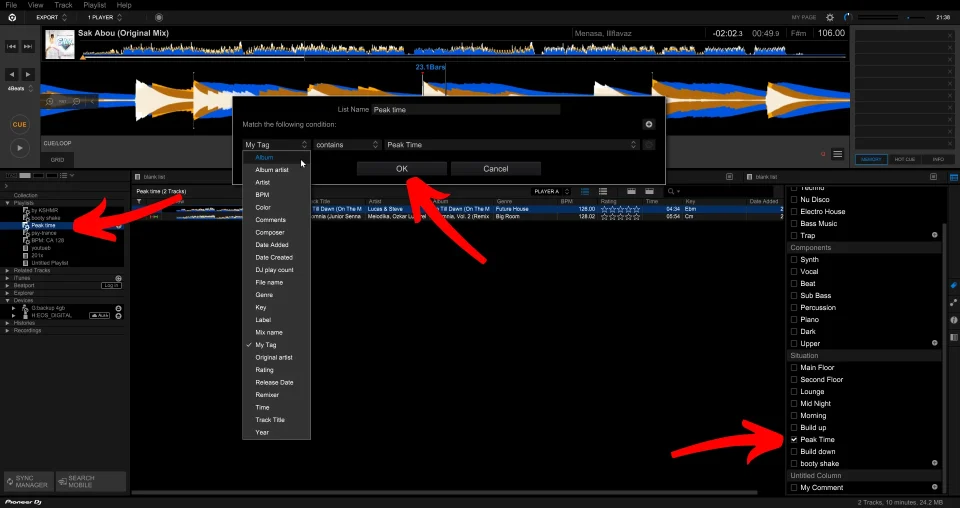
Create one intelligent playlist that would save you repeated searching. Medium | Bridge is a sensible choice if you tagged enough tracks for it to contain results. In the Playlists area, choose Create New Intelligent Playlist, give it a clear name, select My Tag for the first rule, and choose Medium. Add a second My Tag condition for Bridge. Check the resulting tracks: the playlist should contain tracks with both labels. Menu wording may vary by Rekordbox version, so verify the displayed rules and results rather than relying on the name alone.
One important distinction: your Prepared regular playlist does not, by itself, tell an intelligent playlist which tracks are ready. If you want a smart playlist to exclude unfinished imports, add a Ready My Tag only after checking a track, and include that tag as another rule. For a small self-taught library, it is equally reasonable to keep the smart rules simple and use the manually maintained prepared playlist for your most dependable practice sessions.
Takeaway
You now have three complementary ways to find music: Key is a visible analyzed field, My Tags capture your judgment about energy and role, and playlists put useful groups within reach. A regular playlist gives you a hand-picked pool; an intelligent playlist maintains a group that matches your rules. Keep the labels few, honest, and easy to filter—fast retrieval matters more than an elaborate taxonomy.
This completes the track-preparation module. Next, you’ll learn how to interpret Rekordbox’s key labels and use them to choose harmonically compatible candidates, while continuing to trust your ears when deciding what to play.