Recommended resources
The freely available resources this lesson will direct you to.
- 10 TPT Seller Tips YOU CAN'T Ignorewww.youtube.com
- How to Make Your Teachers Pay Teachers (TPT) Covers and Thumbnails Popwww.youtube.com
- Communicate Clearly With Unique Readable Fonts - Core Inspirationwww.thecoreinspiration.com
- How to Create TPT Products That Actually Sell: From Idea to Uploadseolumina.com
Following our last session where you built your foundational product templates, we're now ready to focus on what goes inside them. A professional template is the canvas; great design is the art that makes teachers stop scrolling and click "buy."
In this lesson, we will dive into the design best practices that are crucial for success on TPT. You'll learn how to apply principles of font selection, color theory, and layout specifically for classroom resources. Your expertise in Adobe Illustrator means you can execute any design idea; this lesson will provide the strategic thinking to ensure those ideas are not just beautiful, but also highly effective and readable for teachers and students. By the end of this session, you'll have a clear understanding of how to make your products look professional, trustworthy, and ready for the classroom.
The Golden Rule of TPT Design: Usability Over Decoration
The most common mistake new sellers make is overdesigning. They fill pages with decorative fonts, complex color schemes, and busy graphics, believing this makes the product look more valuable. In the TPT marketplace, the opposite is true. Teachers are busy professionals looking for tools that are clear, easy to use, and effective for their students. Your design should signal usability and professionalism, not just creativity.
The article "How to Create TPT Products That Actually Sell" perfectly captures this mindset.
How to Create TPT Products That Actually Sell: From Idea to Upload
This article from SEOLumina emphasizes that for TPT products, practical usability is more important than pure aesthetics. It outlines what teachers actually look for in a resource's design.
First, read the section on usability. Pay close attention to the bullet points listing what a buyer should immediately understand. Next, read the section Design for the Buyer. The list under "What strong resource design looks like" is your new checklist. Internalize these points—clear headings, white space, and age-appropriate visuals are non-negotiable. Finally, review the list of mistakes at the end of the article, specifically point #4: Too much design. This reinforces the central theme of this lesson.
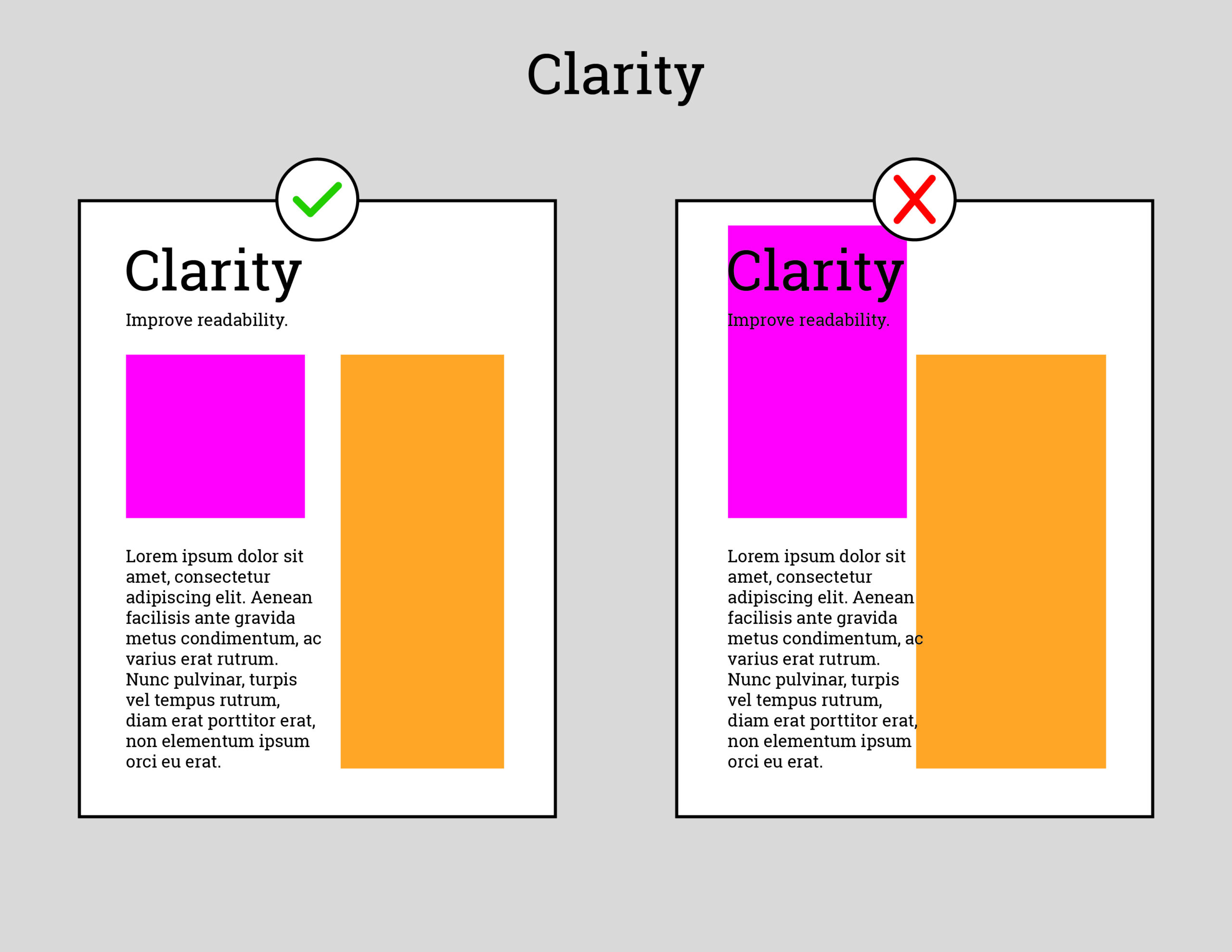
One of the most powerful, yet simplest, design tools at your disposal is white space—the empty areas on a page. It reduces cognitive load and makes content feel more approachable and easier to read. Crowded pages overwhelm both teachers and students.
Fonts: The Voice of Your Product
Your font choices are the single most important factor for readability. A font that is hard to read renders your content useless, no matter how good it is. The goal is to find fonts that are clear, legible, and have just enough personality to align with your brand without being distracting.
The TPT seller behind Core Inspiration provides an excellent guide on choosing and pairing fonts for educational resources.
Communicate Clearly With Unique Readable Fonts - Core Inspiration
This article breaks down the graphic design principles of font pairing in a way that is tailored specifically for teacher-authors.
Read the section under the heading Pairing Fonts. The key takeaway here is to select your body font first, prioritizing student readability. Next, carefully study the section Concord and Contrast. This introduces a fundamental rule of typography. Understand the difference between concord (pairing similar fonts) and contrast (pairing very different but complementary fonts, like a serif with a sans-serif). Most professional designs use contrast for headings and body text.
For TPT covers and product headings, the rules are even stricter. Remember that teachers are scrolling through dozens of tiny thumbnails. Your title must be legible at a very small size. This means using bold, simple, high-contrast fonts.
10 TPT Seller Tips YOU CAN'T Ignore
In this video, successful TPT seller Lindsay Bowden explains the practical realities of designing covers that get clicks.
Watch the segment from eye-catching covers. She emphasizes several key points for titles: High Contrast: Dark text on a light background, or light text on a dark background. Simple, Bold Fonts: Avoid cursive or overly decorative fonts for the main title. Sans-serif fonts are often best. Large Size: The text must be readable when the cover is a small thumbnail in search results.
Color, Contrast, and Layout in Practice
With your fonts chosen, the next step is to apply color and arrange elements on the page. Again, clarity is key. High contrast between text and background is essential for readability. Since many teachers print in black and white to save ink, your design must work well without color. Always test your designs in grayscale.
Watching a real-time critique of TPT products is one of the fastest ways to learn what works. In this video, Lindsay Bowden audits cover designs from other sellers, providing direct, actionable feedback on fonts, color, contrast, and layout.
How to Make Your Teachers Pay Teachers (TPT) Covers and Thumbnails Pop
This video is a masterclass in practical TPT design. You will see direct examples of good and bad design choices and how to fix them.
Watch the segment from auditing member covers. Pay close attention to how she: Uses a contrast checker tool to get an objective score on color combinations (contrast checker demo). This is a technique you should adopt. Fixes font readability by adjusting letter spacing and removing distracting text effects like shadows (letter spacing and removing shadow). Critiques fonts that are too "thick" or have letters that are too close together, making them hard to read. Continue watching from more cover audits. Notice the recurring themes: Text is too small or hard to read. Layout is cluttered or confusing. Colors lack sufficient contrast. Mockups are not used effectively to show the product. This audit gives you a buyer's-eye view of what makes a design look professional and trustworthy versus what looks amateurish.
When you combine clear fonts, high-contrast colors, and a clean layout with plenty of white space, you get a product that looks professional and is easy for students to use.

Your Task: Create a Product Style Guide
Now it's time to apply these principles. Open the Adobe Illustrator template you created in the last lesson. You are going to create a "Style Guide" on one of the artboards. This will serve as your reference for all future products, ensuring consistency and saving you time.
-
Font Selection and Hierarchy:
- Using the
Typetool, create three text blocks. - H1 - Main Title: Choose a bold, clear, sans-serif font for your main product titles. Type "Main Title Heading" and style it. This should be the largest text.
- H2 - Subheading: Choose a complementary font for subheadings within your resource. It could be a lighter weight of your H1 font (concord) or a clean serif font (contrast). Type "Section Subheading" and style it.
- Body Text: Choose a highly readable font for paragraphs and student instructions. It should be clean and simple. Prioritize legibility above all else. Type a short paragraph of placeholder text and style it.
- Using the
-
Color and Contrast:
- Open your Swatches panel where you saved your brand colors.
- Create several small squares. For each of your main brand colors, create a version with black text on top and another with white text on top.
- Visually assess the contrast. Is the text easy to read? If you have a light brand color (like yellow), white text on top will fail. If you have a dark brand color, white text will be better than black. This simple test will tell you which text color to use with which background color.
-
Save Your Work:
- Arrange these elements neatly on one page of your Illustrator template. Title the artboard "Product Style Guide."
- Save the template file (
.ait).
Now, whenever you start a new product, you can open your template, refer to your Style Guide page, and use the Eyedropper tool to instantly apply your pre-defined styles, ensuring all your products are consistent and professional.
Conclusion
In this lesson, you've moved beyond the technical setup of your template to the strategic design choices that drive sales. We've established that on TPT, effective design prioritizes usability, readability, and professionalism over decoration. You learned how to select and pair fonts using the "concord or contrast" principle, how to use color and contrast to ensure legibility, and how a clean layout with ample white space creates a better user experience for teachers and students. By creating a style guide in your Illustrator template, you've turned these principles into an actionable, efficient system for your business.
In our next lesson, we will address a critical legal and professional aspect of product creation: how to legally source and manage commercial-use fonts and clipart. Now that you know what makes a good font, we'll make sure you acquire them correctly.