Recommended resources
The freely available resources this lesson will direct you to.
- What’s New with Artboards in Adobe Illustrator 2025 | Faster Workflow Tipswww.youtube.com
- How to make a master artboard or parent artboard in illustrator - Graphic Design How towww.youtube.com
- Creating Your Book Template in Adobe Illustrator - PrintNinjaprintninja.com
- Artboards: Renumber, Rearrange, and Reorder in Adobe Illustratorwww.lauracoylecreative.com
In our last lesson, we built a reusable template for your product cover, establishing a key principle for efficiency. Now, we're going to expand that principle from a single cover to an entire multi-page resource. Your ability to create products quickly, without sacrificing quality, is what will allow you to build a substantial TPT store.
This lesson focuses on developing a complete workflow in Adobe Illustrator for creating multi-page products. We will move beyond single-page design and master the tools that allow you to manage entire documents, from the cover and instructions to the worksheets and terms of use. By leveraging Illustrator's artboard features, layers, and symbols, you will build a powerful, scalable system for production.
The Blueprint: Setting Up Your Multi-Page Document
Every TPT product is a collection of pages, and Illustrator uses "artboards" to represent each page. Setting up your document correctly from the very beginning is the most critical step in an efficient workflow. This is where you define the structure of your entire resource.
When you create a new document (File > New), you'll see options specifically for multi-page projects. Let's look at the key settings in the "More Settings" dialog.
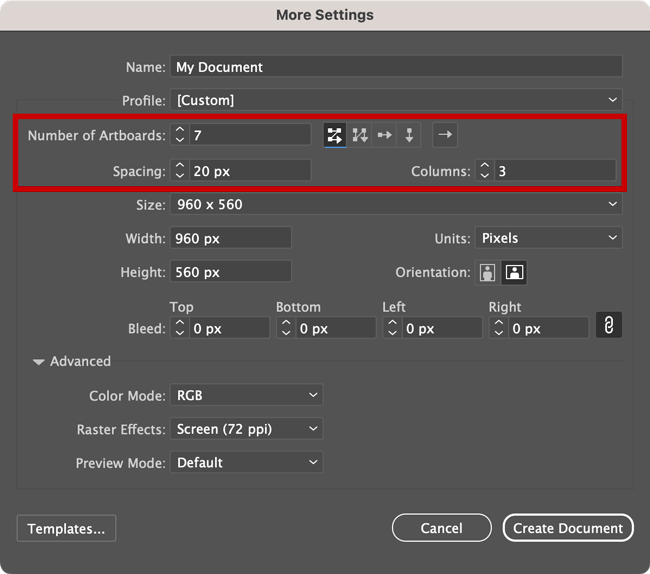
Your goal is to create a standard structure for most of your products. For example, a typical resource might have:
- 1 Cover Page (Square)
- 1 Teacher Instructions Page (8.5" x 11")
- 5 Worksheet Pages (8.5" x 11")
- 5 Answer Key Pages (8.5" x 11")
- 1 Terms of Use / Credits Page (8.5" x 11")
This would mean you need a total of 13 artboards. While you can't mix sizes in the initial setup, you can easily resize the cover artboard later.
The following guide from PrintNinja, though intended for book printing, provides the perfect technical foundation for setting up a TPT resource in Illustrator.
Creating Your Book Template in Adobe Illustrator - PrintNinja
This article details the initial document setup for a multi-page project.
Read the section Getting Started. Focus on these key parameters: Number of Artboards: This will be your total page count. Size: You'll typically use US Letter (8.5 x 11 inches) for printable resources. Bleed: Understand the standard 0.125" setting for print-safe designs. Advanced: Confirming CMYK color mode and 300 PPI resolution for print quality.
Managing Your Pages: The Artboards Panel
Once your document is created, the Artboards Panel (Window > Artboards) becomes your command center. This panel is not just a list; it controls the structure, order, and organization of your final PDF.

Mastering the Artboards panel involves a few key operations: renaming, reordering, and rearranging.
- Renaming: Double-click an artboard's name to give it a descriptive title (e.g., "Cover," "Worksheet 1," "Answer Key 1," "Terms of Use"). This organizational step is crucial for managing complex products.
- Reordering: Drag artboards up or down in the panel, or use the arrow buttons at the bottom. The top-to-bottom order here dictates the page sequence (Page 1, Page 2, etc.) in your final product.
- Rearranging: After reordering in the panel, your artboards might be visually jumbled on your screen. Click the Rearrange All Artboards button at the bottom of the panel to clean up the layout. The most critical setting in the dialog box that appears is "Move Artwork with Artboard." Always ensure this is checked so your designs stay with their respective pages.
This article from Laura Coyle Creative provides an excellent, practical walkthrough of these essential management techniques.
Artboards: Renumber, Rearrange, and Reorder in Adobe Illustrator
This guide provides clear, step-by-step instructions for managing multiple artboards efficiently.
Read through the following sections to master artboard organization: Managing Artboard Names: Focus on the methods for renaming artboards for clarity. Changing the Order: Understand the difference between reordering in the panel (logical order) and rearranging on the canvas (visual layout). Rearranging Artboards: Pay close attention to the "Rearrange Artboards" function and the vital "Move Artwork with Artboard" checkbox.
The Efficiency Engine: Creating a "Master Page" with Symbols
Many TPT resources have elements that repeat on every page, like a footer with your copyright information, a page number, or your logo. In a program like InDesign, you would use a "Master Page" for this. Illustrator doesn't have this feature built-in, but we can create an even more flexible system using Symbols.
A Symbol is a master object. When you place copies (called "instances") of a Symbol on multiple artboards and then edit the original Symbol, all instances update automatically. This is the secret to unrivaled efficiency.
The workflow is as follows:
- Isolate: Use layers to separate your repeating "master" elements from your unique page-by-page content.
- Symbolize: Convert the group of master elements into a single Symbol.
- Distribute: Use the powerful
Edit > Paste on All Artboardscommand to place the Symbol instance on every page in the exact same position. - Update Globally: Need to change your copyright year? Edit the Symbol once, and it updates across your entire 50-page document instantly.
This video provides a concise and brilliant demonstration of this powerful technique.
How to make a master artboard or parent artboard in illustrator - Graphic Design How to
This tutorial from Graphic Design How To shows you how to create a "master page" system in Illustrator using layers and symbols.
Watch the following segments to learn this game-changing workflow: Separating elements: See how to use layers to organize your content. Creating the Symbol: This is the core step of turning your repeating elements into a master object. Pasting on all artboards: Learn the command that distributes your master element across the entire document. Updating the master: Watch how a single change to the symbol automatically updates every page.
Action Plan: Build Your Multi-Page Product Template
It's time to build another core asset for your business: a comprehensive, multi-page product template. This .ait file will be the starting point for nearly every resource you create.
Your task is to create an Illustrator Template file with the following specifications:
-
Document Setup:
- Create a New Document. Use the More Settings dialog.
- Number of Artboards: 5
- Size: Set it to US Letter (8.5 x 11 inches). We will resize the cover manually.
- Bleed: 0.125 inches on all sides.
- Color Mode: CMYK, Raster Effects: High (300 ppi).
-
Artboard Configuration:
- Open the Artboards Panel.
- Select Artboard 1. In the Properties Panel (or using the Artboard Tool), change its dimensions to 1080 px by 1080 px. This is your cover.
- Rename the artboards in the panel as follows:
CoverInstructionsWorksheetTerms of UseCredits
-
Layer and Symbol Setup:
- Open the Layers Panel (
Window > Layers). Create two layers:Master Footer(on the bottom) andPage Content(on top). Lock theMaster Footerlayer for now. - Select the
Master Footerlayer. Create a simple text box at the bottom of one of the letter-sized artboards with your copyright info (e.g.,© Your Store Name 2024). - With the copyright text box selected, open the Symbols Panel (
Window > Symbols) and click the New Symbol icon. Name itProduct Footerand click OK. - Cut the new symbol instance (
Cmd/Ctrl + X). - Go to
Edit > Paste on All Artboards. This will place your footer on all five pages. Delete the instance from the squareCoverartboard.
- Open the Layers Panel (
-
Save as Template:
- Go to
File > Save As Template...and name the fileTPT_Product_Template.ait.
- Go to
You now have a starting file for all future products that includes your cover, standard pages, and an updatable footer, all perfectly organized.
Conclusion
In this lesson, you moved from designing a single page to architecting a complete, multi-page document. You learned how to set up a project using artboards, how to manage those artboards for perfect organization, and most importantly, how to create a "master page" system using symbols for maximum efficiency. The product template you just built is not just a file; it's a system that will save you countless hours and ensure professional consistency across your entire product line.
With this creation workflow established, our final step is to prepare the file for delivery. In the next lesson, we will focus on exporting your multi-page Illustrator document into a single, secured, print-ready PDF—the exact file format you'll upload to Teachers Pay Teachers.