Recommended resources
The freely available resources this lesson will direct you to.
Introduction
Welcome to your first lesson! Today, we will lay the essential groundwork for your journey into modern software development with AI. Our goal is to set up a contemporary code editor, which will be your primary tool for building applications. Think of it as your digital workshop—a space where you will write, test, and manage all of your code.
Given your background in C and C++, you might recall using simpler text editors or integrated development environments (IDEs) from that era. Modern code editors have evolved significantly, offering powerful features like intelligent code completion, integrated terminals, debugging tools, and, most importantly for this course, seamless integration with AI assistants.
In this lesson, you will learn about two leading code editors, Visual Studio Code and Cursor, and choose the one that best suits your goals. We will then walk through the installation process and take a tour of its interface, ensuring you are comfortable and ready to start coding in our next session.
What is a Modern Code Editor?
Before we dive into installation, let's clarify what a modern code editor is and why it's so crucial. Unlike a basic text editor (like Notepad), a code editor is specifically designed for writing software. Key features include:
- Syntax Highlighting: Automatically colors different parts of your code (variables, functions, strings) to make it more readable.
- IntelliSense/Autocompletion: Suggests code as you type, speeding up your workflow and reducing typos.
- Integrated Terminal: A command-line interface built directly into the editor, so you don't have to switch windows to run commands.
- Debugging Tools: Help you find and fix errors in your code by allowing you to pause execution, inspect variables, and step through your program line by line.
- Extensions and Plugins: A vast ecosystem of add-ons that extend the editor's functionality, from supporting new languages to integrating with services like GitHub and, of course, AI assistants.
For this course, we'll focus on two excellent options: Visual Studio Code and Cursor.
Option 1: Visual Studio Code (The Industry Standard)
Visual Studio Code, or VS Code, is a free code editor developed by Microsoft. It has become the de facto standard for web development due to its performance, flexibility, and massive extension library. Its AI capabilities are added through extensions, with GitHub Copilot being the most prominent.
Option 2: Cursor (The AI-Native Choice)
Cursor is a "fork" of VS Code. This means it's built on the same open-source foundation as VS Code—sharing its look, feel, and performance—but has been modified to include powerful AI features right out of the box. You can chat with an AI that has context on your entire project, generate code from prompts, and get help with debugging, all without installing extra plugins.
My Recommendation:
Given your primary goal is to use AI to bridge the gap between your existing knowledge and modern development, I recommend starting with Cursor. Its AI-first approach provides a more integrated and streamlined experience, which can significantly accelerate your learning.
However, VS Code is an equally valid choice, and you will not be at a disadvantage if you prefer to use the industry-standard tool. The following sections provide setup instructions for both. I suggest you follow the guide for Cursor, but feel free to explore the VS Code section if you're curious or prefer that path.
Setting Up Cursor: Your AI-First Editor
Let's get Cursor installed and take a look around. The "Cursor 2.0 - Full Tutorial for Beginners" video provides an excellent visual guide for this process.
Cursor 2.0 - Full Tutorial for Beginners
This video by Tech With Tim will walk you through the initial setup.
First, watch the introduction from the beginning to understand what Cursor is. Then, follow the steps for opening a project folder. This is a fundamental step for organizing your work.
To install the editor, you'll need to download it from the official website. The "Quickstart" documentation has the direct links and instructions for your operating system.
This page provides the official download links and installation commands.
Please locate the section for your operating system (macOS, Windows, or Linux) and follow the instructions to install Cursor. After installation, open the application.
Exploring the Cursor Interface
Once you have Cursor open and have created and selected a project folder (you can name it course-project), your screen should look something like this:
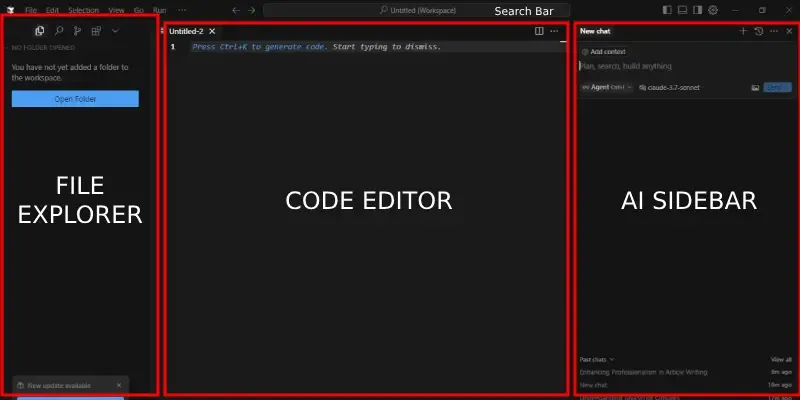
The key concept in Cursor is the separation between the standard Editor view and the AI Agent view. The following video segment explains this and other UI elements clearly.
Cursor 2.0 - Full Tutorial for Beginners
This part of the tutorial explains how to navigate the user interface and use the built-in AI.
Watch the segment on switching views to understand how to move between the file editor and the AI agent. Then, skip ahead to see a brief demonstration of AI autocompletion, which suggests code as you type.
This completes the basic setup and configuration for Cursor. You've installed the editor, learned how to create a project, and familiarized yourself with its core AI-centric UI. You don't need to write any code just yet; the goal of this lesson is to get your environment ready.
(Alternative Path) Setting Up Visual Studio Code
If you prefer to use the industry-standard tool, this section will guide you through setting up VS Code.
First, you'll need to install VS Code from its official website.
Tutorial: Get started with Visual Studio Code
This is the official getting started guide from the VS Code team.
In the "Prerequisites" section, follow the link to download and install VS Code. Once installed, I recommend reading the section exploring the UI to familiarize yourself with the Activity Bar, Side Bar, and Editor.
AI Integration in VS Code
Unlike Cursor, VS Code's AI capabilities come from extensions that you install from the Visual Studio Marketplace. The most popular AI assistant is GitHub Copilot. The process involves searching for the extension in the Extensions view and clicking "Install".
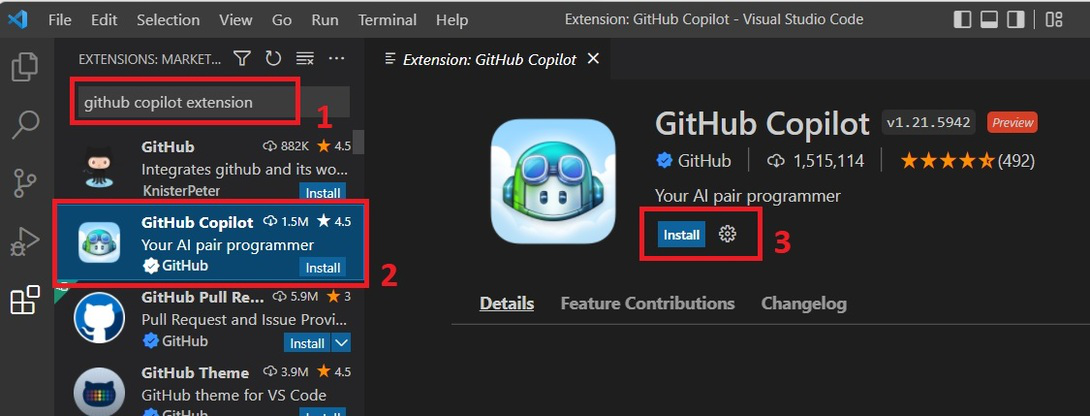
We will cover the detailed installation and configuration of GitHub Copilot in our next lesson. For now, the key takeaway is that VS Code is extended through plugins, which is how you will enable AI assistance.
Conclusion
In this lesson, you've taken the first critical step in your learning journey by setting up a modern, professional code editor.
Here are the key takeaways:
- Modern code editors like VS Code and Cursor provide powerful tools that go far beyond simple text editing.
- Cursor is an AI-native editor built on VS Code's foundation, making it an excellent choice for this course's focus.
- VS Code is the industry standard and can be enhanced with powerful AI capabilities through extensions like GitHub Copilot.
- You are now familiar with the basic interface of your chosen editor, including how to open a project folder and where to find the main UI elements.
You've successfully established your development environment. In the next lesson, we will dive deeper into AI integration by installing and configuring GitHub Copilot. You'll then use it to write your very first line of AI-generated code.