Recommended resources
The freely available resources this lesson will direct you to.
Introduction
Welcome back! In our last lesson, you set up your digital workshop by installing a modern code editor—either the AI-native Cursor or the industry-standard Visual Studio Code. You now have a powerful environment for writing code, and today, we're going to install the engine that will power its AI capabilities.
The goal of this lesson is to install and configure GitHub Copilot. Think of Copilot as your AI pair programmer; it's an assistant that lives inside your editor, suggesting code, answering questions, and helping you write software more efficiently. This tool will be central to our goal of bridging the gap between your existing programming knowledge and modern development practices.
The setup process differs slightly depending on whether you chose Cursor or VS Code, and we will cover both paths. By the end of this lesson, your AI assistant will be fully activated and ready for action.
What is GitHub Copilot?
Before we begin the setup, let's clarify what GitHub Copilot is. Developed by GitHub and OpenAI, it's one of the most widely adopted AI coding tools today. It analyzes the context of the code you're writing—as well as comments and file names—to offer suggestions, from single lines to entire functions.
To get a better sense of its capabilities, take a few minutes to read the introduction from the official GitHub blog.
GitHub for Beginners: How to get started with GitHub Copilot
This article provides an excellent overview of what GitHub Copilot is and what it can do.
Read the introduction and the section titled What is GitHub Copilot?. This will give you a solid understanding of its purpose as an "AI pair programmer."
Understanding GitHub Copilot Plans
GitHub Copilot is a commercial product, but it offers a generous free tier that is more than sufficient for this course. To use it, you will need a personal GitHub account. If you don't have one, you can create one for free.
The different subscription options determine your usage limits. The "GitHub for Beginners" article you just looked at also contains a clear summary of these plans.
GitHub for Beginners: How to get started with GitHub Copilot
This section explains the different subscription tiers for GitHub Copilot.
Focus on the section What are the different tiers of GitHub Copilot?. Pay attention to the Free and Pro tiers. For our purposes, the free plan, which offers a limited number of monthly suggestions and chat interactions, will be perfect.
Now that you understand what Copilot is and what plan you'll be using, let's get it configured in your editor.
Configuration: Choose Your Path
The steps from here depend on which editor you installed in the previous lesson.
Path 1: Activating AI in Cursor
If you chose Cursor, the good news is that the AI functionality is already built-in. You don't need to install any extensions. Your only task is to connect it to your GitHub account.
- Open the Cursor application.
- Look for the Accounts icon (a person silhouette) in the bottom-left corner of the Activity Bar.
- Click it, and select "Sign in with GitHub to use GitHub Copilot" or a similar prompt.
- This will open your web browser and ask you to authorize Cursor to access your GitHub account. Follow the on-screen instructions to approve it.
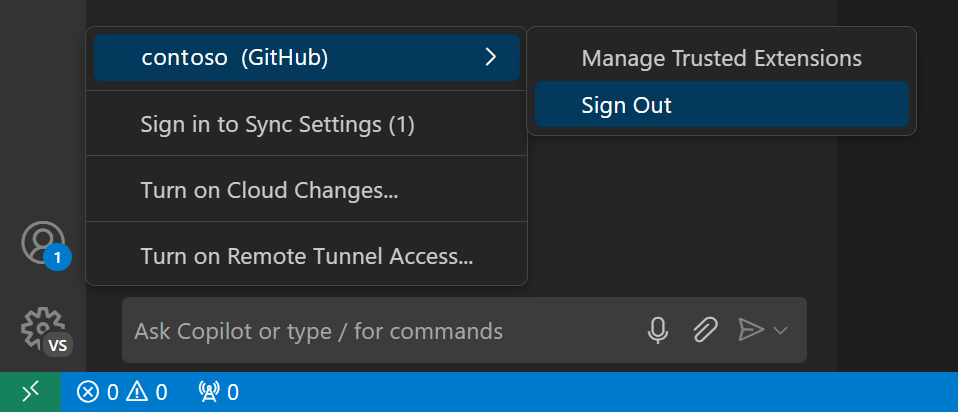
Once you've signed in, you're all set! Cursor's AI features are now active and linked to your GitHub account. You can proceed to the conclusion of this lesson.
Path 2: Installing GitHub Copilot in VS Code
If you chose to use the standard Visual Studio Code, you'll need to install the GitHub Copilot extension from the Marketplace.
1. Install the Extension
First, open the Extensions view in VS Code (the icon with the four squares in the Activity Bar) and search for "GitHub Copilot."
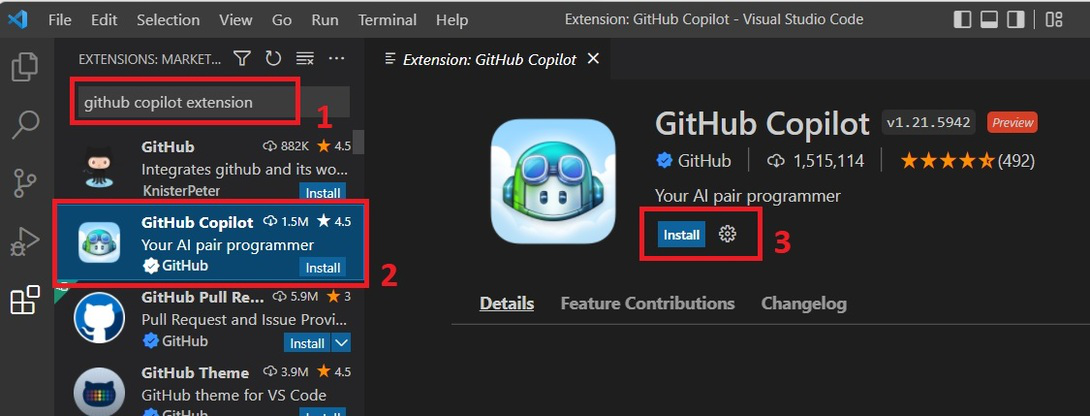
Installing this will actually add two extensions: GitHub Copilot (for inline suggestions) and GitHub Copilot Chat (for the conversational AI).
2. Sign In and Authenticate
After the installation is complete, VS Code will prompt you to sign in to your GitHub account to authorize the extension. If you don't see a prompt, you can manually start the process.
The official "Getting started with GitHub Copilot" tutorial video from GitHub provides a very clear walkthrough of the installation and sign-in process.
Getting started with GitHub Copilot | Tutorial
This video from the official GitHub channel demonstrates the entire setup process in VS Code.
Watch the segment from installing in VS Code. This will guide you through installing the extension, signing in with your GitHub account in the browser, and verifying that the Copilot status icon shows "Ready" in the bottom status bar.
As shown in the video, the key steps are:
- Click Install on the GitHub Copilot extension page.
- You will be prompted to sign in. This redirects you to the GitHub website in your browser.
- Authorize VS Code to use your GitHub account.
- Once you return to VS Code, check the Copilot icon in the bottom status bar. If it says "Status: Ready," your setup is complete.
Conclusion
Congratulations! You have successfully installed and configured your AI pair programmer.
Here are the key takeaways from this lesson:
- GitHub Copilot is an AI assistant that provides code suggestions and chat functionality directly within your editor.
- It requires a GitHub account, and the free tier is sufficient for our learning purposes.
- In Cursor, activation is as simple as signing in to your GitHub account.
- In VS Code, you must install the GitHub Copilot extension from the Marketplace and then authenticate with your GitHub account.
You now have the two fundamental pieces of your modern development environment in place: a code editor and an integrated AI assistant.
In our next lesson, we will complete your setup by installing Node.js and npm, which are essential for running and managing modern JavaScript projects. This will prepare us to finally start writing and executing some code with the help of our new AI partner.