Recommended resources
The freely available resources this lesson will direct you to.
- Reading, Writing, and Appending Files in Python | Python for Beginnerswww.youtube.com
- Python File Handling - Visually Explainedwww.youtube.com
- How to Open, Read, and Write Fileswww.digitalocean.com
- A simple Python script to count and rank the frequency of words in a text file, e.g. for verifying that you are kerning important pairs for specific content · GitHubgist.github.com
Welcome to our next lesson. In the previous session, you successfully mastered iterating over lists and dictionaries, which is the engine for processing data that exists within your Python script. Now, we will take a significant step toward building real-world applications by learning how to handle data that lives outside your script, in plain text files.
This lesson is dedicated to mastering basic file input/output (I/O). This skill is absolutely essential for your goal of building NLP tools, as almost all data science and AI work begins with loading data from an external source, like a text file or a CSV.
We will follow a simple but powerful four-step process for handling files, which is a fundamental pattern in programming:
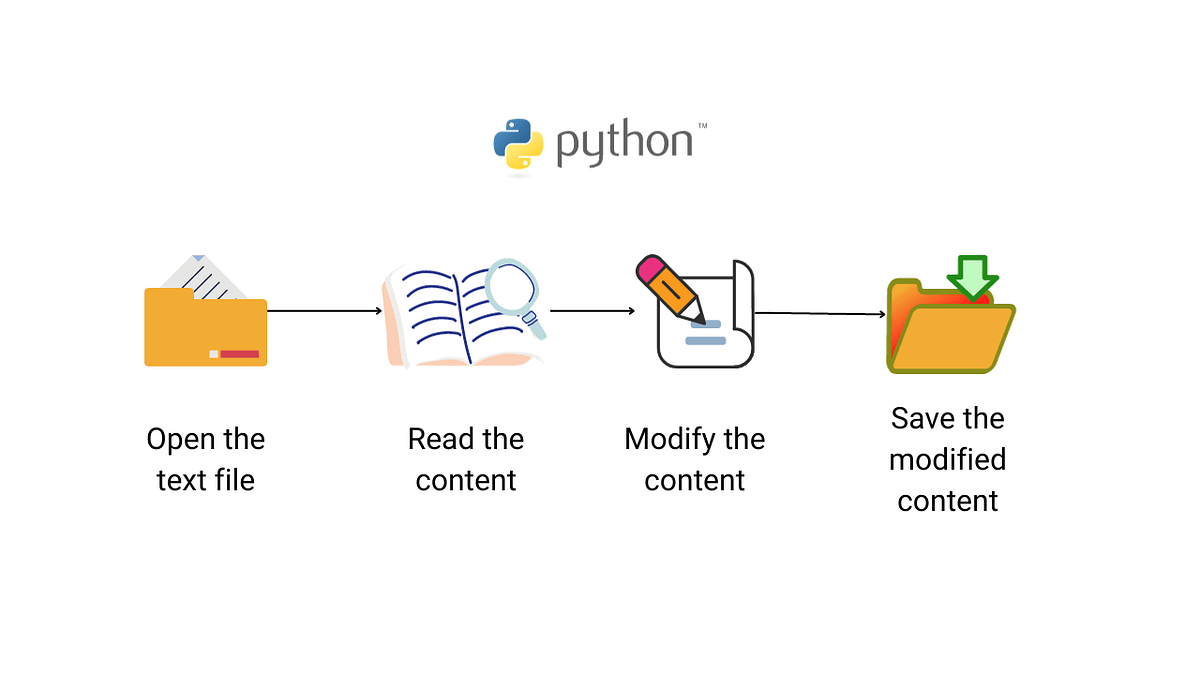
By the end of this lesson, you will be able to confidently read data from a file, process it using the loop and dictionary skills you've already learned, and write your results to a new file.
1. The Core Operations: Open, Read, Write, and Close
Interacting with a file always starts with the open() function. This function tells the operating system that you want to access a file and requires two main pieces of information: the file's path and the mode in which you want to open it. The mode determines what you're allowed to do: read from it, write to it, or append to it.
The DigitalOcean community tutorial "How to Open, Read, and Write Files" provides an excellent reference for these modes.
How to Open, Read, and Write Files
This article provides a comprehensive overview of file operations. Start by reviewing the section on the open() function.
Focus on the two tables under the heading "1. Open a file in Python with the open() function." Pay close attention to the behavior of the three primary modes you'll use most often: Read mode ('r'): For reading an existing file. Write mode ('w'): For writing to a file. Crucially, this will erase the file's contents if it already exists. Append mode ('a'): For adding new data to the end of an existing file without erasing it.
Let's see this in action. We'll start by creating a file and writing to it. The following video from Alex The Analyst gives a clear, step-by-step demonstration of writing, appending, and reading.
Reading, Writing, and Appending Files in Python | Python for Beginners
This video walks through the entire process of creating, writing to, appending, and reading a file.
Watch the following segments: Writing to a file: Notice how he uses open() with mode 'w', then .write() to add content, and finally .close() to save the changes and release the file. Pay attention to the tip about using r before the file path string (e.g., r'C:\Users\...') on Windows to handle backslashes correctly. Appending to a file: Here, he switches to mode 'a' to add more text without deleting the original content. Reading a file: Finally, he uses mode 'r' and the .read() method to load the file's content into a Python variable and print it.
As you saw, after you finish your work, it is vital to call the .close() method. Closing the file does two things: it ensures that any data you wrote is actually saved from memory to the disk, and it releases the file so that other programs (or other parts of your program) can use it. Forgetting to close a file can lead to corrupted data or other bugs.
2. A Better Way: The with open() Statement
Remembering to call .close() every single time is easy to forget and can make your code messy, especially if errors occur. Python provides a much cleaner and safer way to handle files using a context manager, which you create with the with keyword.
The with open(...) as file: statement is the universally recommended best practice for file handling in Python.
Here’s how it works:
- You use
with open(...) as file:to open the file and assign it to a variable (e.g.,file). - You write all your file-interacting code inside an indented block under the
withstatement. - As soon as your program exits that indented block, Python automatically closes the file for you. This happens even if your code runs into an error, guaranteeing that the file is safely closed.
The video "Python File Handling - Visually Explained" gives an excellent breakdown of why closing files is so important and how the with statement solves this problem elegantly.
Python File Handling - Visually Explained
This video explains the technical reasons for closing files and introduces the with statement as the solution.
Watch the section from why we must close files. The explanation of memory buffers is particularly insightful—it clarifies that your data isn't always written to disk immediately. The video then introduces the with statement as the proper way to manage file connections.
Let's rewrite our previous operations using this superior syntax.
Writing to a file:
# The 'w' mode creates the file if it doesn't exist and erases it if it does.
with open('my_file.txt', 'w') as f:
    f.write("This is the first line.\n")
    f.write("This is the second line.\n")


# The file is automatically closed here.
Appending to a file:
# The 'a' mode adds content to the end of the file.
with open('my_file.txt', 'a') as f:
    f.write("This is a third line, added later.\n")


# The file is automatically closed here.
Reading from a file:
# The 'r' mode opens the file for reading.
with open('my_file.txt', 'r') as f:
    content = f.read()
    print(content)


# The file is automatically closed here.
From now on, you should always use the with open(...) syntax for all file operations.
3. Processing Files Line by Line
Reading an entire file into a single string with .read() is fine for small files, but it's inefficient for large datasets. A much more common and memory-friendly pattern, especially in NLP, is to read and process the file one line at a time.
You can do this beautifully by using a for loop directly on the file object. This is one of the most powerful and "Pythonic" patterns for file processing.
# Let's assume 'my_file.txt' has multiple lines.
with open('my_file.txt', 'r') as f:
    for line in f:


        # Each 'line' is a string ending with a newline character ('\n').
        # We use .strip() to remove leading/trailing whitespace, including the newline.
        cleaned_line = line.strip()
        print(f"Processing line: {cleaned_line}")
This approach combines the file-handling skills from this lesson with the iteration skills from the last one. It allows you to process files of any size without running out of memory, because you only ever hold one line in memory at a time. This is exactly the technique used to process large text corpora for training language models.
The GitHub Gist below shows a complete script that uses this exact pattern to read a text file, process it line by line, and count word frequencies.
This script is a perfect practical example of what we've been discussing. It combines file reading, text processing, and file writing.
Take a look at two key parts of the code: The first loop, which iterates through the file. Notice how it reads each line, uses .strip() and .lower() to clean it, and then .split() to get the words. This is a classic text-processing pipeline. The with block at the end, which writes the results to a new file. This shows how to take your processed data (the sortedDict) and save it for later use.
Your Turn: Creating a File-Based Word Counter
Now it's time to put everything together. You will adapt the word-counting logic from our previous lessons to work with files.
Task:
Write a Python script that does the following:
- Reads text from a file named
input.txt. - Counts the frequency of each word in the text (case-insensitively).
- Writes the results to a new file named
output.txt, with each word and its count on a new line, formatted asword: count.
Instructions:
-
First, create a file named
input.txtin the same directory as your Python script. Put the following text inside it and save it:The quick brown fox jumps over the lazy dog.
The dog was not quick, but the fox was. -
In your Python script, use the
with open(...)syntax to openinput.txtin read mode ('r'). -
Initialize an empty dictionary to store your word counts.
-
Use a
forloop to iterate through eachlinein the file. -
Inside the loop, for each
line:- Clean it by removing leading/trailing whitespace and converting it to lowercase.
- Split the cleaned line into a list of
words. - Loop through the
wordslist and update your dictionary of counts (this is the same logic you've already practiced).
-
After the first loop finishes, use a second
with open(...)statement to openoutput.txtin write mode ('w'). -
Loop through your word counts dictionary (using
.items()is best!) and for eachword, countpair, write a formatted stringf"{word}: {count}\n"to the output file. The\nis crucial for putting each entry on a new line.
After running your script, you should have a new file, output.txt, with the following content:
the: 4
quick: 2
brown: 1
fox: 2
jumps: 1
over: 1
lazy: 1
dog: 2
was: 2
not: 1
but: 1
Use the code below as a starting point.
# 1. & 2. Open the input file for reading
word_counts = {}

with open('input.txt', 'r') as input_file:


    # 3. Loop through each line in the file
    for line in input_file:


        # 4a. Clean and split the line into words
        cleaned_line = line.strip().lower()
        words = cleaned_line.split()


        # 4b. Loop through the words and count them
        for word in words:


            # Punctuation removal (simple version)
            word = word.strip('.,?!')
            if word: # Make sure the word is not empty after stripping
                if word in word_counts:
                    word_counts[word] += 1
                else:
                    word_counts[word] = 1


# 5. & 6. Open the output file for writing and save the results
with open('output.txt', 'w') as output_file:
    for word, count in word_counts.items():
        output_file.write(f"{word}: {count}\n")

print("Word count complete. Check output.txt for results.")
This exercise perfectly simulates a common NLP task: reading raw data, processing it, and saving a structured result.
Conclusion
In this lesson, you've bridged the gap between working with data inside your script and interacting with the world outside it. This is a fundamental and powerful skill that moves you much closer to building real applications.
Key Takeaways:
- Files are opened with
open(path, mode), where the key modes are'r'(read),'w'(write, erases existing content), and'a'(append, adds to end). - Forgetting to
.close()a file can lead to data loss or other errors. - The
with open(...) as f:syntax is the standard, safe, and professional way to handle files, as it guarantees they are closed automatically. - Iterating over a file object with a
forloop (for line in f:) is a memory-efficient and common pattern for processing text files line by line.
You are now capable of reading data from the outside world and saving your results. In our next lesson, we will expand your toolbox by learning how to import and use Python's built-in modules, such as math and random. This will allow you to perform more complex operations on the data you read from files, further preparing you for the powerful external libraries used in data science.