Recommended resources
The freely available resources this lesson will direct you to.
- 10 min Walkthrough of Langfuse – Open Source LLM Observability, Evaluation, and Prompt Managementwww.youtube.com
- Langfuse Intro - Observability & Tracing Deep Divewww.youtube.com
- Example Llm Security Monitoring - Langfuselangfuse.com
- LLM Monitoring and Observability: Hands-on with Langfusetowardsdatascience.com
Welcome back. In our previous lesson, we successfully instrumented our application to send detailed trace data to your local Langfuse server. You now have a "flight data recorder" capturing every step of your RAG chain's execution. From your SRE background, you know that collecting logs is only the first step; the real value lies in turning that raw data into actionable intelligence.
This lesson focuses on exactly that. Our goal is to create Langfuse dashboards to visualize attack patterns and the trigger rates of defense mechanisms. We will move from looking at individual traces to creating a high-level "Security Operations Center" view that can help us spot threats and understand the effectiveness of our safeguards.
1. Instrumenting Defenses to Generate Security Scores
Before we can visualize anything, we need to generate the data we want to plot. A dashboard can't visualize an "attack attempt" if it doesn't know what one looks like. This means we need to modify our defense mechanisms (even the simple ones we'll build) to log a quantitative score to Langfuse for each request.
The core mechanism for this is Langfuse's scoring feature. For any trace or observation (span), you can attach one or more named scores. A score is simply a name-value pair, for example, name="injection-risk", value=0.95.
Let's look at a practical example. The Langfuse documentation provides a cookbook for monitoring LLM security that is directly relevant here.
Example Llm Security Monitoring
Please read this guide from Langfuse. It provides excellent examples of how to integrate a security library (LLM Guard) and log its findings as scores within a Langfuse trace.
Focus on the code block in the section titled 'With Security'. Observe how the violence_scanner.scan(topic) function returns a risk_score and how langfuse_context.score_current_observation() is used to log this score to the current trace with the name 'input-violence'. This is the fundamental pattern we will use.
The key pattern from the guide is:
- Run a check on the input (or output).
- This check produces a numerical score indicating risk.
- Use the Langfuse context to log this score.
Let's adapt this for our own use case. Imagine we have a simple defense function in our FastAPI application that checks for a common injection pattern.
# A hypothetical defense function in our app
import re

def detect_instruction_override(prompt: str) -> float:
    """
    Checks for simple instruction override patterns.
    Returns a score between 0.0 (safe) and 1.0 (highly suspicious).
    """
    pattern = r"ignore all previous instructions|disregard the above prompt"
    if re.search(pattern, prompt, re.IGNORECASE):
        return 1.0
    return 0.0


# Inside your FastAPI endpoint...
from langfuse.callback import CallbackHandler

@app.post("/chat")
async def chat(request: dict):
    user_input = request.get("input")
    user_id = request.get("user_id", "default-user")


    # Instantiate the handler
    langfuse_handler = CallbackHandler(user_id=user_id)


    # 1. Run our defense check
    injection_score = detect_instruction_override(user_input)


    # 2. Log the score to the root trace
    # The handler gives us access to the trace object being created.
    langfuse_handler.trace.score(
        name="instruction-override-risk",
        value=injection_score,
        comment="Score from simple regex check."
    )


    # ... proceed with RAG chain invocation, passing the handler
    response = rag_chain.invoke(
        {"input": user_input},
        config={"callbacks": [langfuse_handler]}
    )

    return {"response": response}
By adding this logic, every single request that passes through our application will now have a instruction-override-risk score associated with its trace. This is the raw material for our security dashboard. As we build more sophisticated defenses (input sanitizers, Guardrails AI), each will contribute its own score to the trace.
2. Understanding Langfuse Dashboards
Now that we are generating security-relevant scores, let's see where they show up and how we can build visualizations around them. Langfuse provides a default project dashboard and the ability to create fully custom ones.
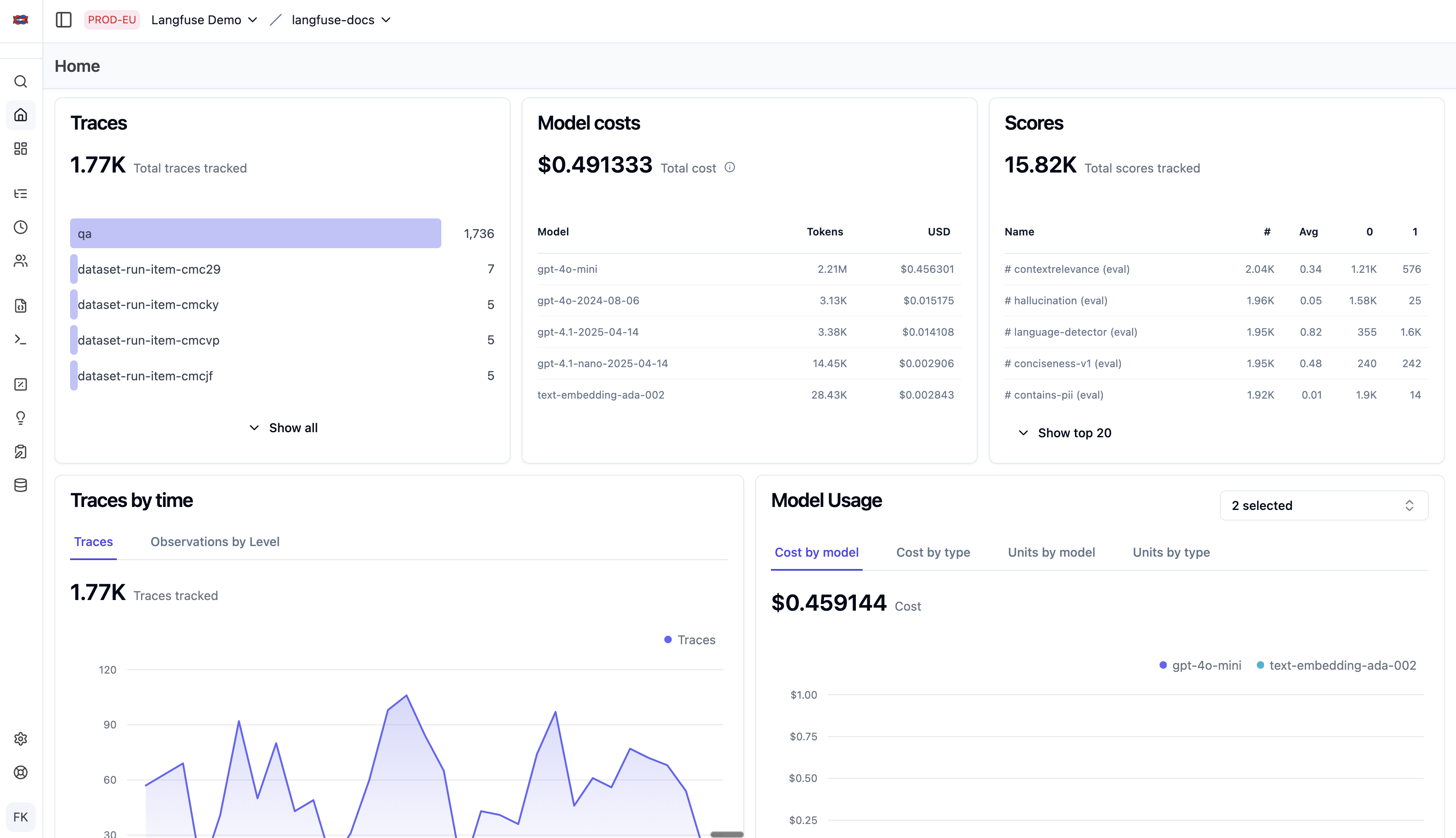
The video below gives a quick tour of the dashboarding and evaluation plotting capabilities.
10 min Walkthrough of Langfuse – Open Source LLM Observability, Evaluation, and Prompt Management
This short walkthrough from Langfuse demonstrates the default dashboard metrics and how you can begin plotting evaluation results, which is functionally identical to plotting our security scores.
Watch from 00:27 to 00:53 to see the default dashboard components. Then, jump to 04:48 - 05:36 to see how scores (called 'evaluation metrics' here) can be selected and plotted over time. This is the core functionality we'll use to build our security dashboard.
The key takeaway is that any score you log via .score() becomes available as a metric you can plot, filter, and aggregate in the dashboarding interface.
3. Creating a Custom Security Dashboard
The default dashboard is useful, but for your security demo, you'll want a dedicated view that focuses exclusively on threat intelligence. This is where custom dashboards come in.
A custom dashboard is a canvas where you can add, arrange, and configure widgets to visualize your trace data in any way you need. Let's design a security dashboard.
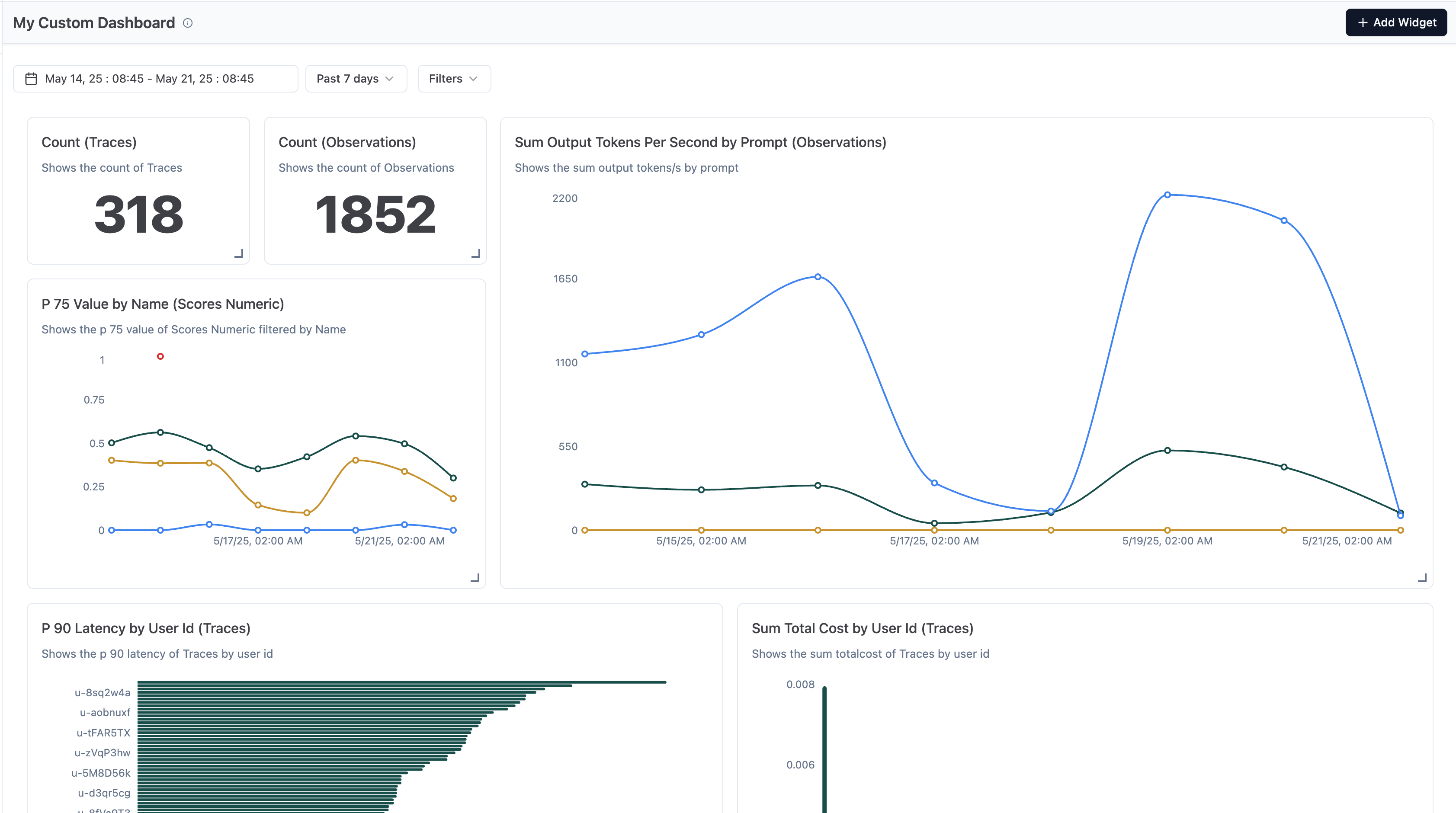
Here is a step-by-step guide to building the widgets for your security dashboard.
Step 1: Create a New Dashboard
In the Langfuse UI, navigate to the "Dashboards" section in the left-hand menu and create a new dashboard. Let's call it "Security Operations."
Step 2: Add Widget - "Attack Attempts Over Time"
This widget will show us the frequency of detected attacks.
- Type: Line Chart
- Title: Detected Attack Attempts (Daily)
- Metric: Count of Traces
- Filter:
instruction-override-risk(Score)>0.5 - Group By:
user_id(Optional, to see which users are triggering alerts)
Why this is useful: This chart provides an immediate, high-level view of the threat landscape. A sudden spike indicates a potential ongoing attack campaign or a new vulnerability being exploited. For your demo, you can run a few malicious payloads and show this graph spike in real-time.
Step 3: Add Widget - "Attack Score Distribution"
This helps us understand the severity of the attempts. Are they clumsy and easily caught, or sophisticated and barely tripping our detectors?
- Type: Histogram
- Title: Distribution of Attack Risk Scores
- Metric:
instruction-override-risk(Score)
Why this is useful: A distribution skewed to the right (high scores) means your detectors are confidently identifying attacks. A lot of scores clustering just above your threshold might indicate more subtle or obfuscated attacks that warrant closer investigation.
Step 4: Add Widget - "Top Threat Actors"
This widget helps identify which users are repeatedly attempting attacks.
- Type: Table
- Title: Top Users by Attack Score
- Columns:
user_idinstruction-override-risk(Score) - Aggregated byAverage- Count of Traces
- Sort By:
instruction-override-risk(Average), Descending
Why this is useful: In a real-world scenario, this table directly informs your incident response. You can identify malicious user accounts to block or investigate further. For your demo, you can show how a specific user_id you use for attacks rises to the top of this list.
Step 5: Add Widget - "Defense Trigger Rate vs. Overall Traffic"
This widget helps contextualize the number of attacks against your total traffic volume.
- Type: Line Chart (with two metrics)
- Title: Total Traces vs. Flagged Traces
- Metric 1:
- Name: "Total Traces"
- Metric: Count of Traces
- Filter: None
- Metric 2:
- Name: "Flagged Traces"
- Metric: Count of Traces
- Filter:
instruction-override-risk(Score)>0.5
Why this is useful: Seeing 100 attacks is alarming, but less so if you had 10 million requests. This chart shows the proportion of traffic that is malicious, which is a key performance indicator (KPI) for your security posture. It helps answer the business question: "How big of a problem is this?"
This brief video segment explains how to create custom dashboards and add widgets, reinforcing the steps above.
Langfuse Intro - Observability & Tracing Deep Dive
To see this process in action, watch this clip. It shows how to create a custom dashboard from scratch and add new widgets, which is exactly what you'll be doing.
Watch from 06:42 to 07:45. Pay close attention to the UI for adding a new dashboard and creating custom widgets. The example shows a cost dashboard, but the process is identical for building our security dashboard.
Conclusion
In this lesson, you've learned how to transform raw observability data into actionable security intelligence. By instrumenting your defenses to log scores and then building custom dashboards, you've created a powerful visualization layer for your security demo.
Key Takeaways:
- Instrument, then Visualize: You cannot visualize what you don't measure. The first step is always to ensure your defense layers log quantitative scores to Langfuse using methods like
trace.score(). - Custom Dashboards for Focus: While default dashboards are helpful, custom dashboards allow you to create a dedicated view tailored to a specific purpose, like security monitoring.
- Visualizing Attack Patterns: By plotting the count of high-risk traces over time, analyzing score distributions, and identifying top threat actors, you can effectively monitor for malicious activity.
- Quantifying Defense Effectiveness: Visualizing the trigger rates of your defense mechanisms provides a clear, data-driven way to demonstrate their value and effectiveness, a crucial element for any security briefing.
Next Up:
You now have a dashboard that can alert you to potential security incidents. But what do you do when an alert fires? In our next lesson, we will focus on post-incident analysis. You will learn how to use Langfuse traces to perform a post-incident analysis on a simulated prompt injection attack, identifying the root cause and impact. We'll dive deep into a single malicious trace to see exactly how an attack works and how we can learn from it to strengthen our defenses.