Recommended resources
The freely available resources this lesson will direct you to.
- How Claude Code Hooks Save Me HOURS Dailywww.youtube.com
- How to actually force Claude Code to use the right CLI (don't use CLAUDE.md)www.youtube.com
- Claude Code Hooks for Production Quality: Setup, Async, and CI/CD ...www.pixelmojo.io
- Claude Code Hooks: Complete Guide to Workflow Automation | Morphmorphllm.com
Welcome back!
In our previous lesson, we established the "what" and "why" of Claude Code hooks. You learned about the hook lifecycle, how PreToolUse can block actions, and how hooks are configured in .claude/settings.json. We specifically highlighted that an exit code of 2 from a hook script is the key mechanism to deterministically stop Claude and provide it with feedback.
Now, it's time to put that theory into practice. Today's goal is to create a PreToolUse hook to prevent modifications to protected files. This is a foundational pattern for building safe, reliable AI-assisted workflows, ensuring that your agent doesn't inadvertently alter critical parts of your codebase like dependency lock files or database schema definitions.
1. The "Why": Creating a Safety Net for Your Agent
In any professional software project, certain files are considered "sacred." They are either machine-generated and shouldn't be manually touched, or they define critical infrastructure and should only be changed with great care. For your FastAPI and PostgreSQL projects, these might include:
- Dependency lock files:
poetry.lockorpyproject.toml - Database schema definitions: Your Pydantic models or files defining SQL schemas.
- Migration files: The contents of your
alembic/versionsdirectory. - Environment and configuration:
.envfiles or core configuration scripts.
Allowing an AI agent to freely edit these can lead to broken environments, unintended database changes, or security vulnerabilities. While you can tell Claude "don't touch poetry.lock" in a prompt, a PreToolUse hook provides a deterministic guarantee.
This video from Better Stack briefly mentions this exact use case.
How Claude Code Hooks Save Me HOURS Daily
Watch this very short clip that explicitly mentions using hooks to protect sensitive files.
Watch from 01:53 to 01:57. The narrator directly states that you can use hooks to "block it from accessing sensitive files."
This is precisely what we are going to build now.
2. The Anatomy of a Protection Hook
Our file protection system will consist of three parts:
- The Guard Script: A simple script (we'll use a shell script) that contains the logic to identify if a file is on our "protected" list.
- The
settings.jsonConfiguration: APreToolUsehook entry that tells Claude Code to run our guard script before any file edit or write operation. - The Test: A prompt that intentionally asks Claude to edit a protected file, allowing us to verify our hook works.
Let's build it.
3. Step-by-Step Implementation
Step A: The Guard Script (protect-files.sh)
First, we need to create the script that will act as our guard. This script will receive the details of the tool call from Claude Code via stdin, check the file path, and exit with code 2 if the file is protected.
Create a directory .claude/hooks in your project root and add the following script as protect-files.sh. You'll need jq installed for this script to work, which is a standard command-line JSON processor.
#!/bin/bash
# .claude/hooks/protect-files.sh


# Read the JSON input from stdin
INPUT=$(cat)


# Extract the tool name and file path using jq
TOOL_NAME=$(echo "$INPUT" | jq -r '.tool_name')
FILE_PATH=$(echo "$INPUT" | jq -r '.tool_input.file_path // empty')


# Define a list of protected files and patterns
# Using a regex-like pattern for grep
PROTECTED_PATTERNS=(
    '\.env'
    'poetry\.lock'
    'pyproject\.toml'
    'alembic/versions/'
    'models/schema\.py'
)


# Check only for Edit or Write tool usage
if [ "$TOOL_NAME" = "Edit" ] || [ "$TOOL_NAME" = "Write" ]; then
    for pattern in "${PROTECTED_PATTERNS[@]}"; do
        if echo "$FILE_PATH" | grep -qE "$pattern"; then


            # If the file path matches a protected pattern,
            # print an error to stderr and exit with code 2 to block the action.
            echo "BLOCKED: The file '$FILE_PATH' is protected and cannot be modified by the agent." >&2
            exit 2
        fi
    done
fi


# If the file is not protected, exit with 0 to allow the action.
exit 0
Before you proceed, make the script executable by running chmod +x .claude/hooks/protect-files.sh.
This script is a direct, practical implementation of a security guardrail. The following guide provides several excellent patterns for such guards.
Claude Code Hooks: Complete Guide to Workflow Automation
To see this pattern in more detail, review the 'Programmable Guardrails' section of the 'Claude Code Hooks: Complete Guide to Workflow Automation' article.
Read the sections 'Security-focused PreToolUse hook' and 'Register as a universal PreToolUse hook'. Notice the similarity in structure between the provided security-guard.sh and our protect-files.sh. It shows how to read stdin, parse with jq, check for protected patterns, and use exit 2.
Step B: The Configuration (settings.json)
Now, let's register this script as a PreToolUse hook. Open or create the .claude/settings.json file in your project and add the following configuration:
{
  "hooks": {
    "PreToolUse": [
      {
        "matcher": "Edit|Write",
        "handler": {
          "type": "command",
          "command": "\"$CLAUDE_PROJECT_DIR\"/.claude/hooks/protect-files.sh"
        }
      }
    ]
  }
}
Let's break this down:
"PreToolUse": We are hooking into the lifecycle event that fires before a tool is used."matcher": "Edit|Write": This hook will only run when Claude tries to use theEditorWritetool. It won't trigger forBashcommands or other tools."handler": We are using acommandhandler, and the command is simply to execute our shell script. We use the$CLAUDE_PROJECT_DIRenvironment variable to ensure the path to our script is always correct.
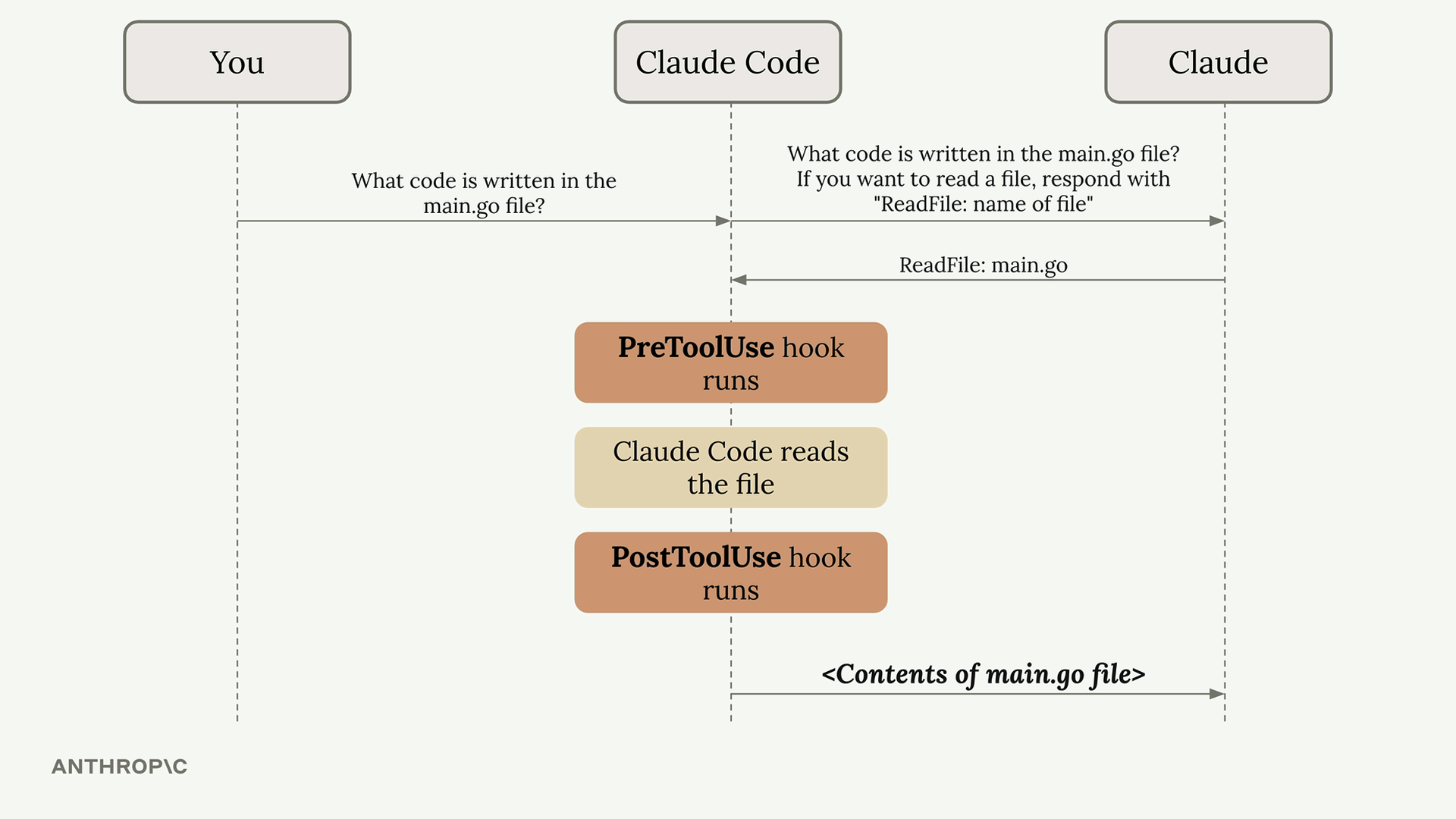
The diagram below visually reinforces where our hook fits into the sequence of operations. When Claude decides to edit a file, our protect-files.sh script runs before the file system is touched.
Step C: Testing the Hook
With the script and configuration in place, it's time to test it. Restart your Claude Code session in the project directory to ensure the new settings are loaded.
Now, give Claude a prompt that directly targets a protected file:
Add a comment at the top of my pyproject.toml file saying "Managed by my awesome AI".
You should see Claude attempt to use the Edit tool, but it will be immediately blocked. The output will show an error message similar to this:
[PreToolUse] Running hook: /path/to/your/project/.claude/hooks/protect-files.sh
[PreToolUse] bash hook error: BLOCKED: The file 'pyproject.toml' is protected and cannot be modified by the agent.
Claude will then receive this error, understand that it's not allowed to perform the action, and respond accordingly, perhaps by apologizing or asking for a different instruction. You have successfully created a deterministic guardrail!
Conclusion
Congratulations! You have just implemented one of the most important advanced features of Claude Code. By creating a PreToolUse hook, you've moved beyond simply advising your AI agent and have started enforcing non-negotiable rules.
Key Takeaways:
PreToolUsehooks are the mechanism for creating deterministic security and file protection guardrails.- A hook script can read contextual JSON data from
stdinto make decisions. - Your script must check the
tool_name(e.g.,Edit,Write) and relevanttool_input(e.g.,file_path). - Returning
exit 2and printing tostderris the standard way to block the action and inform both the user and the LLM why it was blocked. - This pattern is essential for safely automating tasks in projects with critical, sensitive, or machine-managed files.
Next Up:
Blocking actions is powerful, but what about taking action after Claude has successfully done something? In the next lesson, we will explore the other side of the coin by creating a PostToolUse hook that automatically formats or lints code after every edit, ensuring code quality and consistency.