Recommended resources
The freely available resources this lesson will direct you to.
- 2.7.1 Packet Tracer - Single-Area OSPFv2 Configurationwww.youtube.com
- Free CCNA | OSPF Part 1 | Day 26 | CCNA 200-301 Complete Coursewww.youtube.com
- Configure, Verify, and Troubleshoot Single Area OSPFv2 for IPv4www.ciscopress.com
- Implementing OSPFv2 Using network Commands - Cisco Presswww.ciscopress.com
Welcome back! In our previous lesson, we explored the "why" behind OSPF's hierarchical design, understanding how dividing a network into areas helps create a scalable and stable topology. Now, it's time to transition from theory to practice and focus on the "how."
Today's lesson is foundational for any network engineer. We will configure a single-area OSPFv2 network from the ground up, which is a core skill for the CCNA certification and for managing real-world networks. Our goal is to configure single-area OSPFv2 on a multi-router topology and verify that the routers have successfully become neighbors.
We will cover three main steps:
- Enabling the OSPF routing process on your routers.
- Instructing the routers which interfaces should participate in OSPF.
- Using verification commands to confirm that the routers have formed adjacencies.
Let's begin by enabling the OSPF process itself.
1. Basic OSPFv2 Configuration
Configuring single-area OSPF involves a few key commands. We'll build our configuration on a simple three-router topology where R1, R2, and R3 are connected in a line.
R1 --- (10.1.12.0/24) --- R2 --- (10.1.23.0/24) --- R3
Enabling the OSPF Process
First, you need to enter OSPF configuration mode on the router. This is done from global configuration mode using the router ospf <process-id> command.
R1(config)# router ospf 1
R1(config-router)#
The <process-id> is a number between 1 and 65,535 that identifies the OSPF process on the local router. This is a crucial point: unlike the Autonomous System (AS) number in EIGRP, the OSPF process ID does not need to match between neighboring routers for them to form an adjacency. It is locally significant. However, it's common practice to use the same process ID across all routers for consistency.
The following video from Jeremy's IT Lab explains the basic configuration steps, including the role of the process ID.
Free CCNA | OSPF Part 1 | Day 26 | CCNA 200-301 Complete Course
This video, part of a comprehensive CCNA course, covers the fundamental OSPF configuration commands.
Watch the segment from 18:37 to 20:15 which demonstrates entering OSPF configuration mode and clarifies the locally significant nature of the process ID.
The OSPF Router ID (RID)
Every OSPF-enabled router must have a unique Router ID (RID). The RID is a 32-bit number formatted like an IPv4 address, and it serves as the router's unique name within the OSPF domain. It's used to identify the router in the Link-State Database (LSDB) and plays a role in electing the Designated Router (DR) on multi-access networks.
A Cisco router determines its RID using the following sequence, stopping as soon as it finds a valid ID:
- Manually configured RID: The value set using the
router-id <id-value>command in OSPF configuration mode. This is the recommended method as it provides predictability and control. - Highest IP address on a loopback interface: If no RID is manually configured, the router chooses the highest IP address of any "up" loopback interfaces. Loopbacks are virtual interfaces that are always active, making them a stable source for an RID.
- Highest IP address on a non-loopback interface: If there are no loopback interfaces, the router chooses the highest IP address of any "up" physical interfaces. This is the least stable method, as an interface going down can force an RID change, disrupting OSPF.
To apply a new RID, you must either reload the router or reset the OSPF process with the clear ip ospf process command in privileged EXEC mode.
Configuring the OSPF Router ID
This Cisco Press article provides a thorough explanation of the router ID selection process and the different configuration methods.
Read the section titled "Configuring the OSPF Router ID". Pay close attention to the three-step selection process and the examples showing how to set the RID using both the router-id command and a loopback interface.
2. Activating OSPF on Interfaces
Once the OSPF process is running, you must tell it which interfaces to use for sending and receiving OSPF packets. There are two common methods for this.
Method 1: Using the network Command
The traditional and most tested method for the CCNA exam is the network command within router OSPF configuration mode.
The syntax is: network <ip-address> <wildcard-mask> area <area-id>
<ip-address> <wildcard-mask>: This pair defines a range of addresses. The router enables OSPF on any interface whose IP address falls within this range. The wildcard mask is an inverted subnet mask (e.g.,0.0.0.255for a/24subnet). A wildcard mask of0.0.0.0requires an exact match.<area-id>: This assigns the matched interface to a specific OSPF area. For single-area OSPF, we will always use area 0, the backbone area.
The Cisco Press article below gives an excellent breakdown of how the wildcard mask works.
Wildcard Matching with the network Command
This section from the same Cisco Press article explains how to use wildcard masks to match one or more interfaces with a single command.
Read the section "Wildcard Matching with the network Command". Focus on the table that shows different command examples and which interfaces they would match. This will help you understand the flexibility of this command.
For our topology, to configure R2, you could use two specific commands or one broad command:
! Option A: Specific matching
R2(config)# router ospf 1
R2(config-router)# router-id 2.2.2.2
R2(config-router)# network 10.1.12.2 0.0.0.0 area 0
R2(config-router)# network 10.1.23.2 0.0.0.0 area 0

! Option B: Broad matching
R2(config)# router ospf 1
R2(config-router)# router-id 2.2.2.2
R2(config-router)# network 10.1.0.0 0.0.255.255 area 0
Both achieve the same result: activating OSPF on both of R2's interfaces in Area 0.
Method 2: Per-Interface Configuration
A more modern and direct approach is to enable OSPF directly on the interface. This method avoids the complexity of wildcard masks.
The syntax is: ip ospf <process-id> area <area-id>
Here's how you would configure R2 using this method:
R2(config)# router ospf 1
R2(config-router)# router-id 2.2.2.2
R2(config-router)# exit
R2(config)# interface gigabitethernet0/0/0  ! Interface connected to R1
R2(config-if)# ip address 10.1.12.2 255.255.255.0
R2(config-if)# ip ospf 1 area 0
R2(config-if)# interface gigabitethernet0/0/1  ! Interface connected to R3
R2(config-if)# ip address 10.1.23.2 255.255.255.0
R2(config-if)# ip ospf 1 area 0
This approach is often preferred for its clarity, as the configuration is tied directly to the interface it affects.
3. Verifying OSPF Neighbor Adjacencies
After configuring your routers, they will start sending OSPF "Hello" packets to discover neighbors. If their parameters match (e.g., area ID, timers, authentication), they will go through a series of states to form a full adjacency.

To verify that your routers have successfully become neighbors, you use the show ip ospf neighbor command.
R2# show ip ospf neighbor

Neighbor ID   Pri   State      Dead Time   Address         Interface
1.1.1.1       1     FULL/DR    00:00:35    10.1.12.1       GigabitEthernet0/0/0
3.3.3.3       1     FULL/DR    00:00:38    10.1.23.3       GigabitEthernet0/0/1
Let's break down this output:
- Neighbor ID: The Router ID of the neighboring router.
- Pri: The OSPF priority of the neighbor's interface, used for DR/BDR election.
- State: The current state of the neighbor relationship. FULL is the desired state for a fully established adjacency. The
/DRpart indicates the neighbor is the Designated Router on that link. - Dead Time: A countdown timer. If no Hello packets are received from the neighbor before this reaches zero, the neighbor is declared down.
- Address: The IP address of the neighbor's interface on the connecting link.
- Interface: The local router's interface through which the neighbor is reachable.
If you see your neighbors in the FULL state, your basic configuration is a success!
Three other verification commands are invaluable:
show ip protocols: Displays information about the running routing protocols, including the OSPF process ID, router ID, and the networks being advertised.show ip ospf interface brief: Lists all interfaces running OSPF, their area, cost, state (e.g., DR, BDR), and the number of neighbors found on that interface.show ip route ospf: Displays only the routes learned via OSPF in the routing table.
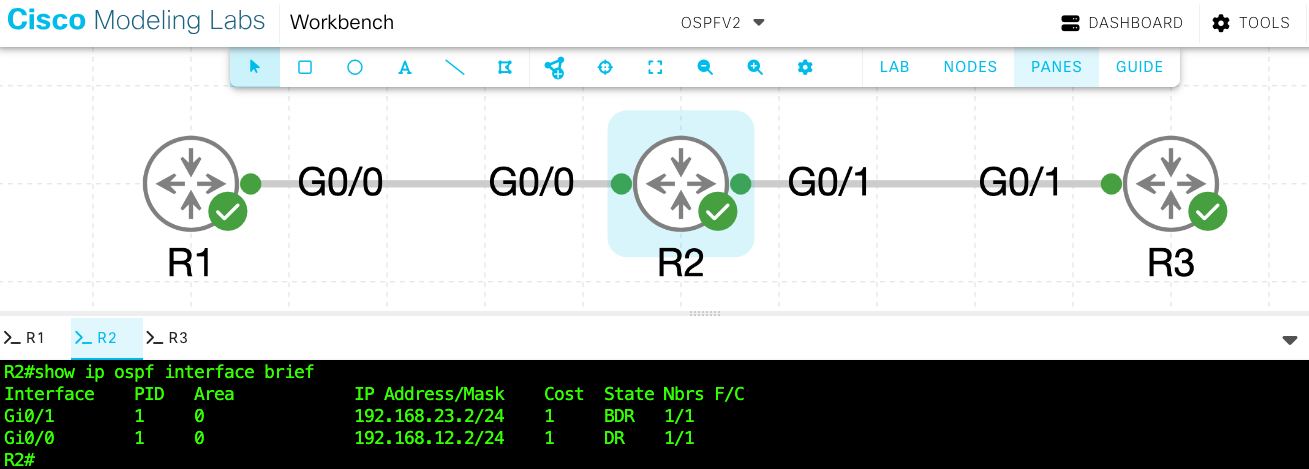
Practical Walkthrough
The following Packet Tracer demonstration puts all these concepts together in a larger topology. It's a comprehensive walkthrough, but focus on the initial configuration and verification steps that match our learning outcome.
2.7.1 Packet Tracer - Single-Area OSPFv2 Configuration
This Packet Tracer activity provides a step-by-step configuration of a single-area OSPFv2 network, including many optional but useful features.
First, watch the core configuration using network statements. Notice how wildcard masks are used to activate OSPF on different subnets. Next, observe how the Router IDs are manually set for predictability. Finally, skip to the end to see the final verification, where connectivity is tested with ping after OSPF has converged.
The video also covers advanced topics like passive interfaces, default route propagation, and timer adjustments. We will explore some of these in upcoming lessons.
Conclusion
You have now learned the essential skills to build and verify a single-area OSPFv2 network. This is the bedrock upon which more complex OSPF designs are built.
Key Takeaways:
- Enable OSPF with
router ospf <process-id>. The process ID is locally significant. - Always set a predictable and unique Router ID using the
router-idcommand or a loopback interface. - Activate OSPF on interfaces using either the
network <address> <wildcard> area 0command or theip ospf <pid> area 0interface command. - The primary verification command is
show ip ospf neighbor. The goal is to see neighbors in the FULL state. - Use
show ip protocolsandshow ip ospf interface briefto check your configuration and see which interfaces are participating in OSPF.
In our next lesson, we will build directly on this knowledge to troubleshoot common OSPF adjacency issues. We'll investigate what happens when parameters like timers or area IDs don't match and learn how to diagnose and fix these problems.