Recommended resources
The freely available resources this lesson will direct you to.
Hello! This first module builds the Kotlin, runtime, and build knowledge that later Android projects will rely on. We’ll begin with a question that sits beneath every screen implementation: what happens between a user opening an app and seeing its first frame?
You already know how to create an Activity with Views and the basics of Compose. Today, we’ll place that Activity in a larger sequence: system process work, app process creation, initialization on the main thread, UI construction, and drawing. By the end, you should be able to trace a cold launch without treating Activity.onCreate() as either its beginning or its finish.
First, identify what kind of launch occurred
“Opening an app” does not always mean “starting a process.” Android distinguishes cold, warm, and hot starts according to how much work must be repeated.
App startup time | App quality | Android Developers
Read the opening of Android Developers’ “App startup time” guide to establish the three startup states before tracing a cold start in detail.
In “Understand the different app startup states,” read the start states. Then, in “Cold start,” read the cold-start definition. Near the “Warm start” heading, read the warm-start introduction and its immediately following example about recreating an Activity. Focus on what must be created again, not just which label applies.
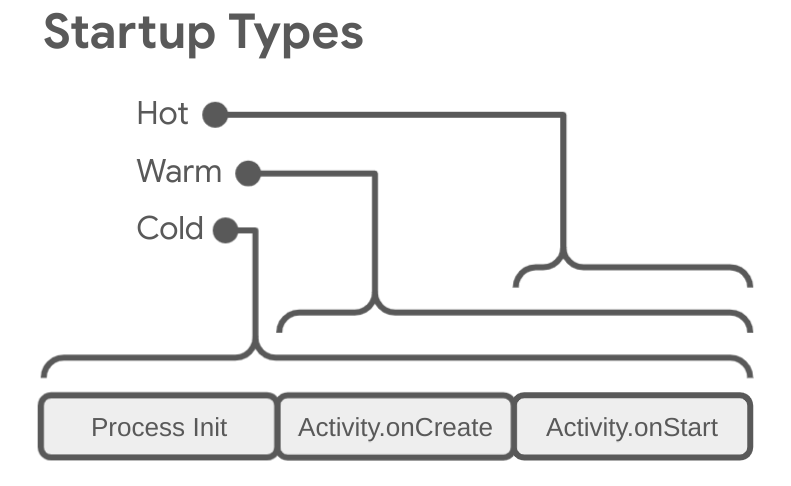
The image is a useful cost model, not an exact callback schedule. For example, a hot return to an Activity that was merely paused need not call onStart() again, while a stopped Activity normally does. The distinction that matters here is whether Android needs a new app process and whether it needs a new Activity instance.
A cold launch has both costs. That makes it the clearest case for following the complete path to the first frame—and a useful baseline when someone reports that an app “sometimes starts slowly.”
Before your app code: the process
Suppose a user selects your app’s launcher icon. The system resolves the launch request to an Activity and determines whether a suitable app process already exists. For our cold-start case, it does not. Android must arrange for a process in which your code can run.
The starting point is Zygote, a preinitialized Android process. Read just enough about it to understand the process boundary; we do not need its source-code implementation yet.
Read this Android Open Source Project overview to connect an app launch to the creation of an app process.
In the opening description, read the Zygote definition. Under “Here are the tasks the Zygote performs,” read how it is started. Then read the next paragraph, beginning “The Zygote can immediately spawn processes called” and ending “as needed by applications.” Focus on the distinction between preparing Zygote when the device starts and obtaining an app process when an app needs one; the optional process pool is a refinement, not a prerequisite for understanding this launch.
Zygote can fork a child process that inherits an already prepared runtime environment. That is cheaper than building every app process entirely from zero. Inherited memory does not mean all apps freely modify the same memory, however. Initially, some pages can be shared; if a process writes to a shared page, copy-on-write gives it a private modified page.
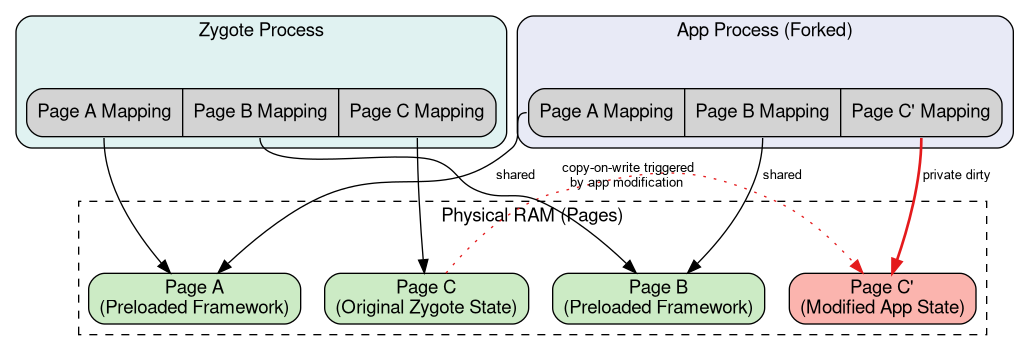
Keep two roles distinct: the system coordinates the launch, while your app’s process executes your application and Activity code. The system can also show a starting window while that code is still preparing the first Activity frame. On current Android versions, this is commonly experienced as the system splash screen. Seeing it does not prove that your Activity has drawn.
The following short video supplies a visual overview of that handoff. It predates today’s system splash-screen presentation, so treat its “placeholder window” as the conceptual starting window, not as a recommendation to build a custom splash Activity.
App Launch time 101 (Android Performance Patterns Season 6 Ep. 1)
Watch “App Launch time 101” from Android Developers for the system-to-app handoff and the moment the starting window gives way to app content.
Watch the starting window for the user-visible side of launch, then the launch sequence for process creation, app initialization, Activity construction, and the first frame. Notice that the video describes both system work and app-process work: onCreate() belongs to the latter, not the beginning of the entire launch.
Inside the process: from Application to Activity
Once the app process is available, Android binds the application’s package to it and prepares execution on its main thread, also called the UI thread. It creates the Application object and, if you have declared them, installs app ContentProviders during startup. Application.onCreate() then runs before the launch Activity’s onCreate(). The main thread handles these callbacks and, later, UI work.
This ordering reveals a common blind spot. If initialization in a provider or Application.onCreate() is expensive, the user can wait a long time before a log placed at the start of Activity.onCreate() appears. Logging only Activity callbacks therefore cannot account for the whole cold start.
Android then instantiates the Activity selected for the launch and invokes its lifecycle callbacks. A typical fresh launch includes onCreate(), onStart(), and onResume(). These callbacks establish the Activity and bring it to the foreground; none of their names promises that a frame is already on screen.
App startup time | App quality | Android Developers
Return to the Android Developers startup guide for the transition from a starting window to app content, and for the work done while creating the host Activity.
Under “App creation,” read the window handoff, then the paragraph beginning “If you override Application.onCreate” and ending “your app's host activity.” Treat its description of main-thread startup as a high-level account, not a precise instruction to start a thread inside Application.onCreate(). Under “Activity creation,” read the Compose example. Compare the work it identifies with inflating and laying out a Views hierarchy.
In a Views screen, onCreate() commonly calls setContentView(), inflates views, and attaches the resulting hierarchy. In a Compose screen, it commonly calls setContent { ... }, establishing the content from which the initial composition and UI tree are produced. Neither call should be interpreted as “pixels are now visible.” The UI still needs an initial traversal and a rendered frame.
That distinction matters when designing initialization. Work that is essential to constructing the first useful screen may affect initial display. Work such as fetching content that can appear later need not block it—but drawing a blank screen quickly is not the same as giving the user a useful experience. Later architecture lessons will give you better tools for deciding what belongs on each side of that boundary.
From an Activity to a visible frame
After the Activity has supplied its UI, Android must do enough layout and drawing work to produce a frame. With Views, that involves measuring, laying out, and drawing the hierarchy. With Compose, initial composition establishes what should be displayed, followed by layout and drawing work. Frame scheduling and rendering involve the UI thread and Android’s rendering machinery; the final frame is presented through the system’s display pipeline.
At the point where the app’s first frame is displayed, the system can replace the starting window with the Activity’s content. This is the endpoint of the launch trace we care about today. It is later than entering or returning from onCreate().
A useful compact trace for a cold Activity launch is:
- The system resolves the launch and finds that no suitable app process exists.
- It obtains an app process through Zygote and provides a starting window while launch work proceeds.
- In the app process, startup initializes the application, including any startup providers and
Application.onCreate(). - The main thread creates the Activity and runs its launch lifecycle callbacks; Views or Compose supplies its initial UI.
- Android performs the initial layout and drawing work, presents the app’s first frame, and removes the starting window.
Some system work overlaps app work, and implementation details can vary. Use this as a responsibility and ordering model, not a claim that every internal operation occurs serially on one thread.
The endpoint is called time to initial display (TTID). Read its definition before using startup logs to reason about an app.
App startup time | App quality | Android Developers
Finish with the Android Developers guide’s definition of the first-frame metric and its important limitation.
Under “Use metrics to inspect and improve startups” and then “Time to initial display,” read the TTID definition. Under “Retrieve TTID,” read the paragraph beginning “To find TTID, search in the” through the example ActivityManager: Displayed ...; note that the system server emits this log rather than your app. Finally, read the paragraph beginning “The Displayed metric in the Logcat output” and ending “it doesn't block the app's initial display.” Focus on why first display need not mean all data or images are ready.
For example, imagine a Compose Activity calls setContent to show a heading and a loading indicator, then later displays network data. Its first frame can be presented while the request is still running. TTID describes that first display; it does not certify that the data has loaded or that the screen is fully useful. Android also distinguishes time to full display (TTFD) for readiness beyond the first frame, reported when the app uses reportFullyDrawn() appropriately. We will concentrate on TTID here because it matches today’s outcome.
How to read a launch report
Consider what each observation can—and cannot—tell you:
| Observation | What it establishes | What it does not establish |
|---|---|---|
Application.onCreate() logged |
App-process initialization has reached that callback. | The Activity exists or the screen is visible. |
Activity.onCreate() logged |
Activity creation has reached that callback. | Layout, drawing, or first display has finished. |
Activity.onResume() logged |
The Activity has entered its resumed state. | Its first frame has necessarily been presented. |
System Displayed log |
Android reports the Activity’s initial display time. | Deferred content is fully loaded. |
This model helps locate a delay without prematurely blaming Compose or an Activity. A long pause before your first app log suggests work outside that logged interval, including process and early app initialization. A long interval during Activity construction points you toward initialization or UI-building work there. A delay after Activity callbacks but before Displayed calls for examining frame construction and rendering. Logs give landmarks, not a complete profile; the performance module will cover more rigorous measurement.
There is also an important boundary for the system-integrated apps you may build later: a wallpaper or accessibility service can start an app process without launching an Activity at all. Process initialization still matters, but “time to the Activity’s first frame” is then the wrong endpoint. Always identify which component was requested before applying an Activity-launch trace.
Key takeaways
A cold launch begins before your first Activity callback. The system obtains a process through Zygote, app initialization runs in that process, the Activity supplies its initial Views or Compose UI, and Android presents a first frame that replaces the starting window. Warm and hot launches reuse more existing state, so they skip some of that work. Above all, onCreate() marks creation work, while TTID marks initial display—and initial display may still precede fully loaded content.
Next, we’ll use this process-and-Activity distinction to predict what survives a configuration change and what happens when Android kills an app process.