Recommended resources
The freely available resources this lesson will direct you to.
Hello! Welcome to our next lesson.
In our last session, you mastered configuring 802.1Q trunk links, which allow you to extend VLANs across multiple switches. This is fantastic for segmenting your network, but it leaves one critical question unanswered: how do you allow controlled communication between different VLANs? By design, devices in VLAN 10 cannot talk to devices in VLAN 20. But what if your HR department (VLAN 10) needs to access a server in the Finance department's network (VLAN 20)?
This is where inter-VLAN routing comes in. Today, we'll focus on a classic and widely-used method called Router-on-a-Stick (RoaS). You will learn how to use a single physical router interface to route traffic between multiple VLANs, a core skill for any network engineer.
1. The Concept of Router-on-a-Stick
Since devices in different VLANs are, by definition, in different IP subnets, they need a Layer 3 device—a router—to communicate. The router acts as a gateway, receiving traffic from one subnet and forwarding it to the other.
The "Router-on-a-Stick" method gets its name from its topology. A single physical link connects the router to a switch. This link is configured as a trunk, just like you learned in the previous lesson. The router then uses logical sub-interfaces—virtual interfaces tied to the single physical port—to handle traffic for each VLAN.
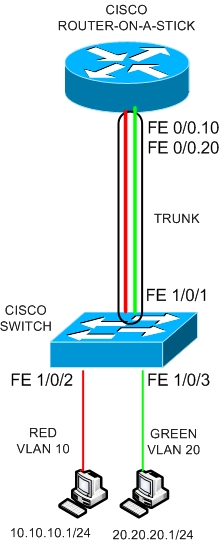
For this to work, a few things must happen:
- The link between the switch and router must be a trunk to carry traffic for all VLANs.
- The router must be configured with a separate sub-interface for each VLAN.
- Each sub-interface is assigned an IP address from the VLAN's subnet, which serves as the default gateway for all devices in that VLAN.
Let's trace the path of a packet to make this clear.
How to Configure Router on a Stick in 10 MINUTES | CCNA Basics
The video "How to Configure Router on a Stick in 10 MINUTES" from the Paolo Reyes channel provides an excellent visualization of the packet flow.
Watch the segment from this timestamp. Pay close attention to how a ping from a PC in one VLAN travels to its default gateway on the router, gets routed, and is sent back down the trunk to the destination PC in the other VLAN.
2. Configuring Router-on-a-Stick
The configuration involves two devices: the switch and the router. The switch configuration is mostly a review from our last lesson, while the router configuration introduces the new concept of sub-interfaces.
Step 1: Switch Configuration
The switch port connected to the router must be configured as a static trunk port. This ensures it will tag frames with the appropriate VLAN ID before sending them to the router.
Assuming you have already created your VLANs (e.g., VLAN 10 and VLAN 20) and the router is connected to interface GigabitEthernet0/1, the configuration is straightforward:
Switch(config)# interface GigabitEthernet0/1
Switch(config-if)# switchport mode trunk
This command sets the port to unconditionally be a trunk, ready to pass traffic for all allowed VLANs to the router.
Step 2: Router Configuration
This is the core of the RoaS setup. You do not configure an IP address on the physical interface itself. Instead, you create a sub-interface for each VLAN you need to route.
For a physical interface GigabitEthernet0/0, sub-interfaces are created using a dot, like GigabitEthernet0/0.10. It's a best practice to match the sub-interface number to the VLAN ID (e.g., .10 for VLAN 10), but it's not a technical requirement.
Each sub-interface requires two critical commands:
encapsulation dot1q <vlan-id>: This tells the router which VLAN ID this sub-interface is responsible for. Thisvlan-idmust match the actual VLAN number.ip address <ip-address> <subnet-mask>: This assigns the IP address that will act as the default gateway for hosts in that VLAN.
Finally, you must enable the physical interface with no shutdown. If the physical interface is down, all its sub-interfaces will also be down.
Let's watch a detailed walkthrough of the full configuration process.
Essential Guide to Inter-VLAN IP Routing Using Router-on-a-Stick
Wendell Odom's video, "Essential Guide to Inter-VLAN IP Routing Using Router-on-a-Stick," provides a CCNA-level explanation of the configuration.
Please watch the section covering the classic RoaS configuration. Pay attention to: The switch configuration (switchport mode trunk). The creation of sub-interfaces on the router (interface g0/0/0.101). The use of the encapsulation dot1q and ip address commands. The note that the sub-interface number (e.g., .456) does not have to match the VLAN ID (102). The no ip address and no shutdown commands on the physical interface.
For a text-based reference with all the necessary commands in one place, you can also review this article from Cisco Press.
Router-on-a-Stick Inter-VLAN Routing
This article from Cisco Press provides a complete configuration example.
Review the sections "S1 VLAN and Trunking Configuration" and "R1 Subinterface Configuration". Note the commands used to configure the switch trunk port (Step 4 in the S1 config) and the sequence of commands used to create and configure the sub-interfaces on the router.
3. Verification
Once configured, you need to verify that everything is working as expected. This involves checking the router's state and performing an end-to-end connectivity test.
On the Router
You can use several show commands:
show ip route: The router's routing table should now show "directly connected" routes for each subnet you configured on a sub-interface.show ip interface brief: This will list all interfaces, including your new sub-interfaces, and show that they are "up" and have the correct IP address.show vlans: This new router command is specific to RoaS and gives you a summary of which sub-interfaces are mapped to which VLAN IDs.
This next segment of the video demonstrates these verification steps.
Essential Guide to Inter-VLAN IP Routing Using Router-on-a-Stick
Let's return to Wendell Odom's video to see how to verify the configuration.
Watch the segment on verification commands. Observe the output of show ip route connected and the new show vlans command and how they confirm the RoaS configuration is active.
End-to-End Test
The ultimate test is to ping from a host in one VLAN to a host in another VLAN. Remember to ensure that each host PC is configured with the correct default gateway—the IP address of its corresponding router sub-interface. If the pings are successful, your inter-VLAN routing is working!
4. Common Issues
If inter-VLAN routing doesn't work, the issue is often a simple misconfiguration. Here are the most common culprits:
- Switch port is not a trunk: The port connecting to the router is still an access port.
- VLAN ID mismatch: The ID in the router's
encapsulation dot1q <id>command does not match the VLAN ID on the switch. - Incorrect default gateway: The host PCs are not pointing to the correct sub-interface IP address.
- Physical interface is down: The router's physical interface is administratively
shutdown. - Native VLAN mismatch: If you are routing for the native VLAN, ensure the configuration is consistent on both the switch and router. Wendell Odom's video covers native VLAN options starting at
this timestamp and troubleshooting starting atthis timestamp if you want to explore these topics further.
Conclusion
Congratulations! You have now learned how to configure a router to forward traffic between VLANs. This ability to both segment traffic with VLANs and selectively allow communication with a router is a cornerstone of modern network design.
Key Takeaways:
- Purpose: Router-on-a-Stick (RoaS) enables inter-VLAN routing using a single physical router connection.
- Topology: A router is connected to a switch via an 802.1Q trunk link.
- Router Configuration: A logical sub-interface is created for each VLAN. Each sub-interface is configured with an
encapsulation dot1q <vlan-id>command and an IP address, which serves as the default gateway for that VLAN. - Switch Configuration: The port connecting to the router must be configured as a
switchport mode trunk. - Verification: Use
show ip routeandshow vlanson the router, andpingbetween hosts in different VLANs to confirm connectivity.
In our next lesson, we will shift our focus to Layer 2 redundancy. Now that you're using trunks to build more complex switched networks, it's possible to create physical loops. We will explore the Spanning Tree Protocol (STP), a crucial mechanism that prevents these loops from causing catastrophic network failures.