Recommended resources
The freely available resources this lesson will direct you to.
Hello. In the previous lesson, you initialized a controlled Git repository, distinguished the working tree, staging area, and local history, and recorded a small SSH configuration change with status, add, and commit.
Now the focus shifts from recording a change to safely examining and undoing one. For LFCS-style administration, the key discipline is narrow scope: inspect the exact difference, name the exact path, and choose an operation that affects only the intended layer of Git. By the end of this lesson, you will be able to compare pending and committed configuration changes, restore selected content without touching unrelated work, and use git revert to undo a committed change while retaining an auditable history.
Compare the correct pair of snapshots
Git’s three areas are not merely conceptual. Most safe Git commands can be understood by asking two questions:
- What source content am I comparing or restoring from?
- What destination am I changing?
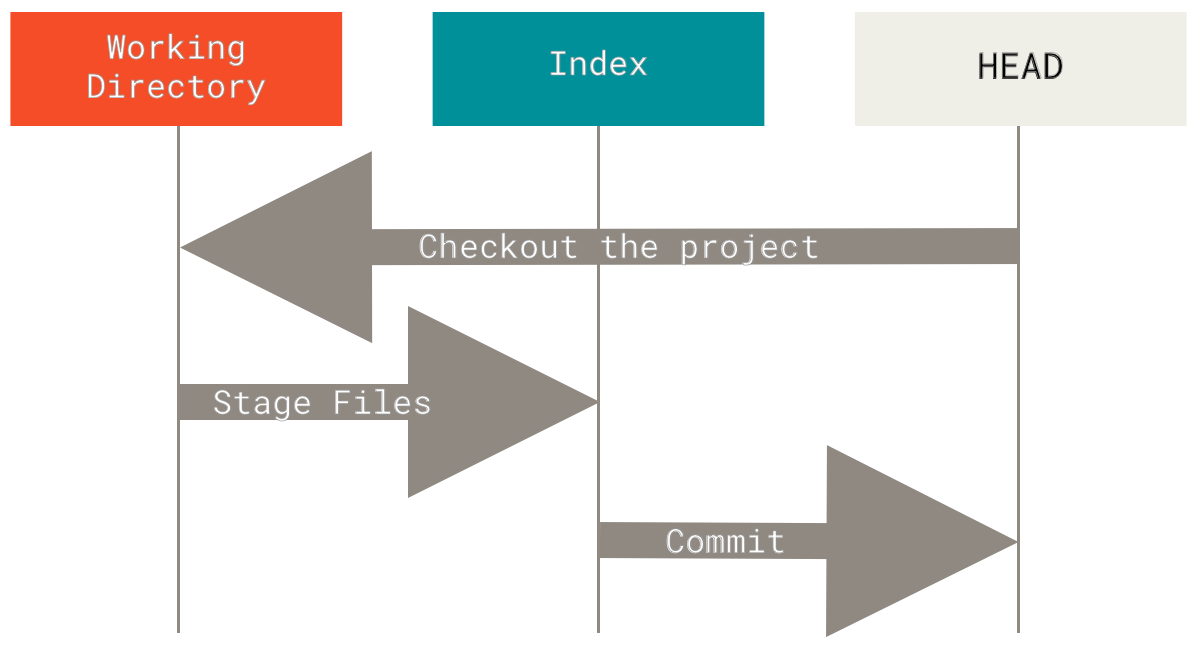
For a checked-out branch, HEAD normally refers to its latest commit. The index is the snapshot currently selected for the next commit. The working tree is what is presently on disk.
This gives the three comparisons used most often during configuration work:
| Command | Comparison | Practical question answered |
|---|---|---|
git diff -- PATH |
Working tree versus index | “What have I edited but not staged?” |
git diff --cached -- PATH |
Index versus HEAD |
“What exactly would this commit contain?” |
git diff HEAD -- PATH |
Working tree versus HEAD |
“What differs from the last commit in total, whether staged or not?” |
The -- before a path marks the end of command options and the beginning of paths. Continue using it for administrative repositories: it makes the scope explicit.
Read the official Git documentation to make the working-tree, index, and HEAD comparisons precise. This is the reference behind the three commands above.
In the DESCRIPTION section, read the paragraph beginning the unstaged comparison. Then read the later paragraph beginning the staged comparison. Focus on the comparison endpoints: git diff uses the index as its baseline, while git diff --cached uses HEAD by default.
A diff is a proposed transformation from the first snapshot to the second. In normal patch output:
- lines beginning with
-exist in the older side but not the newer side; - lines beginning with
+exist in the newer side but not the older side; - unchanged context lines help you locate the change.
For a broader historical comparison, specify two commits:
git diff OLD_COMMIT NEW_COMMIT -- ssh/sshd_config.lab
This shows the change required to transform OLD_COMMIT’s version of the named file into NEW_COMMIT’s version. The order matters.
Before undoing anything, inspect both which files changed and what content changed:
git status --short

git diff --name-only
git diff -- ssh/sshd_config.lab

git diff --cached --name-only
git diff --cached -- ssh/sshd_config.lab
Use the full git status whenever the short two-column form is not immediately clear. It tells you whether a path is modified only in the working tree, staged for commit, or both.
Lab: inspect staged, unstaged, and unrelated edits
Continue in the repository from the previous lesson:
cd ~/lfcs-git-lab
git status
Start only if the repository is clean. This protects any work you may already have in progress.
Create and commit a second harmless lab file. It will represent unrelated administrative work that must survive our later restore and revert operations:
printf '%s\n' \
  'Authorized access only.' \
  > ssh/banner.lab

git add -- ssh/banner.lab
git commit -m "Add SSH banner lab baseline"
Now make two independent working-tree changes:
sed -i 's/^LogLevel VERBOSE$/LogLevel DEBUG/' ssh/sshd_config.lab

printf '%s\n' \
  'Contact operations@example.invalid for access support.' \
  >> ssh/banner.lab
Inspect the changes:
git status
git diff -- ssh/sshd_config.lab
git diff -- ssh/banner.lab
At this point, both files are modified but neither is staged. Suppose the logging change is one candidate administrative change, while the banner text belongs to a different task. Stage only the logging change:
git add -- ssh/sshd_config.lab

git status
git diff --cached -- ssh/sshd_config.lab
git diff -- ssh/banner.lab
Now the three areas differ in a useful way:
ssh/sshd_config.labcontains the proposedDEBUGsetting in the index.ssh/banner.labremains a separate, unstaged working-tree edit.HEADstill contains the previously committed configuration and banner.
To make the distinction even clearer, add an unwanted note after staging the configuration:
printf '%s\n' \
  '# temporary review note: remove before commit' \
  >> ssh/sshd_config.lab

git status
git diff -- ssh/sshd_config.lab
git diff --cached -- ssh/sshd_config.lab
git diff HEAD -- ssh/sshd_config.lab
Interpret the output carefully:
git diff -- ssh/sshd_config.labshows only the temporary comment. It compares the working tree with the already stagedDEBUGversion.git diff --cached -- ssh/sshd_config.labshows the intendedVERBOSEtoDEBUGchange. It compares the staged snapshot withHEAD.git diff HEAD -- ssh/sshd_config.labshows both differences together, because it compares the current file on disk with the last committed version.
This is why git diff --cached is a required pre-commit inspection step. A clean-looking ordinary git diff does not prove that the staged change is correct.
Restore: choose the destination deliberately
git restore is designed for restoring file content. Its behavior is safe only when you know whether you are changing the working tree, the index, or both.
git-restore Documentation - Git
Read the official git restore reference before applying it to administrative files. Its defaults explain why restoring a file can preserve a staged change, discard an unstaged edit, or unstage content without deleting it.
In the DESCRIPTION section, read the restore defaults. Then, in OPTIONS, read the entries for --worktree and --staged, beginning the restore destinations. Notice the critical default: without --source, a working-tree restore reads from the index, while a staged restore reads from HEAD.
The following command restores the file in the working tree from the index:
git restore -- ssh/sshd_config.lab
Run it now, then inspect the result:
git status
git diff -- ssh/sshd_config.lab
git diff --cached -- ssh/sshd_config.lab
git diff -- ssh/banner.lab
The temporary comment disappears, but the DEBUG setting remains staged. The unrelated ssh/banner.lab edit also remains untouched.
That result follows directly from the source and destination:
- source: index, which contains the staged
DEBUGversion; - destination: working tree, where the extra comment existed;
- scope: only
ssh/sshd_config.lab.
This is a central operational point: plain git restore -- PATH does not necessarily restore the last commit. It restores from the index. That is useful when you want to discard only edits made after staging.
Unstage without discarding the edit
Suppose you now decide that the logging change should not yet be in the next commit, but you want to keep the edited DEBUG file available for further review.
git restore --staged -- ssh/sshd_config.lab

git status
git diff -- ssh/sshd_config.lab
git diff --cached -- ssh/sshd_config.lab
--staged changes the index only. Its default source is HEAD, so the index returns to the committed VERBOSE version. The working-tree file remains DEBUG; it is simply no longer staged.
This is the modern, explicit replacement for the common older pattern:
git reset HEAD -- ssh/sshd_config.lab
For this task, prefer git restore --staged: it says exactly what you mean and does not move branch history.
Discard one uncommitted file change
If the DEBUG setting itself was a mistake, inspect it once more and then restore only that path from HEAD:
git diff -- ssh/sshd_config.lab

git restore --source=HEAD --worktree -- ssh/sshd_config.lab

git status
git diff -- ssh/banner.lab
This discards the uncommitted configuration edit in ssh/sshd_config.lab. It does not touch the separate banner modification.
Be cautious with a command such as:
git restore .
It can discard all tracked working-tree changes below the current directory. That directly conflicts with the objective of preserving unrelated work. Prefer an explicit file path, inspect first, and restore narrowly.
How to Undo Mistakes With Git Using the Command Line
Watch selected excerpts from “How to Undo Mistakes With Git Using the Command Line” by freeCodeCamp.org. They demonstrate the practical distinction between restoring a whole file, restoring selected hunks, and reverting an already committed change.
Watch single-file restore for the basic working-tree use of git restore. Then watch hunk restore to see selective restoration when a file contains both good and bad edits. Finally, watch safe commit reversal for the idea behind git revert: a new commit counteracts an older one instead of deleting history.
Restore only selected hunks
A hunk is one contiguous block in a diff. If a configuration file contains two independent edits and only one is wrong, use interactive patch mode:
git restore -p -- ssh/sshd_config.lab
Git shows each hunk and asks whether to discard it from the working tree. Answering y discards that hunk; answering n keeps it. This is much safer than restoring the entire file when the file contains unrelated valid changes.
You can apply the same idea to the staging area:
git restore -p --staged -- ssh/sshd_config.lab
Here, Git interactively removes selected hunks from the index while leaving the working-tree file unchanged. This is useful when one staged commit accidentally combines two administrative purposes.
Restore a known-good historical file version
Sometimes the current committed version is also wrong, but an older version of one configuration file is known to be correct. First locate and inspect the relevant history:
git log --oneline -- ssh/sshd_config.lab

git show --stat COMMIT_ID
git show COMMIT_ID -- ssh/sshd_config.lab

git show COMMIT_ID:ssh/sshd_config.lab
Replace COMMIT_ID with an unambiguous abbreviated commit ID from git log.
The first git show form displays the patch introduced by that commit. The form containing a colon displays the complete file as it existed in that commit. Inspect the latter before restoring it; a historical version may lack later changes you still require.
To put that old content into the working tree, without changing HEAD or other paths:
git restore --source=COMMIT_ID --worktree -- ssh/sshd_config.lab

git diff -- ssh/sshd_config.lab
This produces an ordinary uncommitted working-tree change. Git has not “gone back in time”; it has copied one file’s historical content into your current checkout. After review, you can record it as a new corrective commit:
git add -- ssh/sshd_config.lab
git diff --cached -- ssh/sshd_config.lab
git commit -m "Restore known-good SSH logging configuration"
The currently modified ssh/banner.lab remains outside that commit because you named only ssh/sshd_config.lab when staging.
One additional caution from the git restore documentation: if a tracked path does not exist in the selected source commit, restoring that path makes the destination match the source by removing it. Treat historical restore as a content replacement operation and always inspect the named source first.
Revert a committed mistake without rewriting history
git restore is for file content that has not yet been committed, or for copying a selected historical file version into your current working tree.
git revert is different. It targets a commit and creates a new commit that applies the inverse of the target commit’s patch. The original commit remains visible in history.
This makes git revert the normal choice when:
- the unwanted change has already been committed;
- the history may be shared with other administrators;
- you need a clear audit trail showing both the mistake and its remediation;
- later, unrelated commits must remain in place.
Continue the lab by deliberately committing the logging change, while leaving the unrelated banner change unstaged:
sed -i 's/^LogLevel VERBOSE$/LogLevel DEBUG/' ssh/sshd_config.lab

git add -- ssh/sshd_config.lab
git commit -m "Enable debug SSH logging for investigation"

git status
The commit contains only ssh/sshd_config.lab; the banner remains a separate working-tree modification. If you determine that DEBUG logging was not appropriate, inspect the commit first:
git log --oneline -n 5
git show --stat HEAD
git show HEAD -- ssh/sshd_config.lab
Then revert that specific commit:
git revert HEAD
Git normally opens an editor for the new commit message. The default message identifies the commit being reverted and is usually appropriate. After saving and closing the editor, verify the result:
git log --oneline -n 5
git status
git diff -- ssh/banner.lab
The repository now has three relevant historical facts:
- a commit that enabled debug logging;
- a newer revert commit that cancels that change;
- the unrelated local banner modification, still present and not included in either commit.
The revert did not delete history, reset the branch, or affect the banner file. It added a transparent corrective record.
If a revert conflicts
A revert can conflict when later commits changed the same lines that the target commit changed. Git stops rather than guessing. Use this controlled recovery sequence:
git status

# Edit the conflicted file, remove conflict markers,
# and preserve the intended final configuration.

git add -- PATH/TO/RESOLVED_FILE
git revert --continue
If, after inspection, you decide not to complete the revert:
git revert --abort
--abort cancels the in-progress revert operation and returns the repository to its pre-revert state. Do not use a broad reset merely because a revert conflicts; first inspect the affected paths and resolve or abort deliberately.
Decision guide
Use this compact guide during administration:
| Situation | Preferred command | Effect on unrelated work |
|---|---|---|
| Discard an unstaged edit to one file, keeping its staged version | git restore -- PATH |
Untouched |
| Remove one file from staging but keep its edit on disk | git restore --staged -- PATH |
Untouched |
| Discard one file’s uncommitted content completely | git restore --source=HEAD --worktree -- PATH |
Untouched |
| Recover one file’s content from an older commit | git restore --source=COMMIT_ID --worktree -- PATH |
Untouched |
| Undo an already committed configuration change with audit history | git revert COMMIT_ID |
Untouched unless paths overlap or a conflict requires resolution |
In every case, the safety pattern is the same:
- Run
git status. - Review the intended change with the appropriate
git difforgit show. - Specify an explicit path or commit.
- Run the narrow operation.
- Verify with
git status,git diff, and, for commits,git log.
You can now distinguish the layers of a Git change and undo at the right layer. git diff compares precise snapshots; git restore changes selected paths in the working tree or index; and git revert creates a new, auditable commit that counteracts a prior committed change. Most importantly, explicit paths and pre-action inspection keep unrelated configuration work intact.
Next, you will use a Git branch and merge workflow to test a system-configuration change separately before integrating it into the main configuration history.