Recommended resources
The freely available resources this lesson will direct you to.
- How Google made their Android app start fasterwww.youtube.com
- App Launch time & Bloated Application objects (Android Performance Patterns Season 6 Ep. 3)www.youtube.com
- App Startup | App architecture | Android Developersdeveloper.android.com
- App startup time | App quality | Android Developersdeveloper.android.com
Hello! In the previous lesson, you inspected which components are installed, discoverable, and launchable. Now consider what happens inside your own process when one of those launches starts your app. Android creates an Application object, and any initialization you attach to startup can delay the screen the user came to see.
This lesson focuses on two design decisions: what belongs at application scope, and when it should run. You will configure a small Kotlin Application subclass, keep short-lived Context objects out of long-lived dependencies, and compare eager initialization with initialization on demand.
The startup path is shared by every entry point
An Application subclass is useful for process-wide setup, but onCreate() is not a general-purpose place to prepare every feature. A launcher Activity, a deep-linked Activity, or another component can start the process. Work performed unconditionally in Application.onCreate() becomes part of the startup cost for all of those entry points—even when the current entry point never uses that work.
Watch Android Developers’ App Launch time & Bloated Application objects for the core failure mode and the case for loading dependencies when needed.
App Launch time & Bloated Application objects (Android Performance Patterns Season 6 Ep. 3)
In “App Launch time & Bloated Application objects,” Android Developers shows how a custom Application class can accumulate startup work that delays the first screen.
Watch the startup problem, then the profiling approach, and lazy loading. Focus on the distinction between setup required for the current launch and setup required only by a later feature; treat the video's timing figure as a prompt to investigate, not a universal performance threshold.
The Android Developers App startup time guide connects that advice to Application.onCreate(), unnecessary initialization, and disk I/O on the startup path.
App startup time | App quality | Android Developers
Read Android Developers’ “App startup time” to locate Application initialization within a cold start and see why moving work out of that path can help.
Under “App creation,” read first draw and the following paragraph about Application.onCreate(). Under “Solve common issues” > “Heavy app initialization,” read unnecessary setup. Finish at “Solutions to the problem” with lazy initialization. Notice that work useful to one destination may be wasted for another.
There is an important ordering detail: Application.onCreate() is not necessarily the first initialization code in your process. Manifest-registered content providers, including providers used by libraries for automatic setup, can be initialized before that callback. Both provider initialization and Application.onCreate() can add work to the startup path.
Think of an Application instance as process-scoped, not permanently global. Android can terminate the process and later create a new instance. If your app uses multiple processes, each can have its own Application instance. Neither a field on Application nor a Kotlin object is durable storage across process death.
A useful production rule is therefore:
- Do minimal, immediately necessary setup at startup.
- Create feature-specific dependencies when that feature first needs them.
- Move potentially blocking I/O off the main thread; merely postponing it does not make it safe.
Configure a small application scope
Suppose several screens may use a settings repository, but some entry points never need it. You can give the repository an application-scoped owner without constructing or reading it during every launch.
Declare your subclass in the manifest:
<application android:name=".DemoApp">
    <!-- Existing component declarations -->
</application>
Then keep onCreate() inexpensive:
class DemoApp : Application() {
    lateinit var services: AppServices
        private set

    override fun onCreate() {
        super.onCreate()
        services = AppServices(applicationContext)
    }
}

class AppServices(context: Context) {
    private val appContext = context.applicationContext

    val settingsRepository: SettingsRepository by lazy {
        SettingsRepository(appContext)
    }
}

class SettingsRepository(private val appContext: Context) {
    suspend fun themeName(): String? = withContext(Dispatchers.IO) {
        appContext.getSharedPreferences("user_settings", Context.MODE_PRIVATE)
            .getString("theme", null)
    }
}
This example separates ownership, construction, and work. DemoApp owns a lightweight AppServices container. The repository is constructed on first access. Its preference read—including obtaining the preferences object—runs in Dispatchers.IO when themeName() is called, rather than in Application.onCreate(). A screen can request it from its own lifecycle-bound coroutine; it should not block the main thread waiting for the value.
The Context choice is deliberate. A repository that survives a screen must not retain that screen’s Activity, a View, or a callback that captures either one. Those references could keep a destroyed screen reachable. An application context is appropriate here because the repository needs app-owned preferences, not a screen’s theme, window, or UI services. If an operation does need Activity-specific behavior, perform it with the current Activity at the UI boundary rather than hiding an Activity reference in AppServices.
There are two limits to keep in mind:
by lazychanges when construction occurs, not where. Its initializer runs on the thread that first accesses the property. IfSettingsRepositoryperformed disk I/O in its constructor, a first access from the main thread would still be a startup or interaction bottleneck.- Application-scoped memory is not persistence. After process death,
DemoApp,AppServices, and the repository are created again. Any data that must survive belongs in appropriate persistent storage, not solely in these objects.
This pattern works with or without a dependency-injection framework. The architectural requirement is the same: long-lived dependencies receive only references whose lifetimes and responsibilities fit their own.
A larger app can make an apparently sensible optimization worse by moving work earlier without checking the whole user journey. In Android Developers’ How Google made their Android app start faster, an initialization change improved one latency measure but made startup interactivity substantially worse.
How Google made their Android app start faster
Watch these two parts of Android Developers’ “How Google made their Android app start faster” as a production-scale example of why initialization placement must be measured.
In the tradeoff, follow what happened when work was moved into an already busy startup phase. Then watch intentional initialization for the resulting strategy: remove work that is unnecessary, place necessary work near its actual need, and break up large chunks where appropriate. The lesson is not to copy that app’s particular warm-up sequence into Application.onCreate().
When multiple libraries need startup: App Startup
A custom Application is not the only initialization mechanism. A library may supply a content provider that runs setup automatically. Several such providers add startup cost and can make dependencies between initializers hard to see. AndroidX App Startup provides an initializer interface and a shared discovery provider through which you can declare dependencies explicitly. It can also initialize a component on demand.
Read the relevant portions of Android Developers’ App Startup guide before choosing it over a direct Application setup.
App Startup | App architecture | Android Developers
Read Android Developers’ “App Startup” for the alternative to accumulating independent startup providers or placing every library setup call in Application.onCreate().
In “Initialize components at app startup,” begin with the motivation. Under “Implement component initializers,” examine the create() and dependencies() examples. Under “Set up manifest entries,” read provider discovery and inspect the manifest example immediately below it. Under “Manually initialize components,” read lazy initialization. Finally, under “Disable automatic initialization for an individual component,” inspect the manifest-removal example and the explanation ending the merge rule.
Here is the earlier lightweight container expressed as an App Startup initializer. This is an alternative configuration, not a second initialization to add alongside the DemoApp.onCreate() assignment above:
class AppServicesInitializer : Initializer<AppServices> {
    override fun create(context: Context): AppServices =
        AppServices(context.applicationContext)

    override fun dependencies(): List<Class<out Initializer<*>>> =
        emptyList()
}
For automatic discovery, declare the initializer as metadata under App Startup’s InitializationProvider in the merged manifest:
<provider
    android:name="androidx.startup.InitializationProvider"
    android:authorities="${applicationId}.androidx-startup"
    android:exported="false"
    tools:node="merge">

    <meta-data
        android:name="com.example.app.AppServicesInitializer"
        android:value="androidx.startup" />
</provider>
Replace the example class name with your initializer’s fully qualified name, and declare the tools namespace on the manifest root. If automatic initialization is unnecessary, remove its merged metadata entry as described in the guide and initialize the component when needed:
val services = AppInitializer.getInstance(context.applicationContext)
    .initializeComponent(AppServicesInitializer::class.java)
App Startup organizes initialization; it does not turn create() into background work. Automatic initialization contributes to startup, and manual initialization runs when you call it. Keep either path lightweight, and place blocking reads or network operations in an appropriate asynchronous operation. Also check initializer dependencies: removing one initializer’s discovery metadata will not keep it lazy if another automatically discovered initializer depends on it.
Verify the startup path you actually built
A source-code review tells you what might run. A startup trace tells you what ran, and when. In the Perfetto screenshot below, the startup metric sits above expected and actual timeline rows, with activity on the process threads beneath them. It illustrates why a single elapsed-time number cannot identify which part of initialization consumed the time.
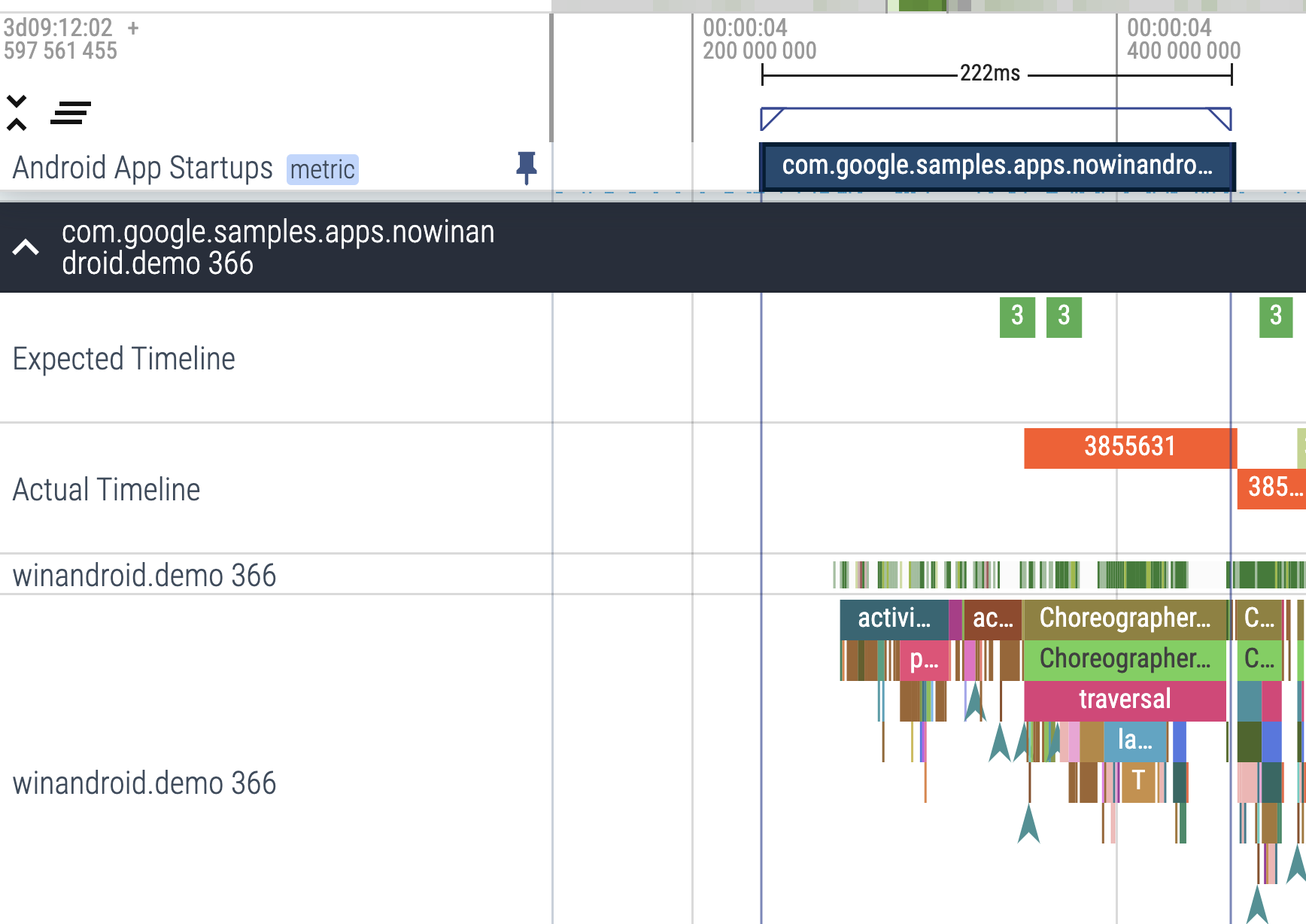
For your DemoApp, a small trace section can make its contribution easier to find:
override fun onCreate() {
    super.onCreate()
    Trace.beginSection("AppServicesSetup")
    try {
        services = AppServices(applicationContext)
    } finally {
        Trace.endSection()
    }
}
Trace.endSection() belongs in finally so the section remains balanced if construction throws. Inspect the section in a system trace or profiler rather than assuming that a short-looking method is cheap: constructors and library calls can perform work you did not expect.
For a focused hands-on check, make two builds on a test device: one with only the lightweight container at startup, and one that deliberately performs a harmless test read during startup. Compare cold launches of the same entry point and inspect where that read appears in the trace; remove the test read afterward. Then launch an alternate entry point, if your app has one. This checks both claims behind the design: the main thread stays available, and an unrelated entry point does not pay for feature-specific setup.
Trace timing alongside the behavior the user needs. Moving work away from onCreate() can improve first draw yet still cause a pause at the first interaction if the deferred work is expensive or runs on the main thread. Conversely, starting many background tasks at once can contend with rendering. The goal is necessary work at the right time on an appropriate thread, not simply an empty onCreate().
Key takeaways
Configure Application as a small, process-scoped owner, not a store for screen references or a queue of every feature’s setup. Give long-lived dependencies an application context only when they need context at all; never let them retain an Activity or View. Initialize feature-specific objects on demand, but remember that lazy construction runs on the caller’s thread and is no substitute for moving blocking work off the main thread. App Startup can coordinate initializer discovery and dependencies, while tracing helps verify the cost of either approach.
Next, you will use StrictMode to detect main-thread disk and network access and leaked closable objects—including mistakes that might be concealed inside otherwise tidy initialization code.