Recommended resources
The freely available resources this lesson will direct you to.
Hello! Welcome to the second module of our course.
In the previous module, we established the theoretical foundations of LLM security. We analyzed how tokenization and in-context learning create vulnerabilities, and we concluded by diagramming how Retrieval-Augmented Generation (RAG) introduces a potent "Back Door" for indirect prompt injection attacks.
Now, we shift from theory to practice. This lesson kicks off our work on the vulnerable chatbot you'll use for your demo. Our learning outcome is to set up a local development environment with Ollama and a small language model (e.g., Llama 3 8B, Phi-3). This local setup gives you complete control over the model and environment, which is perfect for reproducible security experiments.
1. The "Why": Running Language Models Locally
Before we install anything, let's address the key considerations for running LLMs on your own machine. Unlike calling a cloud API, a local setup makes you responsible for resource management. The feasibility and performance of running a model depend heavily on your hardware.
The most important factors are:
- GPU and VRAM: The model's parameters are loaded into the GPU's Video RAM. This is the primary bottleneck. More VRAM allows you to run larger, more powerful models.
- Quantization: This is a technique to reduce the memory footprint of a model by lowering the precision of its weights (e.g., from 16-bit to 4-bit numbers). This allows large models to fit into consumer-grade GPUs with a manageable trade-off in accuracy.
- System RAM and CPU: System RAM is needed to support the GPU and handle data processing, while a decent CPU helps with loading the model and preparing data.
To get a clear picture of these hardware requirements, let's watch a short video.
LLM System and Hardware Requirements - Running Large Language Models Locally #systemrequirements
This video from AI Fusion provides an excellent overview of the hardware components that matter for running LLMs locally. It also clearly explains the concept of quantization, which is essential for making this practical on a personal machine.
Watch the following segments: 00:24 - 01:00: Focus on the role of GPU and VRAM as the most critical factor. 01:00 - 02:00: Pay close attention to the explanation of quantization (fp16, int8, int4). This is the key that unlocks local model execution on non-server hardware. 02:35 - 03:57: Understand how CPU, RAM, and storage (NVMe SSDs) contribute to the overall performance. \nFor our project, a small, quantized model like Llama 3 8B will be perfectly adequate and should run well on a modern developer laptop, especially one with a dedicated GPU.
With that context, let's set up the software that makes this all manageable: Ollama.
2. Installing and Configuring Ollama
Ollama is a fantastic tool that streamlines the process of downloading, managing, and running local LLMs. It packages models into a consistent format and exposes them through a local API server, which is exactly what we need to build our FastAPI application.
The following video gives a great tour of the entire process, from installation to programmatic use. We will walk through it step-by-step.
Learn Ollama in 15 Minutes - Run LLM Models Locally for FREE
This video by Tech With Tim is a fast-paced but thorough introduction to Ollama. It will be our main guide for this section.
First, watch from 00:34 to 01:40 to see how to download and install Ollama for your operating system. After installation, verify it's working by opening a terminal and running ollama.
A More Robust Setup for Linux
Given your deep experience with Linux administration and SRE, you'll appreciate that running Ollama as a managed background service is a more robust approach than just launching it from a terminal. The official documentation provides instructions for setting it up as a systemd service.
This is the official Ollama documentation for Linux. It provides the commands to create a user and a systemd service file, ensuring Ollama starts on boot and runs reliably in the background.
Please review the section 'Adding Ollama as a startup service (recommended)'. Follow these steps to create the ollama user and the ollama.service file. Once done, you can enable and start the service with sudo systemctl enable --now ollama.
Alternative: Running Ollama with Docker
Your proficiency with Docker offers another excellent, self-contained way to run Ollama. Encapsulating the Ollama server in a Docker container isolates its dependencies and makes it easy to manage as part of a larger application stack using docker-compose.

While we won't implement the Caddy proxy shown here, running the core Ollama service via Docker is a highly viable alternative to a direct systemd installation. You can find the official Ollama Docker image on Docker Hub.
3. Downloading and Testing a Model
With Ollama installed and its service running, the next step is to download a model. We'll use Llama 3 8B, a powerful and versatile model that is small enough for local experimentation.
Learn Ollama in 15 Minutes - Run LLM Models Locally for FREE
Let's return to the 'Learn Ollama in 15 Minutes' video to see how to pull and interact with a model.
Watch from 01:40 to 04:22. This segment shows how to find models and use the ollama run command. In your terminal, execute ollama run llama3:8b. The first time you do this, Ollama will download the model, which may take a few minutes. Once it's ready, you'll see a prompt where you can chat with the model directly. Test it with a simple question, then exit using /bye.
You can also see all the models you've downloaded by running ollama list.
4. Programmatic Interaction with Python
The command line is useful for quick tests, but our goal is to build an application that uses the model. Ollama exposes an HTTP API that allows any application to send it prompts and receive responses. We will interact with this API using the official ollama Python library.
First, let's set up a Python virtual environment for our project and install the necessary package.
# Create a new directory for your project
mkdir llm-security-demo
cd llm-security-demo


# Create and activate a Python virtual environment
python -m venv venv
source venv/bin/activate  # On Windows, use `venv\Scripts\activate`


# Install the Ollama library
pip install ollama
Now, let's see how to use this library.
Learn Ollama in 15 Minutes - Run LLM Models Locally for FREE
Continuing with the same video, this next part explains how the API works and how the Python library simplifies interacting with it.
Watch from 06:41 to 11:12. The first part (until 10:22) explains the raw HTTP API, which is good for understanding the underlying mechanism. The second part (from 10:22 onwards) introduces the ollama Python package, which is what we will use. It provides a much cleaner interface.
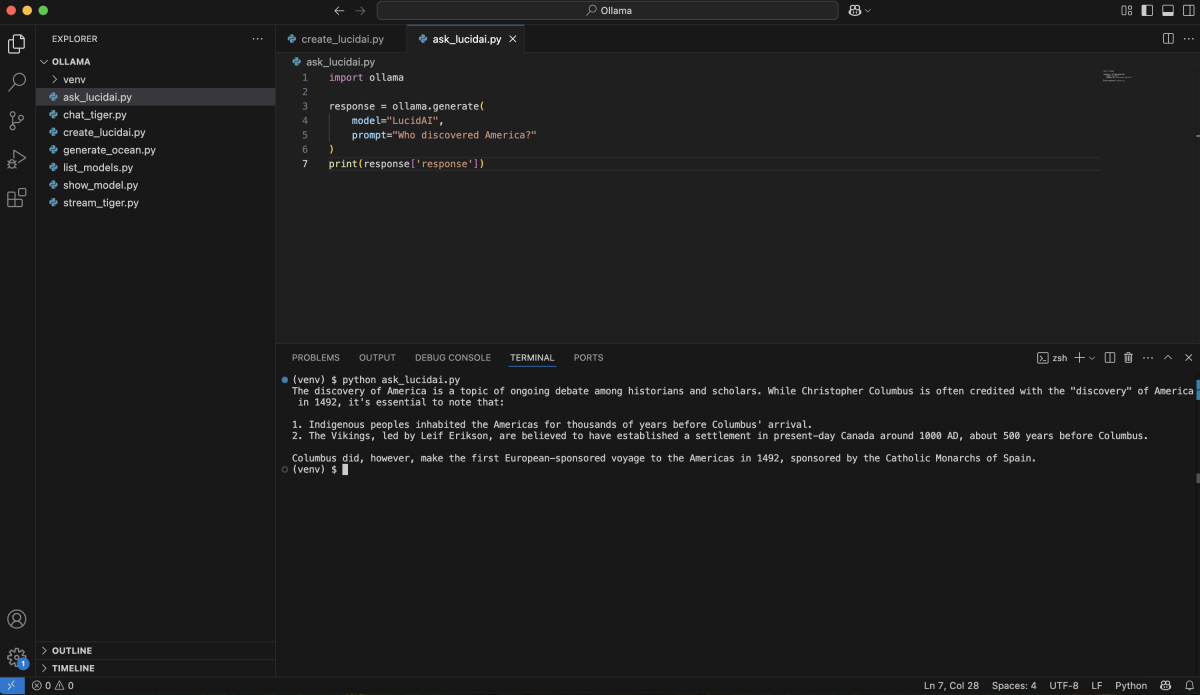
Now, create a Python file (e.g., test_model.py) and add the following code to verify your setup:
import ollama

try:
    response = ollama.chat(
        model='llama3:8b',
        messages=[
            {
                'role': 'user',
                'content': 'In one sentence, why is local-first AI development useful for security research?',
            },
        ]
    )
    print(response['message']['content'])
except Exception as e:
    print(f"An error occurred: {e}")
    print("Please ensure the Ollama application or service is running.")
Run this script from your terminal (python test_model.py). If everything is configured correctly, you should see a response generated by your local Llama 3 model.
Conclusion
Congratulations! You now have a fully functional local LLM development environment. This is a significant first step and the foundation upon which we'll build and test our entire prompt injection demo.
Key Takeaways:
- Local LLMs are practical: Thanks to techniques like quantization, we can run powerful models like Llama 3 8B on consumer hardware.
- Ollama is your control plane: It handles the download, management, and serving of local models, exposing them via a simple API.
- Robustness matters: For a stable development environment, running Ollama as a
systemdservice (on Linux) or within a Docker container is preferable to running it manually. - Python is the interface: The
ollamaPython library provides a clean, high-level way to integrate local models into your applications.
In our next lesson, we will build on this foundation. The topic is "Explain the core components of LangChain: chains, prompt templates, and output parsers." Now that we have a running model, we need a framework to structure our interactions with it. LangChain will provide the tools to build the logic of our vulnerable RAG chatbot.