Recommended resources
The freely available resources this lesson will direct you to.
- Exploratory Data Analysis with Pandas Pythonwww.youtube.com
- Exploratory Data Analysis in Pandas | Python Pandas Tutorialswww.youtube.com
- Exploratory data analysis with Pandasmlcourse.ai
- Learn Pandas in 30 Minutes - Python Pandas Tutorialwww.youtube.com
- Learning Pandas for Data Analysis? Start Here.www.youtube.com
- Pandas I: read_csv(), head(), tail(), info(), and describe()towardsdatascience.com
Hello! Welcome to the start of your journey into AI Engineering and Deep Learning.
This first module, "Practical Machine Learning with Scikit-learn," is designed to bridge the gap between your theoretical knowledge of machine learning and the practical skills needed to build real models. We'll start with the most fundamental step in any data science project: getting to know your data.
Today's lesson focuses on loading a tabular dataset and performing an initial exploration. You'll learn how to use the Pandas library—the cornerstone of data manipulation in Python—to load data from a file and use a handful of powerful commands to quickly understand its structure, contents, and statistical properties. This is the "first contact" you'll make with every dataset in your future projects.
1. The DataFrame: Your Primary Tool for Tabular Data
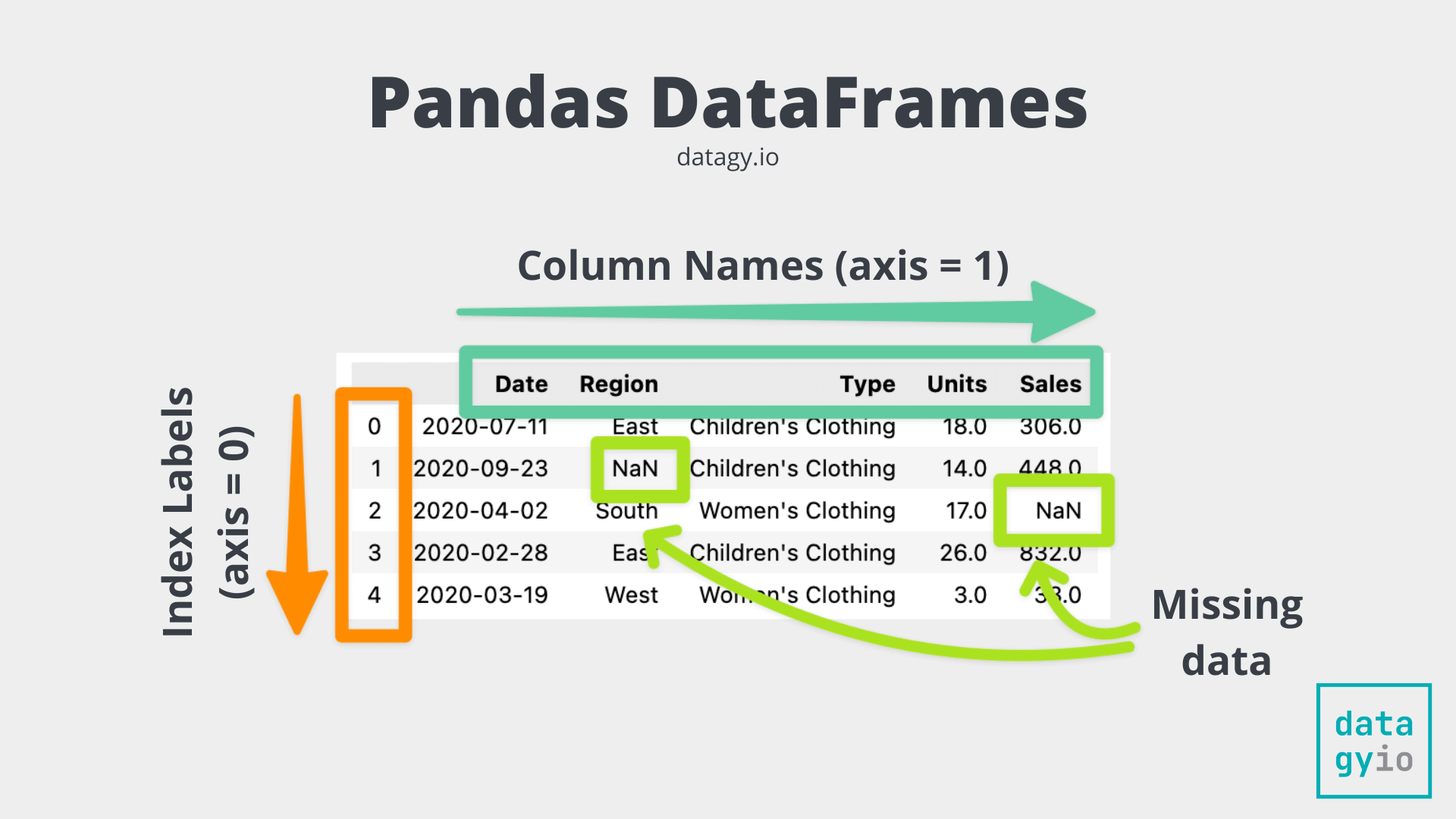
Before we load any data, let's talk about the main object you'll be working with: the Pandas DataFrame. Think of a DataFrame as a programmable spreadsheet or a single table in a database. It's a two-dimensional structure with labeled rows and columns, designed to hold data of different types (numbers, text, dates, etc.).
Your experience with matrices from linear algebra is a good mental model, but with a key difference: in a DataFrame, both the rows and columns have labels, called the Index and Columns, respectively.
2. Loading and Inspecting Your First Dataset
The most common first step in a project is to load data from a file, typically a CSV (Comma-Separated Values) file. The Pandas library provides a simple and powerful function for this: pd.read_csv().
Once the data is loaded into a DataFrame, a standard sequence of checks helps you get a quick overview. The following video provides a concise demonstration of this entire initial workflow.
Learn Pandas in 30 Minutes - Python Pandas Tutorial
Watch this section of the video 'Learn Pandas in 30 Minutes' by Tech With Tim to see how to load a CSV file and get a first look at the data.
Please watch from the beginning of the introduction to DataFrames (02:02) up to the end of the demonstration of the info() method (12:53). Focus on: How pd.read_csv() is used to load data. What df.head() and df.tail() show you. The type of summary df.info() provides.
As you saw in the video, a few simple commands give you a great deal of information right away. Let's formalize that initial checklist:
- Load the data:
pd.read_csv('your_file.csv') - Check the dimensions:
.shapeattribute tells you(number of rows, number of columns). - Peek at the data:
.head()and.tail()show the first and last few rows, respectively. This is great for verifying that the data has been loaded correctly and for seeing the format of each column. - Get a technical summary:
.info()provides a list of all columns, their data types (likeint64for integers orobjectfor text), and the number of non-null values. This is your first and best tool for spotting missing data.
3. Summarizing with Descriptive Statistics
Beyond understanding the structure, you need to understand the content of your data, especially the numerical columns. What is the range of values? What is their average? How spread out are they?
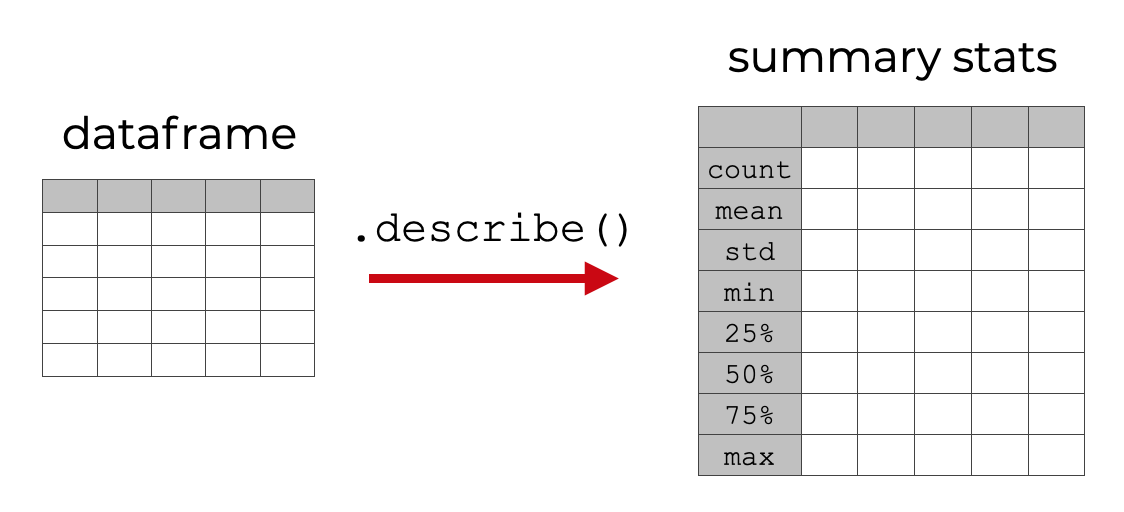
The .describe() method is a powerful tool that calculates key summary statistics for all numerical columns in a single command.
To get a more detailed perspective and see these methods in a complete example, let's turn to a well-written article from Real Python.
Using pandas and Python to Explore Your Dataset
This article, 'Using pandas and Python to Explore Your Dataset', provides excellent text-based explanations and code examples for the functions we've just discussed.
Read the following parts of the article: Start from the section 'Using the pandas Python Library' and read until the end of the section. Continue with 'Getting to Know Your Data', focusing on the subsections 'Displaying Data Types' and 'Showing Basics Statistics'. \nPay close attention to the outputs of .info() and .describe() and how the article interprets them. Notice how .describe(include=object) can be used to summarize non-numeric columns.
The article also introduces .value_counts(), a handy function for seeing the frequency of each unique value in a categorical column. This is very useful for understanding the distribution of features like team_id, as shown in the example.
4. Practical Exercise: Your First Data Exploration
Now it's time to put these commands into practice. The following code provides a template for the workflow you've just learned. You can run this in a Jupyter Notebook or a simple Python script.
First, you'll need the dataset. The Real Python article provides a convenient script to download it. Create a Python file named download_data.py and run it:
# download_data.py
import requests

download_url = "https://raw.githubusercontent.com/fivethirtyeight/data/master/nba-elo/nbaallelo.csv"
target_csv_path = "nba_all_elo.csv"

response = requests.get(download_url)
response.raise_for_status()  # Check that the request was successful
with open(target_csv_path, "wb") as f:
    f.write(response.content)

print("Download ready.")
Once nba_all_elo.csv is in your directory, you can run your exploration script:
# explore.py
import pandas as pd


# 1. Load the dataset
nba = pd.read_csv("nba_all_elo.csv")

print("--- 1. First 5 Rows ---")
print(nba.head())
print("\n" + "="*50 + "\n")

print("--- 2. Dataset Shape ---")
print("The dataset has {} rows and {} columns.".format(nba.shape[0], nba.shape[1]))
print("\n" + "="*50 + "\n")

print("--- 3. Data Types and Non-Null Values ---")
nba.info()
print("\n" + "="*50 + "\n")

print("--- 4. Descriptive Statistics for Numerical Columns ---")
print(nba.describe())
print("\n" + "="*50 + "\n")

print("--- 5. Descriptive Statistics for Text (Object) Columns ---")


# The `include='object'` parameter tells describe to analyze text-based columns
print(nba.describe(include='object'))
Take a moment to run this code and analyze the output yourself. Does anything stand out? For example, in the output of .info(), do you see any columns with fewer non-null values than the total number of rows? This indicates missing data.
Conclusion
In this lesson, you took the first and most critical step in any practical machine learning project. You've learned to treat data not just as a file, but as a structured DataFrame that you can inspect and query.
Here are the key takeaways:
- Pandas DataFrames are the primary tool for working with tabular data in Python.
- Loading data is as simple as
pd.read_csv(). - A standard "first-look" workflow involves using
.head(),.shape,.info(), and.describe(). .info()is for understanding the technical structure: data types and missing values..describe()is for getting a quick statistical summary of the data's content.
In our next lesson, we will address some of the issues you might have noticed during this exploration, such as missing values. We'll move from exploring the data to preprocessing it, making it clean and ready for a machine learning model.