Recommended resources
The freely available resources this lesson will direct you to.
Welcome back. Last time, you arranged the three seats and one shared microphone so that each voice could be heard without anyone holding an awkward position. Keep that arrangement as your starting point. This lesson answers the next question: at those positions, is the recorded signal strong enough to use, but safely below distortion?
You will make a short test recording, listen to the actual result, and adjust microphone distance or input level accordingly. The aim is clean, editor-ready raw audio—not the loudest-looking waveform. Allow about 35–40 minutes, including time to test your own setup.
Distance and input level do different jobs
Microphone distance affects how much of each voice reaches the mic compared with room sound. A distant voice may sound thin or echoey even if you turn it up later. Moving that person closer can improve the recorded voice-to-room balance. But with three people sharing one mic, moving the mic toward one person may move it away from another. Preserve the balanced seating you established last time unless the test gives you a reason to change it.
Input gain controls how strongly the microphone signal is recorded. Depending on your equipment, the relevant control may be on an audio interface, on a USB microphone, or in an available computer input setting. Changing gain affects the whole shared track: it cannot make just the quietest speaker louder. Headphone or speaker volume is different—it changes what you hear, not what Riverside records.
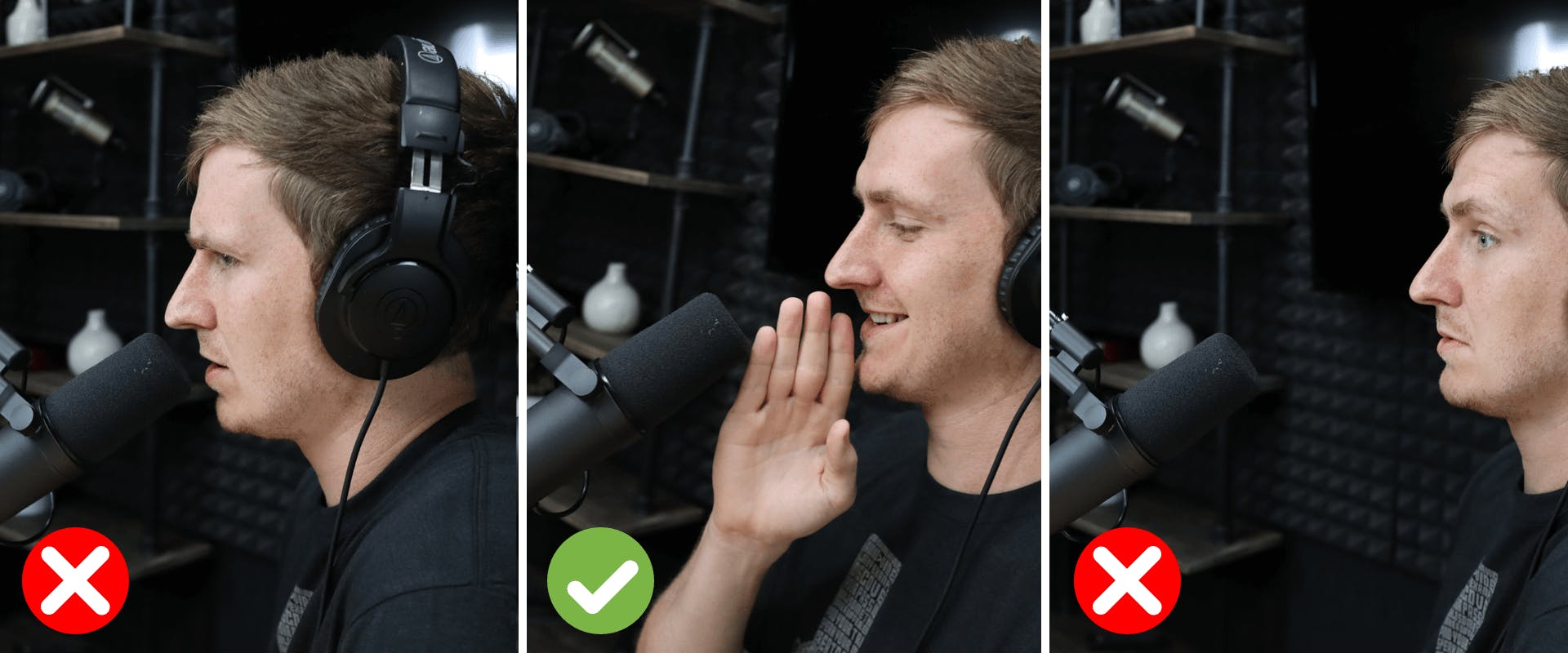
The middle panel in this photograph illustrates a workable speaking distance for one person using their own mic. The panels on either side show what happens when that person is much closer or farther away. For your shared mic, do not try to put all three mouths at the pictured distance; use it to notice how dramatically distance can change during ordinary movement.
Leave room for the loud moments
A recording can become clipped when a loud signal exceeds what part of the recording chain can handle. The result may sound harsh or crackly. Lowering its playback volume afterward makes the distortion quieter; it does not restore the missing sound.
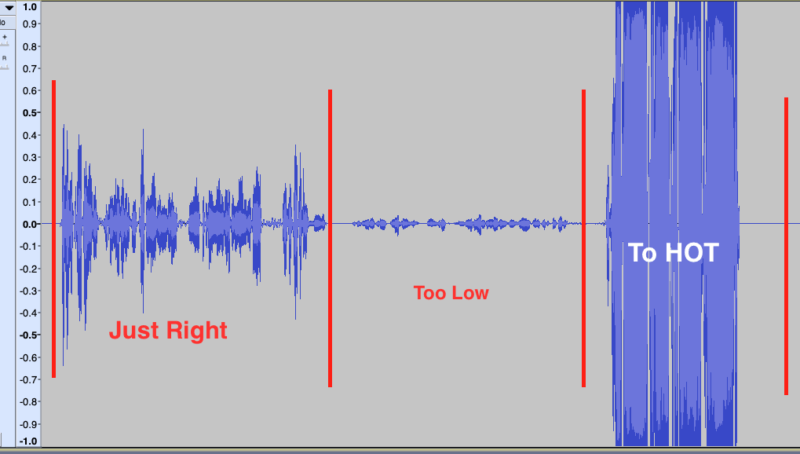
The illustration below exaggerates three useful visual patterns. The left-hand waveform has substantial peaks without reaching the limits. The middle is very small. The right repeatedly reaches the top and bottom, illustrating clipping. Treat it as a comparison, not a target waveform size: a display’s zoom and scale can change how large healthy audio looks.
Watch “How to Set Levels” from Joe Gilder of Home Studio Corner for a demonstration of clipping, headroom, and why playback adjustments cannot repair an overloaded recording.
Start with clipping and headroom, where the recording meter rises toward its limit. Then watch the clipped recording to hear why turning it down later does not help. Finish with conservative levels, focusing on the advantage of leaving space for louder moments rather than recording as close to the limit as possible.
On a meter marked in dBFS, is the digital ceiling; readings below it are negative. The unused space above a speech peak is called headroom. If your raw input meter shows numbers, a practical starting point for this shared conversation is to have the loudest realistic speech and brief combined moments peak roughly around to . That is a guide, not a requirement to make every sentence reach . Leave more space if participants’ volume is unpredictable. If the meter has no numbers, look for healthy movement that stays clear of its overload or red indication.
Do not use the loudness of a single calm introduction to set gain. An animated reply, laugh, or two people speaking at once can be louder. Nor should you turn the input down until everyone is barely visible on the meter: a very quiet recording may need substantial amplification later, making background noise more noticeable.
Home Recording Guide For Beginners - Shure USA
Read Shure’s “Home Recording Guide For Beginners” for its concise advice on testing at the loudest expected volume before recording.
Find “Setup part three: recording levels.” Read recording levels, from the paragraph comparing levels that are too low or too high through the final instruction to make a loud test recording. The named devices are examples; focus on the test-and-adjust principle rather than assuming your equipment has their automatic gain controls.
Make a test that represents the real conversation
Use the intended external mic, the three agreed seats, and the Riverside studio you plan to record in. Confirm that Riverside is receiving that mic, rather than a laptop or phone mic. Keep the phone camera’s audio from becoming a second live room source. Listen to the test on headphones so playback does not re-enter the shared microphone.
Make a 60–90-second raw test recording:
- Have each person speak a few normal sentences from their usual seated position, leaving a short pause between voices.
- Have each person deliver one sentence at the loudest level they might naturally use. Include a brief moment of animated conversation or overlapping speech; do not shout or clap directly into the microphone to set speech gain.
- Leave a few seconds of quiet room sound. While recording, watch the input indication for overload, especially during the loudest moment.
- Play back the recorded room track, not just the live monitor. At a comfortable, unchanged headphone volume, listen to each voice, the loud moments, and the quiet gap.
Ask two separate questions on playback: Are all three voices clear and reasonably balanced? And does the loudest passage remain clean, without clipping? The meter helps with the second question, but your ears are essential for both. A small waveform alone does not prove that speech is unusable; similarly, a non-red meter does not guarantee that a voice sounds clear.
This is a short level-setting test, not the full timed rehearsal. You will assess the entire conversation and picture together in a later lesson.
Change the cause, then test again
If one person is much quieter or sounds more distant while the others sound good, revisit that person’s seat, speaking direction, and mouth-to-mic distance first. Raising the shared gain would raise all three voices and the room noise together. After a position change, retest everyone; a fix for one seat can affect another.
If all three voices are clear but the recording is excessively quiet, raise the actual recording input level a little, if your setup provides that control, and repeat the loud passage. Do not mistake the computer’s output or headphone slider for input gain. If your device manages gain automatically, do not assume there is a manual Riverside slider to change; verify the result in a new recording.
If the loud moments clip or sound harsh, lower the input gain at the earliest adjustable point that is overloading, then record the test again. An interface can overload before the signal reaches Riverside, so an interface warning matters even if Riverside’s meter does not turn red. Do not rely on an editor, a limiter, or a lower playback setting to rescue audio that was recorded distorted. If the sound crackles without any overload indication, also check for breath striking the mic, handling noise, or a connection problem rather than assuming gain is the only cause.
Keep one brief note of the final mic position and gain setting, along with any seat that needed adjustment. Once you have a clean test, leave those settings alone unless the seating, microphone, or speaking volume changes.
Key takeaways
Distance determines how each voice competes with room sound; gain determines the level of the combined recording. Test all three people at normal and realistically loud volumes, leave headroom, and judge the saved raw track by listening as well as by watching the meter. Fix an individual quiet voice through placement where possible; fix whole-track underlevel or overload at the appropriate recording input.
Next, you will turn to the phone camera: composing a stable, well-lit group shot that keeps all three in-room speakers visible.