Recommended resources
The freely available resources this lesson will direct you to.
Welcome back. Last time, you used comparisons and if/else statements to let a p5.js sketch react to changing values. Your sketch could repeatedly ask a question such as “Has the player crossed the alert line?” and choose what to display.
Now you will make the code easier to reuse. Instead of copying the same instructions every time your game needs a similar object, you will define a function once and call it whenever needed. You will also give that function parameters so each call can create a slightly different version of the object.
Functions: define once, call when needed
You already use functions in every p5.js sketch:
function setup() {
  createCanvas(600, 300);
}

function draw() {
  background(30);
}
setup() and draw() are special functions: p5.js calls setup() once when the sketch begins and calls draw() repeatedly.
You can also make a function of your own. A function has:
- The keyword
function - A descriptive name
- Parentheses, which may contain parameters
- A body inside curly braces
function drawToken() {
  fill(255, 210, 40);
  circle(100, 100, 40);
}
This defines the function. Defining it gives the group of instructions a name, but it does not run those instructions yet.
To run the code inside it, you call the function:
drawToken();
A useful way to read this is: “Run the instructions named drawToken.”
| Code | Meaning |
|---|---|
function drawToken() { ... } |
Define instructions for later. |
drawToken(); |
Run those instructions now. |
Custom functions should usually have names that describe an action: drawToken, showScore, moveRival, or checkPickup. A clear name makes a larger game much easier to read and repair.
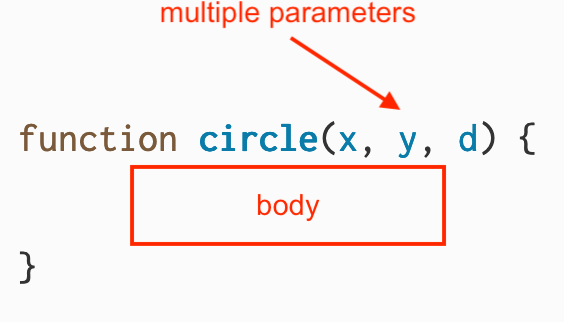
The image shows the same broad structure used by p5.js functions such as circle(). You will now use that structure to create a function of your own.
Organizing Code with Functions
Read “Organizing Code with Functions” from the official p5.js tutorials. It connects the setup() and draw() functions you already know to functions you define yourself, then introduces parameters and arguments through a drawing example.
In the “What is a function?” section, read function syntax, then continue with calling behavior. Focus on the difference between declaring a function and calling it. Next, find the “Customizing Functions with Parameters” section. Read parameters and arguments. Then continue through the tree example, beginning with the parameterized tree. Notice how one function body produces several trees because each call supplies different values.
Parameters make a function adjustable
A function with empty parentheses always performs the same instructions in the same way:
function drawToken() {
  circle(100, 100, 40);
}
That is useful sometimes, but a game normally needs objects in different places and sizes. For example, a player might be large and moving, while collectible energy orbs are smaller and stationary.
Parameters solve this problem:
function drawToken(x, y, d) {
  circle(x, y, d);
}
Here, x, y, and d are parameters. They are temporary placeholders used inside the function:
xis the horizontal position.yis the vertical position.dis the diameter.
When you call the function, you provide actual values called arguments:
drawToken(100, 150, 40);
For this particular call, JavaScript uses these matches:
| Parameter in the definition | Argument in the call | Value used inside the function |
|---|---|---|
x |
100 |
100 |
y |
150 |
150 |
d |
40 |
40 |
So, while this call runs:
drawToken(100, 150, 40);
JavaScript behaves as if the function body were:
circle(100, 150, 40);
The order matters. JavaScript matches arguments to parameters from left to right.
drawToken(100, 150, 40);  // x is 100, y is 150, d is 40
drawToken(150, 100, 40);  // x is 150, y is 100, d is 40
The second token appears in a different location because its first two arguments are swapped.
A parameter is a variable that exists inside that function. It does not replace or permanently change a game variable outside the function. For example, the x in drawToken(x, y, d) is not automatically the same thing as playerX. It receives the current value of playerX only when you call the function with playerX as an argument.
Build reusable game tokens
Let’s continue the moving-player idea from the previous lesson. This sketch draws one moving gold token and two smaller energy tokens. The visual design is simple, but the important part is that all three use the same drawToken() function.
let playerX = 60;
let playerY = 150;
let playerSpeed = 1.5;

function setup() {
  createCanvas(600, 300);
  noStroke();
  textSize(18);
}

function draw() {
  background(35, 70, 140);

  playerX += playerSpeed;

  if (playerX > 620) {
    playerX = -20;
  }

  fill(255);
  text("Collect the energy tokens!", 20, 30);

  // Moving player token
  drawToken(playerX, playerY, 42);

  // Stationary energy tokens
  drawToken(300, 80, 24);
  drawToken(470, 220, 30);
}

function drawToken(x, y, d) {
  fill(255, 210, 40);
  circle(x, y, d);

  fill(255, 245, 180);
  circle(x, y, d / 3);
}
Read the three calls in draw():
drawToken(playerX, playerY, 42);
drawToken(300, 80, 24);
drawToken(470, 220, 30);
They all run the same function body, but their arguments differ.
For the moving player token, the first argument is playerX, not a fixed number. Since playerX increases every frame, the value passed into x changes every frame too. That is why the token moves.
For a moment, suppose:
playerX = 60;
playerY = 150;
Then this call:
drawToken(playerX, playerY, 42);
uses:
x = 60
y = 150
d = 42
A little later, after the player moves, playerX might be 61.5. The next run of draw() calls the same function again, now with x equal to 61.5.
This is the key idea:
A function’s instructions stay the same; arguments let each call use different data.
Without drawToken(), you would have to copy these two drawing instructions for every token:
fill(255, 210, 40);
circle(...);

fill(255, 245, 180);
circle(...);
That creates repeated code. If you later decide all tokens should have a blue center instead, a function lets you change one place:
fill(150, 240, 255);
Every call to drawToken() updates automatically.
5.2: Function Parameters and Arguments - p5.js Tutorial
Watch “5.2: Function Parameters and Arguments - p5.js Tutorial” by The Coding Train. It gives a visual explanation of why repeated drawing code should become a parameterized function, then demonstrates the exact parameter-to-argument matching you are using here.
Start with parameters and arguments. Focus on the distinction between the variable names in a function declaration and the values supplied in a function call. Then watch the lollipop example. Notice the important debugging moment: a function that expects three parameters needs three arguments when it is called.
A reliable recipe for making a parameterized function
When you notice repeated game code, use this process:
-
Find the repeated instructions.
In the example, each token needs a gold circle and a smaller bright circle. -
Decide what should vary.
Token position and size should vary, so we needx,y, andd. -
Write a function definition outside
draw().function drawToken(x, y, d) { // token drawing instructions } -
Replace fixed numbers inside the body with parameters.
circle(x, y, d); -
Call the function from
draw()with appropriate arguments.drawToken(300, 80, 24);
Place the function definition outside setup() and draw(). That keeps your sketch organized:
function setup() {
  // runs once
}

function draw() {
  // repeats
  // call custom functions here
}

function drawToken(x, y, d) {
  // reusable instructions
}
The function declaration itself does not need a semicolon after its closing brace. A function call is a normal JavaScript statement, so end it with a semicolon:
function drawToken(x, y, d) {
  circle(x, y, d);
}

drawToken(100, 100, 40);
Common mistakes and quick fixes
When a parameterized function does not behave as expected, check these patterns first.
1. You defined the function but never called it
function drawToken(x, y, d) {
  circle(x, y, d);
}
This creates the instructions, but draws nothing by itself. Add a call inside draw():
drawToken(100, 100, 40);
2. The call has the wrong number of arguments
This function expects three arguments:
function drawToken(x, y, d) {
  circle(x, y, d);
}
This call supplies only two:
drawToken(100, 100);
The missing d value becomes undefined, so p5.js cannot reliably draw the circle. Supply all three:
drawToken(100, 100, 40);
3. You used the function name without parentheses
drawToken;
This refers to the function but does not run it. Use parentheses to call it:
drawToken(100, 100, 40);
4. Arguments are in the wrong order
drawToken(40, 300, 80);
This means:
xis 40yis 300dis 80
If you meant a token at , , with diameter 40, write:
drawToken(300, 80, 40);
One helpful debugging habit is to say each call aloud: “Draw a token at horizontal position 300, vertical position 80, with size 40.”
Make the scene yours
Take five minutes to remix the token sketch. Change only one idea at a time, run the code, and observe the effect.
Possible changes:
- Add two more calls to
drawToken()at different locations. - Make one token huge by using a larger third argument.
- Change the two
fill()colors insidedrawToken()to redesign every token at once. - Change the player’s call to use a different size:
drawToken(playerX, playerY, 60);
- Move a stationary token by replacing a number with a variable you already have.
The important distinction is this:
- Change the function body when every token should change.
- Change one function call when only one token should change.
Key takeaways
A function lets you name a group of instructions and run that group whenever you need it.
function drawToken(x, y, d) {
  circle(x, y, d);
}
The names in the declaration, such as x, y, and d, are parameters. The values in a call are arguments:
drawToken(300, 80, 24);
Using a function with parameters prevents repeated code and makes your game easier to expand, adjust, and debug. In the token scene, one drawToken() definition creates a moving player token and multiple stationary collectibles.
Next, you will focus more closely on the p5.js canvas coordinate system, so you can deliberately position shapes and text wherever your game needs them.