Recommended resources
The freely available resources this lesson will direct you to.
- How to Download, Install and License TIA Portal V19 (Step-by-Step Tutorial)www.youtube.com
- Create your first program and run it in PLCSim in TIA Portal v18www.youtube.com
- System requirements for AutoCAD 2025 including Specialized Toolsetswww.autodesk.com
- Install_STEP7_WinCC_V20_enUS.pdf - Support - Siemenssupport.industry.siemens.com
Hello again. Last lesson, you chose drafting tools by the kind of work they support. The next question is practical: which of those tools, and which PLC practice activities, can your available computer actually support?
Today you will gather a few Windows specifications, compare them with requirements for AutoCAD 2025, its Electrical toolset, and TIA Portal V20, then choose a local, workplace, or simulation-based route. Those are specific software versions: if you will use another release, check that release’s requirements before installing it. Allow about 35–40 minutes, including the readings and a check of your computer if one is available.
Start with what Windows can tell you
On a Windows 11 PC, open Settings → System → About. Record the processor, installed RAM, system type, and, under Windows specifications, the edition and version. On Windows 10, you can use the same Settings path. The screenshot below shows where these fields appear; it is an example, not a report of your own computer.
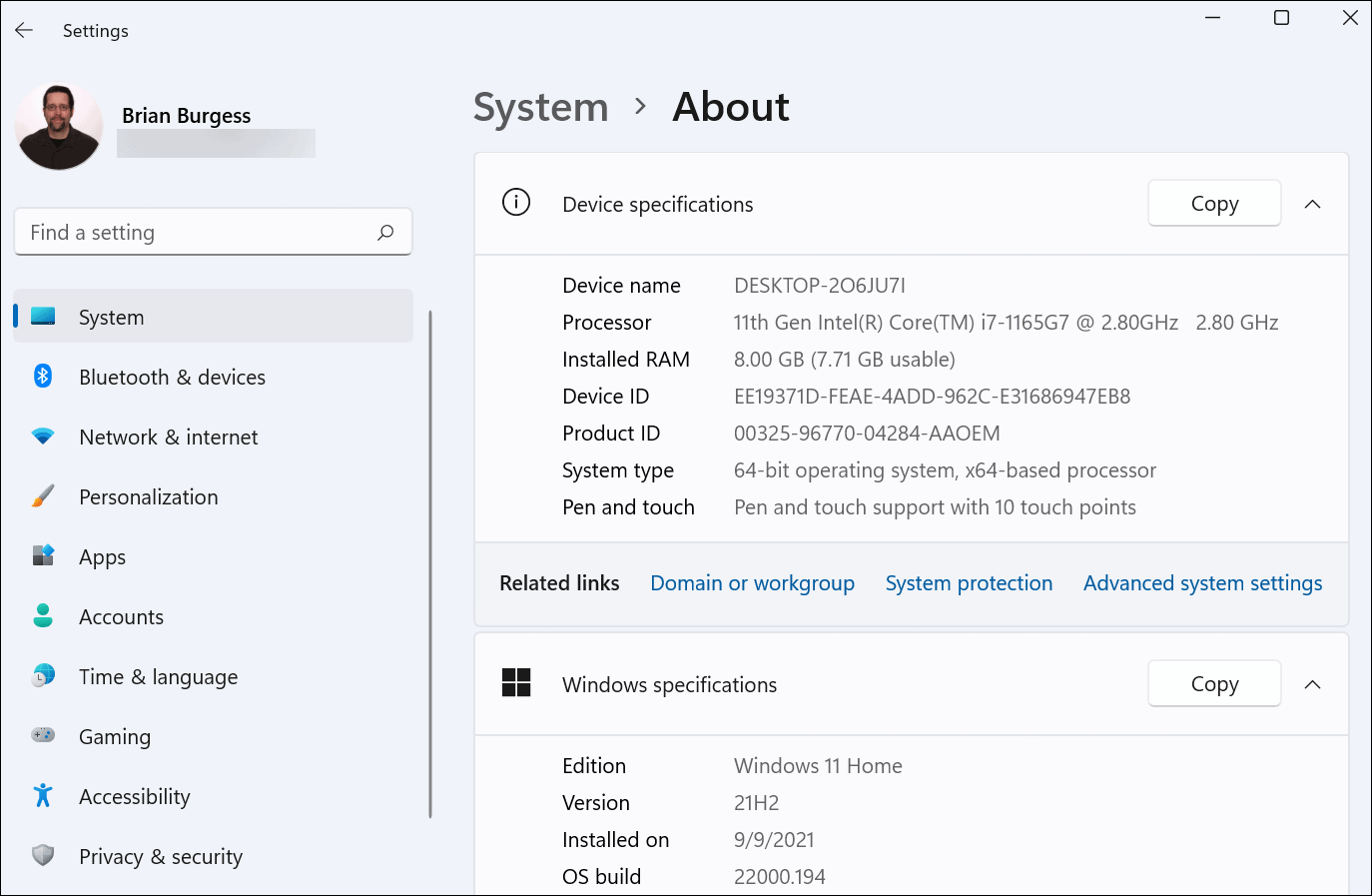
The About screen is only part of the inspection. In File Explorer → This PC, check the free space on the drive where software would be installed—not just the drive’s total capacity. For graphics information, open Task Manager → Performance → GPU and note the GPU model and available graphics-memory information. If necessary, your IT team or the GPU manufacturer’s specifications can help verify details such as DirectX support and memory bandwidth. Check Settings → System → Display for screen resolution.
A compact record is more useful than a vague judgment that a PC is “fast enough”:
| Item to record | Why it matters |
|---|---|
| Windows edition, version, and 64-bit system type | An application may support one Windows edition or version but not another. |
| Processor model and listed speed | Requirements can specify processor class, speed, and logical cores. |
| Installed RAM | An installation minimum is not a promise of comfortable performance. |
| Free disk space and whether the drive is an SSD | Several applications, their installers, and project files need room at the same time. |
| GPU, display resolution | CAD has graphics requirements beyond simply showing a desktop. |
| Software access | A suitable PC still needs installation permission and appropriate licenses. |
Device IDs and product IDs are not needed for this comparison. Leave them out if you share your findings with a classmate or mentor.
Compare like with like: CAD requirements
Read Autodesk’s requirements in two passes. First examine the general AutoCAD table; then examine the additional Electrical-toolset row. The distinction matters: meeting the base application’s RAM requirement does not establish that the Electrical toolset meets its own minimum.
System requirements for AutoCAD 2025 including Specialized Toolsets
Read Autodesk’s requirements to see how a general CAD installation and its Electrical toolset can have different thresholds.
In “System requirements for AutoCAD 2025 including Specialized Toolsets (Windows),” read the Windows table from Operating System through Disk Space. Focus on OS, processor, memory, display card, and free-space requirements. Then go to “Specialized Toolsets (Windows Only)” and read the AutoCAD Electrical row, starting with its disk-space and memory figures and ending with its Office compatibility warning: Electrical requirements.
For AutoCAD 2025 on Windows, Autodesk lists a 64-bit Windows 10 or 11 installation; its Windows 10 entry specifies version 1809 or above. The base AutoCAD memory figure is 8 GB basic, with 32 GB recommended. Its table also specifies processor, GPU, resolution, and disk requirements; a RAM match alone is therefore not a complete pass.
For AutoCAD Electrical 2025, the additional toolset row lists 16 GB basic RAM, 32 GB recommended RAM, and 20 GB disk space. It also specifies a compatible 64-bit Microsoft Access Database Engine unless a qualifying 64-bit Office installation is already present, and warns that installation alongside 32-bit Microsoft Office/365 applications is not supported. On a workplace PC, this is a reason to ask IT before changing Office or installing the toolset yourself.
Notice how to use the words basic and recommended. A basic figure helps answer “does this appear to meet an installation threshold?” A recommended figure helps answer “what is likely to be a better working configuration?” Neither guarantees performance on every drawing or settles questions about licensing and company policy.
Check TIA Portal as a separate application
The Siemens reading is for TIA Portal V20 installation, including STEP 7 and WinCC. Its Windows list is more specific than “Windows 11 supported”: it names editions and versions. Read the minimum and recommended specifications together rather than treating either as the whole answer.
Install_STEP7_WinCC_V20_enUS.pdf - Support - Siemens
Read Siemens’s installation manual for the precise OS list and the difference between minimum and recommended TIA Portal hardware.
In “Installation,” Section 4.2, “General software and hardware requirements,” read pp. 43–44. Begin at the sentence introducing the minimum-requirements table and continue through the “Recommended PC hardware” table, ending at the monitor entry: minimum and recommended. Pay particular attention to the listed Windows editions and versions, the note attached to Windows Home, RAM, and available disk space.
Siemens lists 8 GB RAM and at least 20 GB available disk space among the V20 installation minimums. Its recommended PC has 16 GB or more RAM—32 GB for large projects—and an SSD with at least 50 GB available space. The manual also gives a minimum screen resolution and network specification. You need not memorize every number; you need to know which row to consult when evaluating an actual machine.
For Windows 11, the V20 list in this manual includes 22H2 and 23H2 for Home, Professional, and Enterprise. Its Home entries carry a qualification: only for Basic editions. Thus “Windows 11 Home” by itself is insufficient evidence that your intended V20 package is supported. Match edition, version, and intended TIA product edition, and recheck Siemens’s current documentation if your Windows version or software release differs from the manual.
There is also a combined-use issue. If you plan to keep CAD, TIA Portal, and simulation tools on one PC, do not take one application’s minimum RAM or disk figure as a guaranteed minimum for the whole setup. Windows and background applications use memory; installers, updates, project files, and simulation need storage and working room. Compare each product separately, then leave practical headroom.
Turn the findings into a practice route
Consider the example computer in the About screenshot: it shows 8 GB RAM, a 64-bit system, and Windows 11 Home version 21H2. The screenshot does not show free disk space or GPU capability.
That evidence supports a limited conclusion. Its RAM reaches the listed base AutoCAD 2025 minimum but falls short of the AutoCAD Electrical 2025 basic memory figure. Eight gigabytes reaches the TIA Portal V20 minimum RAM figure, but the screenshot’s Windows 11 Home 21H2 is not among the Windows 11 versions listed in the cited V20 manual. Storage, graphics, licenses, and installation permissions remain unknown. It would be premature to label this example PC “ready for the course”—or to assume the screenshot describes your own machine.
Choose a route according to what your inspection establishes:
| Route | When it is workable | What to verify before committing |
|---|---|---|
| Local installation | Your PC matches the specific releases you intend to use, with adequate headroom. | OS, RAM, storage, GPU where applicable, installation rights, and legitimate licenses. |
| Workplace or training computer | A managed PC already has suitable CAD and/or TIA software. | Permission to practise, available versions and licenses, where training files belong, and whether you can use an isolated training project. |
| Lighter local drafting plus separate PLC practice | Full local installation is not feasible. | Which CAD tasks an available lighter tool can cover, and whether you can later access an approved TIA workstation or training environment. |
| TIA Portal with PLCSIM on a suitable PC | You have access to compatible, authorized engineering and simulation software. | PC resources, software versions, licenses, and a training project kept separate from production equipment. |
Simulation removes the need for a physical PLC; it does not remove the need for a computer capable of running the engineering software. Here is a brief glimpse of the distinction. The video demonstrates a V18 interface, so use it to understand the practice activity—not as installation instructions or a specification for V20.
Create your first program and run it in PLCSim in TIA Portal v18
Watch “Create your first program and run it in PLCSim in TIA Portal v18” from Insights In Automation to see what PLC practice without physical hardware can look like.
At start simulation, notice that the presenter launches a simulator rather than downloading to a physical controller, and points out a network-interface warning. At test an input, watch a simulated input change and how that allows a logic test. The controls and warnings you encounter may differ by version; read them in your own installation.
A virtual machine is another way some organizations manage a TIA environment, but it is not a shortcut around hardware requirements. Siemens lists supported virtualization platforms and cautions that the host operating system needs sufficient resources too. If a workplace offers a VM, ask its administrator which host, guest Windows version, TIA release, and licenses are approved; do not assume that adding a VM to an under-resourced laptop will improve performance.
Install_STEP7_WinCC_V20_enUS.pdf - Support - Siemens
Use this continuation of the Siemens manual only if a workplace or training virtual machine is a possible route for you.
In “Installation,” Section 4.2, “General software and hardware requirements,” pp. 44–45, read from the paragraph beginning “You can install the software packages” through the note about resources for the host operating system: virtualization guidance. Check the named platforms and host/guest table rather than assuming every Windows VM arrangement is covered.
Whichever route you choose, keep training work separate from live equipment. Having permission to open a workplace engineering project is not permission to download changes to a production PLC. The course’s later testing work will distinguish simulation, authorized commissioning, and live-system boundaries more carefully.
Conclusion
A workable environment decision has three parts: compare your actual Windows and hardware details with the requirements for the exact software releases; confirm licenses and permission to use them; and choose a practice route that fits both. If information is missing—especially free space, GPU details, or the required TIA edition—mark it unverified, not “passed.”
You do not need every tool installed today. A sound plan might use a local drafting tool now and an approved workstation for TIA later; another learner might be able to run CAD and PLC simulation locally. In the next lesson, you will organize project names, drawing numbers, revisions, and backups so that work remains traceable whichever environment you use.