Recommended resources
The freely available resources this lesson will direct you to.
- Full Beginner's Guide to the Jetpack Compose Preview in Android Studiowww.youtube.com
- Compose Preview | Jetpack Compose Tipswww.youtube.com
- Preview your UI with composable previews | Jetpack Compose | Android Developersdeveloper.android.com
- Jetpack Compose basics | Android Developersdeveloper.android.com
Hello! Your banking screen now has a Material 3 card, themed text, and transaction rows. Last time, you checked those changes by running the app on an emulator. In this lesson, you’ll use Compose previews to inspect that same screen—and a deliberately crowded account row—directly in Android Studio.
A preview is a fast visual inspection tool, not a replacement for running the app. By the end, you’ll have light and dark views of the screen plus two views that reveal what happens when account text needs more room.
Put the screen in the preview pane
A Compose preview is a composable function marked with @Preview. Its job is to call the UI you want to inspect with suitable sample inputs. Android Studio renders that function in its Split or Design view without launching your app’s activity.
Watch how a preview is created and where it appears in Android Studio. Pay particular attention to the theme wrapper around the previewed composable: your banking screen uses theme colors, so it needs its theme in the preview too.
Full Beginner's Guide to the Jetpack Compose Preview in Android Studio
Watch Full Beginner's Guide to the Jetpack Compose Preview in Android Studio by Philipp Lackner for the basic workflow and for ways to compare previews.
Start with the first preview, including the theme wrapper and Split view. Then watch preview settings for dimensions, font scale, and light/dark mode. Finish with multiple previews to see how variants appear together.
The video previews a button; you can apply exactly the same mechanism to BankingSample(). A preview function does not need to replace MainActivity, and it does not change what the installed app displays. It simply provides Android Studio with another entry point for rendering a composable.
Compare the banking screen in light and dark mode
Add the following imports to the Kotlin file that contains BankingSample(), then place the preview function below your existing composables. Replace YourProjectTheme with the actual theme composable used around BankingSample() in MainActivity.setContent; you can find its declaration in ui/theme/Theme.kt. Import it if Android Studio requests an import.
import android.content.res.Configuration.UI_MODE_NIGHT_NO
import android.content.res.Configuration.UI_MODE_NIGHT_YES
import androidx.compose.ui.tooling.preview.Preview

@Preview(
    name = "Account overview - light",
    widthDp = 360,
    heightDp = 720,
    uiMode = UI_MODE_NIGHT_NO,
    showBackground = true
)
@Preview(
    name = "Account overview - dark",
    widthDp = 360,
    heightDp = 720,
    uiMode = UI_MODE_NIGHT_YES,
    showBackground = true
)
@Composable
private fun BankingSamplePreview() {
    YourProjectTheme {
        BankingSample()
    }
}
Use the existing @Composable import from your screen file, or let Android Studio add it. The two @Preview annotations render the same function twice, each with a different night-mode configuration. The widthDp and heightDp values give the screen a phone-sized canvas; these are preview dimensions in dp, not changes to your app’s layout code.
Open Split or Design at the top of the editor. If Android Studio asks you to build or refresh the preview, do so. You should see two labeled renders. Look first at the Surface background, the card, the divider, and the text on the card. Those colors come from MaterialTheme; keeping the same theme wrapper as MainActivity makes the comparison meaningful.
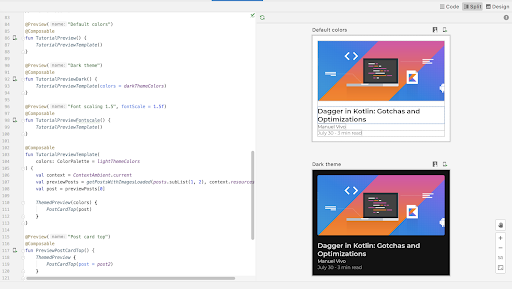
The uiMode setting supplies a night-mode configuration; it does not force a particular color palette onto a theme that ignores that configuration. If both renders look identical, check that you used your app’s theme rather than only BankingSample(), and inspect whether the theme is set up to respond to dark mode. Previews may also differ from an emulator when a theme uses device-dependent colors.
Supply an intentionally difficult sample
Light and dark are environment configurations. You can also inspect content variations by passing different sample values to a reusable composable. Your AccountBalance function already accepts an account name and a balance string, so there is no need to alter the production screen to see how a longer row behaves.
Add these previews beneath BankingSamplePreview(). The Card recreates the context in which the row appears on your banking screen; the sample values exist only in these preview functions.
@Preview(
    name = "Long account - standard text",
    widthDp = 320,
    showBackground = true
)
@Preview(
    name = "Long account - larger text",
    widthDp = 320,
    fontScale = 1.5f,
    showBackground = true
)
@Composable
private fun LongAccountPreview() {
    YourProjectTheme {
        Card(
            modifier = Modifier.fillMaxWidth(),
            colors = CardDefaults.cardColors(
                containerColor = MaterialTheme.colorScheme.surfaceVariant
            )
        ) {
            AccountBalance(
                accountName = "Everyday checking account",
                balanceText = "12,345,678.90 USD",
                modifier = Modifier.padding(16.dp)
            )
        }
    }
}
These use Card, CardDefaults, MaterialTheme, Modifier, fillMaxWidth, padding, and dp from the previous lesson; add any imports that are not already in this file. Replace YourProjectTheme here as well.
Compare the two row renders. Does the account name wrap? Is the amount still legible and separated from its label? Does the row remain inside the card? Finding a cramped layout is a successful preview inspection, not a preview failure. You have exposed a case that the short “Checking” label in the full-screen sample could not reveal. You can decide whether to adjust the row’s layout before using it more widely in the next screen.
fontScale = 1.5f changes the preview’s text-scaling configuration. It does not edit your typography styles or change the user’s device setting. Likewise, neither long sample value becomes real account data in the running app.
Know what a preview can—and cannot—tell you
Android Studio also has an Interactive mode for a preview. Read the Android Developers guide for how to enter that mode and how to locate a composable from its render.
Preview your UI with composable previews | Jetpack Compose | Android Developers
Read the Android Developers guide to distinguish visual previews from interactive previews and to learn how the preview pane helps you find UI code.
In “Interact with your @Preview,” read the “Interactive mode” subsection from interactive mode through its explanation of input and gestures. Then read “Code navigation and composable outlines,” from composable outlines. In the following “Run preview” subsection, notice that deploying a preview to a device is a separate action; you do not need to do that for this lesson.
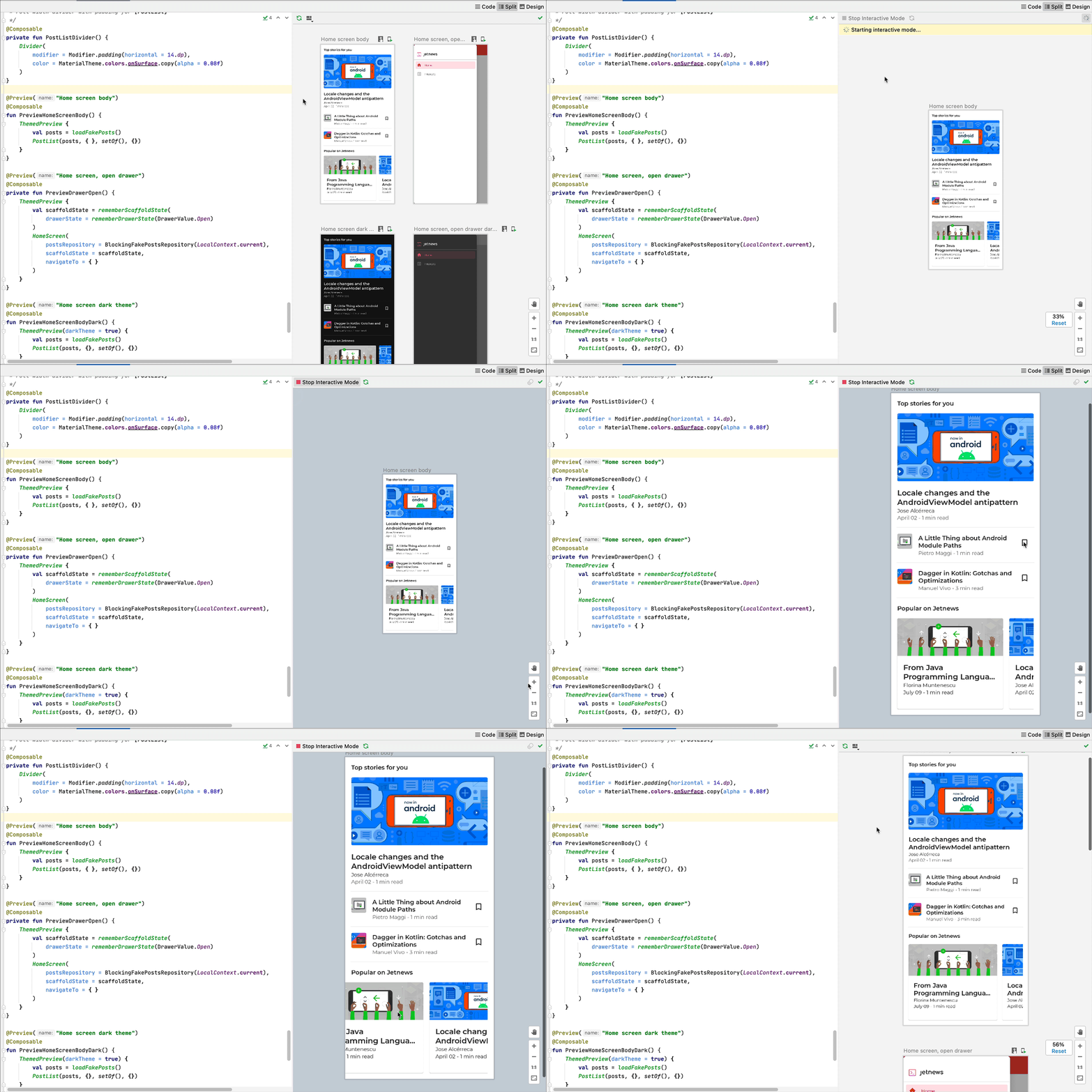
Your banking screen is static, so Interactive mode will not create new account data or make the rows respond to taps. Its value will grow when you add controls later. For now, the separate labeled previews are the useful way to compare known appearances without navigating through an app.
Previews render inside Android Studio rather than running the complete application on a device. They are excellent for checking spacing, wrapping, theme appearance, and supplied sample values. They do not prove that startup, navigation, permissions, or device-specific behavior work. Keep the emulator check you learned earlier for those questions.
If a preview does not appear, first check Split/Design view and use the preview pane’s build or refresh action. If compilation fails, resolve the reported Kotlin error—especially an unresolved Preview import or a theme name left as YourProjectTheme. If only the preview fails to render, read its error message; a render failure is different from discovering a visually crowded row.
What you’ve established
You can now create a parameterless preview function, render it in Android Studio, and use multiple @Preview annotations to compare configurations. You also used fixed sample inputs to inspect a content variation without changing the app’s normal screen. Previews speed up visual iteration; the emulator remains your check for the running app.
Next, you’ll turn the small banking sample into a fuller static account-summary screen with a balance card and recent transactions. These previews will give you a quick way to inspect it as it grows.