Recommended resources
The freely available resources this lesson will direct you to.
Hello! Your banking screen already has a clear structure: a header, account rows, and recent transactions. In the previous lesson, Column, Row, and Box determined where those elements sit. Now you’ll keep that layout and give it a visual hierarchy using Material 3 components, theme styles, and modifiers. The screen will still show fixed sample data; interaction and changing data come later.
Give the account area a surface
A balance and its account name belong together visually, not just spatially. Material 3’s Card provides a distinct container for related content. It does not decide what goes inside: you can place your existing AccountBalance composables in a Column within the card.
Read the Android Developers’ Card guide for the basic container pattern and its filled-card example. The example uses a fixed size to demonstrate appearance; for your banking screen, you’ll let the card fill the available width instead.
Card | Jetpack Compose | Android Developers
Read how a Card holds other composables, then examine how the filled example selects a theme color and adds padding to its content.
In “Basic implementation,” start at the container explanation and read the CardMinimalExample immediately below it. Then, under “Advanced implementations” and “Filled card,” read the filled example, including its code. Stop before “Elevated Card.” Focus on the distinction between the card’s modifier and the padding applied to its child.
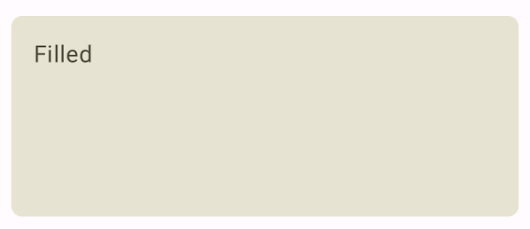
A Card supplies the surface; your Column still arranges the rows. MaterialTheme.colorScheme.surfaceVariant chooses a color from the app’s existing theme rather than hard-coding one. That makes the result consistent with the theme wrapper already used by MainActivity.
Treat modifiers as an ordered description
You used fillMaxWidth() and padding() last time. They become more consequential when a component has a visible surface. Compare padding outside a card with padding inside it: outside padding separates the card from its neighbors, while padding on the card’s inner Column separates its text from the card’s edges.
The order of modifiers on the same element matters too. The Android Developers’ Compose modifiers guide demonstrates this with a clickable area. You do not need to add clicks to this static screen; use the example to understand why modifier chains should be read in order.
Compose modifiers | Jetpack Compose | Android Developers
Read the modifier-order example to see how changing the sequence changes the resulting UI.
In “Order of modifiers matters,” begin with the order explanation. Compare the two ArtistCard code examples and their captions, including the second example immediately after that passage. Stop before “Built-in modifiers.” Notice which version includes the outer padding in its clickable area; the point here is the effect of order, not how to implement clicking.
For this screen, a useful pattern is to let the outer Column provide screen-edge padding, let the Card fill the width available inside that padding, and let an inner Column provide padding between the card boundary and its rows. Each layer has one clear job.
Material 3 also supplies text styles through MaterialTheme.typography. A heading can use headlineSmall, a section label titleMedium, and row text bodyMedium. These are roles, not fixed font sizes you have to coordinate manually. Theme colors serve a similar purpose: onSurface is appropriate for prominent text on the screen surface, while onSurfaceVariant pairs with the card color used below.
Style the existing banking sample
In the file containing AccountBalance, TransactionSummary, and BankingSample, keep your package declaration and replace those three functions with the following code. Add the imports you do not already have. Leave MainActivity calling BankingSample() inside its existing setContent and theme wrapper.
import androidx.compose.foundation.layout.Arrangement
import androidx.compose.foundation.layout.Box
import androidx.compose.foundation.layout.Column
import androidx.compose.foundation.layout.Row
import androidx.compose.foundation.layout.Spacer
import androidx.compose.foundation.layout.fillMaxSize
import androidx.compose.foundation.layout.fillMaxWidth
import androidx.compose.foundation.layout.height
import androidx.compose.foundation.layout.padding
import androidx.compose.material3.Card
import androidx.compose.material3.CardDefaults
import androidx.compose.material3.HorizontalDivider
import androidx.compose.material3.MaterialTheme
import androidx.compose.material3.Surface
import androidx.compose.material3.Text
import androidx.compose.runtime.Composable
import androidx.compose.ui.Alignment
import androidx.compose.ui.Modifier
import androidx.compose.ui.unit.dp

@Composable
fun AccountBalance(
    accountName: String,
    balanceText: String,
    modifier: Modifier = Modifier
) {
    Row(
        modifier = modifier.fillMaxWidth(),
        horizontalArrangement = Arrangement.SpaceBetween,
        verticalAlignment = Alignment.CenterVertically
    ) {
        Text(
            text = "$accountName balance",
            style = MaterialTheme.typography.bodyMedium,
            color = MaterialTheme.colorScheme.onSurfaceVariant
        )
        Text(
            text = balanceText,
            style = MaterialTheme.typography.bodyMedium,
            color = MaterialTheme.colorScheme.onSurfaceVariant
        )
    }
}

@Composable
fun TransactionSummary(
    description: String,
    amountText: String,
    modifier: Modifier = Modifier
) {
    Row(
        modifier = modifier.fillMaxWidth(),
        horizontalArrangement = Arrangement.SpaceBetween,
        verticalAlignment = Alignment.CenterVertically
    ) {
        Text(
            text = description,
            style = MaterialTheme.typography.bodyMedium
        )
        Text(
            text = amountText,
            style = MaterialTheme.typography.bodyMedium
        )
    }
}

@Composable
fun BankingSample() {
    Surface(
        modifier = Modifier.fillMaxSize(),
        color = MaterialTheme.colorScheme.background
    ) {
        Column(
            modifier = Modifier
                .fillMaxWidth()
                .padding(16.dp),
            verticalArrangement = Arrangement.spacedBy(8.dp)
        ) {
            Box(
                modifier = Modifier
                    .fillMaxWidth()
                    .height(64.dp)
            ) {
                Text(
                    text = "Account overview",
                    modifier = Modifier.align(Alignment.TopStart),
                    style = MaterialTheme.typography.headlineSmall,
                    color = MaterialTheme.colorScheme.onSurface
                )
                Text(
                    text = "Sample amounts",
                    modifier = Modifier.align(Alignment.BottomEnd),
                    style = MaterialTheme.typography.labelMedium,
                    color = MaterialTheme.colorScheme.onSurfaceVariant
                )
            }

            Text(
                text = "Accounts",
                style = MaterialTheme.typography.titleMedium
            )
            Card(
                modifier = Modifier.fillMaxWidth(),
                colors = CardDefaults.cardColors(
                    containerColor = MaterialTheme.colorScheme.surfaceVariant
                )
            ) {
                Column(
                    modifier = Modifier.padding(16.dp),
                    verticalArrangement = Arrangement.spacedBy(12.dp)
                ) {
                    AccountBalance(
                        accountName = "Checking",
                        balanceText = "2,450.00 USD"
                    )
                    HorizontalDivider(
                        color = MaterialTheme.colorScheme.outlineVariant
                    )
                    AccountBalance(
                        accountName = "Savings",
                        balanceText = "800.00 USD"
                    )
                }
            }

            Spacer(modifier = Modifier.height(12.dp))

            Text(
                text = "Recent transactions",
                style = MaterialTheme.typography.titleMedium
            )
            TransactionSummary(
                description = "Groceries",
                amountText = "-18.50 USD"
            )
            HorizontalDivider(
                color = MaterialTheme.colorScheme.outlineVariant
            )
            TransactionSummary(
                description = "Deposit",
                amountText = "+125.00 USD"
            )
        }
    }
}
Read this from the outermost component inward. Surface fills the screen and draws its theme background. The outer Column retains the layout you built previously, including the 16 dp screen-edge padding. The Card takes the available width within that column. Its inner Column adds 16 dp of content padding, so the account text does not touch the colored boundary.
The two account rows still use Arrangement.SpaceBetween; placing them in a card did not change their internal layout. HorizontalDivider adds a quiet boundary between related rows without turning each row into a separate card. The transaction rows remain outside the card, making the accounts the visually grouped portion of this sample.
Notice that AccountBalance and TransactionSummary still accept a modifier parameter. Their callers can adjust their placement without rewriting the functions. Their text styles now come from MaterialTheme, so a later change to the app’s theme can affect the screen consistently.
Inspect the result
Run the app on the emulator. Check that the account rows sit inside a full-width, rounded card; the header reads more prominently than the section labels; and the transaction amounts remain opposite their descriptions.
If the account text touches the card edge, check that padding(16.dp) is on the Column inside Card. If the card touches the screen edge, check the outer Column’s padding. These are different gaps, controlled at different levels of the layout.
This is deliberately still a small, non-scrolling sample. The visible amounts are display strings, not calculated balances, and the screen has no actions to imply that a transfer or account operation works yet.
What you’ve established
You have applied Material 3 Surface, Card, Text, and HorizontalDivider to an existing Compose layout. The theme supplies coordinated colors and typography; modifiers determine where the components sit and where padding belongs. Most importantly, visual styling has not displaced the reusable account and transaction rows you already built.
Next, you’ll use Compose previews to inspect interface states without launching the full app each time.