Hello! Welcome back to your AI video creation course.
In our last lesson, you successfully designed a prompt to create a consistent character, which is the cornerstone of any story or brand video. You now have a great-looking visual identity for your avatar.
But what happens when you need to use that image in a high-definition video? Or what if you want to zoom in on your character's face for emphasis? A standard AI-generated image might not be sharp enough, leading to a blurry or pixelated result. This lesson will equip you to solve that exact problem.
Our learning outcome today is to adjust or upscale image resolution to ensure high-quality output for video. We will explore why resolution matters, discover different types of AI upscaling tools, and practice using them to prepare your assets for professional-quality video production.
1. Why Image Resolution Matters for Video
When you generate an image with an AI tool, it comes in a fixed size, like 1024x1024 pixels. This is fine for a small web graphic, but for video, especially high-definition (HD) or 4K video, you need more pixels to work with.
- 1080p (Full HD): 1920 x 1080 pixels
- 4K (Ultra HD): 3840 x 2160 pixels
If you place a small image into a 4K video project, it will look blocky and unprofessional. This is where AI image upscalers come in. They don't just stretch the image; they intelligently add new pixels to increase its resolution while sharpening details.
To get a clear understanding of the technical differences, let's start with a quick read.
How to AI upscale video or image to 1080P or 4K resolution?
This brief article from CapCut clearly explains the difference between 1080p and 4K resolution. Understanding this is the foundation for knowing why we need to upscale our images.
Please read the first main section, 'Understanding resolution: 4k and 1080p comparison'. Focus on the pixel counts and the intended use cases for each resolution.
In short, upscaling gives you the flexibility to use your generated assets in any video format and allows for creative editing choices, like digital zooms, without losing quality.
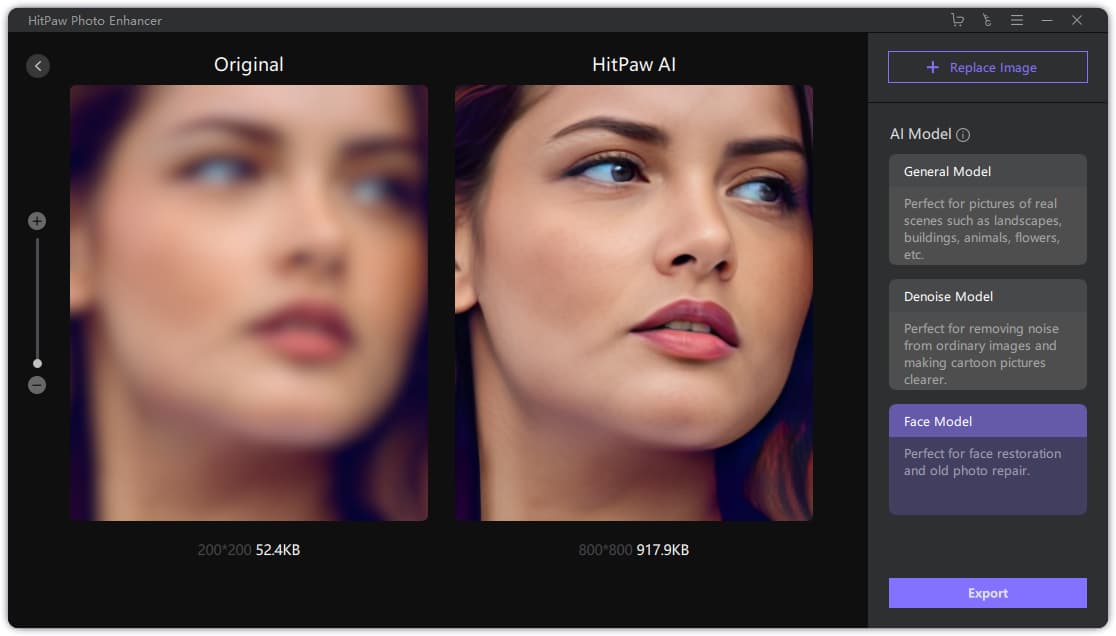
2. Two Flavors of AI Upscaling
AI upscaling isn't a one-size-fits-all process. There are two main approaches you can take, each suited for different goals:
-
Standard Upscaling: The goal here is to increase the image's resolution (e.g., from 1024x1024 to 4096x4096) while preserving the original details as faithfully as possible. This process sharpens edges, reduces noise, and makes the image crisper.
-
Creative Enhancement (or "Reimagining"): This goes a step beyond simple upscaling. The AI not only increases resolution but also adds new details that weren't in the original, based on its understanding of the image. This can be magical for turning a very low-quality or simple image into a rich, detailed masterpiece, but it may also slightly alter the original.
Let's explore some free tools for both methods.
3. Survey of Free Upscaling Tools
There are many excellent, free tools available that don't require any coding. The following video provides a fantastic comparison of three popular options for standard upscaling.
Best 3 FREE Image Upscalers in 2025 + Comparison!
This video from PiXimperfect reviews and compares three free image upscalers: Upscayl (offline), dgb.lol (online), and Pixelcut.ai (online). It will give you a great sense of the options available and their pros and cons.
Watch the video to get familiar with the tools. Pay special attention to: The introduction of each tool and its features (00:00 - 03:47). The side-by-side quality comparison (04:35 - 08:18). The final recommendations on which tool to use for different situations (08:18 - 08:57).
The key takeaway is that most of these tools produce very similar, high-quality results. Your choice might come down to convenience:
- Upscayl: Best if you have a powerful computer and want to work offline or process many images at once (batch processing).
- Pixelcut.ai: A great, fast online option for single images.
- CapCut: As you're already familiar with the CapCut ecosystem, its built-in upscaler is a very convenient choice. We'll practice with it shortly.
For creative enhancement, another tool offers a fascinating "reimagining" capability.
Mindblowing AI Image Upscaler! Krea ai
This video by AI Quest showcases Krea AI's 'Upscale and Enhance' feature. This is a perfect example of the second type of upscaling, where the AI adds new, rich details to an image.
Watch the beginning of the video (00:00 - 02:47) to understand how this tool works. Notice how it doesn't just upscale; it 'reimagines' the image with more detail, like on the frog and penguin examples. Also, note how prompts can be used to guide the enhancement (03:33 - 05:41).
Krea AI is a powerful option when your source image is very simple or blurry and you want the AI to creatively fill in the blanks.
4. Practical Exercise: Upscaling Your Character
Now it's time to apply what you've learned. Let's take the character image you designed in the previous lesson and prepare it for a 4K video. We will use the CapCut AI Image Upscaler for its convenience and integration with the editor you'll be using later.
Your Task: Upscale your character image to 4K resolution.
Step 1: Get Your Image
- Find the character image you generated and saved from the previous lesson's exercise.
Step 2: Use the CapCut AI Image Upscaler
- CapCut offers a free, web-based tool for this. The process is straightforward. The following resource page details the exact steps.
AI Image Upscaler | Take Your Images to the Next Level Online
This is the official page for CapCut's AI Image Upscaler. It includes a simple, three-step guide on how to use the tool.
Scroll down to the section titled 'How to use CapCut's online AI image upscaler for free'. Follow the three steps provided: Upload, Upscale, and Download. You can upload the character image you created in the last lesson.
When you follow the steps, CapCut's AI will automatically increase your image resolution by 400%, which is perfect for turning a standard 1024x1024 image into a 4K-ready asset (4096x4096).
Step 3: Compare the Before and After
- Once you've downloaded the upscaled image, open it side-by-side with your original file. Zoom in on details like the eyes, hair, or clothing. You should notice a significant increase in sharpness and clarity.
You've now successfully created a high-resolution asset ready for professional video editing!
Conclusion
Today you've tackled a critical, practical step in the AI video production pipeline. You've learned that generating an image is only half the battle; ensuring it's high-resolution is key to a professional final product.
Key Takeaways:
- Resolution is Key: High resolutions like 4K require images with more pixels to avoid looking blurry or pixelated.
- Two Types of Upscaling: You can use standard upscalers (like CapCut's or Pixelcut's) to faithfully sharpen an image, or creative enhancers (like Krea AI's) to reimagine it with new details.
- Free Tools Abound: You have access to powerful, free, no-code tools for upscaling, whether online or offline.
- CapCut's Ecosystem: CapCut provides an integrated and convenient upscaler that fits seamlessly into your video editing workflow.
Next Lesson Preview:
With this lesson, we conclude our module on generating visual assets. You can now create backgrounds and high-quality characters. But a video needs sound! In our next lesson, we will begin the "Crafting the AI Soundtrack" module by learning how to generate a voiceover from a script using a text-to-speech tool, bringing your character's voice to life.