Welcome to the second module of our course! In the first module, we focused on building a solid foundation for your automation projects by structuring your code into reusable modules and managing configuration externally. You now have a blueprint for creating scripts that are clean, maintainable, and configurable—hallmarks of professional software development.
Now, we're going to put that structure to work by introducing a new engine for your data processing: DuckDB. You mentioned that you've been using Pandas for data manipulation and are looking for a more efficient way to handle tasks like consolidating files. This is precisely where DuckDB shines. It's a high-speed database designed for analytical queries that runs directly within your Python script, offering the power of SQL without the overhead of a traditional database server.
This lesson is your entry point into the world of DuckDB. We will cover how to install it and, most importantly, how to establish a connection to a database. You'll learn the critical distinction between an in-memory database for temporary tasks and a persistent database file that saves your data, which will become a cornerstone of your automated FP&A workflows.
What is DuckDB? The "SQLite for Analytics"
Before we write any code, let's establish a clear mental model of what DuckDB is and where it fits. You're familiar with SQL warehouses for corporate data and Pandas for local data wrangling. DuckDB bridges the gap between these two worlds. It is an in-process Online Analytical Processing (OLAP) database. Let's break that down:
- In-process: Like SQLite, DuckDB runs inside your application (your Python script). There's no separate server to install, manage, or connect to. It's incredibly lightweight and simple to use.
- OLAP (Online Analytical Processing): This is the key differentiator. Unlike databases designed for frequent small transactions (like recording individual sales), OLAP databases are optimized for complex queries that scan and aggregate large amounts of data. This includes the
GROUP BY,JOIN, and window functions typical of financial analysis and reporting.
For your work in FP&A, this means you can perform sophisticated SQL-based analysis on local files (CSVs, Parquet files) with performance that often surpasses what's possible with Pandas, especially as data sizes grow.
The following diagram illustrates where DuckDB sits in a typical data workflow. It can ingest data from many sources, perform the heavy lifting of transformation and analysis (ETL, OLAP), and then serve the results to reporting tools or, in our case, further Python logic.
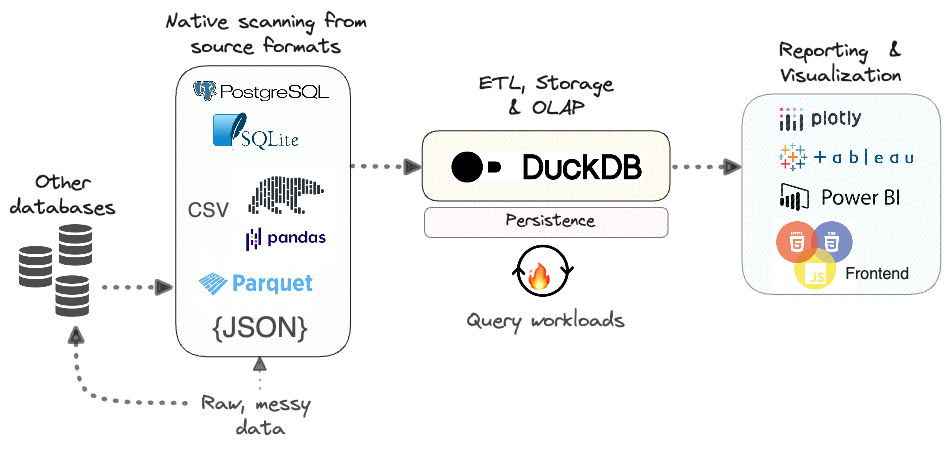
To get a better feel for the motivation behind DuckDB and its core concepts, the following video provides an excellent introduction.
DuckDB Tutorial - DuckDB course for beginners
This video from the "Data with Marc" channel provides a concise overview of why DuckDB is so powerful for data analysis.
Please watch from the beginning of the "Why DuckDB?" section until the end of the introduction here. Pay attention to the comparison with a typical Pandas workflow and the explanation of it being a column-oriented, in-process OLAP database.
Installation
Getting DuckDB set up is as simple as installing any other Python package. It's self-contained and has no external dependencies, making the process seamless across both your Windows and macOS environments.
Open your terminal or command prompt (with your virtual environment activated) and run the following command:
pip install duckdb
That's it. To confirm it's installed correctly, you can open a Python interpreter and run import duckdb, which should execute without any errors.
For a comprehensive guide covering different installation methods (like conda) and troubleshooting common issues, the following resource is an excellent reference. You don't need to read it all now, but it's good to know where to find this information if you ever need it.
Ultimate guide to DuckDB library in Python - Deepnote
This guide from Deepnote provides exhaustive details on installing DuckDB across various platforms and environments.
Quickly review the "Installation instructions" section. You've already done the pip install, but notice the guidance for different IDEs and operating systems. Also, glance at the "Installation and Setup" FAQ at the end for quick answers to common questions.
Connecting to a Database in Python
With DuckDB installed, you can now connect to it from your Python script. A "connection" is your gateway to executing SQL queries. DuckDB offers two fundamental modes of operation, and choosing the right one is essential.
1. In-Memory Database: Fast and Ephemeral
The default mode for DuckDB is in-memory. This means the entire database—its tables and data—exists only in your computer's RAM. It is incredibly fast for computations but has a crucial characteristic: the data is temporary (ephemeral). Once your Python script finishes or the connection is closed, the entire database vanishes.
To create an in-memory database, you simply call duckdb.connect() with no arguments, or explicitly with ':memory:'.
import duckdb


# Connect to a new, empty in-memory database
# This connection object is our handle to the database
con = duckdb.connect()


# You can also be explicit
# con = duckdb.connect(database=':memory:')

print(con)


# The connection and the database it holds will be gone
# when the script ends.
con.close()
This is perfect for:
- Quick, one-off data transformations.
- Intermediate steps in a larger pipeline where you don't need to save the results.
- Running tests where you need a clean, predictable database state for every run.
The following video from ArjanCodes clearly explains this concept and its implications.
Stop Struggling with DataFrames – Try DuckDB for SQL on Pandas
In this video, ArjanCodes demonstrates the different storage options in DuckDB.
Watch these two short segments. The first one introduces in-memory databases, and the second one highlights the "gotcha"—what happens when you create a new connection and expect the old in-memory data to still be there (it's not).
2. Persistent Database: Your Local Data Mart
The real game-changer for your automation goals is persistent storage. In this mode, DuckDB saves the entire database to a single file on your disk, typically with a .duckdb extension. This file contains all your tables, data, and indexes in DuckDB's highly optimized columnar format.
You can close your script, shut down your computer, and when you reconnect to that same file later, all your data will be exactly as you left it. This effectively allows you to create a small, portable, high-performance local data warehouse.
To create or connect to a persistent database, provide a file path to the connect method.
import duckdb


# If 'finance_etl.duckdb' does not exist, it will be created.
# If it exists, this will open it.
con = duckdb.connect(database='finance_etl.duckdb')

print(con)


# --- You can now create tables and load data ---
# This data will be saved in the 'finance_etl.duckdb' file.

con.close()
This is the mode you will use most often for your projects. It's ideal for:
- Consolidating raw data: Read multiple monthly CSVs once and store them in a persistent DuckDB table to avoid slow re-parsing every time.
- Building a local data mart: Store cleaned actuals, budgets, and forecast data for quick period-over-period analysis.
- Sharing datasets: Instead of sending large CSVs, you can send a single, compact
.duckdbfile.
The path to this database file is a perfect candidate for storing in the config.yaml file we created in the last lesson, keeping your code clean and configurable.
The official DuckDB documentation and the Deepnote guide provide more examples and details on these connection methods.
The official documentation provides the canonical explanation for connection options.
Read the section on "Connection Options". Focus on the code examples for Persistent Storage. Note the recommendation to use a context manager (with duckdb.connect(...) as con:), which is a Python best practice for ensuring resources are properly closed.
Ultimate guide to DuckDB library in Python - Deepnote
This guide provides a more narrative-driven walkthrough of both connection types.
First, read "Your first DuckDB example", which demonstrates the full lifecycle of an in-memory database: connect, create, insert, query, and close. Then, read the section on "persistent storage" to understand the benefits and syntax for creating a file-based database.
A Note on Best Practices: Connection Objects
When writing modular code, as we've been practicing, it's best to create explicit connection objects (con = duckdb.connect(...)) and pass them to your functions or methods. You may see examples using duckdb.sql(...) directly. This uses a single, global in-memory database, which can lead to unexpected behavior if different parts of a larger application interfere with each other. Sticking with explicit connection objects makes your code more robust and predictable.
Putting It All Together
Let's see a practical example that demonstrates the power of persistence. The following script will:
- Connect to a persistent database file named
fpna_sandbox.duckdb. - Create a table for
forecast_scenarios. - Insert a "Baseline" scenario.
- Close the connection.
- Reconnect to the same file and prove the data is still there by adding an "Upside" scenario and then querying all scenarios.
import duckdb
import os

DB_FILE = "fpna_sandbox.duckdb"

def initialize_database():
    """Create a table and insert an initial record."""
    print(f"--- Initializing Database in '{DB_FILE}' ---")


    # Using a context manager ensures the connection is closed automatically
    with duckdb.connect(database=DB_FILE, read_only=False) as con:


        # Create a table for storing forecast scenarios
        con.execute("""
            CREATE TABLE IF NOT EXISTS forecast_scenarios (
                id INTEGER PRIMARY KEY,
                name VARCHAR,
                created_at TIMESTAMP DEFAULT current_timestamp
            );
        """)


        # Insert a baseline scenario if the table is empty
        con.execute("INSERT INTO forecast_scenarios (id, name) VALUES (1, 'Baseline') ON CONFLICT DO NOTHING;")

        print("Table 'forecast_scenarios' created and baseline inserted.")


        # Query to show current state
        scenarios = con.execute("SELECT * FROM forecast_scenarios;").fetchdf()
        print("Current scenarios in DB:")
        print(scenarios)

def add_new_scenario():
    """Connect to the existing database and add a new record."""
    print(f"\n--- Re-connecting to '{DB_FILE}' to add new scenario ---")
    with duckdb.connect(database=DB_FILE, read_only=False) as con:


        # The 'forecast_scenarios' table already exists
        con.execute("INSERT INTO forecast_scenarios (id, name) VALUES (2, 'Upside');")
        print("Added 'Upside' scenario.")


        # Query again to show the updated state
        all_scenarios = con.execute("SELECT * FROM forecast_scenarios ORDER BY id;").fetchdf()
        print("All scenarios now in DB:")
        print(all_scenarios)

if __name__ == '__main__':


    # Clean up previous runs for a fresh demonstration
    if os.path.exists(DB_FILE):
        os.remove(DB_FILE)


        # Also remove the write-ahead log file
        if os.path.exists(f"{DB_FILE}.wal"):
            os.remove(f"{DB_FILE}.wal")

    initialize_database()
    add_new_scenario()
When you run this script, you'll see the "Baseline" scenario created in the first step. Then, in the second step, the script reconnects and adds the "Upside" scenario, demonstrating that the table and its data persisted in the fpna_sandbox.duckdb file between connections.
Conclusion
Congratulations, you've taken your first step into high-performance local data analytics! You've learned how to bring the power of a modern analytical database directly into your Python scripts.
Key Takeaways:
- DuckDB is an in-process OLAP database, ideal for running complex SQL queries on local data without a separate server. It's the "SQLite for analytics."
- Installation is simple via
pip install duckdb. - You can connect to an in-memory database (
duckdb.connect()) for fast, temporary tasks where data does not need to be saved. - You can connect to a persistent database (
duckdb.connect('filename.duckdb')) to create a single-file, portable data store that saves your data between script runs. This is a powerful pattern for building automated data pipelines. - Using explicit connection objects and context managers (
with...as) are best practices for writing robust and clean code.
In our next lesson, we will immediately put this to use. You'll learn how to query CSV files directly with DuckDB's SQL, finally replacing those slow and memory-intensive Pandas loops for file consolidation that you wanted to improve upon.