In our previous lesson, we established the fundamentals of DuckDB, learning how to install it and connect to both temporary in-memory databases and powerful persistent database files. You now have the initial toolkit to integrate a high-performance analytical engine into your Python scripts.
Now, we'll address one of the primary motivations for you exploring DuckDB: replacing the slow and memory-heavy process of consolidating multiple files with pandas. This lesson focuses on using DuckDB's SQL reader functions to query one or more CSV files directly. You will learn how to write a single, elegant SQL statement to achieve what previously required loops and concatenation, unlocking significant gains in both performance and code clarity for your financial data workflows.
The Problem with the Pandas Loop
You've mentioned that a common task for you is to consolidate data from multiple files, perhaps monthly exports from a reporting system. The typical approach in pandas, which you are likely familiar with, involves a few distinct steps:
- Get a list of all the file paths.
- Create an empty list to hold individual DataFrames.
- Loop through the file paths.
- In each iteration, read a CSV into a pandas DataFrame.
- Append that DataFrame to your list.
- Finally, use
pd.concat()to combine all the DataFrames in the list into one large DataFrame.
While this works, it can be inefficient. Pandas needs to create a separate DataFrame object in memory for each file before combining them, which consumes a lot of RAM and can be slow, especially with many large files.
DuckDB offers a radically simpler and faster alternative.
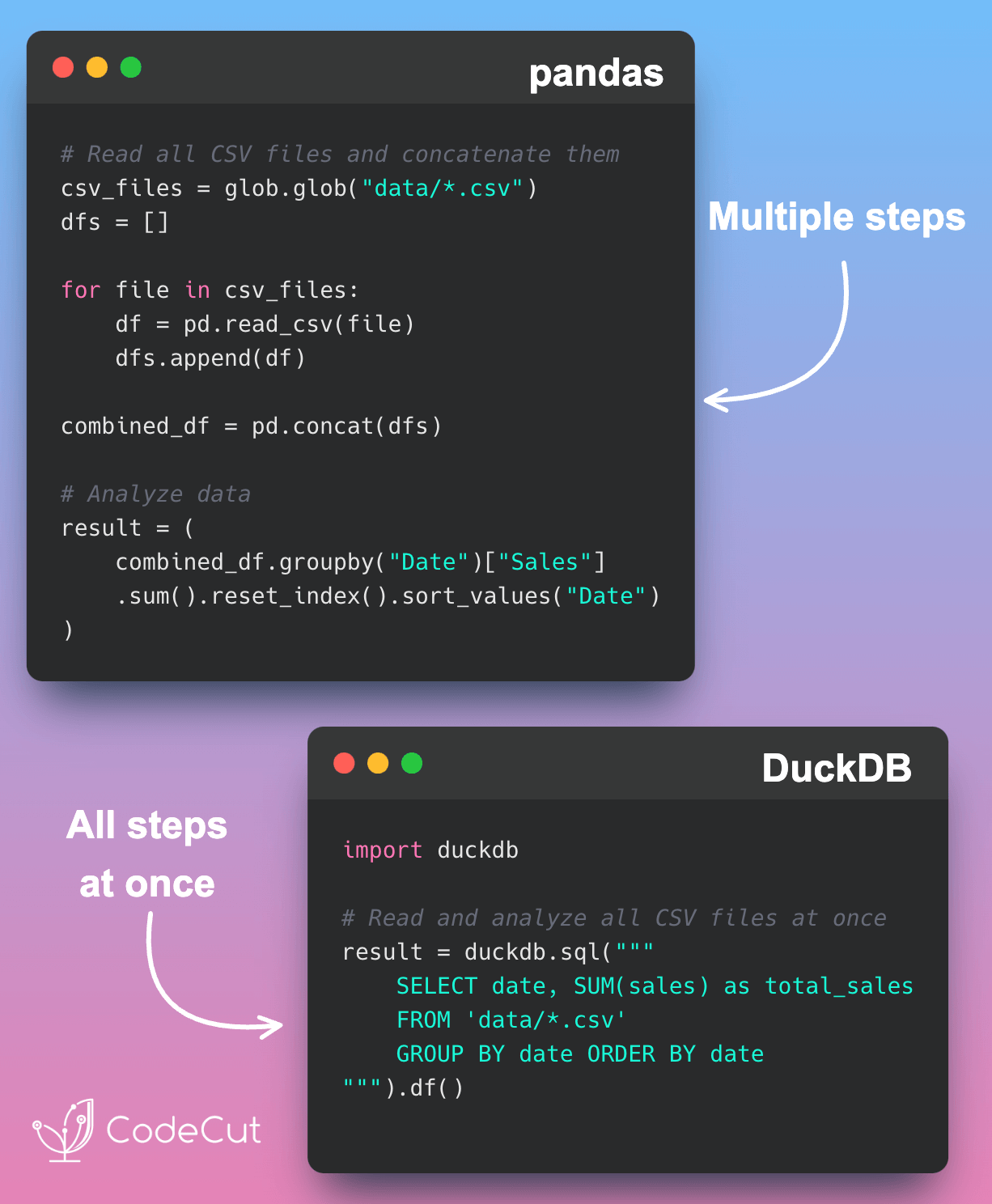
The core difference is that DuckDB's specialized query engine doesn't need to load everything into memory upfront. It can stream data directly from the files on disk, applying filters and aggregations on the fly. This makes it incredibly efficient.
Querying a Single CSV File with SQL
The simplest way to start is by querying a single CSV file. DuckDB allows you to treat a CSV file path directly as a table name within your SQL query.
Let's assume you have a file named monthly_actuals.csv. You can query it like this:
import duckdb


# Connect to an in-memory database
con = duckdb.connect()


# Query the CSV file directly and fetch the result as a pandas DataFrame
df_actuals = con.execute("SELECT * FROM 'monthly_actuals.csv' LIMIT 10;").df()

print(df_actuals)
Behind the scenes, DuckDB automatically invokes its read_csv_auto function, which inspects the file to infer the column names from the header row and deduce the data types for each column.
For a clear demonstration of this powerful feature, the following video from the "BugBytes" channel shows just how easy it is to start querying a CSV.
DuckDB and SQL - for Data Analysis and Processing
This video provides a great hands-on walkthrough of querying a CSV file directly.
Watch the section where the presenter demonstrates how to select from a CSV as if it were a table. Notice how the file path is simply placed in the FROM clause.
While auto-detection is convenient, real-world CSVs can be messy. You might have files with no headers, different delimiters (like semicolons instead of commas), or tricky data types that DuckDB might misinterpret. For these cases, you can use the read_csv() function explicitly within your SQL query to provide specific options.
# Example with options: no header, semicolon delimiter
query = """
SELECT
    column0 AS transaction_id,
    column1 AS amount
FROM read_csv('data.csv', header=False, sep=';');
"""
df = con.execute(query).df()
The official DuckDB documentation provides a concise summary of these reading methods.
This section of the official documentation covers the various ways to read CSV files.
Review the examples under the CSV Files section. Pay attention to the different syntaxes: using the file path directly, calling read_csv from Python, and calling read_csv from within SQL.
Querying Multiple CSV Files with Globbing
Now for the main event: replacing the pandas loop. DuckDB allows you to use "glob" patterns—wildcards like *—in the file path to query multiple files at once as if they were a single, unified table. This is the feature that will directly streamline your file consolidation tasks.
Imagine you have a directory data/ containing monthly sales reports: sales_2024-01.csv, sales_2024-02.csv, sales_2024-03.csv, and so on. To calculate the total sales across all months, you can run a single query:
import duckdb

con = duckdb.connect()


# Query all CSV files starting with 'sales_' in the 'data/' directory
total_sales_query = """
SELECT
    SUM(sales_amount) AS total_sales
FROM 'data/sales_*.csv';
"""


# The result is a single value, so we can use .fetchone()
total_sales = con.execute(total_sales_query).fetchone()[0]

print(f"Total sales across all months: {total_sales:,.2f}")
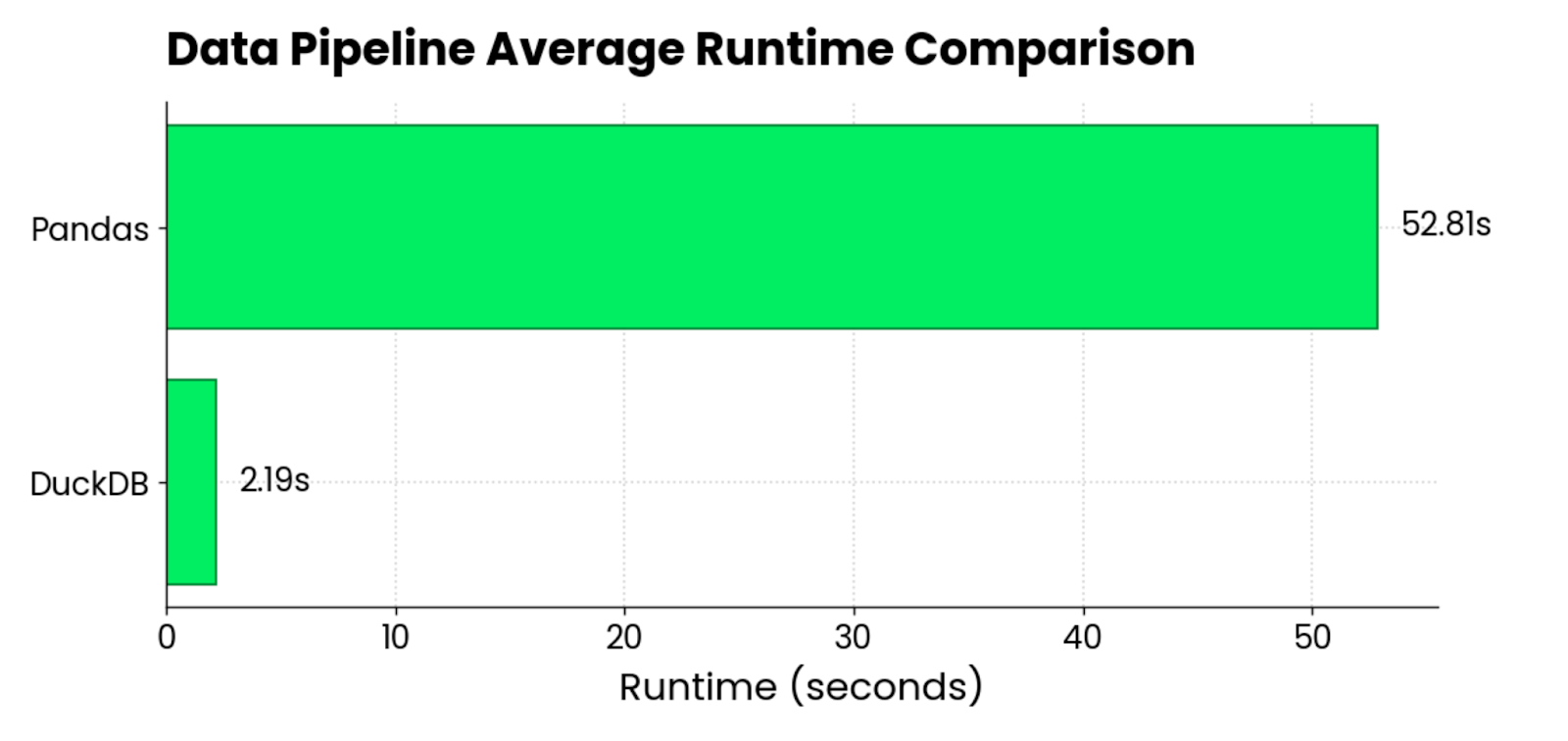
This one query replaces the entire pandas loop-and-concat process. DuckDB handles finding the files, ensuring they have a compatible structure, and processing them in a highly optimized, parallel fashion.
The performance difference can be dramatic, as illustrated by this comparison.
To see this in action, the "Data with Marc" tutorial provides an excellent side-by-side comparison.
DuckDB Tutorial - DuckDB course for beginners
This video directly contrasts the pandas method with the DuckDB method for reading multiple CSVs.
First, watch the demonstration of the traditional pandas approach, which will look very familiar. Then, see how the same task is accomplished with a single, much faster query in DuckDB using a glob pattern.
As the video also demonstrates, you can use the read_csv_auto() function with glob patterns to specify options for all files being read, such as header=TRUE.
monthly_summary_query = """
SELECT
    product_category,
    SUM(sales_units) AS total_units
FROM read_csv_auto('data/sales_*.csv', header=TRUE)
GROUP BY product_category
ORDER BY total_units DESC;
"""

summary_df = con.execute(monthly_summary_query).df()
print(summary_df)
The "Ultimate guide to DuckDB" provides a thorough written explanation of this feature, which is great to review and consolidate your understanding.
Ultimate guide to DuckDB library in Python - Deepnote
This guide explains the "why" behind DuckDB's ability to query files directly and provides several examples.
Read the section on querying data files. Focus on the "Syntax and usage" part, especially the examples for querying multiple files and the practical example of joining different file types, which hints at the power we'll explore later.
A Practical FP&A Example
Let's put this into a complete script that simulates a common task: consolidating monthly expense reports and summarizing them by department.
First, we'll set up a few dummy CSV files. In a real scenario, these would already exist.
import pandas as pd
import os


# Create a 'reports' directory if it doesn't exist
os.makedirs('reports', exist_ok=True)


# Create dummy expense data for Jan
expenses_jan = {
    'Date': ['2024-01-15', '2024-01-20', '2024-01-22'],
    'Department': ['Marketing', 'Engineering', 'Marketing'],
    'Amount': [500.00, 1200.50, 75.25]
}
pd.DataFrame(expenses_jan).to_csv('reports/expenses_2024-01.csv', index=False)


# Create dummy expense data for Feb
expenses_feb = {
    'Date': ['2024-02-10', '2024-02-18', '2024-02-25'],
    'Department': ['Engineering', 'Sales', 'Engineering'],
    'Amount': [350.75, 800.00, 2500.00]
}
pd.DataFrame(expenses_feb).to_csv('reports/expenses_2024-02.csv', index=False)
Now, let's perform the analysis using DuckDB. The goal is to get a summary of total expenses per department across all months.
import duckdb


# Connect to a database
con = duckdb.connect()


# Use a single SQL query with a glob pattern to read and aggregate the data
department_summary_query = """
SELECT
    Department,
    SUM(Amount) AS TotalExpenses
FROM 'reports/expenses_*.csv'
GROUP BY Department
ORDER BY TotalExpenses DESC;
"""


# Execute the query and fetch the result into a pandas DataFrame
summary_df = con.execute(department_summary_query).df()

print("--- Department Expense Summary ---")
print(summary_df)


# Clean up the dummy files and directory
os.remove('reports/expenses_2024-01.csv')
os.remove('reports/expenses_2024-02.csv')
os.rmdir('reports')
When you run this, you will see the aggregated result, produced by a single, readable query that is far more efficient than the equivalent pandas code would be, especially as the number and size of the files grow.
Conclusion
In this lesson, you've learned one of DuckDB's most powerful and practical features for data automation. By replacing verbose and inefficient pandas loops with concise SQL queries, you can make your data consolidation scripts simpler, faster, and more scalable.
Key Takeaways:
- DuckDB can query CSV files directly from disk by using the file path in the
FROMclause of a SQL statement. - The
read_csv()andread_csv_auto()table functions allow you to specify options like headers and delimiters for fine-grained control. - You can query multiple CSV files at once using glob patterns (e.g.,
'data/*.csv'), which is a direct and efficient replacement for the pandas loop-and-concat pattern. - This approach uses less memory and is significantly faster because DuckDB's engine processes data in a streaming, parallel fashion.
- You can easily bring the results of your SQL query back into a pandas DataFrame using the
.df()method for further use in your Python workflow.
In our next lesson, we will build on this foundation. While globbing is fantastic for simple cases, sometimes you need more explicit control over which files are combined. We will explore how to use the UNION ALL SQL operator to consolidate data from multiple SELECT statements, giving you another powerful tool for your data processing arsenal.