Hello! In our last lesson, we mastered conditional formatting, a technique for analyzing data that is already inside your Excel workbook. We learned to make data "speak" visually by highlighting trends and outliers directly within our worksheets.
Today, we're taking a crucial step back to address a more fundamental question: how do we get data into Excel in the first place, especially when it comes from external files? For this, we'll learn about Power Query, one of the most powerful tools in an analyst's Excel toolkit. It's a game-changer for automating the repetitive and error-prone task of importing and preparing data.
This lesson will focus on the "Extract" part of the data analysis process. By the end, you will be able to use Power Query to reliably import data from two of the most common external sources you'll encounter as an analyst: CSV files and other Excel workbooks.
1. What is Power Query?
Before we jump into the "how," let's understand the "what" and "why." At its core, Power Query is a data connection, transformation, and automation engine built into Excel. Think of it as a dedicated workshop for getting your data ready for analysis. In a business context, data rarely arrives in a perfect, analysis-ready format. It's often spread across different files, messy, and requires cleaning.
Power Query allows you to create a repeatable, automated process to:
- Connect to a wide variety of data sources.
- Transform the data (clean, reshape, merge, etc.).
- Load the clean data into Excel for analysis.
For an analyst, this automation is the key benefit. Instead of manually copying and pasting data each month—a process that is slow and invites errors—you build a query once. Then, each month, you simply click "Refresh" to pull in the new data through the same steps.
The article "Excel Power Query: A Crash Course" provides a great analogy for this.
Excel Power Query: A Crash Course for Beginner Data ...
This article offers a fantastic, high-level introduction to Power Query's purpose.
Please read the introduction and the section "1| What is Excel Power Query and its primary uses for data analysts". Pay close attention to the coffee metaphor, as it perfectly captures the value of automating data preparation.
As you can see, Power Query isn't just about importing one file. It's about building a robust pipeline for your data.
2. The Power Query Universe: Data Sources
A key strength of Power Query is the vast number of data sources it can connect to. While our focus today is on Excel and CSV files, it's important to recognize the breadth of its capabilities. As a data or business analyst, you'll encounter data in many different forms.
Excel Power Query: A Crash Course for Beginner Data ...
Let's quickly review the types of sources Power Query can handle.
In the same article, scroll down to the section "2 | Going from Zero to One Quickly — The Essentials". Read the part titled You can grab data from all kinds of places. This list demonstrates why Power Query is a central tool for data integration in a business environment.
3. Importing Your First Dataset
You'll find Power Query's tools on the Data tab in the Excel ribbon, within the Get & Transform Data group. This is your gateway to importing data.
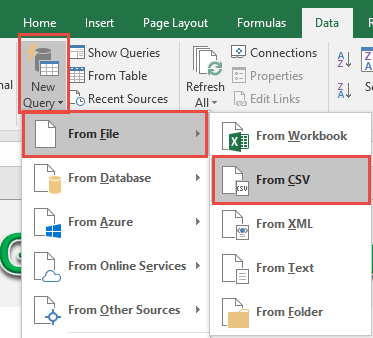
Let's walk through the process for the two most common file types.
Importing from a CSV File
CSV (Comma-Separated Values) is a universal format for storing tabular data. You'll work with CSV files constantly as an analyst. The process is straightforward.

The "Acuity Training" article provides a clear, static walkthrough of these steps.
Import Data Into Excel With Power Query [2 Step-By-Step Cases]
This guide provides clear screenshots for importing from a Text/CSV file.
Follow the two steps under the heading "Let’s look into another example of importing data using Power Query from a text file." Focus on how Excel opens a preview window. Notice the options for Delimiter and Data Type Detection. Power Query is smart enough to usually get these right, but knowing you can adjust them is crucial for handling non-standard files.
Importing from an Excel Workbook
Often, your source data will be in another Excel file, perhaps a weekly report emailed to you by a colleague. Power Query is perfect for this. Instead of opening the file and copy-pasting, you can create a live connection to it.
The following video by Leila Gharani provides an excellent demonstration.
Learn to Automate Everything with Power Query in Excel (Download Files)
Watch this segment to see how to connect to an external Excel file.
Watch from the beginning up to the first four minutes. Observe how she navigates to Data > Get Data > From File > From Excel Workbook. The key moment is in the Navigator window, where you must choose the specific sheet or table within the source workbook you want to import. She correctly chooses to Transform Data because it's messy, which leads us perfectly into our next lesson's topic.
4. A Real-World Scenario: Combining Multiple Files from a Folder
Here is where Power Query transitions from a convenient tool to an indispensable one. Imagine you receive a sales report every month, saved as a separate file (e.g., Sales_Jan.csv, Sales_Feb.csv, etc.) in a shared folder. Your task is to create a consolidated report for the year.
Manually opening and copy-pasting twelve files is tedious and error-prone. With Power Query, you can point to the folder and have it automatically combine all the files. When the Sales_Mar.csv file is added next month, you simply click "Refresh" to update your master table. This is a core skill for any analyst.
The video below from MyOnlineTrainingHub explains exactly how to do this the "right way."
Combine Files from a Folder with Power Query the RIGHT WAY!
This video is a masterclass in combining files from a folder, covering both CSV and Excel files and highlighting common pitfalls.
This is a slightly longer but extremely valuable video. First, watch how to connect to a folder of CSV files from the beginning. Next, pay close attention to the explanation of the "transform sample file" from this section. This is a critical concept for cleaning files before they are combined. Then, watch the example with messy Excel files from this segment to see the "transform sample file" concept in action. This is an advanced but powerful technique. Finally, see how to load and refresh the data from the end. This demonstrates the final payoff of your automated query.
Conclusion
You've now learned the foundational skill of data acquisition in Excel. Power Query is the modern, robust, and professional way to import data for analysis. Manually copying and pasting data should now be a thing of the past for you.
Let's recap the key takeaways:
- Power Query is an Automation Engine: Its primary purpose is to create repeatable, automated workflows for getting and cleaning data, saving you time and reducing errors.
- Start at the Data Tab: All Power Query functionality begins in the "Get & Transform Data" group on the Data ribbon.
- Connect to a Variety of Sources: Today we focused on Excel and CSV files, but Power Query can connect to databases, web pages, and more.
- Import from Folders for Maximum Efficiency: The ability to combine multiple files from a single folder is one of Power Query's most powerful features for an analyst.
- Load vs. Transform: After connecting to a source, you can either load the data directly or, more commonly, choose to transform it.
In our next lesson, we will dive deep into the Power Query Editor. We've seen a glimpse of it today, but we will fully explore its interface and learn how to perform basic data transformations like removing columns, filtering rows, and changing data types. This is where you'll learn to handle the messy, real-world data you've just imported.