Introduction
Welcome back! In our last lesson, you successfully created your first Expert Advisor project, MyHeikinAshiEA.mq5. This generated a file with the three fundamental event handlers: OnInit(), OnDeinit(), and OnTick(). You now have a "skeleton" for your EA, but it doesn't do anything yet.
Today, you'll write your very first line of MQL5 code. The goal is to make your EA communicate with you. We will program it to print a simple message to the Experts log in MetaTrader 5 every time a new price quote (a "tick") is received. This is a foundational skill in programming, often called the "Hello, World!" of EA development, and it will become your most crucial tool for debugging and understanding what your EA is doing.
The Heart of the EA: The OnTick() Function
As we touched on previously, the OnTick() function is the engine of our Expert Advisor. MetaTrader 5 automatically executes any code placed inside this function every time the price of the symbol on the chart changes. Because we want our EA to react to the market, most of our core logic will eventually reside within this function.
Let's make it do something.
Your First Command: The Print() Function
To get our EA to send us a message, we will use a built-in MQL5 function called Print(). This function takes whatever you put inside its parentheses and writes it as a new line in the "Experts" tab of your MT5 terminal.
The basic structure looks like this:
Print("Your message goes here.");
Let's break this down:
Print: The name of the function.(): Parentheses that hold the information (or "arguments") you want the function to use."Your message goes here.": The text, or string, that you want to display. In MQL5, text must be enclosed in double quotes.;: The semicolon. This is critical. Every complete statement in MQL5 must end with a semicolon. Forgetting it is one of the most common errors for beginners.
Now, let's see this in action and then add it to your own code.
Write Your First Super Simple MT5 Expert Advisor and Learn MQL5 Coding
This video from René Balke provides a clear demonstration of how to add code to the OnTick() function and what happens when you run the EA. The presenter will add a Print() statement, compile the code, and attach the EA to a chart to show the result.
Watch the segment from 09:25 to 11:30. Focus on how the Print() function is written inside the OnTick() function's curly braces {} and how the presenter shows the output in the 'Experts' tab of the MT5 terminal.
Practical Steps: Making Your EA Speak
Now it's your turn. Follow these steps to edit your EA file.
1. Open Your Project
- In MetaEditor, open the
MyHeikinAshiEA.mq5file you created in the last lesson.
2. Add the Print() Command
- Locate the
OnTick()function in your code. It should look like this://+------------------------------------------------------------------+ //| Expert tick function | //+------------------------------------------------------------------+ void OnTick() { //--- } //+------------------------------------------------------------------+ - Inside the curly braces
{}, add yourPrint()command. You can also remove the placeholder comment//---. Your function should now look like this://+------------------------------------------------------------------+ //| Expert tick function | //+------------------------------------------------------------------+ void OnTick() { Print("A new tick has arrived!"); } //+------------------------------------------------------------------+

3. Compile Your Code
- As you learned last time, any changes you make require you to compile the code. Press the
F7key or click the "Compile" button in the toolbar. - Check the "Toolbox" window at the bottom of MetaEditor. Under the "Errors" tab, you should see a message confirming
0 error(s), 0 warning(s). If you see an error, double-check that you have typed everything exactly as shown, especially the quotes and the semicolon.
Running Your EA and Seeing the Result
With your code compiled, it's time to see it in action.
1. Switch to MetaTrader 5
- Go to your MT5 terminal window.
2. Attach the EA to a Chart
- In the Navigator panel on the left (if it's not visible, go to View -> Navigator or press
Ctrl+N), find your EA underExpert Advisors->MyHeikinAshiEA. - Click and drag
MyHeikinAshiEAonto a chart. For best results, use a chart with frequent price changes, like EURUSD on the M1 (1-minute) timeframe. - A settings window will pop up. For now, just ensure "Allow Algo Trading" is checked and click OK. You should see the EA's name in the top-right corner of the chart.
3. Check the Experts Log
- Open the Toolbox panel at the bottom of the screen (if it's not visible, go to View -> Toolbox or press
Ctrl+T). - Click on the Experts tab.
You should now see the message "A new tick has arrived!" appearing repeatedly. Congratulations, your EA is running and communicating with you!
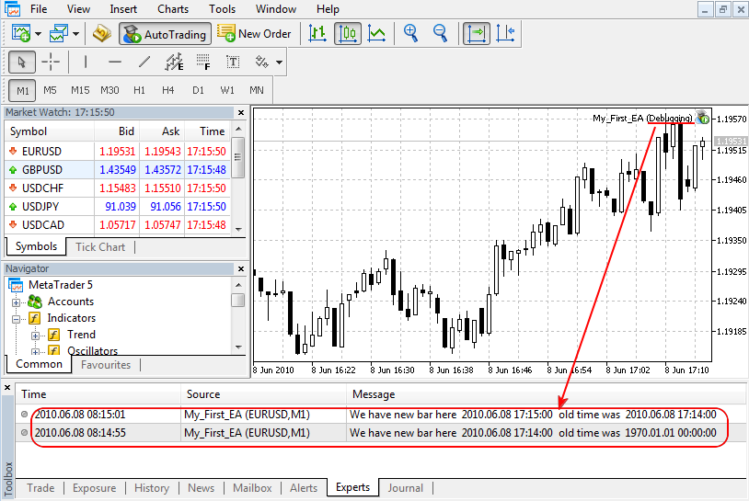
This feedback loop—write code, compile, test, check the log—is the fundamental process you'll use to build and debug your entire trading robot.
To reinforce the concept of these special "event handler" functions, the following reading gives a concise overview.
Basics of MQL5 Programming - Automate Trading with MT5 Bots
This short article section on 'event handlers' explains why functions like OnInit() and OnTick() are special. They are automatically called by the terminal when specific events happen, which is the core of how EAs operate.
Read the part of the article titled 'Functions and Events', focusing on the explanation of OnInit(), OnDeinit(), and OnTick(). Notice the example code also uses Print() to output a message.
Conclusion
In this lesson, you took a massive step from being an observer to being a programmer. You wrote your first line of code and established a direct line of communication with your Expert Advisor.
Key Takeaways:
- The
OnTick()function executes its code block on every new price tick. - The
Print()function is your essential tool for sending messages and data from your EA to the Experts log for debugging. - Every complete MQL5 statement must end with a semicolon (
;). - You must compile your code (
F7) after every change for it to take effect in MetaTrader 5.
Preview of the Next Lesson:
So far, we've only printed a static, unchanging text message. To build a trading EA, we need to work with data that changes, such as prices, indicator values, and calculation results. To do this, we need a way to store information. In the next lesson, you will learn about variables—the containers you'll use to hold all the data your EA needs to make decisions.