Introduction
Welcome to your first lesson! We're kicking off your journey to building a custom Heikin Ashi Expert Advisor (EA). The goal of this entire course is to take you from the fundamentals of MQL5 programming to deploying a fully functional trading bot.
Today, we'll start with the absolute essentials. Before we can write a single line of code, we need to get comfortable with our two primary tools: the MetaTrader 5 (MT5) platform and the MetaEditor.
This lesson will guide you through the layout of both applications. By the end, you'll be able to confidently navigate their interfaces, know where to find key features, and understand how they work together. This foundation is crucial for everything we will do in the upcoming lessons.
Your Trading Terminal: The MetaTrader 5 Platform
MetaTrader 5, or MT5, is the trading platform where your Expert Advisor will live and operate. It’s where you view charts, see market data, and where your EA will ultimately analyze the market and execute trades. Your background in trading means you may have encountered platforms like this before, but we will walk through it methodically to ensure we have a solid shared understanding.
Installing MT5 and Opening a Demo Account
First things first, you need the software running. We'll also open a free demo account, which allows you to practice and test your EAs with virtual money, completely risk-free.
The following video provides a clear, step-by-step guide for installing MT5 and setting up a demo account directly with MetaQuotes, the creators of the platform.
How To Use MetaTrader 5 (MT5) Desktop on PC(Tutorial For Beginners - How To Use A Charting Platform)
This video will walk you through the entire process of downloading, installing, and opening a free demo account on MT5.
Watch the segment from the beginning until 3:07. Follow along to install the platform and set up your demo account. Don't worry about the specific account details; the purpose is just to get the platform running.
Once you have MT5 installed and are logged into your new demo account, you'll see an interface with several panels and charts. Let's break down what they are.
Navigating the MT5 Main Windows
The MT5 interface is composed of several key windows. Understanding the purpose of each one is essential for both manual trading and for developing and monitoring your EAs.

Please take a moment to read the following sections from the "Metatrader 5 trading tutorial guide" which describe these components.
Metatrader 5 trading tutorial guide explanation. MT5 ... - Just2Trade
This article clearly defines the main sections of the MT5 user interface. It will solidify your understanding of the different panels.
Read the sections titled 'Navigating the MetaTrader 5 Interface' and 'Workspace Layout'. Focus on the descriptions of the 'Market Watch', 'Navigator', 'Charts Window', and 'Terminal' (also called 'Toolbox').
To summarize, the four most important panels for our purposes are:
- Market Watch: (Usually on the top left) This panel lists all the financial instruments (like EUR/USD) you can trade, along with their real-time bid and ask prices.
- Navigator: (Usually on the bottom left) This is a critical panel for us. It's where you manage your accounts and, most importantly, where you'll find your indicators, scripts, and Expert Advisors. When we create our EA, it will appear in this list.
- Chart Window: (The large central area) This is where you see the price charts for any selected instrument. You can have multiple charts open at once.
- Toolbox: (Along the bottom) This multi-tabbed window is your information hub. You'll use the 'Trade' tab to see open positions, 'History' to review past trades, and importantly for us, the 'Experts' and 'Journal' tabs to see messages and logs printed by your EA. This will be our primary tool for debugging.
Take a few minutes to locate each of these four panels in your own MT5 platform. Click around, but don't worry about understanding every single button yet. Just get a feel for the layout.
Your Coding Environment: The MetaEditor
Now, let's turn to where the magic happens: MetaEditor. This is the application where we will write, edit, and compile our MQL5 code.
MetaEditor is an Integrated Development Environment (IDE). Think of it as a specialized text editor built specifically for programming in MQL5. It includes features that make coding much easier, such as syntax highlighting, error checking, and a compiler.
The following resource explains the concept of an IDE and the tools it contains.
Master MQL5 from beginner to pro (Part I): Getting started ...
This article introduces the core software tools a programmer uses, explaining what an IDE like MetaEditor is and the functions it performs.
Read the section titled 'Software required to start programming in MQL5'. Pay close attention to the descriptions of the text editor, compiler, and debugger, and how they are all part of an IDE.
Launching and Navigating MetaEditor
MetaEditor is installed automatically with MT5. The easiest way to open it is directly from the MT5 platform.
You can do this in two ways:
- Click the small IDE icon in the main toolbar (it looks like a book with the MQL5 logo).
- Press the F4 key on your keyboard.
Go ahead and open MetaEditor now.
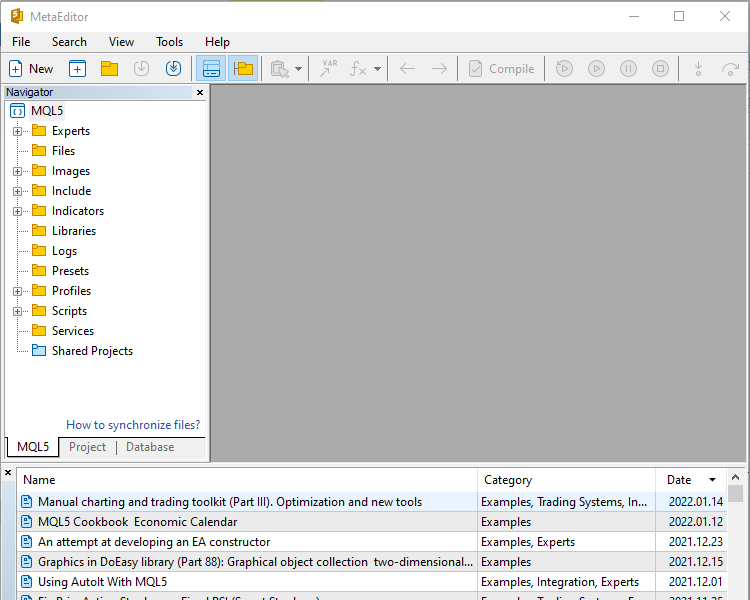
Similar to MT5, the MetaEditor interface has a few key areas:
- Navigator: On the left, this panel shows a file explorer view. You'll see folders like
Experts,Indicators, andScripts. This is how you will organize and open your MQL5 program files. - Code Editor: The large central area is where you will write and view your code.
- Toolbox: At the bottom, this area displays compilation results, error messages, and search results. When you compile your code, you'll look here to see if it was successful.
The most important buttons for now are on the toolbar:
- New: Creates a new MQL5 project (we'll do this in a later lesson).
- Compile: This is a crucial button. It takes the human-readable code you've written and translates it into a machine-readable file (
.ex5) that MT5 can actually run. You must compile your code every time you make a change.
Conclusion
In this lesson, we've taken the first essential step by familiarizing ourselves with our toolkit. You now know how to get around the two most important applications for our goal.
Key Takeaways:
- MetaTrader 5 (MT5) is the trading platform where you analyze charts and where your completed Expert Advisor will run. Its key panels are the Market Watch, Navigator, Chart Window, and Toolbox.
- MetaEditor is the Integrated Development Environment (IDE) where you will write, edit, and compile your MQL5 code. Its key panels are the file Navigator, the main Code Editor, and the Toolbox for compilation errors.
- The basic workflow is: Write code in MetaEditor, compile it, and then run it from the Navigator panel in MT5.
Preview of the Next Lesson:
Now that you know your way around, our next step is to understand exactly what kind of program we are going to build. In the next lesson, we will explore the main types of MQL5 programs and learn to distinguish between an Expert Advisor, a script, and a custom indicator. This will clarify why an EA is the right tool for our goal of automated trading.