Hello! Welcome back to our course on mastering DAX.
In our last lesson, we built a foundational set of Key Performance Indicators (KPIs) by writing explicit measures for Total Revenue, Transaction Count, and Unique Customers using functions like SUM and DISTINCTCOUNT. This was a great first step into summarizing data.
Today, we'll address a very common and practical task in data analysis: calculating ratios and percentages. For example, a business leader won't just ask "What was our profit?" but "What was our profit margin?". Answering this requires division. Your goal for this lesson is to learn how to use the DIVIDE function to safely calculate ratios and prevent division-by-zero errors. This is a fundamental skill that ensures your reports are robust and error-free.
The Problem with Simple Division
In mathematics, you can't divide a number by zero. In data analysis, attempting to do so can cause your calculations to fail or return strange results. This is a common problem, as you might have products with no sales, days with no transactions, or other scenarios that lead to a zero in your denominator.
Let's see what happens in DAX when we use the standard forward-slash (/) operator for division and encounter a zero.
DAX for PowerBI and Power Pivot - The Divide Function
The video 'DAX for PowerBI and Power Pivot - The Divide Function' by Paula's Web3 & Crypto effectively demonstrates the issue with standard division.
Please watch from 01:42 to 02:48. The presenter calculates a gross profit percentage using the / operator and shows how it results in an 'infinity' symbol when the sales value is zero. This is the exact problem we want to avoid.
As you saw, the result is Infinity. While not technically an error that stops the report, it's not a clean or professional result to show in a business dashboard. It can also cause problems in other measures that might rely on this calculation.
The Solution: The DIVIDE Function
DAX provides a specific function designed to handle this exact scenario: DIVIDE. It's more efficient and cleaner than writing complex IF statements to check for zeros yourself.
The syntax for DIVIDE is:DIVIDE(<numerator>, <denominator>, [<alternateresult>])
<numerator>: The number you want to divide (the top part of the fraction).<denominator>: The number you are dividing by (the bottom part).[<alternateresult>]: An optional value to return if the denominator is zero. If you don't provide this, it defaults toBLANK().
Let's explore the official documentation and a quick practical example to solidify this concept.
DIVIDE function vs divide operator (/)
The Microsoft Learn documentation, 'DIVIDE function vs divide operator (/)', is the definitive guide on this topic. It explains why DIVIDE is the recommended best practice.
Please read the introduction and the 'Example' section. Focus on how the DIVIDE function simplifies the DAX expression compared to using an IF statement to check for a zero denominator.
This reading highlights a key benefit: DIVIDE is not just safer, it's also more performant and leads to more readable code—all hallmarks of a professional data analyst.
Now, let's see another quick, clear demonstration of putting DIVIDE into practice.
Learn DAX Fundamentals in 10 Minutes | Step-by-Step Guide
This clip from 'Learn DAX Fundamentals in 10 Minutes' by Kenji Explains provides a concise walkthrough of creating a Profit Margin measure using DIVIDE.
Watch from 03:51 to 04:59. Notice how the function is used to calculate profit margin and the mention of the optional 'alternate result'.
Controlling the Outcome: Alternate Results
By default, DIVIDE returns a BLANK when division by zero occurs. In Power BI, visuals often handle blanks gracefully by simply not displaying the data point. This is usually the desired behavior, as it focuses the user's attention on groups that actually have data.
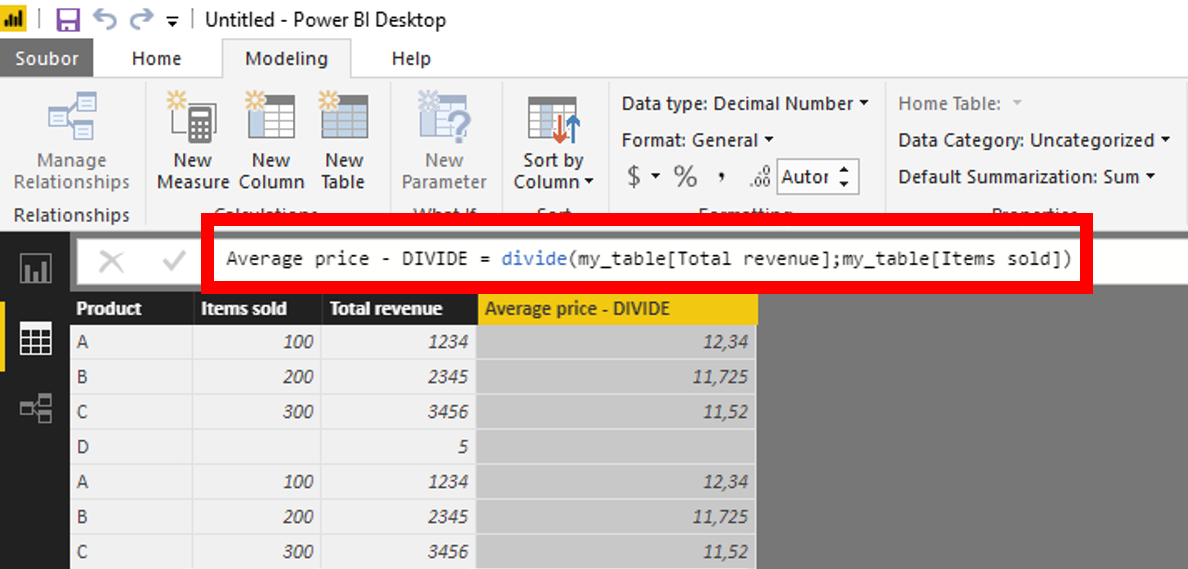
However, there are times when you might want to display a 0 or another value instead of a blank. You can do this by providing a value for the third, optional alternateresult argument.
DAX for PowerBI and Power Pivot - The Divide Function
Let's return to the first video to see how to specify an alternate result.
Watch from 03:51 to 04:31. The presenter modifies the formula to include 0 as the third argument, replacing the blank with a zero percent value.

Best Practice: For most measures used in visuals, returning BLANK (the default) is preferred. Only specify an alternate result like 0 if it's a specific business requirement.
Your Turn: Calculating Ratios
It's time to apply what you've learned in your Power BI project. We'll create two important ratio-based measures.
First, let's create a Total Profit measure, which we'll need for our profit margin calculation.
- In Power BI, right-click on the
Salestable and select New measure. - Enter the following formula:
Total Profit = SUM(Sales[Profit])
Now you're ready to use DIVIDE.
Task 1: Calculate Profit Margin
- Business Question: What is our profit margin for a given period or product?
- Instructions:
- Create a new measure named
Profit Margin. - Use the
DIVIDEfunction to divide yourTotal Profitmeasure by yourTotal Revenuemeasure. - Formula:
Profit Margin = DIVIDE([Total Profit], [Total Revenue]) - After creating the measure, select it in the Data pane, go to the Measure tools ribbon, and change the format to Percentage.
- Create a new measure named
Task 2: Calculate Average Revenue per Transaction (using DIVIDE)
- Business Question: What is the average value of each transaction?
- Background: In the last lesson, we calculated this using
AVERAGE(Sales[Gross Sales]). Now, let's calculate it by dividing our two key measures, which is a very common pattern. - Instructions:
- Create a new measure named
Avg Revenue per Transaction. - Use
DIVIDEto divideTotal RevenuebyTransaction Count. - Formula:
Avg Revenue per Transaction = DIVIDE([Total Revenue], [Transaction Count]) - Format this measure as Currency.
- Create a new measure named
Place these new measures in Card visuals on your report canvas to check the results. You should see that your Avg Revenue per Transaction measure gives the same result as the Average Revenue measure from the previous lesson, demonstrating two ways to achieve the same goal.
Conclusion
Excellent work! You have now mastered a crucial function for creating robust and professional DAX calculations. You can confidently create ratios and percentages without worrying about division-by-zero errors breaking your reports.
Key Takeaways:
- Using the standard division operator (
/) can lead toInfinityerrors if the denominator is zero. - The
DIVIDEfunction is the safe, efficient, and recommended way to perform division in DAX. - The syntax is
DIVIDE(numerator, denominator, [alternate_result]). - By default,
DIVIDEreturnsBLANK()for division-by-zero cases, which is typically the best behavior for Power BI visuals. - You can specify an alternate result (like
0) if the business logic requires it.
Preview of the Next Lesson:
So far, we've focused on what DAX functions do. But to truly unlock advanced analysis, you need to understand how DAX calculates results. In our next lesson, we will move from practical functions to core theory and explore one of the most important concepts in all of DAX: Evaluation Context. Understanding row context and filter context is the key that will enable you to write powerful and dynamic measures.