Welcome back! In our last lesson, we covered the critical role of the DOCTYPE declaration, ensuring the browser interprets your code using modern web standards. Now that we've set the stage correctly, it's time to build the structure upon it.
This lesson focuses on choosing the right HTML elements to give your document meaning. Your background in software engineering has taught you the value of well-structured, maintainable code. Semantic HTML applies the same principle to content. It’s not just about what a webpage looks like, but what it is.
By the end of this lesson, you will be able to select appropriate semantic HTML5 elements like <article>, <section>, <nav>, and <aside> to build a logical and meaningful document outline. This is a fundamental skill for creating accessible, search-engine-friendly, and developer-friendly web applications.
1. From <div> Soup to a Meaningful Outline
Historically, complex web layouts were often built using countless nested <div> elements, sometimes referred to as "div soup." A <div> is a generic container with no inherent meaning. While functional for styling, it tells browsers, search engines, and assistive technologies nothing about the content inside it.
Semantic HTML solves this by providing elements that describe their content's role. Think of it like a well-structured document or textbook.
The most common HTML mistake // The incorrect use of HTML heading levels
To grasp this concept, watch this short introduction from Kevin Powell. He uses an excellent analogy of a textbook to explain why document structure is so important for consumption and navigation.
Watch the first minute of the video (00:00 - 01:08). Focus on the idea of a document outline as a 'table of contents' for a webpage.
The goal of using semantic elements is to create a clear document outline. This outline is a hierarchical structure that a machine can understand, much like the table of contents you'd find in a book.
The core semantic elements for structuring a page are:
<header>: Represents introductory content, typically a group of introductory or navigational aids. Can be used for the whole page or for a section within it.<nav>: Contains major navigation links.<main>: The dominant, unique content of the document. There should only be one<main>element per page.<aside>: Content that is tangentially related to the content around it (e.g., sidebars, call-out boxes).<footer>: Represents the footer for its nearest sectioning content or for the whole page. Typically contains information like authorship, copyright, or links to related documents.
These elements provide a high-level map of your page.
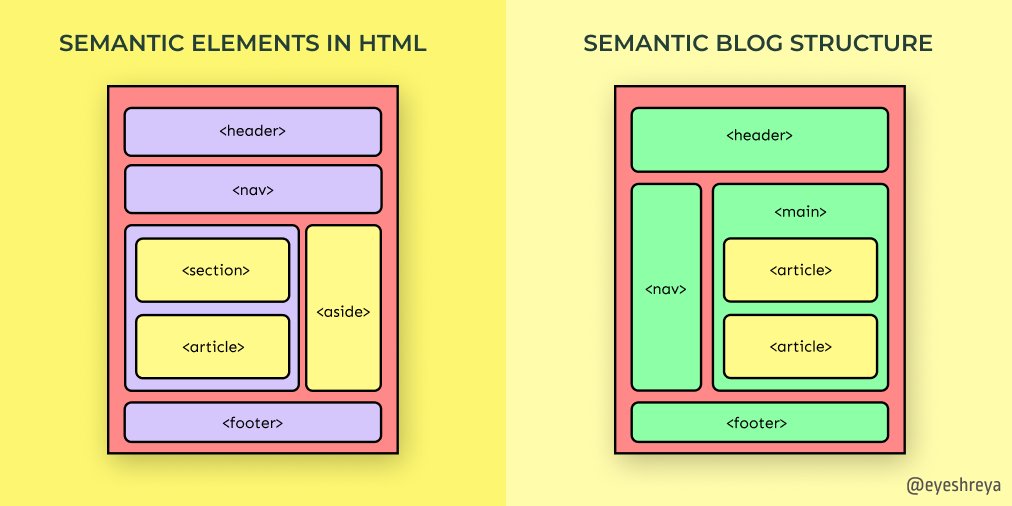
2. Building the Page Skeleton
Let's see how these elements are applied in practice. The following video provides a clear walkthrough of refactoring a simple page to use these primary structural tags.
Semantic HTML Tags | HTML5 Semantic Elements Tutorial
This clip from a tutorial by Dave Gray demonstrates how to use <header>, <main>, and <footer> to create the main sections of a page. It also covers the <nav> element and its accessibility considerations.
Watch the video from 03:58 to 09:58. Pay attention to: How <header>, <main>, and <footer> are used to wrap the primary sections of the page. The rule that there should be only one <main> element. How to use the aria-label attribute when a page has multiple <nav> elements to provide context for screen readers.
As you saw, these elements replace generic <div>s to clearly define the page's structure. This structure is not just for developers; it creates "landmarks" that allow users of assistive technology (like screen readers) to navigate your page efficiently. For instance, a user can command their screen reader to "jump to main content," skipping over the header and navigation.
3. The Core Dilemma: <article> vs. <section>
Among the most debated semantic elements are <article> and <section>. Choosing between them requires a clear conceptual model, as their distinction is based entirely on meaning.
- An
<article>is a complete, self-contained composition that is, in principle, independently distributable or reusable. Think of a blog post, a forum comment, or a news story. - A
<section>is a thematic grouping of content, typically with a heading. It's a piece of a larger whole. Think of chapters in a book or different parts of a landing page (e.g., "Introduction," "Features," "Contact Us").
The following article from Smashing Magazine provides an excellent mental model for making this choice.
<article> vs. <section>: How To Choose The Right One
Please read the following sections from '<article> vs. <section>: How To Choose The Right One'. This article provides the definitive mental model for differentiating these two important elements.
Read from the heading 'What Semantic Role Does My Grouping Play?' through to the end of 'Understanding What The Specs Mean'. Focus on the 'article of clothing' analogy—it's a powerful way to understand the concept of a self-contained, distributable <article>.
The key insight is that an <article> should make sense on its own if you were to syndicate it in an RSS feed or print it out. A <section>'s content is intrinsically tied to the document it's in.
Let's see this applied.
Semantic HTML Tags | HTML5 Semantic Elements Tutorial
Now, watch this segment from the Dave Gray video, where he refactors a page to use <article> and <section> and explains his reasoning.
Watch from 09:58 to 13:23. Notice how he decides to use <article> for the two main, distinct topics on the page, and then nests <section> elements inside one of the articles for internal organization.
This demonstrates a common and powerful pattern: you can nest <section>s inside an <article> to structure its content, or even nest <article>s (e.g., comments within a blog post article). The choice always comes back to the content's meaning and relationship.
4. Headings, Outlines, and Common Mistakes
A correct document outline relies on two things: semantic sectioning elements (<article>, <section>, <nav>, <aside>) and a logical heading hierarchy (<h1> through <h6>).
The rules are simple but frequently broken:
- There should be only one
<h1>per page, representing the main title of the document. - Heading levels should not be skipped. An
<h3>should follow an<h2>, not an<h1>. - Headings should be used for structure, not for styling. If you need text to be large and bold but it isn't a heading, use CSS classes on a
<p>tag or another appropriate element.
Using headings incorrectly can create a confusing or nonsensical outline for assistive technologies and search engines.
The most common HTML mistake // The incorrect use of HTML heading levels
Kevin Powell provides a fantastic analysis of a real-world website (FIFA's) to demonstrate common heading mistakes and their impact on the document outline.
Watch from 01:34 to 08:26 and from 13:31 to 14:58. Focus on: How the developer tools can visualize the document outline. The problems caused by skipping heading levels and having multiple <h1>s. The anti-pattern of using heading tags for their default styling. The correct approach: use CSS classes for styling, and heading tags for structure.
A crucial conceptual point raised in the video is that while the HTML5 spec once proposed a model where each <section> or <article> could have its own <h1>, this was never implemented by browsers or assistive tech. Therefore, the classic, single-<h1> hierarchical structure remains the best practice.
5. Visualizing Your Document Outline
How do you know if you've created a good outline? You can use browser extensions to check your work. These tools parse your page's heading and sectioning elements to generate and display the document outline, immediately revealing any structural problems.
Semantic HTML Tags | HTML5 Semantic Elements Tutorial
In this final clip, Dave Gray demonstrates the use of the 'HTML5 Outliner' extension to check the semantic structure of the page he just built.
Watch from 20:58 to 24:21. See how the tool generates a clean 'table of contents' based on the semantic tags and heading hierarchy. This is the goal you should aim for.
I encourage you to install a similar extension (like "HTML5 Outliner" or by using the built-in tools in browsers like Polypane) and use it to inspect your favorite websites. You will quickly develop an intuition for good and bad semantic structure.
Conclusion
In this lesson, we moved from generic containers to a meaningful, structured document. By choosing HTML elements based on their semantic meaning, you create a robust foundation that benefits accessibility, SEO, and developer collaboration.
Key Takeaways:
- Semantic HTML is about conveying the meaning and role of your content, not just its appearance.
- The primary page structure is defined by
<header>,<nav>,<main>,<aside>, and<footer>. These create navigational "landmarks." <article>is for self-contained, distributable content that would make sense on its own.<section>is for thematically grouping content that is part of a larger whole.- A strict and logical heading hierarchy (
<h1>,<h2>,<h3>...) is crucial for a sensible document outline. Do not skip levels or use headings for styling. - Always favor a semantic element over a generic
<div>or<span>if one exists that accurately describes your content.
What's Next?
You now understand how to author a semantically rich HTML document. But what does the browser do with this text file? In the next lesson, we'll dive into the parsing process and answer the question: How does the browser construct the DOM tree from your HTML markup? We'll explore the algorithm it uses and how it gracefully handles the malformed HTML that is common on the web.