Introduction
Welcome to our next lesson on advanced React performance. In our last session, we explored how React 18's automatic batching groups multiple state updates into a single, efficient re-render. We established that this is a core optimization, but it naturally leads to the next question: what triggers that render in the first place, and is every render truly necessary?
This lesson will address that very question, focusing on the learning outcome: Describe common causes of unnecessary component re-renders and how to diagnose them using React DevTools.
We'll dissect React's default rendering behavior, identify common patterns that lead to "wasted" renders, and, most importantly, learn how to use the powerful tools at our disposal to pinpoint and understand these performance issues. This dive into React's rendering mechanics will build directly on your interest in the "why" behind the framework's behavior.
1. The Fundamental Rule of React Rendering
Before we can identify unnecessary renders, we must first understand the core principle of how and why renders happen at all. There are many misconceptions, so let's establish the ground truth.
A re-render is initiated by a state change within a component. However, the most critical part of the process is what happens next:
When a parent component re-renders, React will, by default, recursively re-render all of its descendant components.
This cascading behavior is fundamental. It's not the props that cause the child to re-render; it's the parent's re-render that triggers the child's re-render. React does this to be safe, as it cannot know for sure if a child component has some indirect dependency or side effect that requires it to be updated.
To solidify this foundational concept, let's turn to some excellent explanations.
Josh W. Comeau's article, 'Why React Re-Renders,' provides a crystal-clear mental model for this process. It debunks two major misconceptions about rendering.
Please read the first two main sections: 'The core React loop': This explains that renders start with a state change and cascade downwards, debunking the myth that the entire app re-renders. 'It's not about the props': This section is crucial. It directly addresses the misconception that components re-render because their props change, explaining that the cascade is the default behavior unless optimizations are used.
This article from Mark Erikson, a Redux maintainer, provides a more technical breakdown of the same rules, which will complement the conceptual model you've just built.
Blogged Answers: A (Mostly) Complete Guide to React Rendering ...
The blog post 'A (Mostly) Complete Guide to React Rendering Behavior' offers a detailed, technical perspective on render mechanics.
Read the section titled 'Standard Render Behavior'. It concisely states the rule: 'React's default behavior is that when a parent component renders, React will recursively render all child components inside of it!' and reinforces that React normally 'does not care whether props changed'.
With this rule in mind, we can now see how "unnecessary" renders can easily occur. If a child component's UI doesn't actually change as a result of the re-render, the time spent rendering it was effectively wasted.
2. Common Causes of Unnecessary Re-Renders
Unnecessary re-renders are often not bugs but rather symptoms of suboptimal application structure. Let's examine two of the most frequent culprits.
Cause 1: Over-Rendering Due to State Placement
The most common cause is placing state higher up in the component tree than necessary. When state that controls a small part of the UI is located in a high-level component (like App.js), any change to that state will trigger a cascade that re-renders a large, and mostly unaffected, portion of your application.
This video demonstrates this exact problem and presents the simplest, most effective solution: moving state down.
Intro to re-renders - Advanced React Course, Episode1
The video 'Intro to re-renders' from the Developer Way channel provides an excellent, practical example of this problem using a slow-to-open modal dialog.
Please watch the following two segments: 00:00:26 - 00:03:27: The video introduces the performance problem. Notice how placing the modal's isOpen state in the main App component causes all the 'heavy' child components to re-render, leading to a noticeable delay. 00:05:55 - 00:06:49: This segment demonstrates the solution. By creating a new, smaller component that encapsulates the state and the logic for the modal, the state update is localized. The expensive parent component no longer has the state, so it doesn't re-render, and the modal opens instantly.
The principle is to keep state as close as possible to the components that actually use it. This minimizes the "blast radius" of a state update.
Cause 2: Breaking Memoization with New Prop References
As we learned, default renders happen regardless of props. To optimize, we can use techniques like React.memo to tell React to skip re-rendering a component if its props haven't changed.
However, this optimization is often inadvertently broken. Since React.memo performs a shallow equality check on props (prevProps.a === newProps.a), passing new object or function references on every render will always cause the check to fail.
Consider this parent component:
function ParentComponent() {
  const [count, setCount] = useState(0);

  // This function is re-created on every render of ParentComponent
  const handleClick = () => console.log('clicked');

  // This object is re-created on every render of ParentComponent
  const style = { color: 'blue' };

  return (
    <>
      <button onClick={() => setCount(c => c + 1)}>Increment</button>
      {/* MemoizedChild will re-render every time ParentComponent does,
          because handleClick and style are new references every time. */}
      <MemoizedChild onClick={handleClick} style={style} />
    </>
  );
}
This is a subtle but critical concept tied to how JavaScript handles reference types. The article from Mark Erikson explains this pitfall perfectly.
Blogged Answers: A (Mostly) Complete Guide to React Rendering ...
Let's return to the guide on rendering behavior to understand how this common mistake negates our optimization efforts.
Read the sections 'Component Render Optimization Techniques' and 'How New Props References Affect Render Optimizations'. Focus on the explanation of shallow equality and why defining objects and functions directly inside the render body of a parent component will cause a memoized child to re-render unnecessarily.
We will explore the solutions to this problem, useCallback and useMemo, in detail in a future lesson. For now, the key is to recognize this pattern as a common cause of wasted renders.
3. Diagnosing Re-Renders with React DevTools
Theory is essential, but to be effective, you need to see this behavior in your own application. The React DevTools are your indispensable tool for this task.
Quick Visual Feedback: Highlighting Updates
The first step in any investigation is a quick visual check. The DevTools have a setting that draws a colored border around components as they re-render. This is perfect for getting an immediate sense of the scope of a re-render cascade.
Josh Comeau's article also provides a simple guide on how to enable this feature.
Read the brief section 'Highlighting re-renders'. Follow the instructions to enable this setting in your own browser's DevTools. It's a simple checkbox that provides immense value.
In-Depth Analysis: The Profiler
For a definitive answer on why a component re-rendered, you need the Profiler. It allows you to record an interaction and then inspect each render commit, telling you the exact cause.
The most important step is to enable a specific setting before you start profiling.
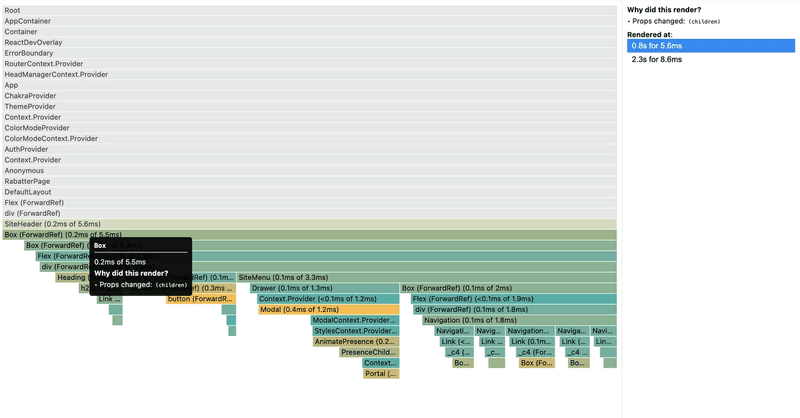
The following guide walks you through the entire process, from setup to analysis.
This final section from Josh Comeau's article is a practical, step-by-step tutorial on using the Profiler for this exact purpose.
Read the section 'Profiling with the React Devtools'. Pay close attention to: Enabling the 'Record why each component rendered while profiling' setting. This is not on by default and is the key to the whole process. The workflow: Start recording, perform an action, stop recording. How to navigate the flamegraph and find the 'Why did this render?' information in the right-hand panel.
As a final note on profiling, remember to distinguish between relative and absolute performance.
Blogged Answers: A (Mostly) Complete Guide to React Rendering ...
Mark Erikson's guide provides an important professional tip regarding performance measurement.
Read the section 'Measuring React Component Rendering Performance'. The key takeaway is that you should use development builds to identify what is rendering and why, but never measure absolute timings (e.g., 'this took 15ms'). True performance measurement must be done on a production-like build.
Conclusion
In this lesson, we demystified React's rendering process and equipped you with the tools to diagnose performance issues.
Key Takeaways:
- The Golden Rule: A state update triggers a re-render of that component, which then cascades down to all of its children by default.
- Common Causes of Waste: Unnecessary renders are often caused by placing state too high in the tree or by inadvertently breaking memoization with new object/function references in props.
- Move State Down: The primary strategy for fixing over-rendering from state placement is to co-locate state with the components that depend on it.
- Diagnosis with DevTools: The React DevTools are essential. Use "Highlight updates" for a quick visual overview and the Profiler (with "Record why...") for a definitive, detailed diagnosis of why a specific component re-rendered.
What's Next?
You now know how to identify that a component is re-rendering unnecessarily and why. The next logical step is to learn how to prevent it. In our upcoming lesson, we will focus on one of the primary tools for this job: React.memo. We will explore how it works as a higher-order component, when to use it, and how it fits into a comprehensive performance optimization strategy.