Hello! Welcome to the fourth lesson in our "Production-Grade Dockerfiles" module.
In our last lesson, we mastered multi-stage builds to create lean and secure images by separating the build environment from the runtime environment. Now that we know how to optimize the final artifact, let's focus on making the build process itself more flexible and automated.
Today, we'll cover how to parameterize Docker builds using build arguments (ARG). This powerful feature allows you to pass variables into your Dockerfile from the command line, making your builds more dynamic and reusable. This is a fundamental skill for integrating Docker into CI/CD pipelines, a key part of your professional DevOps goals.
1. ARG vs. ENV: Understanding the Difference
Before we dive into the syntax, it's crucial to understand the distinction between a build argument (ARG) and an environment variable (ENV). This is a common point of confusion, but the difference is straightforward and centers on the variable's lifecycle.
ARG(Build-Time): AnARGvariable exists only during the image build process (docker build). Once the image is built, theARGvariable is gone. It's used to influence how the image is built.ENV(Run-Time): AnENVvariable is baked into the image and is available to the application when a container is running from that image. It's used to configure the application at runtime.
The following video offers a great visual explanation of this lifecycle difference.
Understanding Docker Args vs Env [Weekly Tech Tips]
In his video 'Understanding Docker Args vs Env', Mohamad Lawand provides a clear visual breakdown of when ARG and ENV are available.
Please watch the segment from 05:50 to 07:34. Pay close attention to the diagram that illustrates the lifespan of ARG (Dockerfile -> Build) versus ENV (Dockerfile -> Image -> Container).
This distinction is key: use ARG for parameters that affect the build, and ENV for parameters that your application needs when it's running.
2. Defining and Using Build Arguments
Now let's get into the practical application. You can define and use build arguments in your Dockerfile and then pass values to them from the command line or a docker-compose.yml file.
Basic Syntax
In your Dockerfile, you declare a build argument using the ARG instruction. It's good practice to provide a default value.
# Declare a build argument with a default value
ARG PYTHON_VERSION="3.11"

# Use the argument in a FROM instruction
FROM python:${PYTHON_VERSION}-slim

# ... rest of the Dockerfile
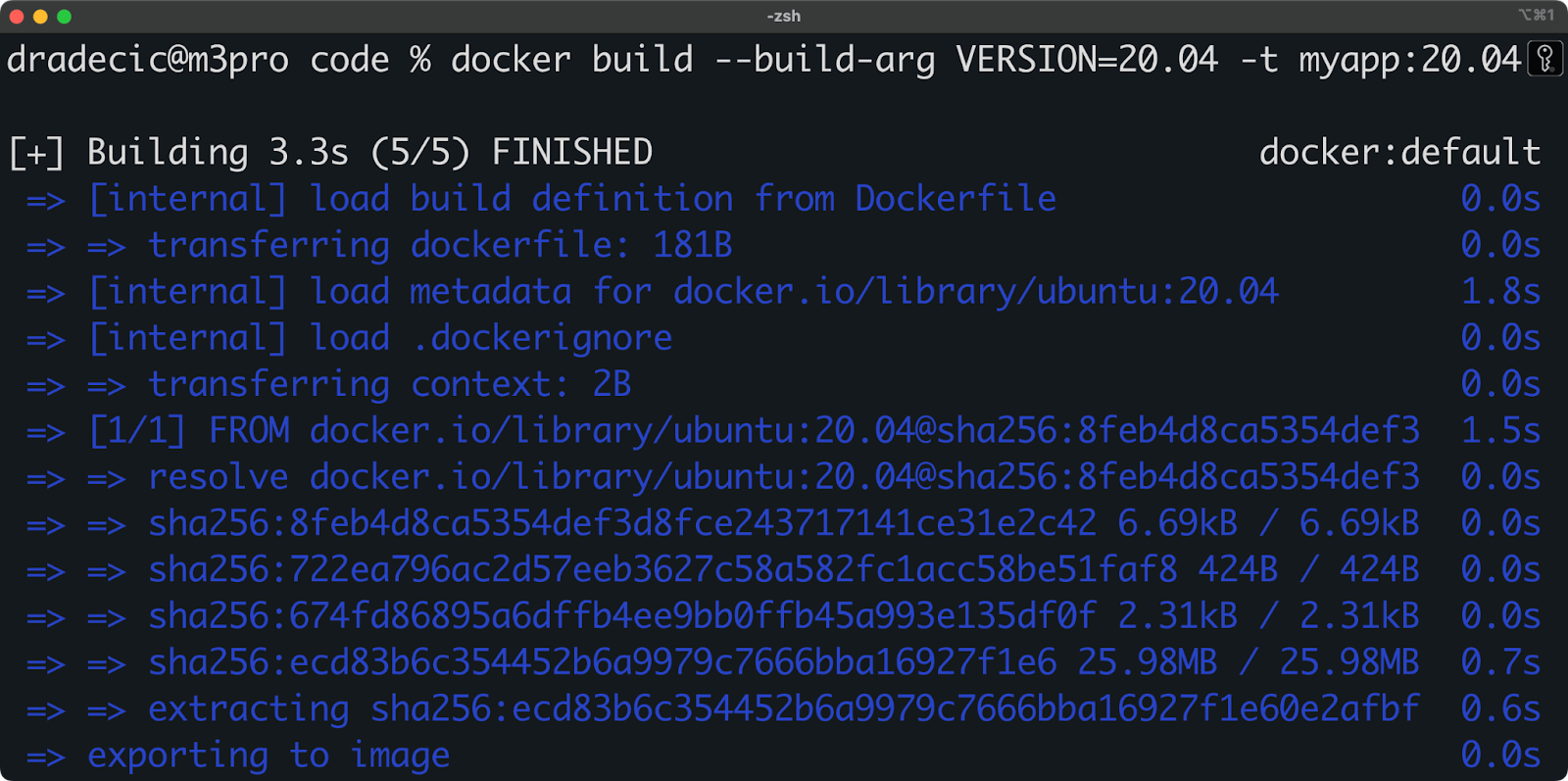
When you build the image, you can override this default value using the --build-arg flag.
# Build using the default PYTHON_VERSION (3.11)
docker build -t my-python-app .

# Build with a specific version, overriding the default
docker build --build-arg PYTHON_VERSION="3.12" -t my-python-app .
For a comprehensive guide on the syntax, scoping rules, and use cases, the following article is an excellent resource.
Docker Build Args: The Ultimate Guide for Data Professionals
The article 'Docker Build Args: The Ultimate Guide' from DataCamp provides a thorough overview of defining and using build arguments.
Please read the sections 'Introduction to Docker Build Args' and 'Defining and Utilizing Build Arguments'. Focus on the basic syntax, the concept of scope, and the Flask application example which shows how ARG can be used for practical configuration.
3. Using ARG with Docker Compose
Since you have experience with Docker Compose, you'll appreciate how seamlessly build arguments integrate. You can define them under the build key for a service in your docker-compose.yml file. This is perfect for standardizing build parameters across a development team.
# docker-compose.yml
services:
  webapp:
    build:
      context: ./app
      dockerfile: Dockerfile
      args:
        PYTHON_VERSION: "3.12"
        ENVIRONMENT: "development"
    ports:
      - "8000:8000"
Let's watch a practical demonstration of this.
Understanding Docker Args vs Env [Weekly Tech Tips]
Let's return to Mohamad Lawand's video, where he gives a hands-on demonstration of setting up and using a build argument within a Docker Compose project.
Watch the segment from 09:49 to 16:06. Follow along as he: Modifies the build section in docker-compose.yml to include an args block. Defines an ARG in the Dockerfile. Uses a RUN echo command to show that the value passed from Docker Compose is received during the image build.
4. ARG Scoping in Multi-Stage Builds
This is where the previous lesson on multi-stage builds becomes critical. An ARG has a specific scope, and it does not automatically persist across build stages.
The Rule: An ARG declared before a FROM instruction is only in scope for the FROM line itself. To use a build argument inside a stage, you must re-declare it after the FROM.
The official Docker documentation provides the most precise explanation of build variable scoping.
Please read the 'Scoping' section. It contains clear, concise examples showing why an ARG from the global scope isn't available inside a stage unless you re-declare it.
Here is a typical multi-stage example incorporating this rule:
# Global ARG, usable by any FROM instruction
ARG PYTHON_VERSION=3.12

# --- Build Stage ---
FROM python:${PYTHON_VERSION}-slim AS builder
# Re-declare the ARG to use it inside this stage
ARG PYTHON_VERSION
WORKDIR /app
RUN echo "Building with Python version ${PYTHON_VERSION}"
COPY requirements.txt .
RUN pip install -r requirements.txt
COPY . .

# --- Final Stage ---
FROM python:${PYTHON_VERSION}-slim
# Re-declare the ARG again for this stage
ARG PYTHON_VERSION
WORKDIR /app
RUN echo "Final image is also based on Python ${PYTHON_VERSION}"
COPY --from=builder /app /app
CMD ["python", "app.py"]
Test your understanding!
You have a multi-stage Dockerfile where you want to use a build argument APP_VERSION to create a label in your final image. The ARG is declared at the very top of the file.
ARG APP_VERSION=1.0.0

FROM node:18-alpine AS builder
# ... build steps ...

FROM nginx:1.25-alpine
# Problem: How do you make APP_VERSION available here?
LABEL version="${APP_VERSION}"
COPY --from=builder /app/dist /usr/share/nginx/html
What do you need to add to the final stage to make the LABEL instruction work correctly?
Show answer
You need to re-declare the ARG within the final stage's scope, right after the FROM instruction.
FROM nginx:1.25-alpine
ARG APP_VERSION # This makes the variable available
LABEL version="${APP_VERSION}"
COPY --from=builder /app/dist /usr/share/nginx/html
Without ARG APP_VERSION, the label's value would be empty.
5. The Security Warning: Never Use ARG for Secrets
Given your interest in cybersecurity, this is the most important takeaway of the lesson. You must not pass secrets (passwords, tokens, API keys) as build arguments.
The reason is that ARG values are recorded in the image's metadata and can be easily inspected by anyone who has access to the image using the docker history command.
This short video provides a stark demonstration of the risk.
docker: secrets at build time! (intermediate) anthony explains #544
In this video from anthonywritescode, you'll see exactly how a secret passed via ARG is exposed in the image history.
Watch the segment from 00:41 to 02:04. The demonstration is quick but makes the security risk perfectly clear.
For handling secrets during the build, you should use more secure mechanisms like BuildKit's secret mounts. We will cover these advanced security topics in a later module. For now, the critical rule is: ARG is for non-sensitive, build-time configuration only.
Conclusion
You've now added another essential tool to your Dockerfile toolkit. By parameterizing your builds with ARG, you can create flexible, reusable, and CI/CD-friendly Dockerfiles.
Key Takeaways:
ARGis for passing build-time variables, whileENVis for providing run-time variables to your container.- You can set default
ARGvalues in the Dockerfile and override them with the--build-argflag or viadocker-compose.yml. - In multi-stage builds,
ARGs must be re-declared in each stage after theFROMinstruction to be used within that stage. - Crucially, never use
ARGfor secrets, as they are exposed in the image history.
In our next lesson, we will learn how to configure container health checks using the HEALTHCHECK instruction. This tells Docker how to verify that your application inside the container is not just running, but is actually working correctly—a vital feature for building reliable, orchestrated systems.