Hello! Welcome back to our Docker course.
In the last lesson, we focused on observability, learning how to monitor the real-time resource usage of your containers with docker stats. This gave you the tools to see what your containers are doing. Now, we'll build on that by learning how to control what state they are in.
This lesson directly addresses the learning outcome: Manage the container lifecycle (stop, restart, remove) and configure restart policies for automatic recovery. As a DevOps Engineer, your responsibility extends beyond just launching services; you must ensure they are resilient, manageable, and can recover automatically from failures. This is a fundamental aspect of building reliable systems.
We will first explore the different states a container can be in and the commands you use to move between them. Then, we will dive into configuring restart policies, which instruct Docker on how to handle container exits automatically.
1. Understanding the Container Lifecycle
A container isn't just "on" or "off." It moves through several distinct states from its creation to its final removal. Understanding this lifecycle is key to managing your containers effectively.
The diagram below provides a complete map of the container lifecycle, showing the states and the commands that trigger transitions between them.
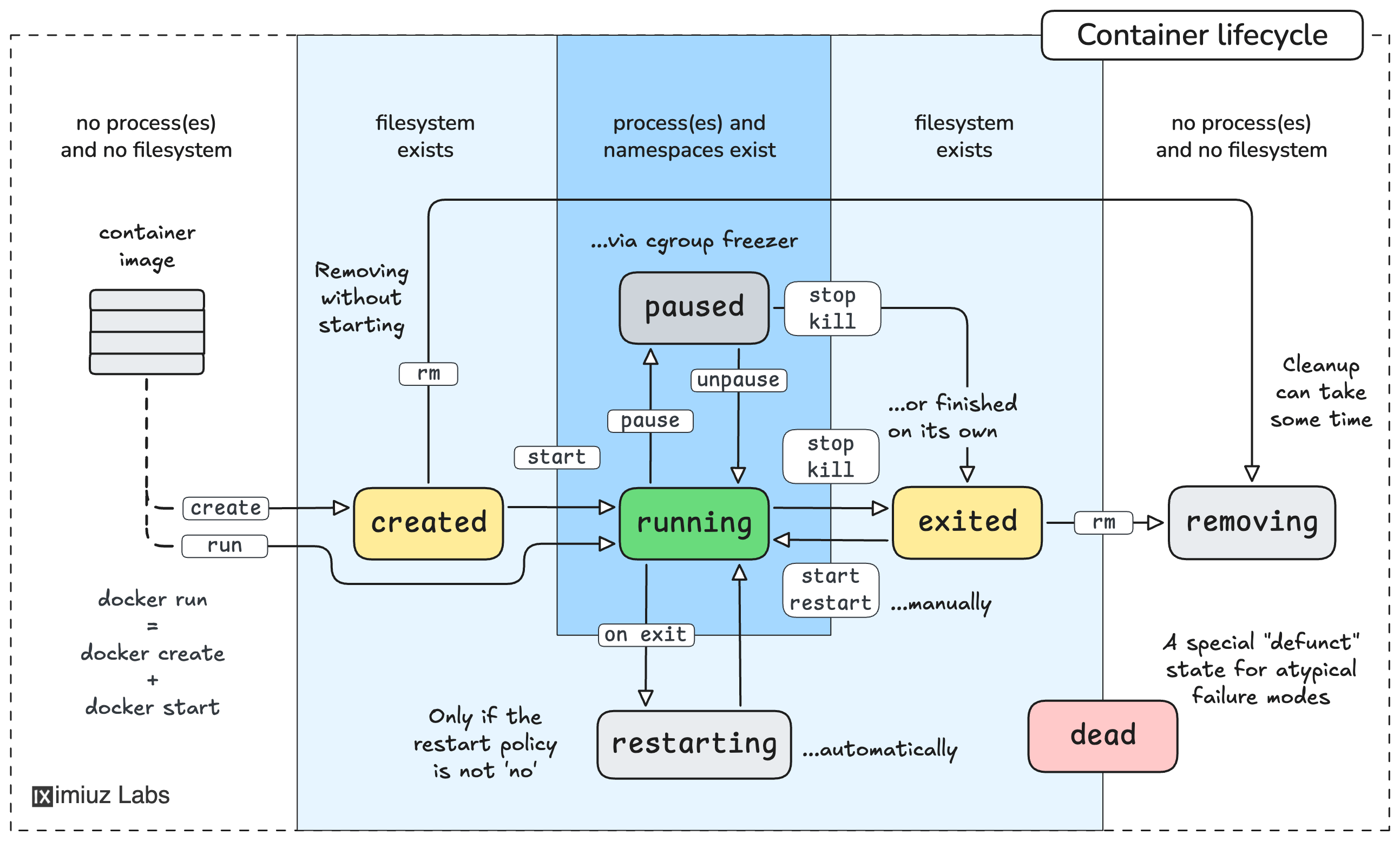
Let's break down the most common commands and states:
docker create [image]: This command prepares a container from an image but does not start it. The container exists in thecreatedstate, with its filesystem ready. You can see it withdocker ps -a.docker start [container]: This starts a container that is in thecreatedstate, moving it to therunningstate.docker run [image]: This is a convenient shortcut that combinesdocker createanddocker startinto a single command. It creates and immediately starts a new container.docker stop [container]: This sends aSIGTERMsignal to the main process inside the container, giving it a chance to shut down gracefully. After a timeout period (default 10 seconds), it sends aSIGKILLif the process hasn't exited. The container moves to theexitedstate.docker restart [container]: A handy command that is equivalent to runningdocker stopfollowed bydocker starton a container.docker rm [container]: This permanently removes a container. It can only be used on containers in thecreatedorexitedstate. To remove a running container, you must first stop it or use the force flag (docker rm -f).
For a quick demonstration of these core commands, the following video is a helpful practical walkthrough.
8 Basic Docker Commands || Docker Tutorial 4
In this clip from '8 Basic Docker Commands' by TechWorld with Nana, you'll see a practical demonstration of starting a container in detached mode, stopping it, and finding it again to restart it.
Watch from 05:25 to 07:56. Pay attention to the use of docker run -d, docker stop, docker start, and how docker ps -a is used to find stopped containers.
The distinction between commands that manage processes (start, stop) and those that manage the container's "file" on disk (create, rm) is a core concept. To explore this and practice these commands with hands-on challenges, the "Docker 101" skill path from iximiuz Labs is an excellent resource.
Docker 101: Run and Manage Containers - iximiuz Labs
The article 'Docker 101: Run and Manage Containers' provides great explanations and interactive labs. We'll focus on the sections explaining the philosophy and practice of lifecycle management.
Read the sections under the headings 'The Philosophy Behind Docker Container Commands', 'List Containers and Identify Statuses', and 'Stop and Restart a Container Preserving Data'. This will solidify your understanding of the concepts behind the commands you just learned.
2. Automatic Recovery with Restart Policies
Manually restarting failed containers is not a scalable or reliable strategy in a production environment. Docker provides restart policies to automate this process, significantly improving the resilience of your applications.
A restart policy is set with the --restart flag during docker run or can be modified on a running container using docker update.
There are four main policies:
no: The default policy. The container will not be restarted if it stops.on-failure: The container restarts only if it exits with a non-zero exit code (indicating an error). You can also specify a maximum number of retries (e.g.,on-failure:5).always: The container will always be restarted if it stops, for any reason. This includes when the Docker daemon itself restarts (e.g., after a host reboot).unless-stopped: Similar toalways, but with one key exception: if you manually stop the container withdocker stop, it will not be restarted automatically, even after a Docker daemon restart.
The video below offers a clear demonstration of how to apply and test these policies.
Restart Stopped Containers (Restart Policies) - Docker Development Tips & Tricks
This video from Manuel Castellin, 'Restart Stopped Containers', provides a concise and practical guide to using Docker's restart policies.
Watch from 00:40 to 04:37. The video walks through each of the main policies, showing you how to set them with docker run and docker update, and demonstrating their behavior.
3. Choosing the Right Restart Policy
Selecting the correct restart policy is crucial and depends on the container's role. Your DevOps experience with service management will make these choices intuitive.
How to Set Up Docker Restart Policies
The article 'How to Set Up Docker Restart Policies' provides an excellent breakdown of best practices for different use cases and explains how to configure them in both docker run commands and Docker Compose files.
Read the sections 'Available Restart Policies' through 'Best Practices', and review the 'Summary' table. Pay special attention to the recommendations for different application types and the important section 'When Not to Use Restart Policies'.
Here's a summary of best practices based on the resources:
- Production Web Services: Use
unless-stopped. This is often the best choice. It ensures your service recovers from crashes and reboots but gives you the control to stop it for maintenance without it popping back up unexpectedly. - Databases & Critical Infrastructure: Use
always. These are services you almost never want to be down.alwaysensures that even if a container is accidentally stopped, it will restart when the Docker daemon does. - Batch Jobs & One-Off Tasks: Use
on-failure. This is ideal for tasks that should retry if they fail but stay stopped once they complete successfully. Limiting the retries (on-failure:3) can prevent a faulty job from getting stuck in a restart loop. - Development & Debugging: Use
no. When a container crashes, you often want it to stay in theexitedstate so you can inspect its logs (docker logs) and final state (docker inspect) to diagnose the problem.
An Important Caveat for Kubernetes
The OneUptime article correctly points out a critical consideration for your goal of working with Kubernetes: you generally do not use Docker's restart policies when an orchestrator is involved.
Kubernetes has its own, more sophisticated mechanisms (like ReplicaSets and Deployments) for managing the container lifecycle and ensuring the desired number of replicas are running. The orchestrator takes over responsibility from the Docker daemon, so you let Kubernetes handle restarts.
Test your understanding!
You are running a critical database container (my-db) that must always be running. You also have a data processing batch job (my-job) that runs periodically. If the job fails due to a temporary network issue, it should retry up to 3 times before giving up.
What commands would you use to run these two containers with the appropriate restart policies?
Show answer
For the critical database, you would use always to ensure it restarts even after a manual stop and daemon restart.
docker run -d --name my-db --restart always postgres:14
For the batch job, you would use on-failure with a retry limit of 3.
docker run -d --name my-job --restart on-failure:3 my-processing-image
Conclusion
In this lesson, you've gained control over the entire lifecycle of a container. You now know how to manually move containers between states and, more importantly for a production environment, how to configure them for automatic recovery.
Key Takeaways:
- Containers progress through a lifecycle of states:
created,running,exited, andremoved. - Commands like
docker start,stop,restart, andrmallow you to manage this lifecycle manually. - Restart policies (
no,on-failure,always,unless-stopped) are essential for building resilient applications by automating recovery from failures. - The choice of restart policy depends on the container's purpose, with
unless-stoppedbeing a common default for services andon-failurefor jobs. - When using an orchestrator like Kubernetes, you rely on the orchestrator's controllers for lifecycle management, not Docker's built-in restart policies.
In our next lesson, we will cover another practical runtime management skill: Copying files between the host and running containers using docker cp for debugging. This is an invaluable tool for inspecting state or injecting configuration into live containers.