Hello! Welcome to the first lesson in our new module, "Advanced Image and Runtime Management."
In the previous module, we focused on building production-grade Dockerfiles, culminating in our discussion on choosing between COPY and ADD. You now have the skills to create an efficient, secure, and robust Docker image. The natural next step is to share that image so it can be deployed.
Today's lesson addresses exactly that. Your learning goal is to tag images using semantic versioning and push them to a public registry like Docker Hub. This is a fundamental skill in any professional Docker workflow, as it's how you version-control your applications and distribute them to different environments, from testing to production. As a DevOps engineer, mastering this process is essential for managing the lifecycle of containerized applications.
1. The Art of Tagging: Why and How
Before you can push an image, you need to give it a proper name and version. This is done through tagging.
A Docker tag is a label that points to a specific image version (identified by its unique digest or hash). You can have multiple tags pointing to the same image. While Docker defaults to the latest tag if you don't specify one, relying on it is a common anti-pattern in production environments because it's mutable and can lead to confusion about which version of the code is actually running.
Semantic Versioning (SemVer)
To bring order to versioning, the industry standard is Semantic Versioning (SemVer). It provides a clear, consistent framework for communicating the nature of changes between releases.
How To Use Docker Tags to Manage Image Versions ...
This article provides a concise overview of Docker tagging best practices, with a strong focus on using Semantic Versioning. It's a great starting point for understanding why this is so important.
Please read the section 'Best Practices for Tagging Docker Images'. Focus on the explanation of Semantic Versioning (MAJOR.MINOR.PATCH) and the reasoning for avoiding the latest tag in production.
As the article explains, SemVer uses a MAJOR.MINOR.PATCH format:
- MAJOR version for incompatible API changes.
- MINOR version for adding functionality in a backward-compatible manner.
- PATCH version for backward-compatible bug fixes.
Using explicit tags like my-app:1.2.1 ensures that you are deploying a precise, immutable version of your application, which is critical for stable and predictable systems.
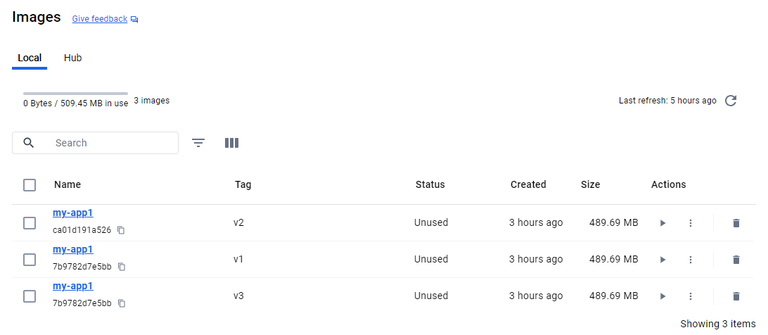
Applying Tags
There are two primary ways to tag an image:
- During the build process using the
-tflag:docker build -t your-app-name:1.0.0 . - After the build by tagging an existing image:
The# First, build the image (it gets the 'latest' tag by default if none is specified) docker build -t your-app-name . # Then, apply a specific tag to it docker tag your-app-name:latest your-app-name:1.0.0docker tagcommand is also what you'll use to prepare an image for pushing to a registry, which we'll see next.
2. Pushing Images to Docker Hub
A container registry is a storage and distribution system for Docker images. Docker Hub is the default, public registry that the Docker client is configured to use.
To push an image to Docker Hub, you must tag it with a specific format:<your-docker-hub-username>/<repository-name>:<tag>
Let's walk through the entire workflow: build, tag, login, and push.
How to Push and Pull a Docker Image from Docker Hub
The following video from ProgrammingKnowledge provides a step-by-step demonstration of the entire process, from tagging an image to pushing it to Docker Hub and pulling it back down.
Please watch from 00:38 to 09:29. The key steps to focus on are: Logging in to your Docker Hub account (00:38). Tagging an image with the correct format (username/repo:tag) (01:27). Pushing the image to the registry (03:46). Verifying the push by removing the local image and pulling it from the hub (06:02).
To summarize the workflow shown in the video:
-
Build your image:
docker build -t my-cool-app:1.0.0 . -
Log in to Docker Hub:
docker login
You'll be prompted for your Docker Hub username and password. -
Re-tag the image for the registry:
docker tag my-cool-app:1.0.0 yourusername/my-cool-app:1.0.0
Notice that bothmy-cool-app:1.0.0andyourusername/my-cool-app:1.0.0will now appear in yourdocker imageslist, but they point to the exact same image ID, taking up no extra disk space. -
Push the image:
docker push yourusername/my-cool-app:1.0.0 -
Verify (optional but recommended): You can now go to
hub.docker.comand see your repository. You can also test it by removing the local images and pulling it from the hub:docker rmi my-cool-app:1.0.0 yourusername/my-cool-app:1.0.0 docker pull yourusername/my-cool-app:1.0.0
Test your understanding!
You have an image named api-service on your local machine, which is currently tagged as api-service:latest. Your Docker Hub username is devops-pro. What are the three commands you need to run to tag this image with version 2.1.0 and push it to your Docker Hub repository?
Show answer
Here are the three commands:
- Log in to Docker Hub:
docker login - Tag the existing image with the full repository name and new version:
docker tag api-service:latest devops-pro/api-service:2.1.0 - Push the newly tagged image:
docker push devops-pro/api-service:2.1.0
3. A Professional Alternative: GitHub Container Registry (GHCR)
While Docker Hub is common, many organizations and open-source projects use the GitHub Container Registry (ghcr.io) because it integrates seamlessly with GitHub repositories and Actions. As a DevOps engineer, you'll almost certainly encounter this in the wild.
The process is very similar, with two key differences:
- Authentication: You use a Personal Access Token (PAT) instead of your password. This is more secure and is standard practice for programmatic access.
- Image Naming: The format is
ghcr.io/<your-github-username>/<repository-name>:<tag>.
Push Docker Images to GitHub Container Registry • #docker #containers #github #githubactions
This video from Brian Morrison clearly explains how to authenticate with GHCR using a PAT and push your first image. This is a highly relevant skill for anyone working in a GitHub-centric DevOps environment.
Watch from 01:00 to 05:24. The video will guide you through: Creating a Personal Access Token (PAT) on GitHub with the correct permissions (01:00). Logging in to ghcr.io using your username and the PAT (03:07). Tagging the image with the ghcr.io prefix (04:09). Pushing the image to GHCR (04:56).
Using a PAT is a great habit to get into, as it aligns with the principle of least privilege and is essential for setting up the CI/CD pipelines you'll be building professionally. The latter part of that same video (which you don't need to watch now) even demonstrates how to automate this entire process with GitHub Actions, which directly connects to the future "Docker in a CI/CD Pipeline" module.
Conclusion
In this lesson, you've taken a critical step from building images to distributing them. You now have a framework for versioning your containerized applications and the practical skills to share them with the world via public registries.
Key Takeaways:
- Use Semantic Versioning (
MAJOR.MINOR.PATCH) to tag your images. Avoid thelatesttag for anything beyond local development. - To push to a registry, an image must be tagged in the format
<registry-url>/<username>/<repository>:<tag>. - The standard workflow is
docker login,docker tag, anddocker push. - For Docker Hub, the registry URL is implicit. The format is
<username>/<repository>:<tag>. - For GitHub Container Registry (GHCR), the format is
ghcr.io/<username>/<repository>:<tag>, and authentication uses a Personal Access Token (PAT).
In our next lesson, we will address a common requirement in corporate settings: authenticating with, using, and running a private container registry for secure image distribution. This will build directly on the concepts you've learned today, applying them to a secure, internal context.