Hello! Welcome to the fifth lesson in our module on Container Security Hardening.
In our last two lessons, we built a strong foundation for runtime security. We first learned to manage Linux capabilities to control what a container can do, and then we used the no-new-privileges flag to prevent a process from gaining new powers after it starts.
Today, we add another powerful layer to our defense-in-depth strategy: Mandatory Access Control (MAC). This lesson addresses the learning outcome: Enhance container isolation by applying existing AppArmor or SELinux profiles.
Unlike traditional file permissions that are at the discretion of the user (Discretionary Access Control), MAC systems enforce security policies that even the root user cannot bypass. We will explore the two most prominent MAC systems in the Linux world, AppArmor and SELinux, and learn how to use them to create a tight security boundary around our Docker containers.
1. Mandatory Access Control: A Stricter Set of Rules
As a DevOps engineer, you are well-versed in Linux permissions (chmod, chown). This is a form of Discretionary Access Control (DAC), where the owner of a resource decides who can access it.
Mandatory Access Control (MAC) is fundamentally different. It's a system-wide policy, centrally managed, that dictates what subjects (like processes) can do to objects (like files, sockets, etc.). These rules are enforced by the kernel and cannot be overridden by users, not even root.
The following article from Datadog's Security Labs provides an excellent introduction to MAC and the roles of AppArmor and SELinux.
Container security fundamentals part 5: AppArmor and ...
Let's start by understanding the core concept of Mandatory Access Control and how it differs from the Discretionary Access Control you're already familiar with.
Please read the section 'Mandatory Access Control Systems'. It clearly explains the concept and introduces the two main MAC implementations in Linux.
The two primary MAC systems you will encounter are:
- AppArmor: Default in Debian-based distributions like Ubuntu. It uses a path-based model, where rules are defined for specific file paths (e.g.,
deny write /etc/passwd). - SELinux (Security-Enhanced Linux): Default in Red Hat-based distributions like RHEL, CentOS, and Fedora. It uses a label-based model, where every process and resource gets a security label, and policies define how labels can interact.
2. Securing Containers with AppArmor
Since many popular base images (like Ubuntu and Debian) and host systems are Debian-based, AppArmor is highly relevant for container security.
Docker's Default AppArmor Profile
The good news is that Docker doesn't run your containers without any protection. If the host kernel has AppArmor enabled, Docker automatically applies a default profile named docker-default to all new containers. This profile is designed for broad compatibility, providing baseline protection without breaking most applications.
This video from Datadog offers a great visual demonstration of this default behavior.
Container Security Fundamentals - AppArmor
Watch this short clip to see how to check your system's AppArmor status and witness Docker applying the default profile automatically when a container starts.
Watch from the beginning (00:34) to 02:25. Pay attention to the output of the sudo aa-status command before and after running a Docker container.
The docker-default profile blocks a range of sensitive operations, such as:
- Writing to files in
/proc/and/sys/(except for specific cgroup files). - Mounting filesystems.
- Loading kernel modules.
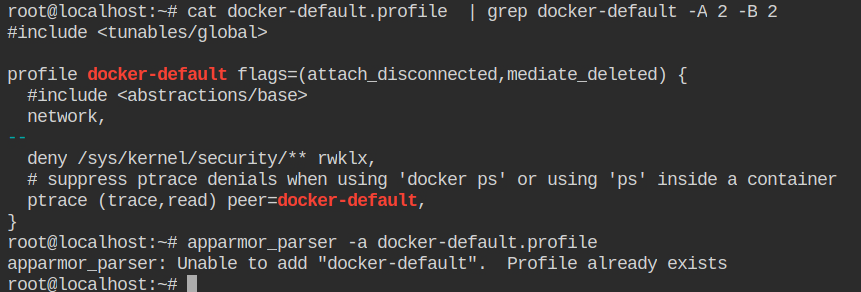
You can inspect the AppArmor profile of a running container with this command:
docker inspect --format='{{.AppArmorProfile}}' <container_name_or_id>
If the output is docker-default, the default profile is active. If it's empty or unconfined, no profile is being applied, which is a security risk.
Applying a Custom AppArmor Profile
While the default profile is good, true security comes from creating a custom profile tailored to your specific application. A custom profile follows the principle of least privilege, allowing only the exact operations your application needs and denying everything else.
Let's see how to create and apply a simple profile that blocks write access to the /etc directory, even for the root user.
Hands-On Activity:
-
Check AppArmor Status: First, ensure AppArmor is active on your Linux host (this will work on Ubuntu/Debian).
sudo aa-status -
Create a Custom Profile: Create a file named
docker-etc-denyin/etc/apparmor.d/:sudo nano /etc/apparmor.d/docker-etc-denyPaste the following content into the file. This profile includes a base set of rules and adds one explicit denial.
#include <tunables/global> profile docker-etc-deny flags=(attach_disconnected) { #include <abstractions/base> file, # Deny write, link, and lock access to /etc and its subdirectories deny /etc/** wlk, } -
Load the Profile: Use the
apparmor_parserto load your new profile into the kernel.sudo apparmor_parser -r -W /etc/apparmor.d/docker-etc-denyThe
-rflag reloads the profile, and-Wis recommended for generating warnings. -
Run a Container with the Custom Profile: Now, run an interactive Ubuntu container, applying your profile with the
--security-optflag.docker run --rm -it --security-opt apparmor=docker-etc-deny ubuntu:22.04 bash -
Test the Restriction: Inside the container, you are the
rootuser. Try to create a file in/etc.# whoami root # touch /etc/testfile touch: cannot touch '/etc/testfile': Permission deniedSuccess! AppArmor has blocked the
rootuser from writing to/etc, demonstrating the power of MAC.
Test your understanding!
You are deploying a web application that only needs to read its configuration from /etc/app/config.ini and write logs to /var/log/app.log. How would you start modifying an AppArmor profile to enforce this? You don't need to write the full profile, just the key rules.
Show answer
You would add specific rules to allow only the necessary access:
owner /etc/app/config.ini r,(allow read access)owner /var/log/app.log rw,(allow read/write access)
By creating a "deny-by-default" profile and only whitelisting these specific operations, you significantly reduce the attack surface.
Using AppArmor with Docker Compose
For your multi-service applications, you can declaratively apply AppArmor profiles in your docker-compose.yml file.
The OneUptime blog provides a clear example of the syntax.
How to Configure AppArmor and SELinux Profiles for Docker
This article, 'How to Configure AppArmor and SELinux Profiles for Docker', shows the correct syntax for applying a custom profile within a Docker Compose service definition.
In the 'AppArmor' section, find the subheading 'Docker Compose with AppArmor' to see the YAML syntax. You can also review the other commands for checking status and loading profiles.
Here's how you'd integrate it into a service definition:
services:
  nginx:
    image: nginx
    security_opt:
      - apparmor:docker-nginx-hardened # Your custom profile name
3. A Brief on SELinux and Docker
If you work with RHEL, CentOS, or Fedora, you'll encounter SELinux. Its label-based approach is more granular but also more complex than AppArmor's path-based system.
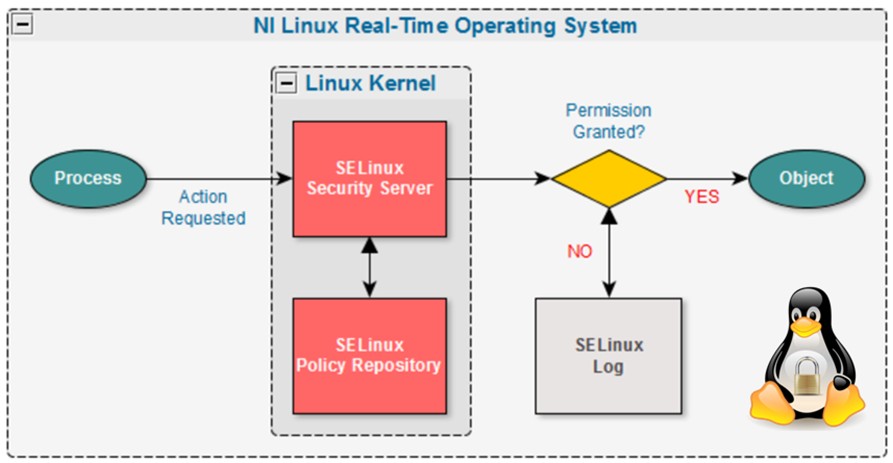
With Docker, the most common and practical interaction you'll have with SELinux involves volume mounts. By default, SELinux policy prevents a container (with the container_t label) from accessing files on the host filesystem, as they typically have a different label (e.g., unconfined_u:object_r:user_home_t:s0).
To solve this, Docker allows you to append a flag to your volume mounts to automatically relabel the host files:
-v /path/on/host:/path/in/container:z: Use a shared SELinux label. This allows the host content to be read and written by multiple containers.-v /path/on/host:/path/in/container:Z: Use a private SELinux label. This makes the host content accessible only to this specific container.
Example:
# Allow the container to write to a host-mounted directory by relabeling it
docker run --rm -it -v /my/app/data:/data:Z my-app-image
Understanding these flags is critical for making stateful applications work correctly on an SELinux-enabled system.
4. AppArmor vs. SELinux: A Quick Comparison
The following table summarizes the key differences, helping you know what to expect on different systems.
| Feature | AppArmor | SELinux |
|---|---|---|
| Default in | Ubuntu, Debian, SUSE | RHEL, Fedora, CentOS |
| Profile Model | Path-based (easier to learn) | Label-based (more granular) |
| Granularity | Focuses on file paths and capabilities | Controls access to all system resources (files, processes, network ports) |
| Docker Default | docker-default profile |
container_t type label |
5. Looking Ahead: Kubernetes Integration
Your knowledge of AppArmor and SELinux is directly applicable to Kubernetes. K8s allows you to specify AppArmor profiles via annotations and SELinux options via the securityContext field in your Pod specifications. This ensures your container hardening policies are maintained when you move from local development with Docker to production orchestration with Kubernetes.
# AppArmor in Kubernetes
apiVersion: v1
kind: Pod
metadata:
  name: nginx-apparmor
  annotations:
    container.apparmor.security.beta.kubernetes.io/nginx: localhost/docker-nginx-hardened
...

# SELinux in Kubernetes
apiVersion: v1
kind: Pod
spec:
  securityContext:
    seLinuxOptions:
      level: "s0:c123,c456"
...
Conclusion
You have now learned how to add a mandatory, non-discretionary layer of security to your containers. By applying AppArmor or SELinux profiles, you can enforce strict rules on what a containerized process is allowed to do, even if it's running as root.
Key Takeaways:
- Mandatory Access Control (MAC) provides a stronger security model than Discretionary Access Control (DAC) by enforcing system-wide policies that users cannot bypass.
- AppArmor (path-based) and SELinux (label-based) are the two primary MAC systems in Linux.
- Docker applies a default profile (
docker-defaultfor AppArmor,container_tfor SELinux) for baseline security. - For maximum security, create custom profiles that grant permissions based on the principle of least privilege.
- Use
--security-optindocker runandsecurity_optindocker-compose.ymlto apply custom profiles. - On SELinux systems, remember the
:zand:Zflags to correctly label volume mounts.
In our next lesson, we'll continue our journey of locking down the container runtime by exploring how to run containers with a read-only root filesystem, a simple yet highly effective technique to prevent runtime modifications.