Hello! Welcome to your next lesson in the "Container Security Hardening" module.
In our previous lesson, we explored how to use Mandatory Access Control systems like AppArmor and SELinux to enforce strict rules on what a containerized process can do. We continue our defense-in-depth strategy by adding another powerful security layer, focusing on the integrity of the container's filesystem itself.
Today, we will focus on the principle of immutability. The goal is to learn how to run containers with a read-only root filesystem to prevent runtime modifications. This is a highly effective technique to thwart attackers who gain entry into a container, as it prevents them from altering application files, installing malware, or persisting their presence.
1. The Principle of Immutability
In a traditional, mutable server environment, administrators apply patches and configuration changes directly to a running system. Immutable infrastructure is a different paradigm: instead of changing a running instance, you replace it with a new one built from an updated image.
Running a container with a read-only filesystem is a core tenet of this approach. It guarantees that the running container is an exact replica of the image it was created from. Any attempt to modify the filesystem, whether malicious or accidental, will fail.
Let's begin by reading a brief overview of the security benefits.
How to Run Read-Only Docker Containers
This article from OneUptime, titled 'How to Run Read-Only Docker Containers', provides a concise introduction to the security rationale behind this practice.
Please read the short introductory section 'Why Read-Only Containers?' to understand the core security benefit.
By making the filesystem read-only, you dramatically reduce the container's attack surface. An attacker who exploits a vulnerability in your application will find it much harder to escalate their attack if they cannot write files.
2. Hands-On: Launching a Read-Only Container
Let's put this into practice. The simplest way to enforce this is with the --read-only flag in docker run or the read_only: true key in Docker Compose.
The following guide from dev.to provides a perfect, self-contained lab to see this in action.
Running Docker Containers on a Read‑Only Root File System
This guide, 'Running Docker Containers on a Read‑Only Root File System', walks you through building a tiny test image and proving its immutability.
Follow the steps 1 through 4. You will create a simple Dockerfile, build an image, run it with the '--read-only' flag, and then attempt to write to the filesystem to see the error. Finally, you'll use 'docker inspect' to verify the setting.
After completing the exercise, you will have seen firsthand that even the root user inside the container is blocked from making changes. The command docker inspect <container_id> | grep '"ReadonlyRootfs"' gives you a programmatic way to confirm that your security policy is being enforced.
3. The Challenge: Real-World Applications Need to Write
As you probably suspect, simply adding --read-only to a real-world application like Nginx, a Node.js API, or a database will likely cause it to crash. Most applications need to write to the filesystem for legitimate reasons:
- Creating PID files (e.g., in
/var/run) - Writing to caches (e.g.,
/var/cache/nginx) - Storing temporary files (e.g., in
/tmp) - Writing application logs
The key is not to abandon read-only filesystems, but to selectively enable writes only where they are absolutely necessary. We can do this using tmpfs mounts for temporary data and volumes for persistent data.
This video from HackerSploit provides a clear demonstration of this exact problem and its solution.
How To Secure & Harden Docker Containers
Watch this clip from 'How To Secure & Harden Docker Containers' to see how the '--tmpfs' flag allows you to create a writable, in-memory directory inside an otherwise read-only container.
Watch from 21:47 to 26:47. The first part demonstrates the 'read-only file system' error. The second part introduces the '--tmpfs' flag to create a specific writable location, resolving the issue.
As the video shows, Docker provides two main mechanisms to handle this:
-
tmpfsmounts (--tmpfsortmpfsin Compose): This creates a temporary filesystem in memory. It's perfect for non-persistent data like PID files, sockets, or caches that don't need to survive a container restart. Data in atmpfsmount is erased when the container stops. -
Volumes (
-vorvolumesin Compose): These are used for data that must be persisted, such as database files, user uploads, or critical log files. You should already be familiar with volumes from your previous work with Docker.
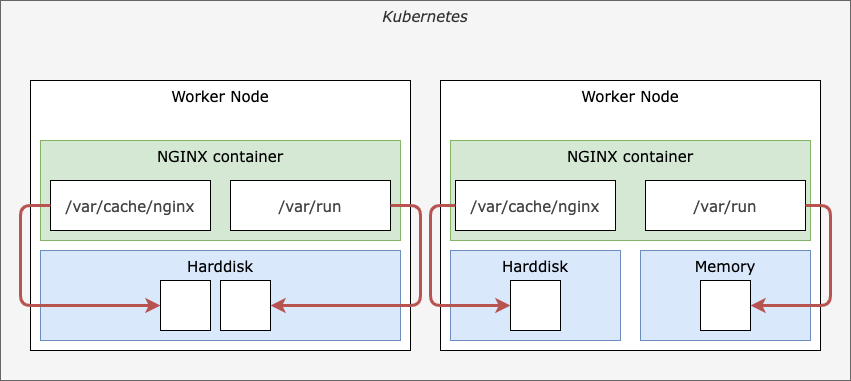
The image below, though set in a Kubernetes context, perfectly illustrates this separation. Runtime data (/var/run) is mounted into memory (tmpfs), while cache data that might be useful to persist across restarts (/var/cache/nginx) is mounted to a disk (a volume).
4. Identifying Writable Directories and Configuring Your Container
As a DevOps engineer, your main task will be to identify which directories an application needs to write to and configure the appropriate mounts.
How to Run Read-Only Docker Containers
Let's return to the 'How to Run Read-Only Docker Containers' article. It details several practical methods for discovering these writable directories and provides configuration examples for common applications.
Please read the following sections: 'Basic Read-Only Container': Note the syntax for both the CLI and Docker Compose. 'Handling Writable Directories': Understand how to use tmpfs mounts and named volumes. 'Common Applications': Skim these examples (e.g., Nginx, Node.js) to see common patterns. 'Identifying Required Writable Directories': This is a key section. Focus on 'Method 1: Run and Check Errors' and 'Method 3: Inspect Dockerfile' as the most common approaches. 'Summary': Review the summary table as a quick reference.
The most straightforward method is often iterative:
- Run the container with
read_only: trueand no mounts. - Check the logs (
docker logs <container_name>) for "Read-only file system" errors. - Add a
tmpfsmount for the directory mentioned in the error. - Repeat until the container starts successfully.
For stateful data, like a PostgreSQL database's data directory (/var/lib/postgresql/data), you would use a named volume instead of tmpfs.
Test your understanding!
You are tasked with hardening a Python web application. Its Dockerfile shows it writes logs to /var/log/app/ and the application framework uses /tmp for temporary uploads. You need to run it with a read-only filesystem and ensure the logs are persistent.
How would you configure the service in docker-compose.yml?
Show answer
You would set read_only: true and then create a tmpfs mount for the ephemeral data and a volume for the persistent logs.
version: '3.8'

services:
  python-app:
    image: my-python-app:1.0
    read_only: true
    tmpfs:
      - /tmp  # For temporary, non-persistent files
    volumes:
      - app-logs:/var/log/app/ # For persistent log data

volumes:
  app-logs:
Conclusion
You've now added another critical tool to your security hardening arsenal. By enforcing an immutable filesystem, you make your containers more predictable, reliable, and resilient to attack.
Key Takeaways:
- Running a container with a read-only root filesystem (
--read-onlyorread_only: true) prevents runtime modifications, enhancing security and stability. - Most applications will not work out-of-the-box in a read-only environment because they need to write temporary or persistent data.
- Use
tmpfsmounts to provide writable, ephemeral storage in memory for things like PID files, sockets, and temporary caches. - Use named volumes to provide writable, persistent storage for data that must survive container restarts, like database files or application logs.
- The most common way to identify required writable paths is to run the container as read-only and inspect the logs for "Read-only file system" errors.
In our next lesson, we will shift our focus from the filesystem to another critical area of security: managing sensitive information. We will explore the topic: Differentiate between Docker secrets and environment variables for managing sensitive data.