Hello! Welcome back to our module on Container Security Hardening.
In the last lesson, we focused on finding and eliminating known vulnerabilities in our container images using tools like Docker Scout and Trivy. This is a critical step in securing our supply chain. But what happens if an attacker finds a zero-day vulnerability or a misconfiguration that we missed? This is where the principle of "defense in depth" comes into play.
Today's lesson shifts our focus from what's inside the container to what the container is allowed to do on the host system. We'll be tackling the learning outcome: Apply the principle of least privilege by managing Linux capabilities (add/drop).
As a DevOps Engineer with a background in Linux, you're likely familiar with the all-or-nothing power of the root user. This lesson will show you how to move beyond that binary model inside containers, granting them only the specific, fine-grained permissions they need to function. This dramatically reduces the potential blast radius of a security breach.
1. From Root Power to Granular Capabilities
In traditional Linux systems, privilege is often a binary concept: you are either root (UID 0), with full power over the system, or you are a regular user with limited permissions. This model lacks nuance and violates the principle of least privilege, which states that a process should only have access to the information and resources that are necessary for its legitimate purpose.
Linux capabilities were introduced to solve this. They break down the monolithic power of root into distinct, manageable units of privilege.
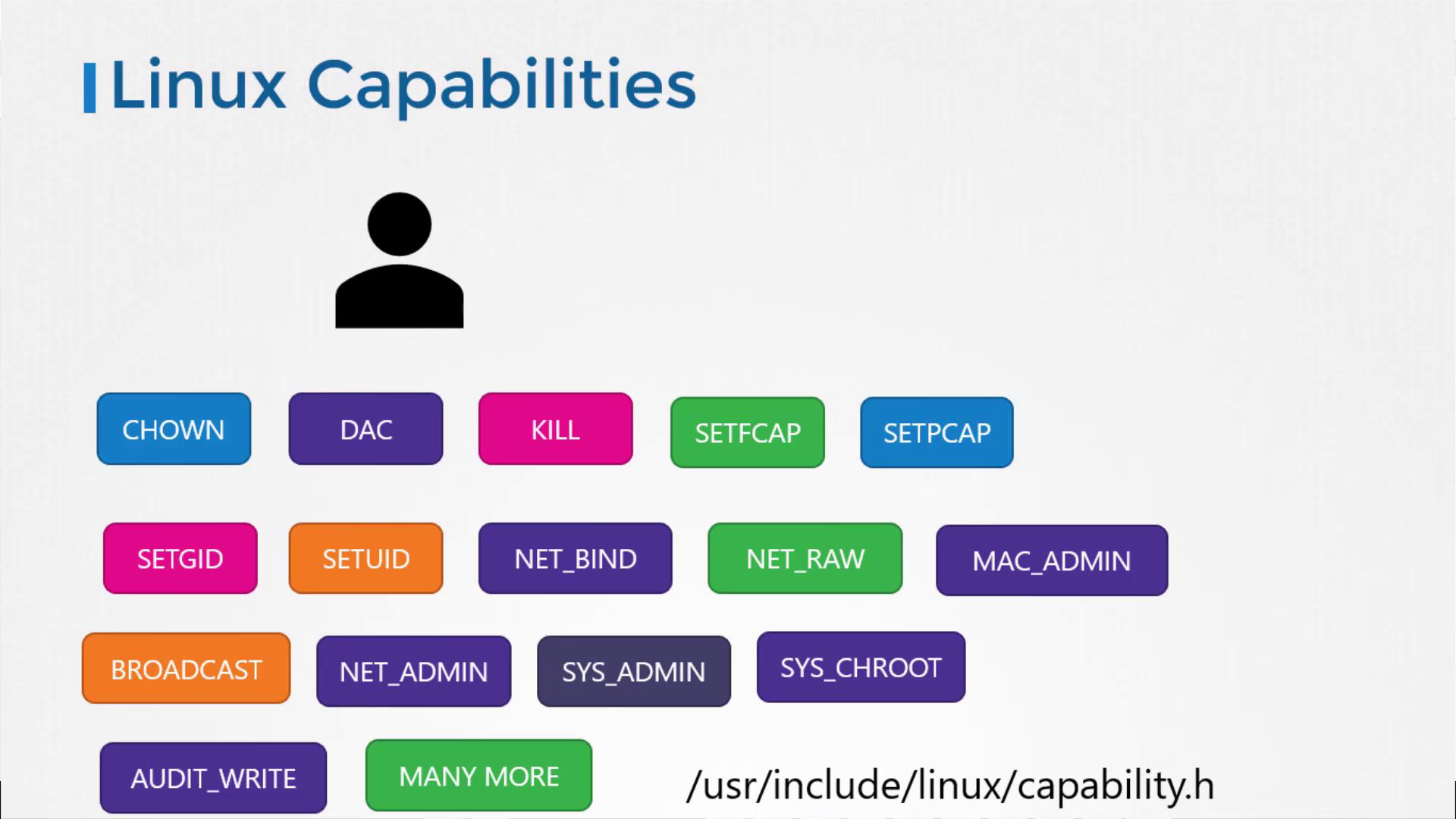
Think of it like IAM roles in a cloud environment. Instead of giving a service account full "Administrator Access," you grant it specific, granular permissions like s3:GetObject or ec2:StartInstances. Capabilities bring this same fine-grained control to system-level operations within Linux.
To get a formal definition, let's start with a short reading.
How to Drop Linux Capabilities in Docker Containers
This article from OneUptime, 'How to Drop Linux Capabilities in Docker Containers', provides a clear introduction to the concept. We'll start with the first section.
Please read the initial section titled 'Understanding Linux Capabilities'. This will solidify the distinction between the traditional root model and the modern capabilities model.
2. Capabilities in the Docker World
You might assume that if you run a container with a root user inside, it has full root privileges on the host. This is not true. By default, Docker applies the principle of least privilege by granting containers only a limited set of capabilities and dropping many dangerous ones.
Let's see what this default set includes.
How to Drop Linux Capabilities in Docker Containers
The same OneUptime article lists the default capabilities Docker grants to containers. Knowing this baseline is key to understanding what you might need to add or remove.
Now, read the section 'Docker Default Capabilities' to see the table of capabilities that are enabled by default.
While this default set is much safer than granting all capabilities, the most secure practice is to go a step further: drop all default capabilities and then add back only the ones your application strictly requires.
This video provides an excellent explanation of this "drop all, add back" strategy.
How To Secure & Harden Docker Containers
This segment from HackerSploit's 'How To Secure & Harden Docker Containers' video clearly explains the concept and demonstrates the command-line flags for managing capabilities.
Please watch from 16:31 to 21:47. Pay close attention to: The explanation of why running with the --privileged flag is so dangerous (it grants all capabilities). The demonstration of the --cap-drop=all flag to start with zero privileges. The use of the --cap-add=<CAPABILITY_NAME> flag to grant a specific, necessary privilege.
The key flags, as you just saw, are:
--cap-drop: Removes a capability from the default set. Use--cap-drop=allto remove everything.--cap-add: Adds a capability. This is used to grant a privilege that is not in the default set, or to add one back after using--cap-drop=all.
3. Hands-On: Managing Capabilities in Practice
Let's put this theory into practice with some common scenarios. You will need a terminal with Docker installed.
Scenario 1: Fixing a "Permission Denied" Error
A classic example is the ping command, which requires special network permissions to craft ICMP packets.
-
Try to run
pingin a basic container. This will fail.docker run --rm alpine ping -c 4 8.8.8.8You will see an error like:
ping: permission denied (are you root?). Even though you are root inside the container, you lack the necessary capability. -
Run it again, adding the required capability. The
pingcommand needsNET_RAWto create raw network sockets.docker run --rm --cap-add=NET_RAW alpine ping -c 4 8.8.8.8Success! The command now works because you explicitly granted the permission it needed.
Scenario 2: Configuring Capabilities in Docker Compose
Managing capabilities is just as important for multi-service applications. The syntax in a docker-compose.yml file is very straightforward.
Let's consider an Nginx web server. To bind to a privileged port like port 80, a process typically needs the NET_BIND_SERVICE capability.
How to Drop Linux Capabilities in Docker Containers
Let's turn back to the OneUptime article for the syntax and some practical examples for different application types.
Read the sections 'Dropping Capabilities' and 'Common Capability Requirements'. Focus on the 'Docker Compose' syntax and the example provided for 'Web Servers (Nginx, Apache)'.
Here is a docker-compose.yml file that applies the principle of least privilege to an Nginx service:
version: '3.8'

services:
  webserver:
    image: nginx:latest
    ports:
      - "8080:80"
    # 1. Drop all default capabilities for maximum security.
    cap_drop:
      - ALL
    # 2. Add back only the capabilities Nginx needs to function.
    cap_add:
      - NET_BIND_SERVICE  # Allows binding to port 80 inside the container.
      - CHOWN             # Allows nginx to change ownership of its worker processes/files.
      - SETGID            # Allows the main process to change its group ID.
      - SETUID            # Allows the main process to change its user ID (to drop from root).
Save this as docker-compose.yml and run docker-compose up. The container will start successfully, but with a drastically reduced privilege set compared to the default.
Test your understanding!
You need to run a container that uses tcpdump to inspect network traffic. Following the principle of least privilege, which capabilities would you cap_add after dropping all others? (Hint: Think about what tcpdump and ping have in common, and what else might be needed to manage network interfaces).
Show answer
You would need to add two primary capabilities:
NET_RAW: Just likeping,tcpdumpneeds this to create raw sockets to capture network packets directly from the interface.NET_ADMIN: This capability is often required to put a network interface into "promiscuous mode," which is necessary fortcpdumpto see all traffic on the network segment, not just traffic addressed to the container.
The command would look like this:docker run --rm --cap-drop=all --cap-add=NET_RAW --cap-add=NET_ADMIN <your_image_with_tcpdump>
4. Verifying and Discovering Capabilities
How do you know which capabilities your application needs?
- Start by dropping all capabilities. Run your container with
--cap-drop=all. - Observe the error messages. The application will likely fail with "Permission denied" or "Operation not permitted" errors. These errors are your clues.
- Research or incrementally add capabilities. Based on the errors, add the most likely capabilities one by one (
NET_BIND_SERVICEfor low port errors,CHOWNfor file ownership errors, etc.) until the application runs correctly.
You can also inspect a running container to see its effective capabilities. This is a great way to verify your settings. The simplest method is to check the process status in the proc filesystem:
# Start a container in the background
docker run -d --name my-nginx nginx

# Exec into the container and check the capabilities of the main process (PID 1)
docker exec my-nginx cat /proc/1/status | grep Cap
This command will output a set of hex masks representing the container's capability sets. Now, try it with your hardened Nginx container from the Docker Compose file and see how the output differs!
For a comprehensive list of all Linux capabilities and their functions, the article "Mastering Linux Kernel Capabilities with Docker" (LINK) provides an exhaustive reference in its "List of Linux Kernel Capabilities" section. It's an excellent resource to bookmark for future debugging.
Conclusion
You have now learned how to apply one of the most fundamental principles of security—least privilege—to your Docker containers. By moving beyond the default settings and proactively managing kernel capabilities, you can significantly harden your applications against potential exploits.
Key Takeaways:
- Linux capabilities break down the all-or-nothing power of
rootinto fine-grained, manageable permissions. - By default, Docker grants a limited set of capabilities, but the most secure approach is to drop them all (
--cap-drop=ALLorcap_drop: - ALL) and add back only those that are explicitly needed (--cap-addorcap_add:). - This practice dramatically reduces the container's attack surface, limiting the damage an attacker could cause if they gain access.
- You can discover required capabilities by starting with none and incrementally adding them back based on application error messages.
In our next lesson, we will build directly on this concept. Now that we've controlled the container's initial set of privileges, we will learn how to prevent a process inside the container from gaining new privileges after it has started, using the --no-new-privileges security option.