Hello! Welcome to your next lesson in our journey to master Docker for professional use.
In our last session, we focused on runtime optimization, specifically how to select the right network drivers and tune the host kernel to resolve performance bottlenecks. Today, we're shifting our attention from running containers to building them. We'll tackle a crucial aspect of modern software delivery: portability across different hardware.
This lesson directly addresses the learning outcome: Implement multi-architecture image builds for different platforms (e.g., amd64, arm64). You'll learn how to create a single, elegant Docker image tag that can run seamlessly on diverse CPU architectures, a skill that is increasingly vital in today's cloud and development landscape.
Why Do We Need Multi-Architecture Builds?
As a DevOps engineer, you're familiar with the "it works on my machine" problem. Traditionally, this was about software dependencies. Today, a new variant has emerged: differing CPU architectures.
The landscape is no longer dominated solely by Intel/AMD (x86_64, or amd64). We now see:
- Cloud Providers: AWS Graviton processors (
arm64) offer significant cost and performance benefits. - Development Machines: Apple Silicon (M1/M2/M3) Macs are
arm64-based. - Edge/IoT: Devices like the Raspberry Pi are predominantly
arm.
An image built on an amd64 machine won't run natively on an arm64 machine, and vice-versa. This creates friction in CI/CD pipelines and development workflows. The solution is the multi-architecture image.
How to Build Multi-Architecture Docker Images with BuildX | Deploy containers to x86 and ARM!
To start, let's get a high-level overview of why this topic is so important today. This video from DevOps Directive does an excellent job explaining the rise of ARM processors and how Docker handles different architectures using a concept called a manifest list.
Watch the first three minutes of the video (00:00 - 02:51). Focus on understanding: The real-world drivers for multi-architecture support (Apple Silicon, AWS Graviton). What a Docker manifest list is and how it allows a single tag like node:latest to support multiple architectures.
As you saw, a multi-architecture image isn't one big file. It's a manifest list (sometimes called a "fat manifest"), which is essentially a pointer to several architecture-specific images. When you docker pull myapp:latest, the Docker client on your machine checks its own architecture (amd64 or arm64) and automatically downloads the correct version.
The Toolkit: BuildKit and Docker Buildx
To create these manifest lists, we use docker buildx, a powerful CLI plugin for Docker that extends docker build with new capabilities. It is powered by BuildKit, Docker's next-generation build engine.
There are three main strategies for building for a different architecture:
- Emulation (with QEMU): A single machine (e.g.,
amd64) can emulate another architecture (arm64) to run the build commands. This is the easiest method to set up but is also the slowest. - Multiple Native Nodes: You create a builder that consists of multiple machines, one for each target architecture. This is the fastest and most reliable method but requires managing more infrastructure.
- Cross-Compilation: For compiled languages like Go or Rust, you can use the compiler's ability to create binaries for a different architecture. This is very efficient but requires modifying your Dockerfile.
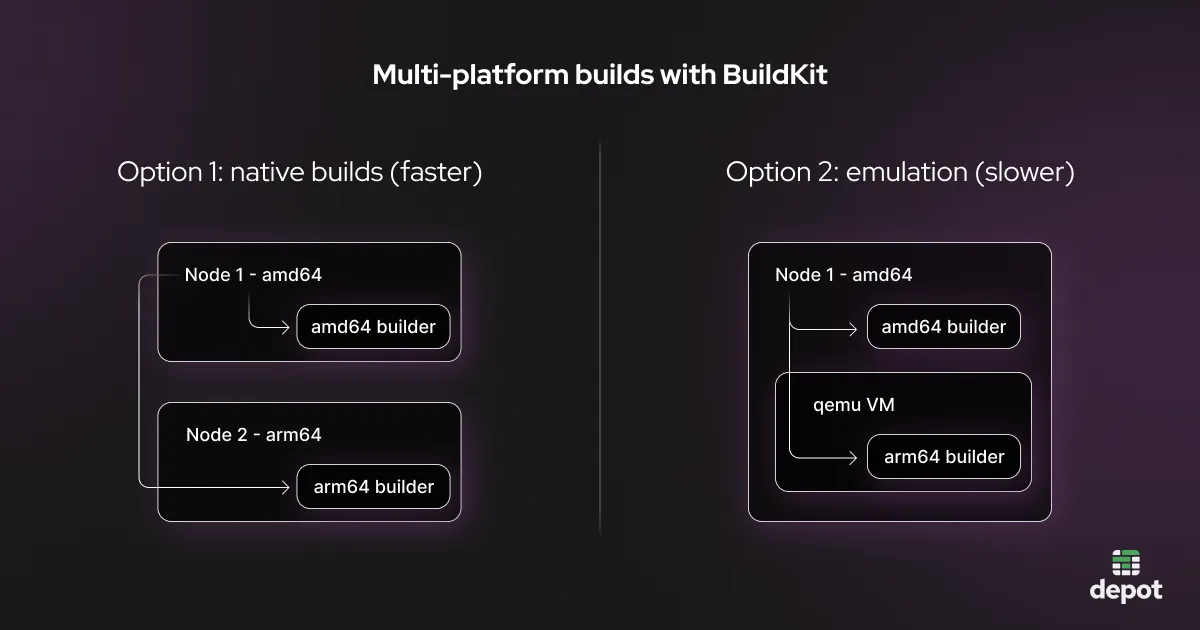
For this lesson, we'll focus on emulation with QEMU, as it's the most accessible way to get started and works for any Dockerfile without modification.
Setting Up Your Buildx Environment
Before we can build, we need to ensure buildx is set up correctly. Docker Desktop comes with QEMU and buildx pre-configured. On a Linux server (like an EC2 instance), you might need an extra step.
How to Build Multi-Architecture Docker Images (ARM64 + AMD64)
The article 'How to Build Multi-Architecture Docker Images' provides a great, concise guide to setting up a multi-platform builder. These commands are fundamental to the process.
Read the section 'Setting Up Buildx'. Focus on the three commands shown: docker buildx ls: To list your current builders. docker buildx create: To create a new builder instance. Using a dedicated builder is a best practice. docker buildx use and docker buildx inspect: To activate and verify your new builder.
If you are on a Linux server without Docker Desktop, you first need to install the QEMU emulation layer. You can do this with a single command:
docker run --privileged --rm tonistiigi/binfmt --install all
This command runs a utility container that registers the necessary kernel handlers to allow your host to execute binaries from other architectures. After running this, you can proceed with the docker buildx create steps from the article.
Hands-On: Building Your First Multi-Arch Image
Let's walk through the process of building, pushing, and inspecting a multi-architecture image.
Step 1: Create a Simple Dockerfile
Create a new directory and add a Dockerfile with the following content. This simple image will just print its architecture, which is perfect for verifying our build.
# Dockerfile
FROM alpine:latest
RUN apk add --no-cache coreutils
CMD ["uname", "-m"]
(uname -m prints the machine hardware name, e.g., x86_64 or aarch64)
Step 2: The Build Command
Now, let's use buildx to build this image for both linux/amd64 and linux/arm64.
The command looks like this. Replace your-dockerhub-username with your actual Docker Hub username.
docker buildx build --platform linux/amd64,linux/arm64 -t your-dockerhub-username/multi-arch-test:latest --push .
Let's break down those new flags:
--platform linux/amd64,linux/arm64: This is the magic flag. It tellsbuildxwhich target platforms to build for.--push: This is critical. A multi-platform image (with its manifest list) cannot be saved to your local Docker image storage. It must be pushed directly to a container registry like Docker Hub, which knows how to store the manifest list and its associated images.
Step 3: Pushing and Verifying
When you run the command, buildx will build each platform's image in parallel (using emulation where necessary) and push them, along with the manifest list, to your repository.
Docker Multi Arch/Platform Builds | Complete Guide with Demo
Watching a live demonstration can make this process click. This segment from Abhishek Veeramalla's tutorial shows him building an image from his ARM-based Mac, pushing it, and then successfully running it on an AMD-based EC2 instance.
Watch from 24:30 to 28:30. Pay attention to: The structure of the docker buildx build command he uses. How he verifies the result on Docker Hub, where you can see the different architecture tags. The final success when docker run on the EC2 instance automatically pulls the correct (amd64) version.
Step 4: Inspecting from the Command Line
Besides checking Docker Hub's UI, you can inspect the manifest list directly from your terminal using imagetools.
docker buildx imagetools inspect your-dockerhub-username/multi-arch-test:latest
You should see an output that lists the different manifests contained within your single tag, one for linux/amd64 and one for linux/arm64.
Test your understanding!
You run docker buildx build --platform linux/amd64,linux/arm64 -t my-app:latest . but you get an error and the image doesn't appear when you run docker images. What crucial flag are you likely missing and why is it necessary?
Show answer
You are missing the --push flag.
The local Docker image store, which docker images queries, can only hold single-architecture images. A multi-architecture image, which is a manifest list pointing to multiple architecture-specific images, can only exist in a container registry. The --push flag tells buildx to send the build output directly to a registry instead of trying to load it locally. If you wanted to test a single architecture locally, you would use --load instead of --push, for example: docker buildx build --platform linux/amd64 --load -t my-app:latest ..
Integrating into CI/CD
Ultimately, you won't be running these commands manually. You'll integrate them into your CI/CD pipeline. The process is very similar: your pipeline will need to set up QEMU and buildx, log in to a registry, and then run the docker buildx build --push command.

This sets us up perfectly for our next module, where we will dive deep into integrating Docker with CI/CD systems.
Conclusion
Congratulations! You now understand the why and how of building portable, future-proof Docker images.
Key Takeaways:
- Hardware diversity (
amd64,arm64) makes multi-architecture images a professional necessity. - A multi-arch image is a manifest list that points to platform-specific images. Docker automatically pulls the correct one.
docker buildxis the tool used to create these images, most easily through QEMU emulation.- The build command requires two key flags:
--platformto specify targets and--pushto send the result to a registry. - You can verify your multi-arch image on your registry's UI or with
docker buildx imagetools inspect.
In our next lesson, we will begin the "Docker in a CI/CD Pipeline" module. We'll take what you learned today and see how to integrate Docker image builds into a CI pipeline with effective caching strategies to make these multi-arch builds fast and efficient.