Welcome to your next lesson in VBA programming. In our last session, we delved into the essential skill of debugging. You learned how to pause your code, step through it line-by-line, and use tools like the Locals Window and breakpoints to systematically find and fix errors. This ability to analyze code as it runs is fundamental to development.
Today, we'll apply those skills as we explore a powerful feature of VBA: User-Defined Functions (UDFs). You'll learn to create your own custom formulas that can be used directly within Excel worksheets, just like built-in functions such as SUM or VLOOKUP. This is a significant step towards your goal of building professional, client-ready tools. By encapsulating complex logic into a simple, reusable function, you can create highly sophisticated and user-friendly spreadsheets.
1. From Actions to Answers: Subroutines vs. Functions
So far in our VBA journey, we have exclusively written Sub procedures, or subroutines. A subroutine is a block of code that performs an action—it might format a range, copy data, or display a message box.
A Function, on the other hand, is a block of code designed to perform a calculation and return a value. This is the fundamental difference. When you type =SUM(A1:A10) into a cell, the SUM function calculates a result and returns it to that cell. UDFs allow you to create your own functions that behave in exactly the same way.
How To Create User-Defined Functions In VBA (With ...
This article from zerotomastery.io provides a great high-level introduction.
Please read the first part of the article, from the beginning down to the heading Example #1. This will clarify the distinction between subroutines that do something and functions that return something.
2. The Anatomy of a User-Defined Function
Creating a UDF involves a specific syntax that tells VBA you expect a value to be returned. Let's break down the essential components.
The declaration of a function looks like this:
Function FunctionName(Argument1 As DataType, Argument2 As DataType) As ReturnType' Code to perform calculationsFunctionName = ... ' This line assigns the final value to be returnedEnd Function
Here's a breakdown:
Function: The keyword that starts the function definition, distinguishing it from aSub.FunctionName: The name you give your function. This is what you will type into an Excel cell, e.g.,=MyFunction().(Arguments): The inputs your function needs to perform its calculation. These are like the arguments you provide to built-in functions. Each argument has a name and a specifiedDataType. You can have multiple arguments, a single argument, or none at all.As ReturnType: At the end of the declaration, you specify the data type of the value the function will return (e.g.,String,Long,Double).FunctionName = ...: This is the most crucial line inside the function. You must assign the final calculated value to the function's own name. This is how VBA knows what value to send back to the Excel cell.
The following video provides an excellent step-by-step walkthrough of writing a basic UDF from scratch.
How To Create Custom Functions In Excel With Vba
The video "How To Create Custom Functions In Excel With Vba" from Excel Campus - Jon clearly explains the syntax.
Please watch the segment from rewriting the function. The instructor builds a FiscalYear function line by line, explaining the purpose of the function name, arguments, data types, and the critical step of assigning the result back to the function name.
3. Creating Your First Practical UDF
Let's create a practical UDF that you might use in a financial context: a compound interest calculator. While Excel has functions for this, building our own is a perfect way to understand the mechanics.
The formula for annually compounded interest is:
Where:
- = the future value of the investment/loan, including interest
- = the principal investment amount (the initial deposit or loan amount)
- = the annual interest rate
- = the number of years the money is invested or borrowed for
We can translate this directly into a VBA function.
How To Create User-Defined Functions In VBA (With ...
Let's return to the "zerotomastery.io" article which has a clear walkthrough for this exact example. We'll use the video, which mirrors the article, for a guided demonstration.
The accompanying video for this article is not provided, but the article itself gives a complete walkthrough. Let's use another excellent video resource that builds a similarly structured UDF.
We will build this function ourselves. Open the VBE (Alt+F11), insert a new module, and type the following code:
Function CompoundInterest(Principal As Double, Rate As Double, Years As Long) As Double

    ' Calculate the future value using the compound interest formula
    CompoundInterest = Principal * (1 + Rate) ^ Years

End Function
Now, let's test it. Go back to your worksheet and in any cell, type:=CompoundInterest(1000, 0.05, 10)
This formula calculates the future value of $1,000 invested at a 5% annual rate for 10 years. You should see the result: .
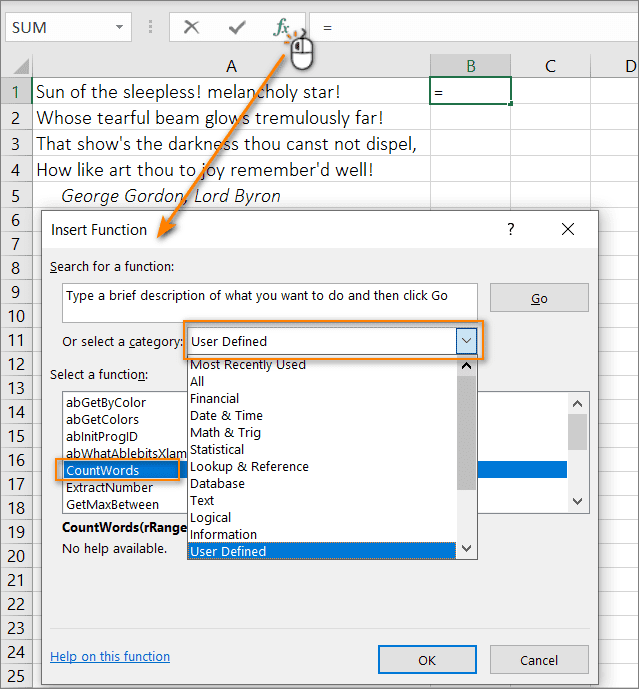
Notice how your custom function appears in Excel's formula autocomplete list as you type. You can also find it in the "Insert Function" dialog (fx button) under the "User Defined" category.
4. Enhancing Functions with Optional Arguments
To make your functions more flexible, you can define certain arguments as Optional. This is useful for providing default values. Let's modify our CompoundInterest function. What if we wanted to add a feature to calculate the interest compounded more than once a year (e.g., monthly)?
We can add an optional argument for the number of compounding periods per year.
Function CompoundInterestAdv(Principal As Double, Rate As Double, Years As Long, Optional CompPeriodsPerYear As Long = 1) As Double

    ' A = P(1 + r/n)^(nt)
    ' Principal * (1 + Rate / CompPeriodsPerYear) ^ (Years * CompPeriodsPerYear)

    CompoundInterestAdv = Principal * (1 + Rate / CompPeriodsPerYear) ^ (Years * CompPeriodsPerYear)

End Function
In this advanced version:
- We've added
Optional CompPeriodsPerYear As Long = 1. TheOptionalkeyword marks it as non-mandatory. = 1sets its default value. If the user doesn't provide this fourth argument, VBA will use1(compounded annually).- The calculation is updated to the general compound interest formula.
Now you can use it in two ways:
=CompoundInterestAdv(1000, 0.05, 10)-> Result: (uses the default of 1 period)=CompoundInterestAdv(1000, 0.05, 10, 12)-> Result: (uses 12 for monthly compounding)
The ability to create optional arguments is key to building powerful and user-friendly tools.
5. Solving Complex Problems: The "Multi-Lookup" UDF
The true power of UDFs shines when you create a solution for a problem that is difficult or impossible to solve with standard Excel formulas. A classic example is performing a "multiple lookup"—finding all matching values for a lookup key, not just the first one like VLOOKUP.
For instance, imagine you have a list of sales and you want to get a single, comma-separated list of all salespeople from a specific country. A UDF is perfect for this.
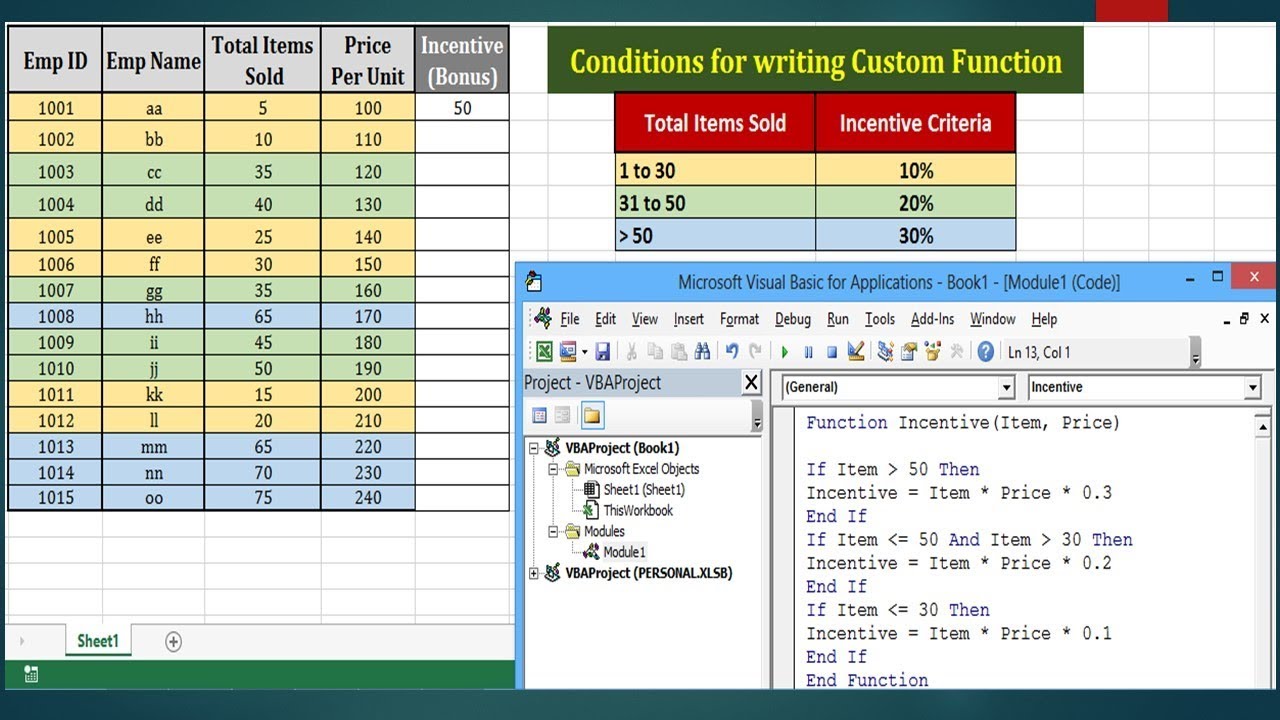
The following video demonstrates how to build such a "multiple lookup" function. Pay close attention to how it uses a For...Next loop and an If statement—concepts you're already familiar with—to achieve its goal.
Free Excel VBA Course #20 - Creating Custom Functions in Excel Using VBA
This video from TrumpExcel provides an excellent, real-world example that showcases the power of UDFs.
Watch the segment from the practical example. This detailed walkthrough builds a function to extract all matching lookup values into a single cell. Observe how the logic is constructed: Defining the arguments: the lookup_value, the lookup_range, and the column_number. Looping through each row of the lookup range. Using an If statement to check if the value in the row matches the lookup value. Concatenating the result into a string variable. Assigning the final string to the function name to return the result.
This example perfectly illustrates your future role as a freelance expert: you won't just use Excel, you'll extend its capabilities to solve your clients' unique and challenging problems.
Conclusion
In this lesson, you've made the leap from writing code that performs actions to writing code that returns answers. User-Defined Functions are a cornerstone of advanced Excel development, allowing you to simplify complexity, promote reusability, and create custom solutions that feel native to the Excel environment.
Key Takeaways:
- A
Functionreturns a value, whereas aSubperforms an action. - The syntax
Function Name(...) As ReturnTypeis used to declare a UDF. - The final result of a function must be assigned to the function's own name (e.g.,
MyFunction = Result). - UDFs appear in the "User Defined" category in the Insert Function dialog and in the formula autocomplete list.
- You can use the
Optionalkeyword to create flexible functions with default argument values. - UDFs are exceptionally powerful for solving problems that are cumbersome or impossible with standard worksheet functions.
In our next lesson, we will explore Worksheet and Workbook Events. This will introduce another powerful way to make your spreadsheets interactive, by writing code that runs automatically in response to user actions like changing a cell's value or opening a workbook.