Introduction
In our previous lesson, we explored how to use Data Tables for sensitivity analysis, a technique that answers the question, "If my inputs change, how do my results change?" We systematically varied inputs like interest rates and loan terms to see the effect on outputs like monthly payments.
Today, we'll approach the problem from the opposite direction. Instead of asking "what if," we will ask "how to." You'll learn how to use two of Excel's most powerful problem-solving tools, Goal Seek and Solver, to find the specific input values needed to achieve a desired outcome. This is a crucial skill for any financial modeler, whether you're determining the sales volume needed to break even or finding the optimal product mix to maximize profit under various constraints. This lesson will equip you to move beyond analysis and into optimization.
1. Goal Seek: Solving for a Single Target
The simplest "how to" questions involve one target and one variable. For example, "How many units do I need to sell to achieve a profit of exactly $10,000?" This is precisely the kind of problem Goal Seek is designed to solve.
Goal Seek works by iterating through values in a single input cell until a formula that depends on that cell reaches the target value you've specified. For it to work, you need a formula-driven model where your output is clearly linked to your input.
The Goal Seek dialog box is straightforward, with three key components:
- Set cell: The cell containing the formula you want to achieve a specific result for (e.g., the profit cell).
- To value: The target result you want to achieve (e.g.,
10000). - By changing cell: The single input cell that Excel is allowed to change to reach the target (e.g., the cell for quantity sold).

The following video provides an excellent walkthrough of using Goal Seek for a classic break-even and profit-targeting analysis.
Excel Solver & Goal Seek Tutorial
This video from Kevin Stratvert provides a clear, practical demonstration of Goal Seek.
Please watch the section from the Goal Seek example. The video uses a cookie company scenario to answer questions like how many cookies to sell to break even (profit = $0) and to reach specific profit milestones. Notice how the profit cell is driven by a formula that depends on the "cookies sold" input cell.
As you can see, Goal Seek is incredibly fast and efficient for simple, single-variable problems. However, its main limitation is clear: what if you need to change multiple variables or operate within certain limits? That's where we need a more powerful tool.
2. Introduction to Solver: Optimization with Constraints
When your problem becomes more complex, you'll turn to Solver. Solver is an Excel add-in that can find an optimal (maximum, minimum, or specific) value for a formula in one cell—the objective cell—by changing the values in several other cells, all while being subject to a set of rules, or constraints.
Think of questions like:
- "What is the optimal mix of products to manufacture to maximize profit, given our limited oven capacity and the specific demand for each product?"
- "How can we schedule our staff to minimize labor costs while ensuring we meet minimum staffing levels at all times?"
These are optimization problems that Goal Seek cannot handle. Before using Solver, you may need to enable it, as it's an add-in that isn't active by default. The next video will show you how. It also cleverly demonstrates how Solver can be used to solve the exact same problem as Goal Seek, highlighting that it is a superset of Goal Seek's capabilities.
Excel Solver & Goal Seek Tutorial
This video continues the cookie company example, showing how to enable the Solver add-in and use it to perform the same break-even analysis as before.
Watch the segment from introducing Solver. Pay close attention to the steps for enabling the add-in through File > Options > Add-ins. Once in the Solver dialog, observe how the Set Objective, To: Value Of, and By Changing Variable Cells fields correspond directly to Goal Seek's functionality.
3. Solving Complex Problems with Solver
Now let's unleash Solver's true power. The key to using Solver effectively is to correctly define the three main components of your optimization problem.
- Set Objective: This is the single cell you want to optimize. It must contain a formula. You'll specify whether you want to set it to a Maximum, Minimum, or a specific Value.
- By Changing Variable Cells: These are the input cells that Solver can adjust to achieve the objective. You can select multiple cells or ranges.
- Subject to the Constraints: These are the rules that limit the solution. For example, the total resources used must be less than or equal to the resources available, or the number of products made must be an integer.
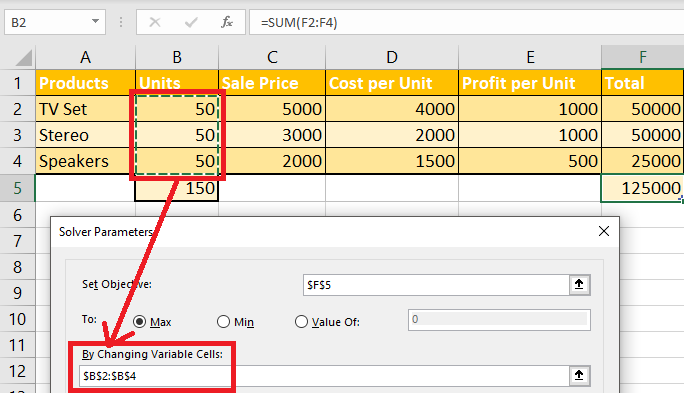
The following video walks through a fantastic, practical example of using Solver to maximize profit for the cookie company, which now sells multiple types of cookies. This is a classic product mix optimization problem and a common task in financial modeling.
Excel Solver & Goal Seek Tutorial
This video demonstrates a multi-variable optimization problem with several constraints.
Please watch the section from the advanced Solver example. As you watch, identify the three components in the Solver setup: Objective: Maximize the total profit cell. Variable Cells: The quantities to bake for each type of cookie. Constraints: The quantities must be integers. The total baked must equal the oven capacity. The quantity of each cookie baked must be less than or equal to its demand.
A Note on Solving Methods
In the video, the presenter briefly discusses the different solving methods available in Solver (GRG Non-linear, Simplex LP, and Evolutionary). Here’s a simple breakdown for your practical use:
- Simplex LP: Use this when your problem is "linear"—that is, when the relationships are simple proportionalities (e.g., doubling the input doubles the output). It's very fast and efficient for these types of problems, like many resource allocation scenarios.
- GRG Non-linear: This is the default and most versatile method. It can handle non-linear relationships, where the effect of changing an input is not constant. For example, the effect of a price change on profit might not be linear due to complex demand curves. This method will also solve linear problems.
- Evolutionary: This method is used for the most complex, "non-smooth" problems, which may have many local optimal points. It takes much longer but is more thorough in searching for a globally optimal solution.
For most business problems you'll encounter, starting with GRG Non-linear is a safe and effective choice.
4. A Second Look: Minimization Problems
Solver is not just for maximizing profit. It is equally adept at minimizing costs. To reinforce your understanding, let's look at one more example focused on minimization.
Excel Solver & Goal Seek: MUST-KNOW for Business & Finance Professionals
This video from Kenji Explains demonstrates a cost minimization problem.
Watch the section from the advanced solver tab. Here, the goal is to minimize total labor costs by deciding how many of each product to produce in different countries, subject to minimum production quotas for both countries and products. This is another excellent, real-world application of Solver.
Conclusion
You have now added two powerful problem-solving tools to your Excel arsenal. You've seen how to work backward from a target to find a required input, a critical skill for setting goals and planning.
Key Takeaways:
- Goal Seek is your tool for simple, reverse calculations. It finds the value for a single input cell that causes a formula to return a specific target value.
- Solver is your tool for complex optimization. It finds the optimal solution for an objective cell by changing multiple input cells while satisfying a set of constraints.
- The three pillars of a Solver model are the objective, the variable cells, and the constraints.
- Solver can be used for maximization (e.g., profit), minimization (e.g., cost), or targeting a specific value, making it highly versatile for financial modeling and business analysis.
In our lessons so far, we have focused on building powerful analytical and financial models using Excel's built-in functions and tools. In our next module, we will make a significant leap forward by learning how to automate our work and build entirely custom solutions using Macros and the Visual Basic for Applications (VBA) programming language. This will open up a new world of possibilities for the sophisticated, client-ready tools you aim to create.