In our last lesson, we mastered using Find and Replace with wildcards for making quick, manual corrections to your data. While incredibly useful for one-time tasks, this approach isn't dynamic. If your source data changes, you have to repeat the process.
Today, we transition from manual fixes to building automated, formula-based solutions for data cleaning. As a freelancer, you will constantly encounter messy text data imported from different systems, websites, or user inputs. This lesson will equip you with a powerful, all-in-one formula to standardize this text data efficiently. We will learn to combine three essential text functions—TRIM, CLEAN, and SUBSTITUTE—to handle almost any text-cleaning challenge you'll face.
The Problem with "Invisible" Data
When you import data, it often comes with unwanted baggage: extra spaces before or after the text, multiple spaces between words, and even invisible characters that don't print but can cause chaos. These subtle issues are a primary cause of errors in lookups (like VLOOKUP), sorting, and calculations.
To begin, let's watch a video that introduces the problem and the tools we'll use to solve it.
Excel: Trim - Clean - Substitute - Len Functions to fix your data by Chris Menard
This video, "Excel: Trim - Clean - Substitute - Len Functions to fix your data" by Chris Menard, provides an excellent overview of the functions we'll cover today.
First, watch the introduction from the beginning to understand the context. Then, watch the segment from this section, where the presenter uses the LEN (length) function to diagnose hidden problems in the data. This diagnostic step is a great habit to adopt in your own work.
As you can see, simply looking at the data isn't enough. We need functions that can systematically find and remove these unwanted characters.
Our Toolkit: TRIM, CLEAN, and SUBSTITUTE
We will now explore three functions, building them up one by one into a single, robust formula.
1. The TRIM Function: Removing Extra Spaces
The most common issue is extra whitespace. The TRIM function is your first line of defense. It is designed to:
- Remove all spaces from the beginning of a text string (leading spaces).
- Remove all spaces from the end of a text string (trailing spaces).
- Reduce multiple spaces between words to a single space.
Its syntax is simple: =TRIM(text)
Let's see it in action.
Excel: Trim - Clean - Substitute - Len Functions to fix your data by Chris Menard
Continuing with the video from Chris Menard, we'll now focus on the TRIM function.
Watch the segment from this timestamp. Notice how TRIM successfully fixes leading, trailing, and extra internal spaces, but, importantly, fails to fix some of the more complex errors. This highlights why TRIM is necessary, but not always sufficient.
2. The CLEAN Function: Removing Non-Printable Characters
Sometimes, data imported from other systems or scraped from websites contains non-printable characters (like line breaks or other control characters). These are invisible and are not removed by the TRIM function.
The CLEAN function is designed specifically for this. It removes the first 32 non-printable characters in the 7-bit ASCII set. To create a more powerful cleaning formula, we can "nest" the CLEAN function inside the TRIM function.
The combined formula looks like this: =TRIM(CLEAN(text))
This formula tells Excel to first CLEAN the non-printable characters from the cell, and then TRIM the extra spaces from that result.
Excel: Trim - Clean - Substitute - Len Functions to fix your data by Chris Menard
Let's see how adding CLEAN improves our formula.
Watch the next part of the video from this section. The presenter demonstrates how combining TRIM and CLEAN solves more issues than TRIM alone, but one stubborn problem still remains.
3. The SUBSTITUTE Function: Targeting Stubborn Characters
Even after using TRIM and CLEAN, you might find that some "spaces" are not removed. The most common culprit is the non-breaking space, which is often found in data copied from web pages. Its ASCII character code is 160, whereas a normal space is 32. TRIM and CLEAN do not affect it.
To handle this, we need the SUBSTITUTE function. It replaces specific text in a string with different text.
Its syntax is: =SUBSTITUTE(text, old_text, new_text, [instance_num])
We can use it to find the non-breaking space and replace it with a regular space. To specify the non-breaking space, we use the CHAR function: CHAR(160).
So, the formula to fix this specific issue is: SUBSTITUTE(text, CHAR(160), " ")
The "Gold-Standard" Cleaning Formula
Now we can combine all three functions into a single, comprehensive cleaning formula that handles almost any text issue you'll encounter.
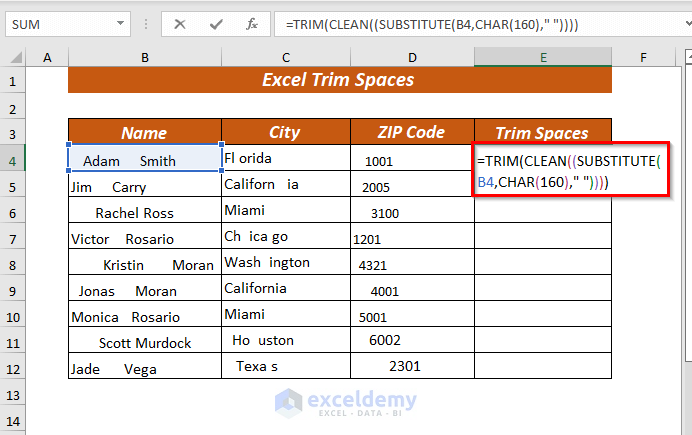
The final nested formula is:
Let's break down how Excel processes this, from the inside out:
SUBSTITUTE(text, CHAR(160), " "): First, it finds all non-breaking spaces and replaces them with regular spaces.CLEAN(...): Next, it takes that result and removes any non-printable control characters.TRIM(...): Finally, it takes that result and removes all leading, trailing, and excess internal spaces.
This layered approach ensures your text is thoroughly standardized. The following resources demonstrate and explain this final, powerful combination.
Excel: Trim - Clean - Substitute - Len Functions to fix your data by Chris Menard
Let's watch the final piece of the puzzle in Chris Menard's video.
Watch from the final demonstration to see how this three-part formula solves all the data issues from the example.
The image below shows this exact formula being used to clean messy data in a spreadsheet.
For a concise textual reference that summarizes these techniques, the following article is excellent.
How to Remove Spaces in Excel: 5 Good Methods
This article from DataCamp provides a fantastic summary of text cleaning methods.
Start by reading the TL;DR section for a quick overview. Then, review the Quick Method Comparison table, which is a great future reference. Finally, read the FAQ question Why does TRIM() not work? which reinforces the solution we've just built.
Conclusion
You have now added a formidable tool to your data cleaning arsenal. Unlike the manual Find and Replace method, this formula-based approach is dynamic and repeatable. By creating a new column with this formula, you can create a clean version of your source data that will automatically update if the original data changes.
Key Takeaways:
- Messy text data often contains invisible problems: extra spaces, non-printable characters, and non-breaking spaces (
CHAR(160)). TRIMis your go-to function for removing leading, trailing, and extra spaces between words.CLEANhandles non-printable control characters thatTRIMmisses.SUBSTITUTEis used to target and replace specific characters, most notably replacingCHAR(160)with a regular space (" ").- The combined formula,
=TRIM(CLEAN(SUBSTITUTE(text, CHAR(160), " "))), is a robust, all-in-one solution for standardizing messy text data from any source.
In this module, we've focused on getting your data right. In the next module, "Structuring and Presenting Data," we'll take the next logical step. Our first lesson will introduce Excel Tables, a powerful feature that gives your clean data a formal structure, making it easier to manage, analyze, and build dynamic formulas.