In our last lesson, we focused on improving data integrity by finding and removing entire duplicate rows. This is a vital step in cleaning a dataset. Now, we'll shift our focus from the rows themselves to cleaning up the information within the cells.
This lesson addresses another common data cleaning challenge: information that's been combined into a single cell, like a full name, an address, or a product code mixed with a description. As a freelancer, you'll frequently receive data in this format, and being able to quickly and accurately split or reformat it is a fundamental skill. We will explore two of Excel's most powerful features for this purpose: Flash Fill and Text to Columns.
By the end of this lesson, you will be able to use both tools to efficiently split data from one column into several and reformat text into a more usable structure.
Flash Fill: Excel's Intelligent Assistant
Imagine you have a column of full names and you need to separate them into first and last names. You could do it manually, but for a list of hundreds or thousands, that's not practical. This is where Flash Fill shines.
Introduced in Excel 2013, Flash Fill is a feature that recognizes patterns in your data as you type and automatically fills in the rest for you. It's like having an assistant who watches your first few entries, learns what you're doing, and then completes the job in an instant.
The most common way to trigger Flash Fill is with the keyboard shortcut Ctrl + E. Let's see it in action.
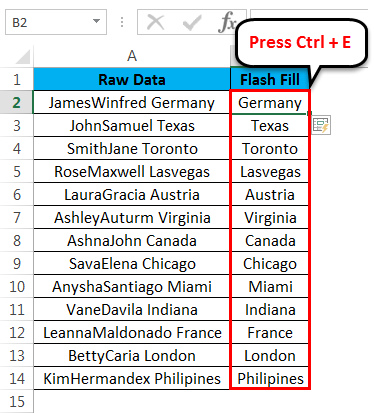
To get a comprehensive overview of what Flash Fill can do, we'll watch a video that covers several practical examples.
Excel Flash Fill For MAJOR Time Saving (7 Examples)
This video, "Excel Flash Fill For MAJOR Time Saving" from Leila Gharani, is an excellent tour of the feature's capabilities.
Please watch the following segments. As you watch, notice the different ways Flash Fill is activated and the variety of tasks it can handle: Splitting names: The most classic example. Pay attention to the limitations mentioned, such as Flash Fill not being dynamic and needing to be adjacent to the source data. Creating email addresses: This shows how Flash Fill can combine text and add new text based on a pattern. Changing text case: A quick way to clean up inconsistent capitalization. Extracting initials: A smart example of how it handles multiple words. Combining columns: The reverse of our first example, demonstrating its flexibility. Correcting a wrong pattern: This is a crucial "pro" skill. See how providing a second example helps Excel understand a more complex pattern.
Flash Fill is your go-to tool for quick, pattern-based transformations. However, it relies on being able to detect a clear pattern and sometimes your data is structured in a way that requires a more explicit, rule-based tool.
Text to Columns: The Precision Tool
When Flash Fill can't find the pattern or you need more control, the Text to Columns wizard is the answer. This tool allows you to split the contents of a cell into multiple columns based on a set of rules you define. It's a more manual process but offers greater precision.
You can find the Text to Columns feature on the Data tab, in the Data Tools group.

The wizard gives you two main options for splitting your data:
- Delimited: Use this when your data is separated by a specific character, such as a comma, space, or semicolon. For example, in "Smith,John", the comma is the delimiter.
- Fixed Width: Use this when the data in your column is arranged in fields of a specific character length, like you might find in exports from older mainframe systems.
The following video provides a clear walkthrough of how to use both methods.
The video "MS Excel - Text to Columns" from TutorialsPoint offers a straightforward demonstration of the wizard.
Watch these segments to understand the core mechanics of the tool: Splitting by a space delimiter: This covers the basic delimited option and shows how to choose a destination for your new columns, which prevents you from overwriting your original data. Using other delimiters: See how to use custom characters like the ampersand (&) or at symbol (@) to split data. Using Fixed Width: This part explains how to manually insert break lines to split data based on character position.
For a more detailed written guide with some important tips for professional use, the following article is an excellent resource.
How to split cells in Excel: Text to Columns, Flash Fill and formulas
This article from Ablebits.com provides a very thorough guide to the Text to Columns wizard.
Please read the section titled How to split cells... using Text to Columns. Pay special attention to the tips in step 4 regarding "Treat consecutive delimiters as one" and the "text qualifier". These options are crucial for handling real-world messy data, like addresses that contain commas ("New York, NY").
Choosing the Right Tool and Combining Their Power
You now have two tools for splitting data. Which one should you use?
- Use Flash Fill when the transformation is simple and pattern-based (e.g., splitting "First Last", extracting numbers from "Product-123"). It's fast, intuitive, and great for quick, one-off cleaning tasks.
- Use Text to Columns when data is structured with very consistent delimiters or is in a fixed-width format. It's more methodical and gives you more control, which is necessary when patterns are ambiguous or non-existent.
The real mark of an expert is knowing how to combine these tools to solve complex problems efficiently. For instance, you might receive data where multiple pieces of information are packed into a cell, separated by a pipe character (|).
Product: TV | ID: 1056-A | Vendor: ElectroCorp
A powerful workflow would be:
- Use Text to Columns with
|as the delimiter to do the initial, rough split into three columns. - The result might be
Product: TV,ID: 1056-A, andVendor: ElectroCorp. - Then, use Flash Fill on each of these new columns to extract just the data you need (e.g., "TV", "1056-A", "ElectroCorp"), cleaning up the labels and extra spaces in the process.
The article below provides a great summary of this combined approach.
3 Ways to Use Flash Fill and Text to Columns Like a Pro
This article from Exceldemy concludes with a powerful demonstration of combining both tools.
Please read the Bonus section. It walks through a scenario very similar to the one described above, showing how to use Text to Columns first and then Flash Fill for the final cleanup.
Conclusion
In this lesson, you've added two essential data cleaning tools to your toolkit. You've seen how to leverage Excel's pattern recognition with Flash Fill for speed, and how to use the Text to Columns wizard for precision and control. Mastering these features will save you countless hours when preparing data for analysis or reporting—a core task for any Excel freelancer.
Key Takeaways:
- Flash Fill (
Ctrl + E) is an intelligent, pattern-based tool ideal for quick splitting, combining, and reformatting of text. It learns from your examples but is not dynamic. - Text to Columns is a wizard-driven process that offers precise control for splitting data based on consistent delimiters or fixed widths.
- For complex data, the most efficient workflow often involves using Text to Columns for the initial structural split, followed by Flash Fill to refine and clean the results.
In our next lesson, we will continue to build on your data cleaning skills by exploring the Find and Replace feature. You'll learn how to use wildcards to perform powerful, targeted find-and-replace operations, giving you another way to correct and standardize messy text data at scale.