Hello! Welcome back to our module on Advanced Networking and Core Services.
In the last lesson, we focused on securing our server by building a firewall with ufw to control incoming traffic. Now, we'll shift our attention to controlling where our server sends outgoing traffic. This is managed by the kernel's routing table.
Today's lesson addresses the learning outcome: View and manage basic static routes on a Linux system. Understanding how to manipulate the routing table is a crucial skill for a DevOps engineer, especially when working in complex environments with multiple private networks, VPNs, or specific network paths that must be used to reach certain resources.
1. The Linux Routing Table: Your Server's GPS
Every time your Linux system needs to send a network packet, it consults an internal set of rules called the routing table. Think of this table as a GPS for your network traffic. For each packet, the kernel looks at the destination IP address and checks the routing table to answer the question: "What's the best way to get there?"
To understand this better, let's start with a foundational reading.
Understanding Routing in Linux: Configuring Routes and ...
The article 'Understanding Routing in Linux' provides a great introduction to the core concepts you need to know: routes, gateways, and the routing table itself.
Please read the introduction and the section 'What is Routing?', ending just before 'Viewing the Linux Routing Table'. This will define the key terminology we'll be using throughout the lesson.
As you read, focus on these key concepts:
- Route: A rule that maps a destination network to an outgoing network interface and, optionally, a gateway.
- Gateway (or Router): A device on your local network that knows how to forward traffic to other networks.
- Default Gateway: The "catch-all" gateway. If the kernel can't find a specific route for a destination, it sends the packet to the default gateway. This is how your server talks to the internet.
- Routing Table: The collection of all routes that the kernel maintains.
2. Viewing the Current Routing Table
Before you can manage routes, you need to see what's already configured. The modern command for this is part of the iproute2 suite, which you've used before.
To view the main routing table, use this command:
ip route show
You can also shorten this to just ip route.
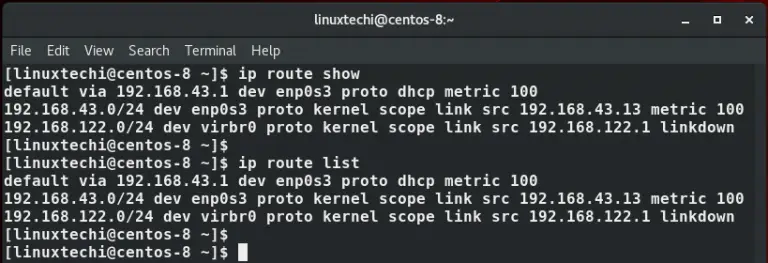
Let's break down a typical output:
default via 192.168.1.1 dev enp0s3
192.168.1.0/24 dev enp0s3 proto kernel scope link src 192.168.1.100
default via 192.168.1.1 dev enp0s3: This is the default route. It means "for any traffic that doesn't match a more specific rule, send it to the gateway at192.168.1.1using theenp0s3network interface." This is your server's path to the internet.192.168.1.0/24 dev enp0s3 ...: This is a route for the local network. It means "for any traffic destined for the192.168.1.0/24network, send it directly out of theenp0s3interface." No gateway is needed because the destination is on the same local network.
You might also encounter the older route -n command, especially in legacy scripts. It provides similar information but in a different format. While ip route is the modern standard, it's good to recognize both.
To learn more about viewing the routing table, let's consult our resources.
Understanding Routing in Linux: Configuring Routes and ...
The article 'Understanding Routing in Linux' demonstrates how to use both the modern ip route and legacy route commands to inspect the routing table.
Read the section 'Viewing the Linux Routing Table' to see examples of the output from ip route and route -n.
3. Managing Static Routes
A static route is a route that you, the administrator, add manually. This is necessary when your server needs to communicate with a network that is not on its local subnet and cannot be reached via the default gateway.
A common scenario in a business environment is accessing a separate private network, for instance, a network hosting internal databases or development tools.
Adding and Deleting Routes (Temporarily)
The ip route command is used for both adding and deleting routes. The syntax for adding a route is:
sudo ip route add {NETWORK/CIDR} via {GATEWAY_IP}
Let's imagine your server (192.168.1.100) needs to connect to a database on a private network 10.20.30.0/24. Your local network's router doesn't know about this network, but there is a special gateway at 192.168.1.254 that does.
You would add a static route like this:
sudo ip route add 10.20.30.0/24 via 192.168.1.254
Now, when your server tries to send a packet to, say, 10.20.30.55, the kernel will match this new rule and forward the packet to the 192.168.1.254 gateway.
To remove this route, you use ip route del:
sudo ip route del 10.20.30.0/24
Important: Any routes you add this way are temporary. They will be lost when the system reboots.
The following resources provide detailed syntax and examples for these commands.
ip route add network command for Linux explained
The 'ip route add network command for Linux explained' article from Cyberciti provides a concise breakdown of the command syntax, and the 'Understanding Routing in Linux' article gives clear examples.
First, read the sections 'ip route add network command examples' and 'Add a static route on Linux'. Pay close attention to the syntax and the example commands.
Understanding Routing in Linux: Configuring Routes and ...
This article also covers the commands for adding and removing routes, reinforcing what you've just read.
Quickly review the sections 'Adding and Removing Routes in Linux' and 'Configuring a Default Gateway'. This will solidify your understanding of the add and del commands.
Test your understanding!
Your DevOps team has a dedicated tools network at 172.18.0.0/16. Your server is on the 192.168.1.0/24 network. The gateway that connects these two networks has the IP address 192.168.1.10. What command would you use to allow your server to reach the tools network?
Show answer
You would use the following command:sudo ip route add 172.18.0.0/16 via 192.168.1.10
4. Making Routes Persistent
In any real-world DevOps role, you can't have your network configuration disappear after a reboot. You need to make your static routes persistent. The method for this depends on the Linux distribution and its network management tools.
On Debian/Ubuntu Systems
For older systems or those configured with /etc/network/interfaces, you can add up or post-up commands to an interface's configuration stanza. This command will be executed after the interface is brought up.
For example, in /etc/network/interfaces:
auto enp0s3
iface enp0s3 inet static
    address 192.168.1.100
    netmask 255.255.255.0
    gateway 192.168.1.1
    # Add a persistent static route
    post-up ip route add 10.20.30.0/24 via 192.168.1.254
On RHEL/CentOS Systems
On Red Hat-based systems, you typically create a dedicated route file for the interface. For an interface named eth0, you would create /etc/sysconfig/network-scripts/route-eth0.
The content of the file would be:10.20.30.0/24 via 192.168.1.254
The following reading covers these persistence methods clearly. Note that modern systems often use netplan (on Ubuntu) or NetworkManager (nmcli) (on many distributions), which have their own methods. However, understanding these file-based approaches is fundamental.
Understanding Routing in Linux: Configuring Routes and ...
Now let's learn how to save our work. This article explains how to make routes permanent on both major families of Linux distributions.
Read the section 'Persisting Routing Configurations', which covers both Debian/Ubuntu and CentOS/RHEL methods.
5. Verifying and Troubleshooting Routes
After adding a route, how do you know if it's working or being used correctly?
The ip route get command is an excellent tool for this. It tells you exactly which route the kernel will use to reach a specific IP address without actually sending any traffic.
To test our earlier example:
ip route get 10.20.30.55
The output will show you the gateway and interface that will be used, confirming your static route is being selected.
10.20.30.55 via 192.168.1.254 dev eth0 src 192.168.1.100 uid 1000
    cache
This is much faster than running a traceroute and confirms the decision part of the routing process.
ip route add network command for Linux explained
The Cyberciti article has a great section on using ip route get to verify your configuration.
Read the short section 'How to find the route used for an destination IP' to understand this useful verification command.
Conclusion
You've now learned how to inspect and control your Linux server's outbound traffic flow using static routes. This is a fundamental networking skill that moves you beyond managing a single host to configuring how that host interacts within a larger, more complex network topology.
Key Takeaways:
- The routing table is a set of rules used by the Linux kernel to determine where to send network packets.
- The
ip route showcommand is used to view the current routing table. - A default route handles all traffic not covered by a more specific route.
- Static routes are added manually with
ip route addto provide paths to specific networks. - Routes added via the command line are temporary and are lost on reboot.
- To make routes persistent, you must add them to system-specific network configuration files (e.g.,
/etc/network/interfacesor/etc/sysconfig/network-scripts/). - The
ip route get {IP}command is a powerful tool for verifying which route will be used for a given destination.
In our next and final lesson for this module, we will put all our recent networking knowledge into practice. You will set up a simple web server (Nginx) and verify network connectivity to it, applying your understanding of IP configuration, firewalls, and routing to expose a service to the network.